How to Tell If a Driver Issue Is Causing Your Computer Problems
When a computer starts freezing, crashing, or behaving unpredictably, most users assume the worst: hardware failure. In many cases, that assumption leads to unnecessary repairs, wasted money, or even replacing components that were never the problem.
In real-world diagnostics, we regularly see systems with perfectly healthy hardware suffering from poor performance, instability, or device malfunctions due to driver issues. Because drivers operate between the operating system and hardware, problems at this level can mimic serious failures—making them difficult to identify without a structured diagnostic approach.
This guide breaks down how to recognize when a driver is actually the cause of your computer problems, how to distinguish it from hardware failure, and how professional technicians confirm the difference.
Misdiagnosing a driver issue as hardware failure can lead to unnecessary part replacements. Proper diagnosis is critical before making repair decisions.
Table of Contents
Why Driver Problems Are Often Misdiagnosed
Driver-related issues are among the most commonly misdiagnosed problems in computer repair. The reason is simple: drivers control how hardware behaves, so when they fail, the symptoms often look identical to physical component failure.
For example, a faulty graphics driver can cause screen flickering, crashes, or black screens—symptoms that many users immediately associate with a failing GPU. Similarly, network driver issues can appear as intermittent connectivity problems that resemble hardware defects.
Without proper testing, it’s easy to assume that the hardware itself is damaged when, in reality, the issue lies in the software layer controlling it.
This is why professional diagnostics always separate software from hardware before making any repair decisions.
Common Symptoms That Look Like Hardware Failure
Driver issues can produce a wide range of symptoms that closely resemble hardware problems. This overlap is what makes diagnosis challenging without experience.
- System freezing or random crashes
- Blue screen errors (BSOD)
- Devices not being recognized
- Screen flickering or display artifacts
- Audio not working or cutting out
- Wi-Fi disconnecting intermittently
- Severe performance drops without clear cause

While these symptoms may indicate hardware failure, they are often triggered by corrupted, outdated, or incompatible drivers.
Tip
If multiple unrelated components (graphics, audio, network) start failing at the same time, the issue is more likely software-related than hardware.
Real Signs It’s a Driver Issue (Not Hardware)
Although symptoms can overlap, there are specific patterns that strongly indicate a driver-related problem rather than a hardware failure. Recognizing these patterns can prevent unnecessary repairs and help you focus on the real cause of the issue.
- Problems started after a system update or driver installation: Many driver issues begin immediately after Windows updates or manual driver changes
- Issues appear only under certain conditions: For example, crashes during gaming, video playback, or high-performance tasks
- The system works normally after a restart, then fails again: Temporary recovery is common with unstable drivers
- Devices work intermittently instead of failing completely: Hardware usually fails permanently, while driver issues fluctuate
- Error messages or warnings appear in Device Manager: These often point directly to driver conflicts
Another strong indicator is when performance problems affect specific tasks rather than the entire system. For example, if your computer runs normally but crashes during gaming, the issue may be related to the graphics driver rather than the GPU itself.
If you’re seeing these patterns, the next step is to properly verify and correct the drivers before assuming hardware failure. You can follow a structured process in our complete guide on how to update and troubleshoot drivers safely.
Hardware failures tend to be consistent and progressively worse. Driver issues, on the other hand, are often unpredictable and tied to specific system events.
Devices Most Affected by Driver Problems
While driver issues can affect any hardware component, certain devices are far more dependent on properly functioning drivers and are therefore more prone to problems.
The most commonly affected components include:
- Graphics cards (GPU): Performance drops, crashes, screen flickering, and driver timeouts
- Network adapters: Intermittent Wi-Fi, slow speeds, or complete disconnections
- Audio devices: No sound, distorted output, or devices not detected
- Storage controllers: Slow read/write speeds or system instability
- Chipset drivers: System-wide performance issues and poor hardware communication
These components rely heavily on drivers because they require constant communication with the operating system. When that communication breaks down, the symptoms can quickly resemble serious hardware problems.

What Causes Driver Issues in Real Systems
Driver issues rarely occur without a trigger. In most real-world cases, they are caused by changes in the system that disrupt communication between hardware and the operating system.
Understanding these causes is essential—not only to fix the issue, but to prevent it from happening again.
- Operating system updates: Windows updates can replace stable drivers with newer versions that are not fully compatible with your hardware
- Incorrect driver installations: Installing generic drivers or the wrong version for your device can create instability
- Corrupted driver files: These can result from crashes, forced shutdowns, or interrupted installations
- Driver conflicts: Multiple drivers attempting to control the same hardware component can cause unpredictable behavior
- Outdated drivers: Older drivers may not support new system updates or modern applications
- Third-party driver tools: Automatic updater software often installs incorrect or unstable drivers
One of the most common scenarios we see in real diagnostics is a system that worked perfectly until a recent update. After that update, users begin experiencing crashes, slowdowns, or device malfunctions without realizing the root cause is software-related.
Another frequent issue involves graphics drivers, where incorrect versions can cause severe instability under load. This is often misinterpreted as a failing GPU, especially when crashes occur during gaming or heavy workloads.
If you’re dealing with performance issues, it’s important to also understand how drivers impact overall system behavior. In our detailed guide on driver performance and troubleshooting, we explain how these problems develop and how to resolve them properly.
Identifying the trigger behind a driver issue is one of the most important steps in achieving a long-term fix rather than a temporary solution.
Real Case From Our Lab: When It Wasn’t a Hardware Failure
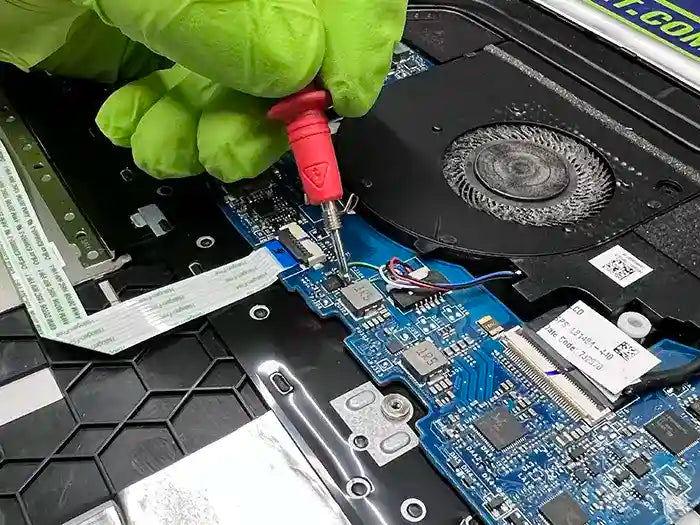
A client brought in an Alienware 15 R4 laptop reporting severe performance issues, including system freezing, random crashes, and extremely slow response times during normal use. The assumption was clear: the system was believed to have a failing GPU or storage device.
At first glance, the symptoms supported that assumption. The system would freeze under moderate load, applications would crash unexpectedly, and performance dropped significantly during gaming sessions.
However, initial hardware inspection showed no physical damage. Storage health was within normal parameters, memory passed stress testing, and thermals were stable under controlled conditions.
The turning point came during software-level diagnostics. System logs revealed repeated driver failures related to the GPU, particularly during load transitions. Further testing confirmed that the graphics driver had become corrupted following a recent system update.
Once the faulty driver was completely removed and replaced with a stable, manufacturer-approved version, the system returned to normal operation. Crashes stopped, performance stabilized, and the laptop performed as expected under stress testing.
Key Insight
In this case, what appeared to be a failing GPU was actually a corrupted driver. Without proper diagnostics, this could have led to an unnecessary and costly hardware replacement.
This type of misdiagnosis is more common than most users realize, especially in high-performance systems where driver instability can mimic serious hardware failures.
How We Confirm Driver Issues Professionally
Identifying a driver issue requires a structured diagnostic process. In professional environments, we don’t rely on assumptions—we isolate variables to determine whether the problem originates from software or hardware.
The first step is to establish a baseline. We verify system stability, check hardware health, and monitor temperatures to rule out obvious physical failures. This ensures that we are not overlooking underlying hardware problems.
Once hardware integrity is confirmed, we move into software-level diagnostics. This includes reviewing system logs, analyzing error reports, and identifying patterns related to specific devices or drivers.
- Device Manager analysis: Checking for warning indicators, disabled devices, or driver conflicts
- Event Viewer logs: Identifying recurring driver-related errors or system-level failures
- Driver version validation: Comparing installed drivers with manufacturer-recommended versions
- Controlled driver reinstallation: Removing corrupted drivers and installing clean, stable versions
- Stress testing: Verifying system stability under load after driver corrections

This process allows us to confirm whether the issue is software-related before considering any hardware replacement. In many cases, resolving driver conflicts restores full system performance without the need for new components.
Professional diagnostics focus on isolating the root cause—not just reacting to symptoms. This is what prevents unnecessary repairs and ensures accurate solutions.
When It’s NOT a Driver Problem
While driver issues are common, not every system problem originates from software. In some cases, the symptoms may appear similar, but the root cause is a physical hardware failure that requires a different approach.
Understanding when a problem is not driver-related is just as important as identifying when it is. This distinction prevents wasted time on software fixes when the issue requires hardware repair or replacement.
- Consistent crashes under any condition: If the system fails the same way every time, even after reinstalling drivers, hardware failure is more likely
- No device detection at all: If a component is completely unrecognized by the system, it may be physically damaged or disconnected
- Overheating and thermal shutdowns: Hardware cooling issues will persist regardless of driver changes
- Physical damage or wear: Burn marks, liquid damage, or worn components clearly indicate hardware problems
- Failures during hardware-level testing: If stress tests fail even with stable drivers, the issue is likely physical
In these situations, continuing to troubleshoot drivers will not resolve the problem. A proper hardware diagnosis is required to identify the failing component and determine the best repair solution.
Accurate diagnosis always involves eliminating both possibilities—software and hardware—before making a final decision.
What to Do Next
If your system is showing signs of instability, crashes, or performance issues, the next step is not to replace hardware—it’s to confirm whether a driver problem is involved.
Start by identifying when the issue began. If it appeared after a system update, driver installation, or software change, there’s a strong possibility that a driver is responsible.
From there, the most effective approach is to properly update, reinstall, or correct the affected drivers using a structured method. This is where most users make mistakes—installing incorrect versions or relying on automatic updates that create further conflicts.
To avoid those issues, follow a complete, step-by-step guide on how to safely update and troubleshoot drivers:
Need Help Fixing Driver Issues the Right Way?
Follow our complete guide to properly update, troubleshoot, and stabilize your system without risking further problems.
Read the Full Driver GuideIf the problem persists after proper driver troubleshooting, then it’s time to move into deeper diagnostics to determine whether hardware is involved.
Get a Professional Diagnosis Before Replacing Any Hardware
Computer problems are often more complex than they appear. What looks like a failing component can often be traced back to a driver issue, a software conflict, or a misconfiguration that can be resolved without replacing hardware.
Without proper diagnostics, it’s easy to spend money on unnecessary parts or overlook the real cause of the problem. This is why a structured, professional evaluation is critical before making any repair decisions.
At Prime Tech Support, we use a proven diagnostic process to accurately identify whether your issue is caused by drivers, software, or hardware. This allows us to recommend the right solution the first time—saving you time, cost, and frustration.
Not Sure What’s Causing Your Computer Problems?
Get a professional diagnostic and avoid unnecessary repairs. We’ll identify the exact cause and recommend the most effective solution.
Schedule a Diagnostic ServiceWhether the issue is a simple driver fix or a deeper hardware problem, accurate diagnosis is always the first step toward a reliable and lasting solution.

PROFESSIONAL SUPPORT
Computer Repairs
Fast tech support for Computer Repairs. We exceed customer expectations and ensure satisfaction.

Computer Repairs Blog by Techs in Miami
Ver todo-

Not sure if your computer problem is hardware or software? Learn how to identify driver issues, avoid misdiagnosis, and fix...
How to Tell If a Driver Issue Is Causing Your Computer Problems
Not sure if your computer problem is hardware or software? Learn how to identify driver issues, avoid misdiagnosis, and fix...
-

Driver issues are one of the most common causes of laptop slowdowns, crashes, and hardware malfunctions. This guide explains how...
The Role of Drivers in Laptop Performance: How to Diagnose, Up...
Driver issues are one of the most common causes of laptop slowdowns, crashes, and hardware malfunctions. This guide explains how...
-
Elimine los errores de pantalla azul con PrimeTech Support en Miami. Las soluciones de TI expertas y las piezas de...
Supere los errores de pantalla azul de su PC de escritorio: so...
Elimine los errores de pantalla azul con PrimeTech Support en Miami. Las soluciones de TI expertas y las piezas de...