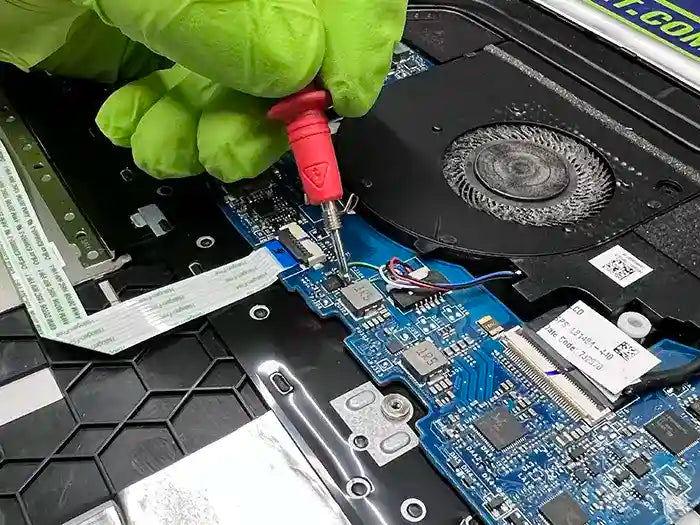
How to Tell If Your Computer Motherboard Is Failing: Signs, Diagnosis & What to Do
comA failing motherboard can cause some of the most confusing computer problems to diagnose. A system may refuse to start, shut down unexpectedly, stop detecting certain components, lose USB connectivity, or behave inconsistently even though the RAM, graphics card, storage drive, and power supply appear to be working normally.
The difficulty is that motherboard failure often looks like a problem with another component. A computer that does not display an image may appear to have a bad graphics card. Random restarts may point toward the power supply. Memory errors can make the RAM seem defective. In some cases, Windows instability can even make a hardware problem look like a software issue.
That is why replacing parts based only on symptoms can become expensive without actually solving the problem. Proper motherboard diagnosis involves looking at how the computer behaves during startup, checking power delivery, testing components individually, examining BIOS or POST behavior, and ruling out other hardware before concluding that the motherboard itself has failed.
At Prime Tech Support, we diagnose desktop computers with startup failures, intermittent hardware problems, unexplained shutdowns, and other symptoms where the motherboard may be involved. In this guide, we’ll explain the warning signs of a failing motherboard,moco what can cause motherboard problems, how technicians isolate the fault, and when repair or replacement makes the most sense.
Table of Contents
What Does a Motherboard Do in a Computer?
The motherboard is the main circuit board that connects and coordinates nearly every major component inside a computer. The processor, RAM, graphics card, storage devices, power supply, USB devices, cooling controls, and other hardware all depend on connections or circuitry located on the motherboard.
Rather than simply holding these components in place, the motherboard provides the pathways that allow them to receive power and communicate with one another. It also contains important controllers, voltage-regulation components, firmware, and expansion interfaces that help the computer initialize hardware and operate correctly.
The Motherboard Plays a Critical Role During Startup
When you press the computer's power button, several things must happen before Windows or another operating system can begin loading. The motherboard receives power from the power supply, initializes the processor and memory, detects connected hardware, and begins the startup checks required for the system to continue booting.
This is one reason motherboard problems can produce such a wide range of symptoms. A failure in one circuit or connection does not always cause the entire computer to stop working. Instead, the system might power on but fail to boot, lose access to certain ports, stop detecting RAM or storage devices, restart unexpectedly, or work intermittently.
A Partially Working Motherboard Can Still Be Faulty
A common misconception is that a motherboard must be completely dead to be defective. In practice, motherboard faults can affect only part of the board.
For example, a computer may still turn on even if a memory channel, PCIe slot, USB controller, storage interface, or part of the power-delivery circuitry is malfunctioning. Other failures may appear only under load or after the computer reaches a certain temperature.
This makes motherboard diagnosis different from simply checking whether the computer receives power. Fans spinning and lights turning on do not prove that the motherboard is functioning correctly. The system still needs to initialize and communicate with its hardware reliably.
Common Signs of a Failing Motherboard
Motherboard problems do not always produce one obvious warning sign. Depending on which circuit, controller, slot, or power-delivery component is affected, the symptoms can range from a completely unresponsive computer to intermittent problems that appear only occasionally.
The following symptoms can indicate a motherboard problem, especially when other components have already been tested and ruled out.
1. The Computer Does Not Power On
If pressing the power button produces no response, the motherboard may not be receiving or distributing power correctly. However, a failed power supply, damaged power button, loose connection, or electrical problem can cause the same symptom.
For that reason, a computer that will not turn on should not automatically be diagnosed as having a bad motherboard. Power delivery needs to be tested first.
2. The Computer Powers On but Does Not Boot
In some cases, fans spin and LEDs illuminate, but the computer never completes its startup process. There may be no display, no normal POST behavior, or the system may repeatedly attempt to start.
This can happen when the motherboard cannot properly initialize the CPU, RAM, graphics hardware, or another essential component. Faulty RAM, a graphics card problem, CPU issues, or an inadequate power supply can produce similar behavior, so further testing is required.
3. Random Shutdowns, Restarts, or Intermittent Startup Problems
A motherboard with unstable power delivery or damaged circuitry may cause a computer to shut down, restart, or fail unpredictably. The system might work normally for hours and then suddenly become unstable, or it may start successfully on one attempt and fail on the next.
Intermittent symptoms are particularly important because they can also be caused by overheating, a failing power supply, unstable RAM, or other hardware problems.
4. RAM Is Not Detected Correctly
If known-good memory works in one slot but consistently fails in another, the problem may be related to a motherboard DIMM slot, memory channel, socket connection, or associated circuitry rather than the RAM module itself.
Other warning signs include the computer detecting less memory than is physically installed or becoming unstable only when particular memory slots are populated.
5. USB Ports or Other Integrated Features Stop Working
Multiple USB ports, onboard audio, Ethernet, Wi-Fi, SATA connections, or other motherboard-controlled features can stop functioning when a controller or section of the board develops a fault.
A single malfunctioning USB device does not indicate motherboard failure. The concern becomes greater when several onboard functions fail, remain unreliable after driver troubleshooting, or stop working across different operating systems or known-good devices.
6. Graphics Cards or Expansion Devices Are Not Detected
A graphics card or other PCIe device that works correctly in another computer but is not detected in a particular system may point toward a damaged PCIe slot, motherboard circuitry, BIOS configuration problem, or power-delivery issue.
Testing with known-good components is important before assuming that either the motherboard or expansion device has failed.
7. Storage Drives Disappear or Are Detected Intermittently
Drives that repeatedly disappear from the BIOS or operating system can sometimes indicate problems with SATA ports, M.2 slots, motherboard controllers, or related circuitry. Before blaming the motherboard, technicians also check the drive itself, cables, power connections, and storage health.
Technician Tip: A motherboard should rarely be diagnosed from one symptom alone. The strongest evidence usually comes from a pattern of failures combined with systematic testing using known-good components. Replacing the motherboard before ruling out the power supply, RAM, GPU, storage, and other likely causes can result in an expensive repair that does not solve the original problem.
Is It the Motherboard or Another Component?
One of the biggest challenges when diagnosing a motherboard is that many of its symptoms can also be caused by other computer components. A system that will not boot could have a motherboard problem, but it could just as easily have faulty RAM, an unstable power supply, a graphics problem, or another hardware failure.
Before replacing a motherboard, technicians normally isolate these possibilities and look for evidence that points specifically toward the board.
Motherboard vs. Power Supply
A failing power supply can cause no-power conditions, random shutdowns, restarts, startup failures, and instability under load. These symptoms can closely resemble motherboard failure.
The fact that fans or LEDs turn on does not necessarily prove that the power supply is healthy. A PSU can still provide enough power for lights and fans while failing to maintain the voltages required by the CPU, GPU, or motherboard under load.
If your computer does not start at all, begin with the broader troubleshooting steps in our guide to computer power and startup problems before assuming the motherboard has failed.
Motherboard vs. RAM
Bad or unstable RAM can prevent a computer from booting, cause freezes and crashes, produce memory-related errors, or create seemingly random instability.
Technicians may test each memory module individually, try known-good RAM, and test different DIMM slots. If the same RAM works reliably in certain slots but repeatedly fails in another, the investigation may shift toward the motherboard, CPU socket, or memory-channel circuitry.
Motherboard vs. Graphics Card
A black screen or no-signal condition can make a motherboard look defective when the actual problem is the graphics card, display cable, monitor, PCIe power connection, or video output being used.
A known-good graphics card, integrated graphics when available, and testing different display connections can help isolate the problem. If multiple known-good graphics devices fail in the same PCIe slot or system, motherboard-related causes become more likely.
Motherboard vs. Storage Drive
A failing SSD or hard drive can cause slow booting, freezing, corrupted files, startup errors, or an operating system that will not load. These problems happen after the computer has already passed at least part of its hardware initialization, so they should not immediately be treated as motherboard failure.
Our HDD vs. SSD performance guide explains how storage technology affects computer responsiveness and why drive-related performance problems can sometimes be mistaken for broader hardware issues.
Motherboard vs. Overheating
Excessive CPU or GPU temperatures can cause performance drops, freezing, sudden shutdowns, and restarts. A computer that becomes unstable primarily after warming up or during demanding workloads should therefore be checked for cooling problems before the motherboard is condemned.
Motherboard vs. Windows or Driver Problems
Not every unstable computer has a hardware failure. Corrupted drivers, incompatible updates, damaged system files, and software conflicts can cause crashes, missing devices, poor performance, and other symptoms that appear hardware-related.
For example, if a device is detected correctly by the motherboard but stops functioning after Windows loads, software or driver troubleshooting may be appropriate. Our driver troubleshooting guide explains how driver problems can affect hardware behavior and system stability.
Quick Comparison: What the Symptoms May Point To
| Symptom | Possible Causes | What Helps Isolate the Problem |
|---|---|---|
| No power | PSU, motherboard, power button, connections | Verify power connections and test with a known-good PSU |
| Powers on but will not boot | RAM, GPU, CPU, motherboard, PSU | Minimal-hardware testing and known-good components |
| Random restarts or shutdowns | PSU, overheating, RAM, motherboard | Temperature, memory, power, and stability testing |
| RAM works only in certain slots | DIMM slot, motherboard, CPU socket, memory controller | Test modules individually across multiple slots |
| Multiple onboard ports fail | Motherboard controller, BIOS, drivers | Test known-good devices and rule out software issues |
| GPU is not detected | GPU, PCIe slot, PSU, motherboard | Test another GPU or another compatible system |
| Drive disappears intermittently | Drive, cable, M.2/SATA connection, motherboard | Check drive health and test another port or known-good drive |
The key is not finding a symptom that could indicate motherboard failure. It is determining whether the symptom remains after the other realistic causes have been eliminated. A motherboard diagnosis becomes much more reliable when multiple tests point back to the board rather than a single component.
What Causes a Computer Motherboard to Fail?
Motherboards can fail suddenly or develop problems gradually over time. Because a motherboard contains power-delivery circuits, controllers, connectors, firmware, and thousands of electrical connections, failure can originate from several different areas of the board.
Understanding what caused the problem can also be important before installing a replacement motherboard. If an unstable power supply, liquid contamination, or another electrical issue caused the original damage, replacing the board without correcting the underlying problem could put the replacement at risk.
Power Surges and Electrical Problems
Voltage spikes, unstable electrical power, failing power supplies, and improper power connections can damage sensitive motherboard circuitry. Depending on the severity of the event, the computer may stop working immediately or develop intermittent problems afterward.
Damage is not always visibly obvious. A motherboard can have an electrical fault even when there are no burned components or clearly damaged areas on the board.
A Failing or Unstable Power Supply
The power supply provides the voltages used by the motherboard and the components connected to it. If those voltages become unstable or fall outside acceptable operating conditions, the computer can experience shutdowns, startup failures, crashes, or potentially hardware damage.
This is one reason technicians should evaluate the PSU when diagnosing suspected motherboard failure rather than replacing the motherboard in isolation.
Overheating and Long-Term Thermal Stress
Heat affects more than the CPU and graphics card. Motherboard voltage-regulation components, chipsets, connectors, and surrounding circuitry also operate within temperature limits.
Poor airflow, heavy dust accumulation, failed fans, or prolonged operation at elevated temperatures can place additional thermal stress on components over time. Repeated heating and cooling cycles may also contribute to the deterioration of electrical connections and components as a system ages.
Liquid Spills and Corrosion
Liquid exposure can cause immediate electrical shorts, but some motherboard problems appear later as corrosion develops around components, connectors, or conductive traces.
Even after a computer appears to dry and begins working again, residue left behind by the liquid can continue affecting electrical connections. Powering on a system after liquid exposure can also increase the risk of additional damage.
Physical Damage During Installation or Repair
Motherboards can be damaged while installing CPUs, RAM, graphics cards, storage devices, coolers, or other components. Bent CPU socket pins, damaged connectors, scratched circuit traces, excessive motherboard flex, misplaced case standoffs, and improper cable connections can all create hardware problems.
Some installation-related faults appear immediately, while others produce intermittent behavior that makes the cause more difficult to identify.
BIOS or Firmware Problems
The motherboard depends on firmware to initialize hardware during startup. A failed BIOS update, corrupted firmware, incorrect configuration, or compatibility problem can prevent a computer from booting normally even when the physical motherboard circuitry is still functional.
This distinction matters because a firmware problem does not necessarily mean the motherboard needs to be replaced. Depending on the board and the type of failure, resetting the BIOS, using a recovery feature, or properly reflashing the firmware may restore operation.
Component Aging and Electrical Wear
Like other electronic hardware, motherboard components can deteriorate with age and repeated use. Capacitors, voltage-regulation components, controllers, solder connections, and other circuitry can eventually become unstable or fail.
Age alone does not prove that a motherboard is defective, but an older board showing multiple unexplained hardware problems deserves closer inspection once other likely causes have been ruled out.
Static Electricity and Improper Handling
Electrostatic discharge can damage sensitive electronic components during installation or repair. The damage may cause an immediate failure or, in some cases, contribute to unreliable behavior that is difficult to trace.
Using proper handling procedures, disconnecting power before working inside the computer, and avoiding unnecessary contact with exposed circuitry can reduce this risk.
Because motherboard failure can have several causes, finding the underlying reason is often just as important as identifying the failed board itself. A proper diagnosis helps determine whether the motherboard is actually defective and whether another component or environmental condition contributed to the failure.
How Technicians Diagnose a Bad Motherboard
There is no single test that proves every motherboard is good or bad. Professional diagnosis is usually a process of elimination combined with electrical checks, visual inspection, startup behavior, and testing with known-good components.
The goal is to determine whether the motherboard itself is causing the failure or whether another component connected to it is preventing the system from operating normally.
1. Inspect the Motherboard and Connections
Diagnosis often begins with a physical inspection. The technician checks power connectors, RAM seating, graphics card installation, storage connections, CPU socket condition, fan headers, and other internal connections that could prevent normal operation.
The board may also be inspected for signs of liquid exposure, corrosion, damaged connectors, burned areas, cracked components, bent socket pins, or other physical damage. However, a motherboard can still be electrically defective even when it looks completely normal.
2. Verify Power Delivery
Before blaming the motherboard, the power supply and its connections need to be evaluated. Technicians verify that the required motherboard and CPU power connections are present and may test the system with a known-good power supply when necessary.
This step is critical because unstable or missing power can imitate motherboard failure. Fans spinning or RGB lighting turning on only confirms that some power is reaching the system; it does not confirm that every required voltage is present and stable.
3. Reduce the Computer to Minimum Hardware
When a system will not boot or complete POST, technicians may disconnect nonessential hardware and test the computer with only the components required for startup.
This can mean testing with the motherboard, CPU, CPU cooler, one RAM module, power supply, and graphics output when required. Storage drives, USB devices, expansion cards, and other peripherals can be temporarily removed from the diagnostic equation.
If the computer begins operating after a particular component is disconnected, that provides an important clue about where the fault may be located.
4. Test RAM Modules and Memory Slots
Memory is tested systematically rather than simply reseated once. A technician may test one module at a time, use different DIMM slots, and substitute known-good compatible RAM.
This helps separate a defective memory module from a motherboard slot or memory-channel problem. If known-good RAM repeatedly works in one slot but fails in another, further investigation of the motherboard, CPU socket, and memory channel may be necessary.
5. Check POST Behavior and Diagnostic Indicators
Many motherboards provide information about where startup is failing through beep codes, diagnostic LEDs, POST indicators, or numerical debug codes. These indicators can help narrow the investigation toward the CPU, memory, graphics hardware, or another stage of initialization.
Diagnostic codes are clues rather than automatic proof that the component named by the code has failed. For example, a memory-related indicator can sometimes result from the motherboard, CPU socket, memory controller, or RAM itself.
6. Test Known-Good Components
One of the most useful diagnostic techniques is substitution testing. A technician may use a known-good power supply, RAM module, graphics card, or other compatible component to determine whether the original hardware is responsible for the failure.
If several known-good components produce the same failure in the suspect system, the evidence begins to point more strongly toward the motherboard or another component that has not yet been eliminated.
7. Reset and Evaluate the BIOS
Incorrect BIOS settings can sometimes prevent a computer from starting normally. Clearing CMOS and restoring appropriate default settings can help determine whether configuration rather than physical board failure is responsible.
When firmware corruption or an unsuccessful BIOS update is suspected, technicians may also evaluate whether the motherboard supports a recovery or BIOS flash procedure. Firmware recovery should be performed carefully because an interrupted or incorrect flash can create additional problems.
8. Test Outside the Case When Necessary
In difficult cases, a motherboard may be tested outside the computer case using a controlled bench setup. This can help rule out problems such as an incorrect standoff, chassis contact, damaged front-panel wiring, or another condition causing an electrical short.
Bench testing also gives the technician easier access to components and test points while reducing the system to the minimum hardware required for diagnosis.
9. Perform Board-Level Electrical Diagnosis When Appropriate
If standard component testing points toward the motherboard, more advanced diagnosis may involve checking voltage rails, power stages, shorts, damaged components, or other board-level electrical conditions.
This type of testing requires appropriate equipment and electronics knowledge. It is different from simply swapping components until the computer starts working and can help determine whether a motherboard is repairable or should be replaced.
A reliable motherboard diagnosis comes from evidence collected across several tests. When power, RAM, graphics, connected devices, configuration, and other likely causes have been systematically eliminated, technicians can make a much stronger determination about whether the motherboard itself is responsible.
Not sure whether the motherboard is actually the problem? Prime Tech Support can diagnose desktop hardware failures and isolate the defective component before you spend money replacing parts unnecessarily. Professional testing is especially useful when a computer has multiple symptoms or continues failing after basic troubleshooting.
Can a Failing Motherboard Be Repaired?
Yes, some failing motherboards can be repaired, but whether repair makes sense depends on the type of failure, the condition of the board, the availability of replacement components, and the value and age of the computer.
A motherboard problem does not automatically mean the entire board must be replaced. Certain electrical and physical faults can sometimes be isolated and repaired at the board level. Other failures are more practical or economical to resolve by replacing the motherboard.
When Board-Level Motherboard Repair May Be Possible
Board-level repair focuses on identifying the specific area or component responsible for the failure rather than replacing the entire motherboard immediately.
Depending on the motherboard and the damage involved, repair may be possible for problems such as damaged power circuitry, certain failed electronic components, damaged connectors, corrupted firmware, or localized electrical faults.
The feasibility of the repair depends heavily on the board design and the extent of the damage. A fault that can be isolated to one repairable section is very different from widespread damage affecting multiple layers or circuits of the motherboard.
When Motherboard Replacement Makes More Sense
Replacement may be the better option when the motherboard has extensive electrical damage, severe corrosion, major physical damage, multiple unrelated failures, or a fault that cannot be repaired reliably.
The age of the platform also matters. On an older computer, investing heavily in motherboard repair may not make sense if the system uses outdated components and a replacement board or platform upgrade provides better long-term value.
For newer, higher-end, specialized, or difficult-to-replace systems, however, diagnosing the board before replacing it can be particularly worthwhile.
Repair Cost Should Be Compared With the Value of the Computer
The cheapest repair is not always the option with the lowest initial price. A replacement motherboard may require a compatible socket, chipset, memory generation, case form factor, and other platform-specific features. On some systems, replacing the board can also lead to additional upgrades if compatible parts are no longer readily available.
A proper diagnosis allows the repair decision to be based on the actual failure rather than speculation. The technician can compare the expected repair cost, replacement options, system age, hardware specifications, and likelihood of reliable long-term operation.
Do Not Replace the Motherboard Before Identifying the Cause
This is particularly important when electrical damage is suspected. If a defective power supply or another connected component contributed to the motherboard failure, installing a replacement board without addressing the original cause can put the new hardware at risk.
The same principle applies when the motherboard is not actually defective. Replacing an expensive board will not solve a problem caused by RAM, the graphics card, the power supply, overheating, or another component.
If testing confirms that the motherboard is responsible, Prime Tech Support offers desktop computer motherboard repair and diagnostic services to determine whether board-level repair or motherboard replacement is the more appropriate solution.
How to Reduce the Risk of Motherboard Damage
Not every motherboard failure is preventable. Electronic components can eventually fail even in a properly maintained computer. However, good power, cooling, maintenance, and handling practices can reduce several common sources of motherboard damage.
Use a Reliable, Properly Sized Power Supply
The power supply is directly responsible for delivering power to the motherboard, CPU, graphics card, storage devices, and other components. A poor-quality, failing, or improperly sized PSU can contribute to instability and place unnecessary stress on the system.
When upgrading a graphics card or other power-hungry hardware, verify that the PSU has sufficient capacity and the correct power connections rather than assuming the existing unit is adequate.
Protect the Computer From Electrical Problems
A quality surge protector can help protect a computer from certain voltage spikes. In environments where outages, brownouts, or unstable utility power are common, an appropriate uninterruptible power supply (UPS) can provide additional protection and allow the computer to shut down properly during a power interruption.
No consumer protection device can guarantee that hardware will survive every electrical event, but proper power protection can reduce unnecessary exposure to electrical problems.
Keep the Cooling System Clean
Dust accumulation can restrict airflow through the case, CPU cooler, graphics card, power supply, and surrounding motherboard components. As airflow decreases, internal operating temperatures can rise.
Periodic internal cleaning and checking that case and CPU fans are operating correctly can help maintain appropriate temperatures and reduce long-term thermal stress.
Avoid Repeatedly Running a Computer That Is Overheating
If the computer begins shutting down under load, running unusually hot, or showing other signs of thermal problems, continuing to use it heavily without identifying the cause can place additional stress on the hardware.
Cooling problems should be corrected rather than repeatedly restarting the computer and continuing normal use.
Handle Internal Components Carefully
Disconnect the computer from power before installing or removing internal hardware. Components should be handled carefully to reduce the risk of electrostatic discharge, damaged connectors, scratched traces, bent CPU socket pins, or excessive pressure on the motherboard.
Extra care is particularly important when installing large graphics cards, CPU coolers, RAM, and power connectors because these components can require physical pressure during installation.
Be Careful With BIOS Updates
BIOS updates can provide compatibility improvements, security fixes, and other important changes, but they should be performed for a clear reason and according to the motherboard manufacturer's instructions.
Using firmware intended for a different motherboard revision or interrupting an update can prevent the system from starting correctly. If the computer is already unstable, the underlying problem should be evaluated before attempting a firmware update.
Investigate New Hardware Problems Early
Intermittent USB failures, unexplained restarts, devices disappearing, startup problems, or other unusual behavior should not always be ignored simply because the computer eventually begins working again.
These symptoms do not necessarily indicate motherboard failure, but diagnosing recurring problems early can help identify a failing power supply, cooling problem, loose connection, or another condition before it causes additional instability or damage.
Good maintenance cannot make a motherboard last forever, but it can reduce avoidable electrical, thermal, and physical stress on the system. More importantly, addressing abnormal behavior early can prevent a relatively small problem from developing into a more expensive repair.
When to Get Professional Motherboard Diagnosis
Basic checks such as verifying cables, reseating accessible components, disconnecting unnecessary peripherals, or resetting BIOS settings can sometimes resolve straightforward problems. However, motherboard diagnosis becomes more difficult once the obvious causes have been eliminated.
Professional diagnosis is worth considering when the computer continues to show hardware-related symptoms despite basic troubleshooting, particularly when several different components appear to be affected.
The Computer Still Will Not Boot After Basic Troubleshooting
If the power supply, RAM, graphics hardware, connections, and other common causes have been checked but the computer still cannot complete startup, further testing may be required to determine whether the motherboard, CPU, or another component is responsible.
Multiple Hardware Functions Are Failing
A single failed USB port or one unstable device does not necessarily indicate a bad motherboard. However, problems affecting several onboard functions at the same time—such as USB ports, storage connections, networking, memory detection, or PCIe devices—can justify a closer motherboard evaluation.
The Problem Is Intermittent and Difficult to Reproduce
Intermittent failures are often harder to diagnose than a completely dead computer. A system may restart randomly, occasionally fail to detect hardware, refuse to boot when cold, or become unstable only after operating for a period of time.
These cases may require repeated testing, temperature monitoring, known-good components, or electrical measurements to isolate the actual source of the failure.
There Are Signs of Electrical or Liquid Damage
If the computer experienced a power event, liquid spill, burning smell, visible corrosion, or other potential electrical damage, repeatedly attempting to power it on is not recommended. Additional power-on attempts can sometimes worsen an existing fault.
A technician can inspect the system and determine whether the damage is limited to the motherboard or whether the power supply, storage devices, graphics card, or other components may also have been affected.
You Are About to Buy an Expensive Replacement Motherboard
Motherboards can be expensive, and compatibility becomes increasingly complicated on older systems. Before purchasing a replacement, it is often worth confirming that the motherboard is actually responsible for the problem.
A proper diagnosis can prevent unnecessary parts replacement and help determine whether motherboard repair, motherboard replacement, or a broader system upgrade provides the better value.
At Prime Tech Support, we can perform desktop motherboard diagnosis and repair when the source of a hardware problem is unclear or motherboard failure is suspected. The objective is to identify the actual fault first and then determine the most practical repair path.
Final Thoughts
A failing motherboard can cause everything from startup failures and random restarts to missing RAM, disappearing storage devices, malfunctioning USB ports, and graphics detection problems. The challenge is that nearly all of these symptoms can also be caused by other components.
That is why motherboard diagnosis should be based on systematic testing rather than a single symptom. Checking the power supply, RAM, graphics hardware, storage devices, cooling system, BIOS configuration, and connected peripherals can help eliminate other possibilities before the motherboard is considered defective.
When testing consistently points back to the board, the next decision is whether the motherboard can be repaired or whether replacement makes more sense. The right choice depends on the specific failure, the age and value of the computer, component compatibility, and the cost of restoring the system reliably.
Most importantly, avoid replacing an expensive motherboard until the actual source of the problem has been confirmed. Proper diagnosis can prevent unnecessary parts replacement and may reveal a repairable fault or another component responsible for the symptoms.
Think Your Computer Has a Motherboard Problem?
If your desktop will not boot, shuts down unexpectedly, stops detecting hardware, or continues having unexplained problems after basic troubleshooting, Prime Tech Support can help identify the actual cause.
Our technicians diagnose motherboard and desktop hardware problems to determine whether the issue is caused by the motherboard, power supply, RAM, graphics card, storage, or another component. If the motherboard is responsible, we can evaluate whether repair or replacement is the better option.

PROFESSIONAL SUPPORT
Computer Repairs
Fast tech support for Computer Repairs. We exceed customer expectations and ensure satisfaction.

Computer Repairs Blog by Techs in Miami
Ver todo-

A failing motherboard can cause startup problems, random restarts, missing hardware, USB failures, and other confusing symptoms. Learn how motherboard...
How to Tell If Your Computer Motherboard Is Failing: Signs, Di...
A failing motherboard can cause startup problems, random restarts, missing hardware, USB failures, and other confusing symptoms. Learn how motherboard...
-

Computer won’t turn on, shows a black screen, or fails to boot into Windows? Learn how power, RAM, storage, motherboard,...
Why Won’t My Computer Turn On? How to Diagnose Power and Start...
Computer won’t turn on, shows a black screen, or fails to boot into Windows? Learn how power, RAM, storage, motherboard,...
-

If your computer keeps crashing, restarting, shutting down, or displaying blue screens, the cause may be hardware, software, overheating, memory,...
Why Does My Computer Keep Crashing or Restarting? How to Find ...
If your computer keeps crashing, restarting, shutting down, or displaying blue screens, the cause may be hardware, software, overheating, memory,...