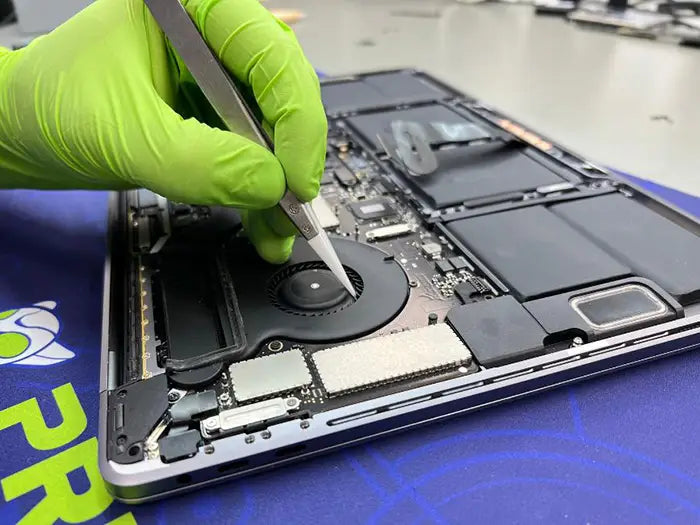
MacBook SSD Upgrade: Can Your Model Be Upgraded—and Is It Worth It?
A MacBook SSD upgrade is possible on certain older MacBook Pro and MacBook Air models that use removable SATA drives or proprietary blade storage. Most newer MacBooks use NAND storage attached directly to the logic board, which means they cannot receive a conventional internal capacity upgrade. The exact model—not the release year alone—determines what is possible.
This guide explains how to identify your MacBook, check whether its storage can be replaced, understand why soldered storage changes the answer, and decide whether an internal upgrade, external SSD, repair, or replacement offers the best value.
Table of Contents
Can You Upgrade the SSD in a MacBook?
Some MacBooks contain a separate storage component that can be disconnected and replaced. Others use NAND flash storage attached directly to the logic board.
A removable drive may be replaced with a larger compatible drive. Soldered NAND does not provide a complete SSD module that a technician can unplug and exchange during a conventional upgrade.
This distinction matters because the term “SSD” describes the storage technology. It does not tell you whether the storage is physically removable.
What “MacBook SSD upgrade” can mean
MacBook owners commonly use the phrase to describe three different situations:
- Replacing a mechanical hard drive with a SATA SSD. This applies mainly to older non-Retina MacBook Pro models. Because the original drive contains moving parts, replacing it with solid-state storage can noticeably improve startup, application loading, and file access.
- Replacing a removable Apple blade SSD with a larger compatible module. This applies to certain Retina MacBook Pro and older MacBook Air models. The primary benefit is usually additional capacity because the original storage is already solid-state.
- Trying to increase the capacity of a MacBook with soldered storage. This applies to most newer Intel MacBooks and Apple-silicon models. There is no separate SSD module to replace, so a routine internal capacity upgrade is not available.
Before comparing drives or requesting a quote, determine which of these situations applies to your MacBook.
How to Identify Your Exact MacBook Model
Open the Apple menu and choose About This Mac. Record the model name, screen size, release year, and whether the Mac uses an Intel processor or Apple silicon.
Next, open System Information and locate the model identifier in the Hardware overview. A model identifier may look like MacBookPro14,1 or MacBookAir7,2.
Apple explains the available identification methods in its guide to finding your Mac model name and serial number.
The model identifier is more reliable than the release year. Apple sometimes sold MacBooks with different storage designs during the same period.
The 13-inch MacBook Pro from 2016 and 2017 is the clearest example. The non-Touch Bar configuration retained removable storage, while the Touch Bar configuration did not. A replacement drive intended for one version does not create an upgrade path for the other.
Important: Do not purchase an SSD, adapter, or replacement module based only on a description such as “2017 MacBook Pro.” Confirm the model identifier first.
How to Identify Your Exact MacBook Model
Open the Apple menu and choose About This Mac. Record the model name, screen size, release year, and whether the Mac uses an Intel processor or Apple silicon.
Next, open System Information and locate the model identifier in the Hardware overview. A model identifier may look like MacBookPro14,1 or MacBookAir7,2.
Apple explains the available identification methods in its guide to finding your Mac model name and serial number.
The model identifier is more reliable than the release year. Apple sometimes sold MacBooks with different storage designs during the same period.
The 13-inch MacBook Pro from 2016 and 2017 is the clearest example. The non-Touch Bar configuration retained removable storage, while the Touch Bar configuration did not. A replacement drive intended for one version does not create an upgrade path for the other.
Important: Do not purchase an SSD, adapter, or replacement module based only on a description such as “2017 MacBook Pro.” Confirm the model identifier first.
MacBook SSD Upgradeability by Model
The following matrix summarizes the main MacBook storage designs. It is an eligibility guide, not a substitute for verifying the exact connector, firmware requirements, supported capacity, macOS compatibility, and overall condition of the MacBook.
| MacBook Family | Storage Design | Conventional Internal Upgrade? | Important Requirement |
|---|---|---|---|
| Non-Retina MacBook Pro through Mid 2012 | Removable 2.5-inch SATA drive | Generally yes | Check the SATA cable, macOS support, battery, and overall repair value |
| Retina MacBook Pro, 2012–2015 | Removable proprietary blade SSD | Yes, with a compatible module | Match the drive or adapter to the exact model |
| 13-inch MacBook Pro, non-Touch Bar, 2016–2017 | Removable proprietary storage | Limited exception | Confirm MacBookPro13,1 or MacBookPro14,1 |
| Intel Touch Bar MacBook Pro, 2016–2017 | NAND attached to the logic board | No conventional upgrade | Do not confuse it with the non-Touch Bar version |
| Intel MacBook Pro with T2, 2018–2020 | Integrated internal storage | No conventional upgrade | Capacity and storage failure require different solutions |
| Apple-silicon MacBook Pro | Integrated NAND with no removable SSD module | No conventional upgrade | External storage or replacement is normally required for more capacity |
| MacBook Air, approximately 2010–2017 | Removable proprietary blade SSD | Yes, with model-specific compatibility | Verify connector, firmware, capacity, macOS support, sleep, and power behavior |
| Retina Intel MacBook Air, 2018–2020 | NAND attached to the logic board | No conventional upgrade | Diagnose storage problems instead of attempting a capacity upgrade |
| Apple-silicon MacBook Air | Integrated NAND with no removable SSD module | No conventional upgrade | External storage or replacement is normally the practical option |
| 12-inch Retina MacBook, 2015–2017 | NAND attached to the logic board | No conventional upgrade | There is no routine removable-drive upgrade |
| MacBook Neo, 2026 and later | No conventional removable SSD should be assumed | Verify model-specific serviceability | Do not order upgrade parts without confirmed technical documentation |
OWC’s model-specific Mac installation library documents SSD procedures for several older MacBook Air and Retina MacBook Pro generations, including the 2016–2017 13-inch non-Touch Bar MacBook Pro. It is useful for confirming positively documented procedures, but the absence of a procedure should not be treated as proof that a model is non-upgradeable.
Non-Retina MacBook Pro through Mid 2012
Non-Retina MacBook Pro models through approximately Mid 2012 use a 2.5-inch SATA drive bay. Some originally shipped with mechanical hard drives, while others may already contain a SATA SSD installed by a previous owner.
Replacing a mechanical drive with a SATA SSD can be one of the most noticeable improvements available for an otherwise healthy older MacBook. The improvement comes from removing the mechanical disk as a bottleneck. It does not change the MacBook’s processor, memory, graphics, or software-support limitations.
The SATA cable should be inspected during the service. A worn or damaged cable can cause drive disconnections, installation errors, slow performance, and symptoms that resemble a defective SSD.
The rest of the MacBook also matters. A storage upgrade may offer poor value if the computer also needs an expensive battery, keyboard, display, charging-system, or logic-board repair.
Retina MacBook Pro from 2012 through 2015
Retina MacBook Pro models from this period use removable blade-style storage. The module can be replaced, but it is not interchangeable with every SSD that has a similar shape.
Connector design, physical dimensions, firmware, macOS compatibility, supported capacity, and adapter requirements vary. A physically fitting SSD is not automatically compatible with a MacBook.
Because the original storage is already solid-state, replacing it may not create the dramatic responsiveness improvement seen when converting a mechanical drive. The primary reasons to perform this upgrade are usually additional capacity or replacement of a failing removable module.
The 2016–2017 Non-Touch Bar Exception
The 13-inch non-Touch Bar MacBook Pro from 2016 and 2017 deserves separate attention.
The configurations identified as MacBookPro13,1 and MacBookPro14,1 retained removable proprietary storage. Touch Bar models sold during the same period use NAND attached to the logic board.
This is why year-based upgrade advice is unreliable. A customer can correctly identify the computer as a 2017 MacBook Pro and still purchase an unusable part because the Touch Bar and non-Touch Bar versions have different storage designs.
Non-Retina MacBook Pro through Mid 2012
Non-Retina MacBook Pro models through approximately Mid 2012 use a 2.5-inch SATA drive bay. Some originally shipped with mechanical hard drives, while others may already contain a SATA SSD installed by a previous owner.
Replacing a mechanical drive with a SATA SSD can be one of the most noticeable improvements available for an otherwise healthy older MacBook. The improvement comes from removing the mechanical disk as a bottleneck. It does not change the MacBook’s processor, memory, graphics, or software-support limitations.
The SATA cable should be inspected during the service. A worn or damaged cable can cause drive disconnections, installation errors, slow performance, and symptoms that resemble a defective SSD.
The rest of the MacBook also matters. A storage upgrade may offer poor value if the computer also needs an expensive battery, keyboard, display, charging-system, or logic-board repair.
Retina MacBook Pro from 2012 through 2015
Retina MacBook Pro models from this period use removable blade-style storage. The module can be replaced, but it is not interchangeable with every SSD that has a similar shape.
Connector design, physical dimensions, firmware, macOS compatibility, supported capacity, and adapter requirements vary. A physically fitting SSD is not automatically compatible with a MacBook.
Because the original storage is already solid-state, replacing it may not create the dramatic responsiveness improvement seen when converting a mechanical drive. The primary reasons to perform this upgrade are usually additional capacity or replacement of a failing removable module.
The 2016–2017 Non-Touch Bar Exception
The 13-inch non-Touch Bar MacBook Pro from 2016 and 2017 deserves separate attention.
The configurations identified as MacBookPro13,1 and MacBookPro14,1 retained removable proprietary storage. Touch Bar models sold during the same period use NAND attached to the logic board.
This is why year-based upgrade advice is unreliable. A customer can correctly identify the computer as a 2017 MacBook Pro and still purchase an unusable part because the Touch Bar and non-Touch Bar versions have different storage designs.
MacBook Air Models with Removable Storage
Many MacBook Air models from approximately 2010 through 2017 use removable proprietary blade SSDs. These models may support a larger compatible module or, in some cases, a carefully selected adapter-based NVMe configuration.
Compatibility involves more than physical fit. Firmware requirements, sleep and wake behavior, standby power consumption, boot support, and macOS compatibility can vary by model and drive combination.
A successful installation should be tested through several startup, restart, shutdown, sleep, and wake cycles. Recognizing the drive once does not prove that the configuration is stable.
Newer Intel and Apple-Silicon MacBooks
Retina MacBook Air models introduced in 2018, T2-equipped Intel MacBook Pro models, and Apple-silicon MacBook Air and MacBook Pro systems do not contain a conventional removable SSD module.
When these MacBooks need additional capacity, the practical options are normally external storage, better storage management, or replacement with a configuration that has more internal space.
When the storage appears to be malfunctioning, the correct next step is diagnosis. A capacity shortage and a hardware fault can produce some similar symptoms, but they are not the same problem.
Why Soldered MacBook Storage Cannot Be Upgraded Conventionally
This is the most important distinction for owners of newer MacBooks.
On an older upgradeable MacBook, the drive is a separate component. It connects through a SATA cable or a proprietary socket and can be disconnected from the computer.
On a newer MacBook, the NAND flash chips are attached directly to the logic board. There is no complete SSD module that can be unplugged and replaced with a larger one.
The NAND, storage controller, processor, security hardware, firmware, and logic board operate as a connected system. Increasing storage capacity is therefore not a normal drive-replacement procedure.
Soldered NAND Is Not a Hidden Removable SSD
A newer MacBook does not contain a conventional removable SSD concealed somewhere on the logic board.
The NAND chips store data, but they are not an independent drive. A removable SSD also includes a controller, firmware, power-management components, and a physical interface that allows the complete unit to be disconnected.
When NAND is attached to the logic board, changing capacity becomes chip-level board work. That may require microsoldering, programming, model-specific fixtures, restoration procedures, and extensive testing.
This type of work should not be presented as a standard consumer upgrade.
Why Online NAND-Upgrade Demonstrations Need Context
Online videos may show specialists removing NAND chips and installing higher-capacity components. These demonstrations can make the process appear similar to replacing a blade SSD, but the risks and requirements are different.
A failed chip-level modification can damage the logic board, prevent the Mac from starting, erase access to existing data, or create instability that appears only after extended use.
Before considering this type of work, the owner should understand whether the provider performs the procedure regularly on that exact model, whether the Mac must be erased, what happens to the original data, what testing is included, and whether the total cost makes sense compared with replacement.
For most owners whose main problem is insufficient capacity, an external SSD or a higher-capacity replacement MacBook is the more predictable solution.
What a Professional MacBook SSD Upgrade Involves
A complete upgrade includes more than installing a physical drive.
Model and Part Verification
The replacement drive, blade module, or adapter must match the exact MacBook. Connector type, supported capacities, firmware requirements, macOS compatibility, sleep behavior, and known power-management issues should be checked before the case is opened.
Generic compatibility labels should not replace model-specific verification.
Backup and Data Migration
The existing data should be backed up or evaluated before the original drive is removed.
A healthy drive may allow a straightforward migration or backup restoration. A drive that disconnects, reports errors, or cannot be read consistently may require a separate recovery assessment.
The scope of work should state whether it includes file migration, macOS installation, user-account setup, application reauthorization, firmware preparation, and verification of the transferred data.
Installation and Post-Upgrade Testing
After installation, the Mac should be tested through restart, shutdown, startup, sleep, wake, charging, file transfers, and normal application use.
Adapter-based configurations require particular attention because some compatibility problems appear only after the Mac enters sleep, remains disconnected from power, or installs a macOS update.
The original storage should be returned to the customer or handled according to an agreed data-security process.
Not sure whether your MacBook supports an SSD upgrade? A professional model and storage assessment can determine whether the internal storage is replaceable or whether another option makes more sense. Explore our Mac repair services in Miami.
Is a MacBook SSD Upgrade Worth It—or Should You Buy Another MacBook?
This is the most important commercial decision because a technically possible upgrade is not always a financially sensible one.
An SSD upgrade is usually worth considering when the MacBook supports removable storage, remains compatible with the software you need, and does not require several other expensive repairs.
It becomes less attractive when the storage is soldered, memory is also insufficient, essential applications no longer support the available macOS version, or the battery, keyboard, display, and logic board all require attention.
When Upgrading Is Usually the Better Choice
An internal upgrade may make sense when the storage is removable, the MacBook is otherwise reliable, and its processor and memory remain suitable for the intended workload.
A non-Retina MacBook Pro with a mechanical drive may gain a meaningful responsiveness improvement from a SATA SSD. A Retina MacBook Pro or older MacBook Air with removable blade storage may benefit primarily from additional capacity.
The upgrade will not eliminate limitations caused by an older processor, insufficient memory, unsupported software, or worn components.
When an External SSD Is the Better Choice
An external SSD is often the most practical answer for a healthy MacBook with soldered internal storage.
It can hold photo libraries, video projects, archives, sample libraries, large documents, and other files that do not need to remain on the internal system volume.
The main tradeoffs are convenience and portability. An external drive uses a port, depends on a cable, adds another device to carry, and requires its own backup plan.
An external SSD containing the only copy of important files is not a backup.
A complete speed, capacity, workflow, and convenience comparison belongs in the guide to an internal SSD upgrade versus an external drive.
When Replacing the MacBook Makes More Sense
Replacement becomes more reasonable when several limitations exist at the same time.
A MacBook may have insufficient integrated storage, inadequate memory, a worn battery, an unreliable keyboard, and software that no longer supports its version of macOS. Solving only the storage problem would leave the other limitations unchanged.
The replacement decision should compare the full cost and expected useful life of both options—not only the price of one SSD.
Compartir este
Artículos relacionados sobre reparación de Mac

Entradas populares

FAQ MacBook SSD Upgrade: Is It Worth It and What to Expect
¿Tu MacBook no funciona? Obtén un diagnóstico experto y opciones de reparación
Si tu MacBook está experimentando problemas, obtener un diagnóstico adecuado es el primer paso. Muchos problemas que parecen fallas importantes a menudo pueden resolverse con reparaciones a nivel de componente específicas.
En Prime Tech Support, nos especializamos en diagnósticos y reparaciones avanzados de MacBook, incluidos problemas que otras tiendas pueden no ser capaces de resolver.
¿En Miami? Obtén servicio de reparación de Mac local
Nuestro equipo está listo para ayudarte. Ofrecemos reparaciones el mismo día
¿No estás en Miami? Usa Nuestro Servicio de Reparación de Mac por Correo
Ofrecemos reparaciones seguras por correo a nivel nacional con tiempos de respuesta rápidos y diagnósticos profesionales.
Explora más guías de reparación de MacBook
Ver todo-

A MacBook SSD upgrade is possible on certain older MacBook Pro and MacBook Air models, but newer models use storage...
MacBook SSD Upgrade: Can Your Model Be Upgraded—and Is It Wort...
A MacBook SSD upgrade is possible on certain older MacBook Pro and MacBook Air models, but newer models use storage...
-

MacBook storage problems can involve much more than a failed SSD. Learn how removable and soldered MacBook storage works, common...
MacBook SSD Repair and Upgrade: Complete Guide to Storage Prob...
MacBook storage problems can involve much more than a failed SSD. Learn how removable and soldered MacBook storage works, common...
-

Is your MacBook running hot but the fan is completely silent? Learn how to determine whether your MacBook has a...
MacBook Fan Not Working Diagnostics and Repair
Is your MacBook running hot but the fan is completely silent? Learn how to determine whether your MacBook has a...