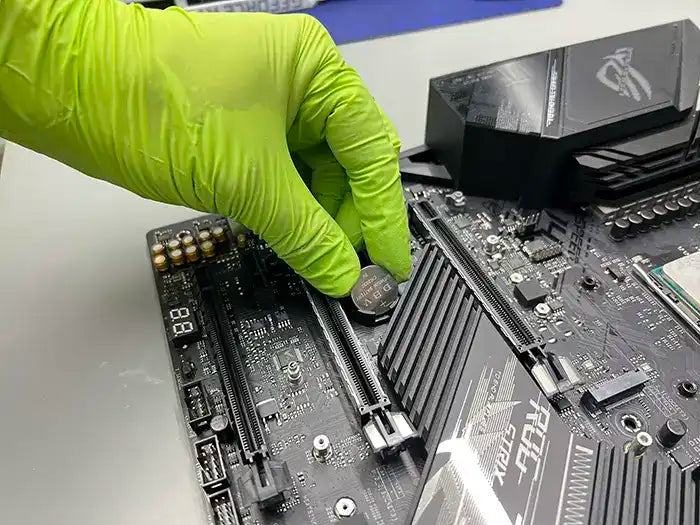
Laptop Plugged In but Not Charging? Causes, Quick Fixes and Repair Options
You plug in your laptop, but the battery percentage isn't increasing. Windows may display "Plugged in, not charging," the charging light may flicker, or the laptop might shut down as soon as you disconnect the power adapter.
When a laptop is plugged in but not charging, the problem doesn't always mean the battery needs replacing. Sometimes, a battery protection setting intentionally limits charging. In other cases, the issue may involve a faulty charger, insufficient USB-C power, a damaged charging port, or a problem with the motherboard's charging circuit.
At Prime Tech Support in Miami, we diagnose laptop charging problems by identifying the actual source of the failure before recommending repairs. Replacing a battery without checking the charger, charging port, and power circuitry can lead to unnecessary expenses without solving the problem.
In this guide, we'll explain why your laptop isn't charging, which troubleshooting steps you can safely try at home, how to recognize battery or charging port failures, and when professional laptop repair is necessary.
Table of Contents
Check Your Laptop's Battery Charging Settings First
Before assuming your laptop has a faulty battery or charging port, check whether a built-in battery protection feature is limiting the charge. Many modern laptops intentionally stop charging at a certain percentage to reduce battery wear, especially when the computer stays connected to its power adapter for extended periods.
If your laptop is plugged in but not charging at 60% or 80%, this may be normal behavior rather than a hardware failure.
Battery Charging Limits on Popular Laptop Brands
Different manufacturers provide battery management features that allow users to limit charging or optimize battery health:
- Lenovo: Lenovo Vantage includes a Conservation Mode that can limit battery charging to help extend battery lifespan.
- Dell: Depending on the model, battery charging preferences may be available through Dell Power Manager, MyDell, or BIOS settings.
- HP: Some HP laptops include Battery Health Manager or Adaptive Battery Optimizer features accessible through BIOS or manufacturer utilities.
- ASUS: MyASUS offers Battery Health Charging options that may limit charging to approximately 60% or 80%.
The available features and their names vary depending on the laptop model, BIOS version, and installed manufacturer software.
How to Tell Whether a Charging Limit Is Enabled
Connect your laptop to its original or manufacturer-approved charger and observe the battery percentage. If charging consistently stops at the same level, particularly around 60% or 80%, check the manufacturer's battery management application or BIOS settings.
If a charging limit is enabled, you can adjust it according to your needs. However, keeping the feature active may help reduce long-term battery wear if you regularly use your laptop while connected to power.
Important: A charging limit is not the same as a battery failure. If the battery percentage continues dropping while connected to a suitable charger, or the laptop shuts down unexpectedly when unplugged, further troubleshooting may be necessary.
Quick Checks When Your Laptop Won't Charge
If your laptop is plugged in but not charging and battery protection settings aren't responsible, the next step is to rule out simple power and software issues before assuming a component has failed.
These troubleshooting steps can help identify common charging problems without opening the laptop or attempting potentially risky hardware repairs.
1. Test the Power Outlet and Charger Connection
Start by connecting your laptop charger directly to a different wall outlet. Avoid power strips, extension cords, or docking stations during this test.
Make sure the power cable is firmly connected to the adapter and the charging connector is fully seated in the laptop.
If the charging indicator turns on or the battery begins charging normally, the problem may have been related to the original power source or a loose connection.
2. Inspect the Laptop Charger and Cable
A damaged power adapter or charging cable can prevent a laptop from receiving sufficient power, even when the charging indicator appears to work.
Look for visible signs of damage, including:
- Frayed or exposed wiring near the charging connector.
- Bent, loose, or damaged connector pins.
- Cracks or deformation in the power adapter housing.
- Intermittent charging when the cable moves.
- Unusual overheating or a burning smell.
If you notice exposed wiring, a burning smell, or excessive heat, disconnect the charger and stop using it. A damaged adapter should be replaced with a compatible, manufacturer-approved model.
3. Verify That Your Charger Provides Enough Power
Not all chargers deliver the same amount of power. This is especially important for laptops that charge through USB-C.
For example, a laptop designed for a 65W USB-C power adapter may not charge properly when connected to a 20W phone charger. Depending on the laptop and its power requirements, the battery may charge very slowly, remain at the same percentage, or continue discharging while the computer is running.
Check the wattage and voltage requirements specified by your laptop manufacturer. If you're using USB-C, confirm that the charger and cable support the required USB Power Delivery profile.
Also remember that not every USB-C port supports charging. Some ports are designed only for data transfer or video output.
4. Restart Your Laptop and Check Windows Battery Detection
Temporary operating system or power-management issues can sometimes interfere with battery detection.
First, restart your laptop while the charger is connected. If the charging problem continues, Windows users can try reinstalling the battery management driver:
- Right-click the Windows Start button and open Device Manager.
- Expand the Batteries category.
- Right-click Microsoft ACPI-Compliant Control Method Battery, if listed.
- Select Uninstall device.
- Restart the laptop and allow Windows to reinstall the driver automatically.
This process can resolve certain battery detection or reporting problems, but it will not repair a physically damaged battery, charging port, or motherboard.
For a deeper explanation of how software communicates with laptop hardware, read our guide on laptop drivers, performance, and troubleshooting.
5. Check for Manufacturer BIOS and Chipset Updates
Some laptop charging issues are related to firmware or power-management compatibility. Manufacturers occasionally release BIOS and chipset updates that address battery detection, USB-C charging, or power-delivery behavior.
Visit your laptop manufacturer's official support website and search using the exact model number to check for relevant updates.
Important: BIOS updates require a stable power source. If your laptop has an unreliable charging connection, a critically low battery, or shuts down unexpectedly, do not attempt a BIOS update until the power problem has been resolved.
6. Recognize When Basic Troubleshooting Isn't Enough
If your laptop still won't charge after checking the outlet, charger, battery settings, and software, the problem may involve a failing battery, damaged charging port, or internal charging circuit.
Pay particular attention if the laptop only charges when the connector is held at a certain angle, loses power immediately after being unplugged, or fails to recognize a known-good compatible charger.
These symptoms require more targeted testing rather than repeated software resets or unnecessary battery replacements.
How to Check Your Laptop's Battery Health
If your laptop battery is not charging, the battery itself may be worn out or unable to hold a charge. However, a battery that drains quickly does not necessarily mean the charging system is defective.
Before replacing the battery, it's helpful to check its reported condition. Windows includes a built-in tool that provides information about battery capacity, charging history, and usage patterns.
Generate a Battery Health Report in Windows
Windows 10 and Windows 11 can generate a battery report without installing additional software.
- Right-click the Start button and open Terminal or Command Prompt.
- Enter the following command:
powercfg /batteryreport
- Press Enter to generate the report.
- Windows will display the location where the HTML report was saved.
- Open the report in your web browser and locate the Installed Batteries section.
Two important measurements to review are:
- Design Capacity: The amount of energy the battery was originally designed to store.
- Full Charge Capacity: The amount of energy Windows reports the battery can currently hold when fully charged.
Compare Design Capacity and Full Charge Capacity
As laptop batteries age, their ability to store energy gradually decreases. Comparing these two values can help estimate how much usable capacity remains.
For example, consider a laptop battery with the following measurements:
- Design Capacity: 50,000 mWh
- Full Charge Capacity: 30,000 mWh
In this example, the battery retains approximately 60% of its original capacity, indicating substantial wear.
However, battery capacity alone does not confirm why a laptop isn't charging. A battery may show reasonable capacity while experiencing charging problems caused by the power adapter, charging port, or motherboard.
Recognize the Signs of a Failing Laptop Battery
In addition to reviewing the battery report, pay attention to how your laptop behaves during normal use.
Common signs of battery deterioration include:
- The battery percentage drops unusually quickly after disconnecting the charger.
- The laptop shuts down unexpectedly despite showing remaining battery charge.
- The battery percentage jumps between values or reports inconsistent readings.
- The laptop works while connected to power but shuts off immediately when unplugged.
- The battery no longer reaches its expected charging capacity, even with charging limits disabled.
These symptoms may indicate battery wear or failure, although power-management and charging-system problems can produce similar behavior.
When Battery Health Becomes a Safety Concern
A worn battery and a physically damaged battery are not the same thing. Reduced battery capacity usually develops gradually, but swelling requires immediate attention.
If your laptop's bottom cover begins bulging, the touchpad lifts, or the keyboard appears pushed upward, the internal lithium-ion battery may be swollen.
Stop using and charging the laptop if you suspect battery swelling. Do not press on the affected area, puncture the battery, or attempt to remove it without appropriate training.
A professional inspection can determine whether battery replacement is necessary and whether surrounding components have been affected.
Remember that a Windows battery report is a useful diagnostic starting point, not a definitive hardware test. If the report looks normal but your laptop still refuses to charge, the next step is to investigate the charging hardware.
Common Causes of Laptop Charging Problems
When a laptop is plugged in but not charging, identifying the exact cause is essential before replacing parts. Charging problems can originate from the power adapter, battery, charging port, software, or internal motherboard circuitry.
Although several failures can produce similar symptoms, certain warning signs help narrow down the possibilities.
Laptop Charging Symptoms and Their Possible Causes
| What You Notice | Possible Cause | Recommended Action |
|---|---|---|
| Charging stops at 60% or 80% | Battery protection or charging limit setting | Check manufacturer battery settings |
| Charging works only at certain cable angles | Damaged charging port or connector | Professional port inspection and repair |
| Charging light flickers or stays off | Faulty charger, cable, or charging connection | Test with a compatible charger |
| Laptop works only while plugged in | Failed battery or battery connection problem | Battery and power-system diagnosis |
| Battery percentage jumps or freezes | Battery deterioration or reporting issue | Check battery health and power management |
| Touchpad lifts or laptop case bulges | Potential swollen battery | Stop using and charging; seek professional service |
| Laptop won't charge with a known-good charger | Charging port, battery, or motherboard fault | Professional electrical diagnosis |
This comparison provides a starting point, but symptoms alone cannot confirm which component has failed. A proper diagnosis helps avoid unnecessary battery or motherboard replacements.
Damaged Laptop Charging Port or DC Jack
A damaged charging port is a common hardware-related reason a laptop won't charge. Repeated plugging and unplugging, accidental cable pulls, or pressure on the charging connector can gradually weaken the connection.
One recognizable symptom is intermittent charging. The laptop may recognize the adapter only when the connector is positioned at a certain angle or may disconnect whenever the cable moves.
Traditional laptop DC jacks are sometimes connected to the motherboard through a separate cable, making replacement relatively straightforward. Other designs use charging connectors soldered directly to the motherboard.
USB-C charging ports can be more complex because their connections and power-delivery circuitry may require specialized inspection and microsoldering equipment.
If the charging connector feels loose, avoid forcing it into position or repeatedly moving the cable to restore power. This can worsen the damage.
Physical damage may also affect multiple parts of a laptop. For example, a laptop that has experienced a fall or significant chassis stress may develop charging-port problems alongside structural damage. If the display assembly is also loose or difficult to open, see our guide on broken laptop hinge repair.
Worn-Out or Failed Laptop Battery
Laptop batteries naturally lose capacity as they age. Over time, repeated charging cycles, heat exposure, and everyday use can reduce how much energy the battery stores.
A deteriorating battery may charge slowly, display inconsistent percentages, or fail to provide sufficient power when the laptop is disconnected from its charger.
However, a laptop battery not charging does not automatically mean it needs replacement. Similar symptoms can result from a defective adapter, charging-port damage, or problems with the motherboard's charging system.
Battery replacement should be recommended only after confirming that the battery is responsible for the problem.
Modern laptops frequently contain internal lithium-ion batteries that require careful handling. Attempting a replacement without the proper tools or experience can damage connectors, cables, or surrounding components.
For an example of the risks involved, read our article about the hidden dangers of DIY laptop battery replacement.
Motherboard Charging Circuit Failure
If the charger, battery, and charging port have been tested and appear to function correctly, the problem may involve the motherboard's charging circuitry.
The charging system contains electronic components responsible for managing power delivery, battery charging, and communication between the adapter and laptop.
Failures can involve charging controller components, power-management circuits, damaged connections, or other board-level components.
Potential causes include liquid exposure, electrical damage, corrosion, and component deterioration.
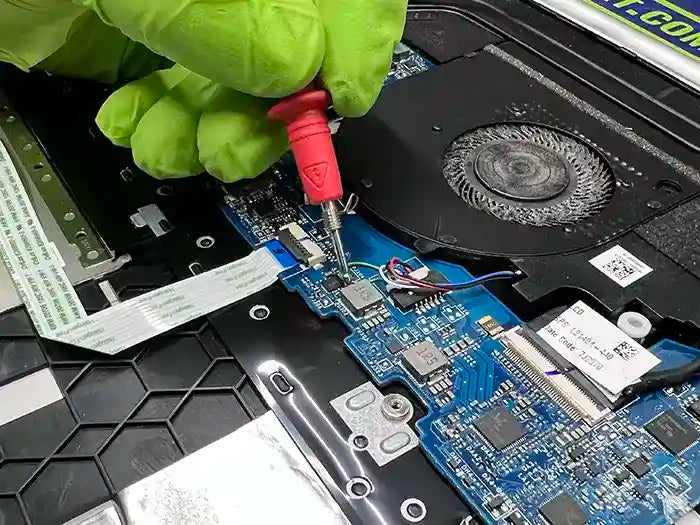
Unlike a simple charger replacement, diagnosing a motherboard charging fault requires electrical measurements and component-level troubleshooting.
Importantly, a charging circuit failure does not always require replacing the entire motherboard. Depending on the damage and laptop design, individual components or damaged connections may be repairable.
For a broader explanation of motherboard-related symptoms, see our guide on how to tell if your computer motherboard is failing.
The key is determining whether the failure originates in the battery, charging connector, or power-management circuitry before deciding on the appropriate repair.
What Not to Do When Your Laptop Won't Charge
When your laptop won't charge, attempting repeated quick fixes without identifying the cause can sometimes make the problem worse. Charging systems involve sensitive electronic components, and certain troubleshooting mistakes can turn a relatively simple repair into a more expensive one.
Here are some important precautions to follow.
Avoid Using Incompatible or Poor-Quality Chargers
Using a charger with incorrect voltage, an incompatible connector, or inadequate power delivery can cause charging problems and potentially damage electronic components.
Always use a manufacturer-approved or properly certified compatible charger that meets your laptop's electrical requirements. For USB-C laptops, confirm that the adapter and cable support the necessary USB Power Delivery specifications.
Don't Force a Loose Charging Connector
If your laptop charges only when the connector is held at a particular angle, don't repeatedly twist, bend, or push the cable to maintain the connection.
This behavior may indicate a damaged DC jack, USB-C port, or internal connection. Continuing to apply pressure can worsen the damage and potentially affect the motherboard.
Never Continue Charging a Swollen Battery
A swollen lithium-ion battery is a safety concern, not simply a performance problem.
If you notice a bulging laptop case, lifting touchpad, or unusual deformation around the battery compartment, stop using and charging the device.
Do not puncture, compress, or attempt to flatten the battery. Have the laptop inspected by a qualified repair technician.
Avoid Opening the Laptop Without Proper Experience
Many modern laptops use internal batteries secured beneath delicate cables, connectors, and other components. Attempting to disconnect or replace these batteries without appropriate tools and training can cause additional damage.
If basic external troubleshooting hasn't resolved the charging problem, professional diagnosis is generally safer than experimenting with internal electrical connections.
The goal is to identify the failed component without creating additional damage. A faulty charger, worn battery, damaged charging port, and motherboard charging failure require different repair approaches.
How We Diagnose a Laptop That Won't Charge
When basic troubleshooting doesn't resolve a charging problem, professional diagnosis helps determine whether the issue involves the power adapter, battery, charging port, or motherboard.
At Prime Tech Support in Miami, our diagnostic approach focuses on identifying the source of the failure before recommending replacement parts or more extensive repairs.
Step 1: Testing the Laptop Charger and Power Input
We begin by checking the power adapter and its connection to the laptop. This includes evaluating the charger's electrical output, inspecting the cable and connector, and determining whether the laptop is receiving the expected power.
When appropriate, we also test with a known-good compatible charger to help distinguish adapter problems from internal charging failures.
Step 2: Inspecting the Charging Port
Next, we examine the laptop's DC jack or USB-C charging port for visible damage, looseness, corrosion, or connection problems.
Depending on the laptop design, a damaged charging port may require replacing a separate DC jack assembly or repairing a connector attached directly to the motherboard.
Identifying the port's condition helps determine whether the problem is mechanical, electrical, or related to another component.
Step 3: Evaluating Battery Health and Charging Behavior
We assess the battery's reported condition, charging behavior, and ability to retain power. We also check for physical warning signs, including swelling or damage.
When possible, we compare battery behavior with the laptop's power-management information to determine whether the battery is accepting a charge correctly.
This helps avoid replacing a battery when the actual problem is a damaged charging connector or another power-delivery component.
Step 4: Diagnosing the Motherboard Charging Circuit
If the charger, charging port, and battery do not explain the problem, further testing may be needed at the motherboard level.
This can involve checking relevant power connections, measuring voltages, and tracing the charging circuit to identify damaged or malfunctioning components.
Some motherboard charging failures can be repaired at the component level, depending on the nature and extent of the damage. A complete motherboard replacement is not always necessary.
Step 5: Explaining the Diagnosis and Repair Options
Once the problem has been identified, we explain the findings, available repair options, and estimated cost before proceeding with the repair.
Whether the solution involves replacing a charger, installing a new battery, repairing a charging port, or addressing a motherboard fault, the goal is to recommend the repair that addresses the actual failure.
If your laptop continues to have charging problems, you can start with our computer diagnostic services to determine which component needs attention.
Laptop Charging Repair in Miami
If your laptop is plugged in but not charging after trying the basic troubleshooting steps, the next step is to identify which component is preventing the battery from receiving power.
At Prime Tech Support in Miami, we diagnose and repair charging problems on Dell, HP, Lenovo, ASUS, Acer, and other Windows laptops. Whether your laptop needs a battery replacement, DC jack repair, USB-C charging port repair, or motherboard-level troubleshooting, our goal is to identify the actual failure before recommending a solution.
Our professional laptop repair services in Miami cover a wide range of hardware and power-related issues, including laptops that charge intermittently, fail to recognize their adapters, or shut down when disconnected from power.
Get Your Laptop Charging Problem Diagnosed
Rather than replacing parts through trial and error, start with a professional laptop diagnostic. Our technicians evaluate the charging system, explain the findings, and provide repair recommendations and an estimate for your approval.
You can bring your laptop to our Miami repair lab at 130 NW 36th St, Miami, FL 33127, or contact our technical team to discuss your repair options.
Not located in Miami? We also offer a nationwide mail-in laptop repair service for eligible devices, allowing customers outside South Florida to access our diagnostic and repair services.
Still Having Trouble Charging Your Laptop?
Don't replace your battery or charger without knowing what's causing the problem. Let Prime Tech Support identify the issue and recommend the appropriate repair.
Schedule Your Laptop Diagnostic
Questions? Call 855-600-6999 or contact our team.
PROFESSIONAL SUPPORT
Computer Repairs
Fast tech support for Computer Repairs. We exceed customer expectations and ensure satisfaction.

Computer Repairs Blog by Techs in Miami
Ver todo-

Is your laptop plugged in but not charging? Learn how to check battery settings, test your charger, identify charging port...
Laptop Plugged In but Not Charging? Causes, Quick Fixes and Re...
Is your laptop plugged in but not charging? Learn how to check battery settings, test your charger, identify charging port...
-

Laptop screen showing lines, flickering, black spots, or cracks? Learn how to identify common display problems, test your laptop with...
Laptop Screen Problems: Lines, Flickering, Black Screen or Cra...
Laptop screen showing lines, flickering, black spots, or cracks? Learn how to identify common display problems, test your laptop with...
-

A broken laptop hinge can start with a loose screen, cracking noises, or a small gap near the display. Learn...
Broken Laptop Hinge? Signs, Causes and When to Repair It
A broken laptop hinge can start with a loose screen, cracking noises, or a small gap near the display. Learn...