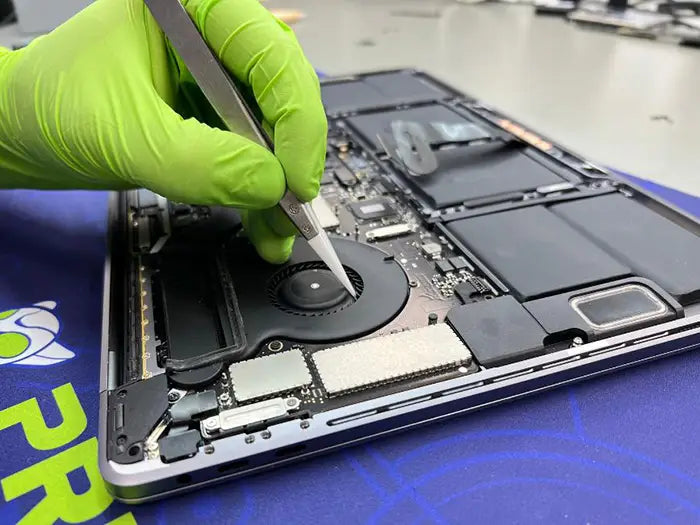
MacBook Pro Trackpad Not Clicking? How Keyboard Issues Can Be the Real Cause
If your MacBook Pro trackpad suddenly stops clicking, it’s easy to assume the trackpad itself has failed. That’s the most common conclusion—and in many cases, it’s the wrong one. In real diagnostic environments, we frequently find that trackpad issues are not caused by the trackpad at all, but by underlying problems in the keyboard assembly, internal connections, or even battery pressure affecting the click mechanism. Understanding this distinction is critical, because replacing the wrong component doesn’t fix the issue—it just adds unnecessary cost and delays the real solution.
Why This Problem Is Often Misdiagnosed
When a MacBook Pro trackpad stops clicking, most users immediately assume the issue is a failed trackpad. It seems logical—the click mechanism isn’t working, so the trackpad must be broken.
But in real-world diagnostics, that assumption is often wrong.
At the repair bench, we consistently see cases where the trackpad itself is fully functional. Instead, the root cause lies elsewhere—frequently in components that users wouldn’t normally suspect, such as the keyboard circuit, internal flex cables, or even power distribution across the logic board.
One of the most overlooked causes is the keyboard. Because the trackpad and keyboard share communication pathways and power lines on many MacBook Pro models, a fault in the keyboard assembly can interfere with how the trackpad behaves. This can result in symptoms like:
- A trackpad that won’t physically click
- Intermittent or inconsistent clicking
- Normal cursor movement but no click response
- Clicking that only works when using an external mouse
In other cases, what feels like a “dead click” isn’t electrical at all—it’s mechanical. A swollen battery, for example, can physically press against the underside of the trackpad, preventing it from depressing properly. This is especially common in older Intel-based MacBooks.
The key takeaway is simple:
what looks like a trackpad failure is often a secondary symptom—not the root problem.
That’s why proper diagnosis matters. Without a structured approach, it’s easy to replace the wrong component, waste time, and increase repair costs unnecessarily.
In this guide, we’ll walk through how these issues actually occur, how different MacBook models behave (Intel vs Apple Silicon), and how we diagnose them step-by-step in real repair scenarios.
Real Case – When the Trackpad Wasn’t the Problem

In one recent repair case at our lab, a MacBook Pro came in with what seemed like a straightforward issue: the trackpad would no longer click. The customer assumed the trackpad had failed and expected a simple replacement.
But as with many real-world diagnostics, the initial symptom didn’t match the root cause.
Initial Symptom: Trackpad Not Clicking
The customer reported that:
- The cursor moved normally
- The trackpad responded to gestures
- But the click function was completely unresponsive
This is the exact scenario where most people—and even inexperienced technicians—jump straight to replacing the trackpad.
However, from a diagnostic standpoint, this combination of symptoms is a red flag:
-movement works, but click fails = not always a trackpad issue
Step 1: Testing the Trackpad Itself
Before replacing any component, we isolate and verify the trackpad.
Visual Inspection Under Microscope
Under magnification, the trackpad assembly showed:
- No physical damage
- No signs of swelling or deformation
- No debris blocking the mechanism
However, closer inspection of the surrounding connectors revealed early-stage corrosion (sulfation) on the communication lines.
This is critical, because:-corrosion doesn’t always kill the trackpad—it disrupts signals
Testing Connector and Flex Condition
We then tested the flex cables and connections:
- The trackpad flex cable was electrically stable
- Voltage lines were consistent
- No shorts detected on the trackpad circuit
At this stage, the trackpad itself was ruled out as the source of the issue.
Step 2: Replacing with a Known-Good Trackpad
To eliminate any remaining uncertainty, the original trackpad was replaced with a verified, known-good unit.
Why We Always Test with Verified Components
In professional diagnostics, using a known-good component allows technicians to isolate variables with certainty.
This approach ensures:
- The issue is not caused by intermittent internal failure
- There are no hidden defects in the original part
- The diagnosis is based on confirmation rather than assumption
This methodology is standard in hardware troubleshooting, similar to best practices outlined in electronics diagnostics.
Confirming the Trackpad Is Not the Issue
After installing the test trackpad:
- Cursor movement remained normal
- Gestures functioned correctly
- The click function was still unresponsive
This result definitively ruled out the trackpad assembly.
Step 3: Testing the Keyboard Connection
With the trackpad eliminated, attention shifted to the keyboard circuit.
In many MacBook designs, the keyboard and trackpad are not independent systems. Instead, they share communication lines and input controllers, meaning a fault in one can affect the other.
Connecting a Test Keyboard Directly to the Board
To isolate the issue, a test keyboard was connected directly to the logic board, bypassing the original keyboard and its flex cable.
This allowed technicians to:
- Test input signals directly
- Remove the original keyboard from the equation
- Verify system-level response to input
Identifying Restored Functionality
Once the test keyboard was connected:
- The trackpad click function immediately returned
- Input response became stable
- No further inconsistencies were observed
This confirmed that the issue originated from the original keyboard assembly.
Final Diagnosis: Keyboard Causing Trackpad Failure
The final diagnosis identified the keyboard connection—specifically flex cable degradation and connector instability—as the root cause of the trackpad failure.
This case reinforces a key real-world principle:
Trackpad issues are not always caused by the trackpad itself. In systems where components are interconnected, failures can originate elsewhere and present misleading symptoms.
In this case:
- The trackpad hardware was fully functional
- The failure was caused by signal disruption from the keyboard
- Replacing the trackpad would not have resolved the issue
This type of misdiagnosis is especially common in devices affected by liquid exposure or long-term internal contamination.
If you’re dealing with similar symptoms, it’s important to follow a structured diagnostic process. You can explore related cases in our guide on MacBook Pro Trackpad Not Clicking? Causes, Diagnosis, and Repair Options.
How the Keyboard Can Affect Trackpad Clicking
When a MacBook Pro trackpad stops clicking, the assumption is usually that the problem is isolated to the trackpad itself. However, in many cases, the issue originates from how input devices are interconnected inside the system.
The keyboard and trackpad are not always independent components. Instead, they often rely on shared communication pathways, controllers, and power distribution across the logic board. Because of this, a failure in the keyboard can directly affect how the trackpad behaves—even when the trackpad hardware is fully functional.
Apple’s official documentation on macOS input behavior explains how the system processes gestures and clicks as part of a unified input experience, rather than isolated hardware events. This system-level handling is one reason why signal disruptions can create misleading symptoms.
Shared Input Paths in MacBook Pro Systems
In MacBook Pro systems, both the keyboard and trackpad send signals through the system’s input architecture, managed by the logic board.
Rather than operating as completely separate devices:
- Input signals are processed through shared controllers
- Communication lines may overlap or run in parallel
- Power and data pathways can be interdependent
In simple terms, the system processes keyboard and trackpad inputs as part of a unified structure.
For a deeper technical overview of how input devices communicate with systems, you can reference Human Interface Device standards, which define how peripherals transmit input signals.
Dependency in Certain MacBook Architectures
The level of dependency between the keyboard and trackpad varies depending on the MacBook model.
In some architectures:
- The keyboard connects directly to the logic board
- The trackpad communicates independently
In others:
- Input signals share controllers or communication paths
- The keyboard circuit can influence how the trackpad input is interpreted
- Failures in one component can affect overall input behavior
This is why the same symptom can have different root causes depending on the device generation.
Signal Interference from Faulty Keyboard Circuits
When the keyboard circuit becomes unstable, it can interfere with how the system processes input signals.
Common causes include:
- Corrosion from liquid exposure
- Degraded flex cables
- Partial shorts in input lines
- Loose or oxidized connectors
These issues often create unstable or inconsistent signals rather than complete failure.
As a result:
- Click input may not register
- The trackpad may appear unresponsive
- Behavior may be intermittent
Diagnostic Tip
If your MacBook Pro trackpad moves normally but does not click, do not assume the trackpad is defective.
This symptom pattern is commonly linked to keyboard-related signal issues rather than a failed trackpad assembly.
- Failing keyboard flex cable
- Corrosion on input connectors
- Signal instability in shared input pathways
Testing the keyboard connection before replacing the trackpad can prevent unnecessary repairs and lead to an accurate diagnosis.
Intel vs Apple Silicon MacBooks – Key Differences
Although the symptom may look identical from the outside, a MacBook Pro trackpad that will not click does not behave the same way across all generations. The underlying design of the machine changes how technicians diagnose the problem, how easily parts can be isolated, and which repair path makes the most sense.
That distinction becomes especially important when comparing older Intel-based MacBook Pro models with newer Apple Silicon systems.
Intel-Based MacBook Pro (Older Models)
Older Intel-based MacBook Pro models are generally more straightforward to diagnose at the component level. In many of these systems, the keyboard, trackpad, and related flex cables can be tested more independently, which makes it easier to isolate the source of a clicking issue before replacing parts.
Modular Components (Keyboard, Trackpad More Separable)
On many Intel-era MacBook Pro models, the internal layout is less integrated than on newer Apple Silicon devices. That does not mean every repair is simple, but it does mean technicians can often separate the diagnostic process into smaller steps.
- Trackpad behavior can be evaluated more directly
- Keyboard-related faults are easier to isolate
- Flex cable and connector issues are often easier to confirm
This is one reason keyboard-related trackpad symptoms are more commonly identified through part-by-part testing on older models.
Easier to Isolate and Test Individual Parts
With Intel models, a technician can often test the trackpad, keyboard path, and supporting connections with fewer layers of integration in the way. That makes it more practical to determine whether the issue is:
- A failing trackpad
- A keyboard-side communication problem
- A flex cable or connector fault
- A logic board input issue
In real diagnostics, that means the repair process is usually more component-specific and less dependent on replacing large assemblies.
Higher Frequency of Keyboard-Related Trackpad Issues
In older Intel-based systems, we more frequently see cases where a keyboard-side fault interferes with trackpad clicking without the trackpad itself being defective. That is partly because these systems make it easier to identify those signal-path issues during testing, and partly because age, liquid exposure, oxidation, and flex wear tend to show up clearly at the connector level.
Diagnostic Insight
On older Intel MacBook Pro models, a non-clicking trackpad is often easier to trace back to the keyboard path because the components can usually be tested more independently.
This is why a proper bench diagnosis matters. A trackpad symptom does not always mean a trackpad replacement.
Apple Silicon MacBook Pro (M1, M2, M3, M4)
Apple Silicon MacBook Pro models are built around a much more integrated hardware design. Apple’s support documentation confirms that modern Mac laptop trackpads typically use Force Touch with haptic feedback rather than a traditional mechanical click, and Apple’s repair documentation for newer MacBook Pro models shows a service structure that includes a separate trackpad procedure but also a larger Top Case with Battery and Keyboard assembly.
Highly Integrated Top Case Design
On Apple Silicon MacBook Pro systems, the keyboard side of the machine is less practical to treat as a simple standalone repair compared with many older Intel models. From a diagnostic perspective, this matters because the keyboard is part of a more integrated top-case environment, while the rest of the machine is also more tightly linked at the board and system level.
- Input-related faults are less isolated in practice
- Repair decisions often involve larger assemblies
- Symptom-based part swapping becomes less reliable
Keyboard Replacement Complexity
In practical repair work, keyboard replacement on Apple Silicon MacBook Pro models is usually more labor-intensive than on older Intel machines. Even when the keyboard is the likely source of the problem, the repair path is often more complex because technicians must work around a tightly integrated layout rather than a simpler part-by-part structure.
That is one reason many shops treat keyboard faults on these models as a larger top-case or board-level decision rather than a quick keyboard-only repair.
Why Keyboard-Only Repair Is Rarely Recommended
On many Apple Silicon models, keyboard-only repair is rarely the first recommendation unless the diagnostic case is very clear and the shop is equipped for advanced micro-level work. In many situations, the better repair decision is based on the overall condition of the machine, the presence of liquid damage, and whether the issue is confined to the keyboard path or tied to broader system instability.
If the machine has broader board-level damage or the customer’s priority is file safety, this is also where a deeper Apple Silicon recovery strategy matters. Related reading: Apple Silicon Mac Data Recovery.
Why Apple Silicon Repairs Require More Caution
Apple Silicon Macs are built around a much more integrated design philosophy. At Prime Tech Support, that is why we evaluate the whole failure pattern before recommending a keyboard-related repair path.
When the machine also has liquid damage, startup failure, or board instability, the priority may shift from part replacement to board-level diagnosis and data protection first.
Why the Same Symptom Has Different Root Causes
A MacBook Pro trackpad that does not click can look identical to the customer whether the machine is an older Intel model or a newer Apple Silicon system. The difference is what sits behind that symptom.
- Intel models: more component-level isolation, easier testing, and a higher chance of confirming a keyboard-path issue directly
- Apple Silicon models: more integrated hardware, more complex repair decisions, and a greater need to evaluate the broader condition of the machine before recommending a fix
This is why the same complaint should never lead to the same repair assumption across all MacBook Pro generations. Accurate diagnosis depends on the architecture of the model in front of you, not just the symptom the customer notices.
Common Keyboard-Related Causes We See in Repairs
When a MacBook Pro trackpad stops clicking, the root cause is not always inside the trackpad itself. In many repair cases, the failure starts in the keyboard path and then affects how the system processes click input.
This happens because the keyboard, trackpad, and supporting input circuits often depend on stable communication through connectors, flex cables, and logic board pathways. When one part of that chain becomes unstable, the symptom may show up as a trackpad click failure even though the trackpad hardware is still working.
What We See in Real Diagnostics
In bench testing, keyboard-related trackpad issues usually fall into one of four categories: poor connection, internal keyboard circuit failure, liquid damage, or long-term corrosion and wear. Each one can create similar symptoms, but the repair approach is different.
Poor Keyboard Connection to the Logic Board
One of the most common causes is a poor keyboard connection to the logic board. This can happen when the connector is slightly loose, the flex cable has degraded over time, or the contact points are no longer stable.
Loose or Degraded Connector Issues
Keyboard connectors do not always fail completely. In many cases, they degrade gradually.
- The cable may still pass some signals but not all of them consistently
- The connector may look intact while still producing unstable communication
- Minor oxidation or wear can weaken input reliability over time
This is why a machine can still power on, type intermittently, or partially respond to input while showing trackpad click problems at the same time.
Intermittent Failures Affecting Input Devices
When the keyboard connection becomes unstable, the effect is often intermittent rather than constant.
- The trackpad may click sometimes and fail at other times
- Input may change depending on pressure, movement, or temperature
- The symptom may appear to come and go without warning
These intermittent failures are often misunderstood because they make the problem seem inconsistent or software-related when the real issue is hardware signal instability.
Internal Keyboard Circuit Failure
In some cases, the problem is not the connector but the keyboard circuit itself. Once internal keyboard lines begin to fail, they can interfere with normal communication between input components.
Shorted Lines Affecting Trackpad Communication
A shorted or unstable line inside the keyboard circuit can disrupt how the system interprets input signals. Even if the trackpad is working, the click command may not be processed correctly because the shared input path is compromised.
- Signal interference can block click registration
- Unstable lines can create false symptoms in nearby input functions
- The issue may appear to be a trackpad failure when it is actually a keyboard-side fault
Partial vs Full Keyboard Failure
Not every keyboard failure is complete. In many real repairs, only part of the keyboard circuit has failed.
- A full failure may leave the keyboard completely unresponsive
- A partial failure may allow some keys to work while still affecting trackpad behavior
- The customer may notice only the trackpad symptom even though the keyboard circuit is the underlying cause
This is why testing should never stop just because the keyboard still appears to function at a basic level.
Diagnostic Tip
A partially working keyboard should not be ruled out as a cause of trackpad click failure.
We often see cases where the keyboard still types, but its signal path is unstable enough to interfere with trackpad input. Partial function does not mean the circuit is healthy.
Liquid Damage Spreading Across Input Components
Liquid damage is one of the most important causes to evaluate because it rarely stays isolated to a single component. Once moisture reaches the input area, it can affect the keyboard, trackpad, connectors, and surrounding logic board lines at the same time.
Why Damage Is Not Always Visible
One of the biggest challenges with liquid damage is that it is not always obvious during a basic visual inspection.
- Residue may be hidden under connectors or shielding
- Corrosion can begin before visible discoloration appears
- The machine may continue working for a period of time before symptoms become serious
This is why a MacBook Pro can appear clean on the outside while still having internal damage that affects trackpad clicking and keyboard stability.
Shared Damage Between Keyboard and Trackpad
Because the keyboard and trackpad operate within the same general input environment, liquid damage often affects both sides of the system together.
- Connector contamination can weaken signal quality
- Corrosion can spread across nearby communication lines
- One damaged area can create symptoms in more than one input device
In these cases, replacing the trackpad alone will not solve the issue if the keyboard-side damage remains untreated.
Corrosion and Long-Term Wear
Not every keyboard-related trackpad problem begins with a major event like a spill. Some failures develop slowly over time through corrosion, oxidation, repeated stress, and normal aging of connectors and flex cables.
Gradual Degradation of Signals
As materials age, the signal path can become less reliable even if the damage is not dramatic enough to produce an immediate full failure.
- Contact quality can weaken over time
- Connector surfaces can oxidize gradually
- Flex cables can lose stability through repeated thermal and mechanical stress
This slow degradation often produces confusing symptoms because the device may continue to function most of the time while becoming less reliable under normal use.
Intermittent Clicking Issues Over Time
Long-term wear often shows up as intermittent trackpad clicking problems before a complete failure happens.
- The click may stop working occasionally and then return
- The problem may seem random at first
- Over time, the failure usually becomes more frequent and easier to reproduce
When this pattern appears, it usually points to progressive signal degradation rather than a sudden trackpad defect.
Why Accurate Diagnosis Matters
These keyboard-related causes can produce nearly identical symptoms from the user’s perspective, but they do not require the same repair approach. A loose connector, a corroded flex cable, a shorted keyboard circuit, and liquid damage may all look like a trackpad problem at first.
That is why part replacement should follow testing, not assumptions.
How We Diagnose This Issue Professionally

When a MacBook Pro trackpad is not clicking, accurate diagnosis requires a structured approach. The goal is not to replace parts based on symptoms, but to isolate the exact point of failure within the input system.
Because the keyboard, trackpad, and logic board are interconnected, the diagnostic process must follow a clear sequence. Skipping steps or making assumptions often leads to incorrect repairs.
Step-by-Step Isolation Process
The diagnostic workflow follows a logical progression to eliminate variables and identify the root cause.
Testing Trackpad First
The process begins by evaluating the trackpad itself.
- Check for physical obstruction or pressure issues
- Inspect the trackpad flex cable and connector
- Confirm functionality such as cursor movement and gesture response
If the trackpad shows normal behavior, it should not be immediately replaced.
Swapping Known-Good Components
Next, a verified, known-good trackpad is installed to eliminate any uncertainty.
- Confirms whether the original trackpad has hidden defects
- Rules out intermittent hardware failure
- Provides a controlled comparison under the same conditions
If the issue persists with a known-good trackpad, the fault lies elsewhere in the system.
Moving to Keyboard Testing
Once the trackpad is ruled out, the next step is to evaluate the keyboard circuit.
- Inspect the keyboard flex cable and connector condition
- Check for corrosion, oxidation, or instability
- Test with a known-good keyboard or bypass the existing connection when possible
This step is critical because keyboard-related faults are a common cause of trackpad click failure.
Confirming Board-Level Behavior
If both trackpad and keyboard components test correctly, attention shifts to the logic board.
- Verify input signal pathways
- Check for shorted or unstable lines
- Confirm whether the system is properly processing input signals
At this stage, the issue may be related to board-level conditions rather than a replaceable component.
Why Guessing Leads to Wrong Repairs
Without a structured diagnostic process, it is easy to misinterpret the symptom and replace the wrong component.
- Trackpads are often replaced unnecessarily
- The underlying issue—such as a keyboard or signal problem—remains unresolved
- The device continues to show the same behavior after repair
This leads to increased repair costs and delays in resolving the actual problem.
Tools Used in Advanced Diagnostics
Professional diagnostics rely on specialized tools to accurately identify the source of the issue.
Microscope Inspection
Magnification is used to detect issues that are not visible to the naked eye.
- Connector corrosion
- Pin damage or oxidation
- Micro-level contamination from liquid exposure
Known-Good Test Components
Verified components are used to isolate failures with certainty.
- Test trackpads
- Test keyboards
- Replacement flex cables
This removes uncertainty and confirms whether a component is truly defective.
Signal Path Validation
Electrical testing is used to confirm proper communication between components.
- Continuity testing of flex cables and connectors
- Voltage checks across input circuits
- Identification of unstable or shorted lines
By following this structured process, technicians can accurately determine whether the issue is caused by the trackpad, the keyboard, or the logic board.
When It’s Not the Keyboard
Although keyboard-related issues are a common cause of trackpad click failure, they are not the only explanation. In a complete diagnostic process, other components must be evaluated before confirming the root cause.
A MacBook Pro trackpad that does not click can also be affected by failures in the signal path, mechanical interference, or deeper logic board-level problems.
Flex Cable Issues (Signal Path Failure)
The trackpad communicates with the logic board through a dedicated flex cable. If this cable becomes damaged, worn, or partially disconnected, the system may fail to register click input even though the trackpad itself is functioning.
- Wear from repeated opening and closing of the device
- Damage during prior repairs, especially battery replacements
- Partial breaks in the signal pathway
In these cases, cursor movement may still work while clicking fails, closely mimicking keyboard-related issues.
To understand how to identify and test this failure, see our guide on MacBook trackpad flex cable issues.
Battery Swelling Affecting Trackpad Mechanics
In older MacBook Pro models with mechanical trackpads, a swollen battery can physically press against the trackpad from underneath, preventing it from clicking properly.
- The trackpad may feel stiff or completely unresponsive to clicks
- Cursor movement may still function normally
- The issue typically worsens over time
Even in newer models with haptic feedback, battery expansion can still interfere with normal input behavior.
Learn more about this issue in our article on MacBook battery swelling and trackpad problems.
Logic Board-Level Failures
When both the trackpad and keyboard have been tested and ruled out, the issue may originate from the logic board. These cases are less common but require more advanced diagnostics.
When Both Keyboard and Trackpad Fail Completely
If multiple input devices stop working at the same time, this often indicates a problem in the system’s input processing circuits.
- No response from trackpad or keyboard
- External devices may still function normally
- Additional symptoms such as instability or startup issues may be present
These failures are typically related to damaged input controllers, shorted lines, or corrosion affecting critical areas of the board.
If your MacBook is also experiencing startup issues or data access problems, this may require a recovery-focused approach. You can explore this in our next guide on Apple Silicon Mac data recovery.
Repair Options Based on Model Type
The correct repair approach for a MacBook Pro trackpad that is not clicking depends heavily on the model. Intel-based systems and Apple Silicon devices differ significantly in how components are designed, accessed, and repaired.
Choosing the right repair path requires understanding these differences to avoid unnecessary cost and ineffective fixes.
Intel MacBook Pro Repair Options
Older Intel-based MacBook Pro models generally offer more flexibility in repair. Because components are less integrated, technicians can often isolate and repair specific parts without replacing larger assemblies.
Keyboard Replacement
If the keyboard is confirmed as the source of the issue, it can often be replaced independently. This is a common and effective solution when signal instability or connector issues are isolated to the keyboard assembly.
Component-Level Repair Possible
In many Intel models, it is possible to repair specific components rather than replacing entire sections of the device.
- Flex cable replacement
- Connector cleaning or repair
- Targeted fixes for corrosion or wear
This allows for more precise repairs based on the actual failure point.
More Cost-Effective Solutions
Because repairs can be performed at the component level, Intel-based MacBook Pro repairs are often more cost-effective.
- Lower parts cost
- Reduced labor complexity
- Avoidance of unnecessary full-assembly replacement
Apple Silicon Repair Considerations
Apple Silicon MacBook Pro models follow a different design philosophy, with a higher level of integration across components. This directly affects repair strategy.
Top Case Replacement vs Keyboard Repair
In many Apple Silicon models, the keyboard is part of a larger top-case assembly that includes additional components. As a result, repairing only the keyboard is often less practical than replacing the full assembly.
- Keyboard is not easily isolated as a standalone repair
- Top case replacement may be recommended in many scenarios
- Decision depends on overall device condition and damage scope
Labor Complexity and Risks
Repairing Apple Silicon systems is typically more complex due to the compact and integrated internal layout.
- Higher risk of damaging adjacent components during repair
- More time-intensive disassembly and reassembly
- Greater need for precision and specialized tools
When Replacement Is the Better Option
In some cases, especially when multiple components are affected, replacing a larger assembly or considering alternative repair strategies may be more reliable than attempting a partial repair.
- Extensive liquid damage
- Multiple failing input components
- Unstable or compromised system behavior
In these situations, the goal is to ensure long-term stability rather than applying a temporary fix.
Quick Comparison
| Factor | Intel MacBook Pro | Apple Silicon MacBook Pro |
|---|---|---|
| Repair Flexibility | High (component-level repairs possible) | Lower (more integrated design) |
| Keyboard Repair | Often replaceable independently | Often part of top-case assembly |
| Cost Efficiency | Generally more cost-effective | Can require larger replacements |
| Repair Complexity | Moderate | Higher |
Not Sure Which Repair Your MacBook Needs?
Accurate diagnosis is the most important step before any repair. Our technicians identify the real cause of trackpad issues to avoid unnecessary part replacement.
Get a Professional DiagnosisCompartir este

Explora más
Artículos relacionados sobre reparación de Mac

Entradas populares

Frequently Asked Question How Keyboard Issues Can Be the Real Cause
Can a bad keyboard stop the trackpad from clicking?
Why did replacing the trackpad not fix the issue?
Are Intel MacBooks more prone to this issue?
Is it worth repairing the keyboard on newer MacBooks?
How do I know if it’s the keyboard or logic board?
¿Tu MacBook no funciona? Obtén un diagnóstico experto y opciones de reparación
Si tu MacBook está experimentando problemas, obtener un diagnóstico adecuado es el primer paso. Muchos problemas que parecen fallas importantes a menudo pueden resolverse con reparaciones a nivel de componente específicas.
En Prime Tech Support, nos especializamos en diagnósticos y reparaciones avanzados de MacBook, incluidos problemas que otras tiendas pueden no ser capaces de resolver.
¿En Miami? Obtén servicio de reparación de Mac local
Nuestro equipo está listo para ayudarte. Ofrecemos reparaciones el mismo día
¿No estás en Miami? Usa Nuestro Servicio de Reparación de Mac por Correo
Ofrecemos reparaciones seguras por correo a nivel nacional con tiempos de respuesta rápidos y diagnósticos profesionales.
Explora más guías de reparación de MacBook
Ver todo-

Logic board problems can stop your MacBook trackpad from clicking even after replacing the trackpad. Learn the real causes and...
Why a Logic Board Issue Can Stop Your MacBook Trackpad From Cl...
Logic board problems can stop your MacBook trackpad from clicking even after replacing the trackpad. Learn the real causes and...
-

A MacBook trackpad that stops clicking after an update isn’t always a hardware issue. Learn the real software causes, key...
MacBook Trackpad Moves but Won’t Click? Software Issues Explained
A MacBook trackpad that stops clicking after an update isn’t always a hardware issue. Learn the real software causes, key...
-

A MacBook Pro trackpad not clicking is often misdiagnosed. This guide explains the real causes—including keyboard-related issues—and how proper diagnostics...
MacBook Pro Trackpad Not Clicking? How Keyboard Issues Can Be ...
A MacBook Pro trackpad not clicking is often misdiagnosed. This guide explains the real causes—including keyboard-related issues—and how proper diagnostics...