MacBook Trackpad Moves but Won’t Click? Software Issues Explained
A MacBook trackpad that stops clicking—especially after a macOS update—can feel like a clear hardware failure. Many users immediately assume the trackpad itself is damaged, or that the battery is causing pressure issues.
But in real-world diagnostics, that’s not always the case.
At Prime Tech Support, we regularly see MacBooks where the trackpad physically works, the cursor moves normally, but the click function suddenly stops responding after a system update, software change, or configuration issue.
In these situations, the root cause is often software-related—not hardware.
Understanding this difference is critical. Misdiagnosing a software issue as a hardware failure can lead to unnecessary part replacements, increased repair costs, and even additional damage during disassembly.
However, not every non-clicking trackpad is caused by software. In some cases, issues within the input system—such as keyboard-related failures—can interfere with trackpad functionality. Proper diagnosis requires separating software behavior from deeper hardware or input-path problems.
This guide breaks down the real software-related causes behind a non-clicking trackpad, how to identify them, and how professional diagnostics separate software problems from actual hardware failure.
Table of Contents
What Software Controls the Trackpad on a Mac?
On modern MacBooks, the trackpad is not just a simple input device—it’s controlled by a combination of hardware sensors and macOS software working together in real time.
Unlike older laptops with mechanical clicks, most MacBook trackpads use Force Touch technology. This means the “click” you feel is not a physical press, but a haptic response generated by the system based on pressure data.
For this to work properly, multiple software layers must function correctly:
- macOS input management system (handles gestures and clicks)
- Firmware communication between the trackpad and logic board
- System settings and preference files
- Background processes that interpret pressure and trigger haptic feedback
If any of these layers fail or become unstable, the trackpad may still move the cursor normally—but clicking can stop working entirely.
This is especially common after macOS updates, where system-level changes can disrupt how input devices are handled. However, identifying whether the issue is truly software—or something deeper in the input system—requires careful diagnosis.
If software behavior appears inconsistent or partial, it’s also important to consider other causes, such as keyboard-related input interference, which can affect how the trackpad responds.
Common Software Causes of Trackpad Clicking Issues
Once we confirm that the trackpad depends on macOS to interpret pressure and generate haptic feedback, the next step is identifying what software-related problems can interrupt that process.
In real diagnostics, software failures usually do not make the entire trackpad stop working at once. More often, the cursor still moves, gestures may still respond, but the click action becomes inconsistent, delayed, or completely absent. That pattern is one of the strongest clues that the issue may be happening at the system level rather than inside the trackpad hardware itself.
Below are the most common software-related causes we see when a MacBook trackpad stops clicking or feels unresponsive.
| Software Cause | What Happens | Common Symptom |
|---|---|---|
| macOS update conflict | A recent system update changes how the trackpad, haptic engine, or input services behave. | Trackpad stops clicking right after an update, while movement still works. |
| Corrupted settings or preference files | Trackpad-related settings become unstable or fail to load correctly. | Click behavior changes suddenly, settings do not respond properly, or the issue returns after restart. |
| Accessibility setting interference | Certain click, tap, or input options conflict with normal trackpad behavior. | Tap-to-click works differently, physical response feels inconsistent, or clicking seems disabled. |
| Background process failure | macOS processes responsible for input handling or haptic response stop working correctly. | Cursor movement remains normal, but clicking fails intermittently or disappears entirely. |
| Firmware communication glitch | The system no longer communicates correctly with the trackpad’s control layer. | Click feedback disappears even though no visible hardware damage is present. |
One of the most common triggers is a macOS update. A user may install a new version of macOS, restart the system, and immediately notice that the trackpad no longer clicks the way it did before. In some cases, the issue is temporary and related to system instability after the update. In others, the update exposes a deeper configuration problem that was already developing in the background.
We also see cases where the problem is tied to corrupted settings rather than the update itself. Trackpad behavior in macOS depends on stored system preferences, and when those files become inconsistent, the click response can behave unpredictably. This is one reason why two MacBooks with the same model and same macOS version may behave very differently.
Accessibility settings can also play a role. Features meant to improve usability can sometimes make normal click behavior feel unusual, especially when the user recently changed input preferences or the system carried over settings after an update or migration.
Another pattern we see is partial failure. The trackpad may work during login, stop responding properly once macOS fully loads, or behave differently in Safe Mode versus normal startup. These are important clues because hardware defects usually stay consistent, while software-related issues often change depending on how the operating system is running.
This is also where misdiagnosis becomes common. Users often assume that any loss of clicking means the trackpad itself has failed, but that is not always true. On modern MacBooks, the click sensation depends heavily on software interpretation and haptic control, so the absence of a click does not automatically mean the physical trackpad is broken.
At the same time, software should never be used as a lazy explanation. If the issue does not line up with update timing, settings behavior, or system-level inconsistencies, the next step is to rule out deeper causes such as keyboard-related input path problems, battery pressure, or flex cable damage.
Signs Your Trackpad Issue Is Software-Related
Not every non-clicking trackpad is caused by hardware damage. In many MacBook repair cases, the strongest clue is not that the trackpad stopped working completely, but that it still works partially.
That distinction matters. When the cursor still moves, gestures still register, or the problem changes depending on startup conditions, the issue often points toward software behavior rather than a physically failed trackpad.
At Prime Tech Support, one of the first things we look for is whether the symptom is consistent. Hardware failures tend to stay the same. Software-related issues often change depending on what macOS is doing in the background.
Below are some of the most common signs that the problem may be software-related rather than a failed trackpad assembly.
| Sign | Why It Suggests Software | What Technicians Notice |
|---|---|---|
| Cursor still moves normally | The trackpad is still sending position data to macOS. | Movement works, but click feedback is missing or inconsistent. |
| Gestures still work | Parts of the input system are still functioning. | Scrolling, swiping, or tap gestures may work even when the click does not. |
| Problem started after an update | The timing suggests a system-level change rather than sudden physical damage. | User often reports normal behavior before updating macOS. |
| Issue changes after restart | Software faults often behave differently after rebooting. | Click may briefly return, worsen, or behave differently after startup. |
| Behavior differs in Safe Mode | Safe Mode limits background software and system extensions. | Trackpad may work better there than in a normal boot environment. |
| No swelling or physical distortion | There is no visible sign of pressure-related or mechanical interference. | Bottom case looks normal, and the trackpad surface feels even. |
One of the clearest examples is when the cursor moves perfectly, but the user loses the “click” feel altogether. On a modern MacBook, that often means the trackpad is still detecting touch and movement, but macOS is not correctly triggering the haptic response that creates the sensation of a click.
Another important clue is timing. If the issue started immediately after a macOS update, after restoring data from another Mac, or after changing trackpad settings, software becomes a much more realistic explanation. That does not rule out hardware entirely, but it changes the order of diagnosis.
Safe Mode can also reveal useful behavior. When a MacBook behaves differently in Safe Mode, technicians know that the operating system, startup items, cached settings, or background processes may be contributing to the problem. A truly damaged trackpad, by contrast, usually fails the same way no matter how the system boots.
This is also why partial functionality matters so much. A dead trackpad, a swollen battery pressing from underneath, or connector damage usually creates a more stable and repeatable fault pattern. Software issues tend to be more erratic, more conditional, and more sensitive to restarts, updates, and system state.
However, these signs are only part of the picture. A MacBook can appear to have a software issue and still end up having a deeper hardware or input-path fault. That is why professional diagnosis does not stop at symptoms alone.
In the next section, we separate software-related behavior from the situations where the problem is actually being caused by the keyboard, battery pressure, flex cable damage, or logic board-level issues.
When It’s NOT a Software Issue
While software-related problems can explain many trackpad clicking issues, they are not the only cause. In professional diagnostics, it is just as important to recognize when the problem is not coming from macOS at all.
One of the biggest risks we see is stopping the diagnosis too early. A MacBook may show symptoms that look like software—such as intermittent clicking or partial functionality—but still have an underlying hardware or input-path issue.

For example, a swollen battery can apply pressure from underneath the trackpad, physically preventing it from responding correctly. This type of issue often develops gradually and may initially feel like a software inconsistency before becoming more severe.
In other cases, a damaged or partially failing flex cable can interrupt communication between the trackpad and the logic board. This can create inconsistent behavior that changes over time, making it easy to confuse with a system-level problem.
There are also situations where the issue originates from the input system itself. On certain MacBook models, keyboard-related faults can interfere with how the trackpad processes clicks, even when the trackpad hardware is functioning correctly. You can see a detailed breakdown of this behavior in our keyboard-related trackpad issue guide.
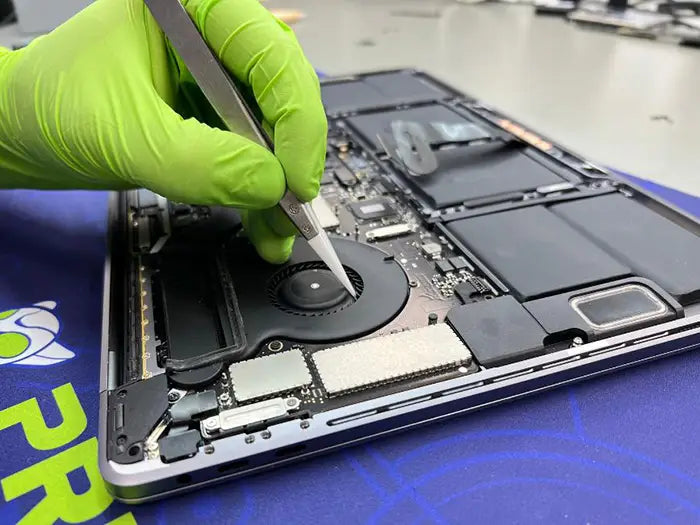
These types of problems require a different diagnostic approach. Instead of focusing on macOS behavior, technicians begin isolating hardware components, testing known-good parts, and inspecting connections under magnification when necessary.
This is why consistency is such an important clue. Software issues tend to change depending on system state, updates, or restarts. Hardware and input-path problems, on the other hand, usually become more stable or progressively worse over time.
If the issue does not clearly align with software behavior—especially if there are signs like physical resistance, uneven clicking, or changes in the shape of the device—it becomes critical to investigate deeper causes such as flex cable damage or battery swelling.
Real Diagnostic Case: When It Looked Like Software but Wasn’t
One of the reasons trackpad problems are so often misdiagnosed is that the symptoms do not always point clearly in one direction. A MacBook can appear to have a software-related clicking issue, especially when the cursor still moves and the failure seems inconsistent, but the real cause may be deeper in the hardware or input path.
We have seen this in real repair cases. In one example, a MacBook Pro came in with a complaint that the trackpad had stopped clicking properly. The user believed the issue started after recent changes to the system, so software was an understandable first suspect. The cursor still responded, which made the problem look even more like a macOS or settings-related failure.

But proper testing told a different story.
Instead of assuming the trackpad itself had failed, the diagnostic process focused on isolation. The trackpad was inspected, tested against known-good components, and the internal connections were examined more closely. Under magnification, the real issue became clear: damage in the connection path was interfering with normal trackpad function.
In cases like this, replacing the trackpad alone would not have solved the problem. The visible symptom was a non-clicking trackpad, but the root cause was elsewhere. This is exactly why symptom-based repair leads to mistakes. What the user feels at the surface is not always where the failure begins.
This kind of case also reinforces an important point from the rest of this article: partial functionality can be misleading. A moving cursor does not automatically mean the trackpad is healthy. A missing click does not automatically mean the trackpad itself is defective. And a recent update does not automatically mean software is to blame.
Professional diagnosis works by separating those possibilities one by one. That means checking whether the issue changes with software conditions, but also knowing when to move beyond software and inspect the physical system underneath. In real-world MacBook repairs, that distinction is what prevents unnecessary part replacement and leads to the correct fix the first time.
What You Can Do Before Assuming Hardware Failure
Before treating a non-clicking MacBook trackpad as a hardware failure, it makes sense to rule out the most common software-related possibilities first. The goal is not to guess, but to see whether the symptom changes under controlled conditions.
One of the first things to check is timing. If the clicking issue started immediately after a macOS update, a settings migration, or a recent system change, software becomes a much more realistic suspect. That is especially true when the cursor still moves, gestures still work, and the trackpad does not show any obvious physical resistance.
You can also review the trackpad settings in macOS to confirm that click behavior, tap settings, and accessibility options have not changed unexpectedly. In some cases, users are dealing with a configuration problem rather than a failed trackpad.

Restarting the MacBook is another useful step, not because it fixes every problem, but because it can reveal how consistent the symptom really is. If the click briefly returns after a restart, behaves differently at login, or changes between boots, that usually points more toward software or system-state behavior than a physically failed component.
Safe Mode can also provide a valuable clue. Since Safe Mode limits certain background processes, extensions, and cached system behavior, a trackpad that works differently there may indicate that macOS is contributing to the problem. A hardware defect usually remains much more consistent regardless of startup mode.
What you should avoid is opening the MacBook too quickly or replacing parts without a clear diagnosis. We often see cases where users assume the trackpad itself is bad, only to discover later that the real issue was software-related or located elsewhere in the input path.
If the problem remains unchanged after basic software checks, or if you notice physical warning signs such as resistance, uneven clicking, bulging, or a lifted palm rest area, it is time to stop troubleshooting at the software level and consider a full hardware inspection.
That distinction matters because a software-related issue may be resolved through configuration, system cleanup, or operating system recovery, while a hardware-related problem can worsen if the device continues to be used without proper diagnosis.
Get a professional MacBook diagnosis before replacing parts unnecessarily. A proper evaluation can determine whether the issue is coming from software behavior, the keyboard input path, battery pressure, flex cable damage, or a deeper board-level fault.
Trackpad Not Clicking? Get a Real Diagnosis Before Replacing Parts
A MacBook trackpad that stops clicking can be caused by several different factors, and not all of them are hardware failures. As we’ve seen, software issues can interrupt how macOS processes input and generates the haptic feedback that creates the “click” sensation, even when the trackpad itself is physically intact.
At the same time, not every issue is software. Battery swelling, flex cable damage, keyboard-related input interference, and logic board faults can all produce similar symptoms. Without proper testing, these problems are easy to confuse, which often leads to unnecessary part replacements or incomplete repairs.
This is where professional diagnostics make the difference. Instead of guessing, technicians isolate each part of the system—software behavior, input pathways, and physical components—to identify the exact cause of failure. That process ensures the repair targets the real issue, not just the visible symptom.
In many cases, what appears to be a simple trackpad problem turns out to be something deeper. We’ve seen MacBooks where replacing the trackpad did nothing, because the root cause was a damaged flex cable or a keyboard-related signal issue. In others, the problem was resolved without replacing any hardware at all.
The key is knowing which path you’re dealing with before making a repair decision.
Trackpad not clicking? Don’t replace parts blindly. Get a professional diagnosis and fix the real cause the first time.
By identifying whether the issue is software-related or hardware-driven, you avoid unnecessary costs, prevent additional damage, and ensure your MacBook is repaired correctly. If your trackpad is no longer clicking, the smartest next step is a proper diagnosis—not a guess.
Compartir este

Explora más
Artículos relacionados sobre reparación de Mac

Entradas populares
Frequently Asked Questions MacBook Trackpad Moves but Won’t Click Software Issues Explained
Can a MacBook trackpad stop clicking after a software update?
Why does my MacBook trackpad move but not click?
How do I know if my trackpad problem is software or hardware?
Can a keyboard issue cause the trackpad to stop clicking?
Can a swollen battery stop a trackpad from clicking?
Should I replace the trackpad if it’s not clicking?
Is it safe to keep using a MacBook with a trackpad issue?
¿Tu MacBook no funciona? Obtén un diagnóstico experto y opciones de reparación
Si tu MacBook está experimentando problemas, obtener un diagnóstico adecuado es el primer paso. Muchos problemas que parecen fallas importantes a menudo pueden resolverse con reparaciones a nivel de componente específicas.
En Prime Tech Support, nos especializamos en diagnósticos y reparaciones avanzados de MacBook, incluidos problemas que otras tiendas pueden no ser capaces de resolver.
¿En Miami? Obtén servicio de reparación de Mac local
Nuestro equipo está listo para ayudarte. Ofrecemos reparaciones el mismo día
¿No estás en Miami? Usa Nuestro Servicio de Reparación de Mac por Correo
Ofrecemos reparaciones seguras por correo a nivel nacional con tiempos de respuesta rápidos y diagnósticos profesionales.
Explora más guías de reparación de MacBook
Ver todo-

Logic board problems can stop your MacBook trackpad from clicking even after replacing the trackpad. Learn the real causes and...
Why a Logic Board Issue Can Stop Your MacBook Trackpad From Cl...
Logic board problems can stop your MacBook trackpad from clicking even after replacing the trackpad. Learn the real causes and...
-

A MacBook trackpad that stops clicking after an update isn’t always a hardware issue. Learn the real software causes, key...
MacBook Trackpad Moves but Won’t Click? Software Issues Explained
A MacBook trackpad that stops clicking after an update isn’t always a hardware issue. Learn the real software causes, key...
-

A MacBook Pro trackpad not clicking is often misdiagnosed. This guide explains the real causes—including keyboard-related issues—and how proper diagnostics...
MacBook Pro Trackpad Not Clicking? How Keyboard Issues Can Be ...
A MacBook Pro trackpad not clicking is often misdiagnosed. This guide explains the real causes—including keyboard-related issues—and how proper diagnostics...