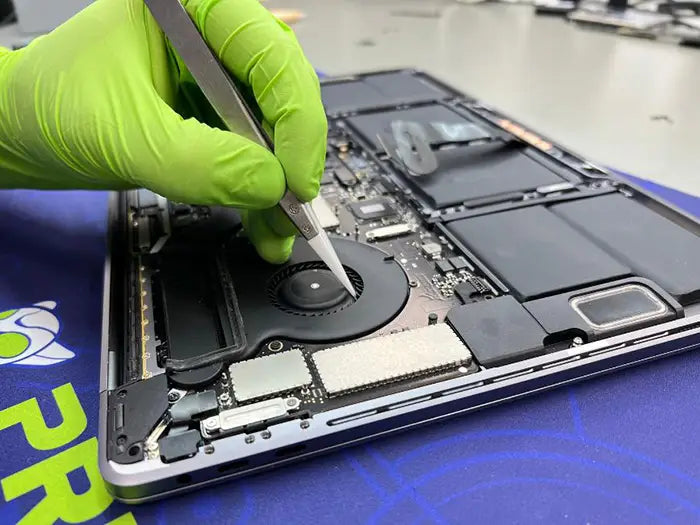
MacBook Pro Trackpad Not Working Due to Flex Cable Issue: Symptoms and Repair
A MacBook Pro trackpad that stops working can often be traced to a flex cable issue, especially when the cursor still moves but clicking fails or becomes inconsistent.
This is a common internal problem that many users don’t immediately consider. Because the trackpad itself looks fine from the outside, it’s easy to assume the issue is the trackpad — when in reality, the communication cable connecting it to the logic board may be the real cause.
If your MacBook Pro trackpad is not clicking, this issue can be caused by multiple factors beyond the flex cable. For a complete breakdown of all possible causes, see our full guide on MacBook Pro trackpad not clicking, where we explain how to identify the exact issue before replacing any parts.
In this guide, you’ll learn what the trackpad flex cable does, how to identify symptoms of failure, what causes it to break, and how proper diagnosis can save you from unnecessary repairs.
Table of Contents
What Is the Trackpad Flex Cable in a MacBook Pro?
The trackpad flex cable is a thin ribbon cable that connects the trackpad to the MacBook’s logic board. It carries signals related to movement, pressure detection, and click response.
Connection to logic board
This cable acts as the communication bridge between the trackpad and the system. If the connection is interrupted, the trackpad may partially or completely stop working.
Why it's critical
Without this cable functioning properly:
- Click signals may not register
- Movement data may be delayed or inconsistent
- The trackpad may stop responding entirely
Even if the trackpad hardware is perfectly fine, a faulty cable can make it seem completely broken.
Symptoms of a MacBook Trackpad Flex Cable Issue
Trackpad flex cable issues in MacBook Pro models often present with inconsistent or misleading symptoms. Because the cable is responsible for transmitting signal data between the trackpad and the logic board, even minor damage, corrosion, or misalignment can result in partial or complete loss of functionality.
In our repair lab, we frequently see cases where the trackpad itself is fully functional — but the signal path is compromised due to cable degradation, connector issues, or environmental damage.
Trackpad completely unresponsive
In more advanced cases, the trackpad stops responding entirely. This typically indicates a full signal interruption between the trackpad and the logic board.
Common scenarios include:
- Severely worn or torn flex cable
- Fully disconnected or loose connector
- Corrosion buildup on connector pins (often due to past liquid exposure)
- Electrical failure along the signal path
In these situations, the cursor may not move at all, and clicking functionality is completely lost.
Intermittent clicking or lag
This is one of the most common symptoms of a degrading flex cable.
Users may report:
- Clicking works sometimes, but not consistently
- Cursor movement is normal, but clicks don’t register
- Delayed response when pressing the trackpad
- Trackpad works intermittently depending on pressure or positioning
This behavior is usually caused by:
- Partial internal cable damage (micro-tears from repeated flexing)
- Weak or unstable signal transmission
- Early-stage corrosion affecting conductivity
Because the issue is not constant, it is often misdiagnosed as a software problem, when in reality, it is a hardware signal issue.
Trackpad stops working after repair
This is a very common real-world scenario we see after:
- Battery replacements
- Trackpad replacements
- Keyboard or top case repairs
If the trackpad stops working after a repair, the most likely causes include:
- Improper flex cable installation
- Cable pinching during reassembly
- Misalignment of the connector
- Damage to the cable during handling
Even slight pressure or incorrect routing of the cable can cause intermittent or total failure.
Trackpad issues after liquid exposure (delayed failure)
One of the most overlooked causes of flex cable failure is liquid damage, especially when the device appears to recover initially.
We frequently see cases where:
- A small spill occurs (water, coffee, soda)
- The device is quickly dried using a towel, air can, or by placing it upside down
- The trackpad works normally for days or weeks
- Then gradually begins to fail
This happens because:
- Moisture reaches the flex cable connector or exposed contacts
- Corrosion begins forming at a microscopic level
- Over time, oxidation interferes with signal transmission
- The issue progressively worsens until failure becomes noticeable
From our Repair Lab:
Even minor liquid exposure can lead to long-term damage if not properly cleaned at a component level.
This is why many trackpad issues appear “random” or delayed, beacuse the underlying cause is corrosion rather than immediate failure.
Summary of Common Symptoms and Root Causes
MacBook trackpad issues often present with similar symptoms, even when the underlying cause is completely different. In our repair lab, we use symptom patterns to quickly narrow down whether the issue is related to the flex cable, connector, or another internal component.
The table below summarizes the most common scenarios we encounter and how they are typically diagnosed.
| Symptom | Likely Cause | Severity | Common Misdiagnosis |
|---|---|---|---|
| Trackpad not responding at all | Disconnected or failed flex cable, severe corrosion | High | Dead trackpad |
| Clicking not registering | Partial cable damage, weak signal | Medium | Software issue |
| Works intermittently | Early cable wear or connector instability | Medium | Driver or macOS issue |
| Stops working after repair | Improper installation or cable damage | Medium–High | Faulty replacement part |
| Works, then fails days later | Liquid damage → corrosion over time | High | “Random hardware failure” |
What Causes Flex Cable Damage in MacBook Pro Models?
When a MacBook Pro trackpad stops clicking or responding correctly, the flex cable is one of the most common failure points we identify during diagnostics.
In our lab, we focus on diagnostics, not just part replacement. We trace the signal path to determine where communication fails. In many cases, the issue is not the trackpad itself, but how the signal travels to the logic board.
Below are the most common causes we see in real repair cases.
Wear and tear from daily use and heat cycles
Over time, the trackpad flex cable is exposed to constant micro-movements and thermal expansion.
What most users don’t realize is:
- The cable is thin and routed through tight spaces inside the chassis
- Every time the laptop heats up and cools down, materials expand and contract
- This creates stress on the internal wiring of the cable
After years of use, this leads to:
- Internal micro-fractures in the cable
- Weak or inconsistent signal transmission
- Gradual failure rather than sudden breakdown
This is especially common in older MacBook Pro models that have seen heavy daily use.
Damage from previous repairs (very common)
This is one of the top causes we see in the lab.
After repairs such as:
- Battery replacement
- Trackpad replacement
- Keyboard or top case work
The flex cable can be:
- Improperly routed
- Slightly pinched between components
- Not fully seated in the connector
- Damaged during handling
The key detail:
The cable does not need to be physically broken to cause failure. Even slight pressure or misalignment can interfere with signal transmission.
We often receive devices where:
- The trackpad was replaced unnecessarily
- The real issue was the cable affected during a previous repair
Liquid exposure and corrosion (delayed failure cases)
This is one of the most misunderstood causes of trackpad issues.
Many customers tell us:
“It got a little wet, but it was working fine after.”
What actually happens:
- Liquid reaches the flex cable or connector area
- The device is dried externally (towel, air, upside down)
- The MacBook appears to recover
- Days or weeks later, the trackpad starts failing
This is because:
- Moisture remains at the microscopic level
- Corrosion begins forming on connector pins
- Oxidation slowly disrupts electrical conductivity
Over time, this leads to:
- Intermittent response
- Clicking issues
- Complete signal failure
Technician Insight: Liquid damage is rarely immediate, most failures are progressive.
This is why proper internal cleaning is critical after any spill, even if the device seems fine.
Connector wear or damage at the logic board
The flex cable relies on a secure and clean connection to both:
- The trackpad
- The logic board
We often find:
- Loose connectors from repeated handling
- Bent or worn pins
- Debris or corrosion inside the connector
- Weak contact pressure
Even a slightly compromised connection can cause:
- Intermittent functionality
- Clicking issues
- Complete loss of trackpad input
In some cases, the cable itself is fine, but the connector needs repair or reinforcement.
Pressure from a swollen battery
Battery swelling is another major factor that directly affects the trackpad system.
As the battery expands:
- It pushes upward against the trackpad assembly
- Applies pressure to the flex cable
- Alters alignment of connectors
This can lead to:
- Cable stress or displacement
- Partial disconnection
- Inconsistent clicking behavior
In more advanced cases:
The trackpad may physically stop clicking due to pressure
This is why trackpad issues are often linked to battery condition.
Can the keyboard affect the trackpad in a MacBook?
In some MacBook Pro models, especially Intel-based systems, the trackpad and keyboard are part of a shared input system that relies on common signal pathways and connectors.
This means that issues affecting one component can sometimes impact the other.
In real repair cases, we see this happen when:
- Liquid damage affects multiple input components
- Internal connectors or signal paths are compromised
- Previous repairs disturb the top case assembly or cable routing
In these situations, the trackpad may appear to be the problem, but the root cause can involve the broader input system.
In newer Apple Silicon models, the trackpad is generally more isolated. However, shared issues can still occur in cases involving:
- Liquid exposure
- Battery swelling
- Internal connector or board-level damage
This is why trackpad issues should always be diagnosed as part of the full input system — not as an isolated component.
Summary of Root Causes We See in Real Repairs
MacBook trackpad issues often present with similar symptoms, even when the underlying cause is completely different. In our repair lab, we use these symptom patterns to quickly determine whether the issue is related to the flex cable, connector, or a deeper signal problem.
The table below summarizes the most common trackpad issues we see, their likely causes, and how they are frequently misdiagnosed.
| Cause | What Happens Internally | How It Affects the Trackpad | Frequency in Lab |
|---|---|---|---|
| Wear and tear | Cable weakens over time | Intermittent or degraded signal | High |
| Previous repair damage | Cable misaligned or pinched | Sudden or inconsistent failure | Very High |
| Liquid damage | Corrosion builds on connectors | Delayed, progressive failure | Very High |
| Connector issues | Poor contact or pin damage | Intermittent or no response | Medium–High |
| Battery swelling | Physical pressure on cable | Clicking issues or full failure | Medium |
| Keyboard / input system issues | Shared signal pathways or top case component interference | Intermittent input issues or combined keyboard and trackpad failure | Low–Medium |
Real Case: MacBook Trackpad Flex Cable Repair
In this case, a customer brought in a MacBook Pro with a trackpad that was not clicking properly and behaving inconsistently after a recent battery replacement.
We documented the repair process in the following video:
Diagnosis
When the unit arrived, the symptoms included:
- Trackpad clicking inconsistently
- Unreliable response during normal use
- Fans running at high speed constantly
The customer mentioned the issue started after replacing the battery, which immediately raised a red flag for us.
During internal inspection, we found:
- A loose washer left inside the battery area from the previous repair
- No visible damage to the trackpad itself
- The logic board connector was intact and properly seated
At this point, we focused on the signal path.
After testing the flex cable:
- One end of the cable was functioning correctly
- The opposite end showed failure, and the cable was internally damaged
This confirmed the issue was not the trackpad or the logic board, but the flex cable itself.
Repair
Once the root cause was identified, we proceeded with:
- Removing the damaged flex cable
- Inspecting and cleaning the connector on the logic board
- Installing a new trackpad flex cable with proper routing and alignment
- Reassembling the unit carefully to avoid pressure or misalignment in older Macs and in newer Macs, the trackpad can be replaced or fixed without removing the battery.
After replacement:
- Trackpad functionality returned to normal
- Clicking response was consistent and accurate
- Fan behavior stabilized and returned to normal operating levels
Key takeaway
This case highlights a very common scenario we see in MacBook repairs:
- The issue started after a battery replacement
- The trackpad itself was not defective
- The logic board connector was not damaged
- The failure was isolated to the flex cable
Additionally, the loose washer inside the device indicates improper previous repair, which can contribute to internal damage or signal interference.
Most importantly, without proper diagnostics, this could have easily led to unnecessary trackpad or logic board replacement.
How We Diagnose a Trackpad Flex Cable Issue
Diagnosing a MacBook trackpad issue is not about guessing. It’s about isolating where the failure occurs in the signal chain.

In our lab, we follow a structured diagnostic process to determine whether the issue is:
- The trackpad itself
- The flex cable
- The connector
- Or a deeper logic board problem
Many of these issues present with similar symptoms, which is why accurate testing is critical before replacing any components.
Step 1: Rule out trackpad hardware failure
We start by confirming whether the trackpad itself is functioning correctly.
This includes:
- Testing click response consistency
- Verifying cursor movement behavior
- Checking system-level response (macOS input recognition)
If the trackpad responds partially or inconsistently, it often indicates that the issue is not the trackpad itself, but the communication path.
Step 2: Inspect the flex cable and connectors
Next, we physically inspect the flex cable and its connection points.
We look for:
- Corrosion from liquid exposure (even minor or old spills)
- Misalignment or improper seating of the cable
- Signs of pinching or pressure damage
- Wear or micro-tears along the cable
At this stage, even subtle damage can explain intermittent or failed trackpad behavior.
Step 3: Test signal continuity and stability
This is where we go deeper.
We trace the signal path from:
- The trackpad
- Through the flex cable
- Into the logic board connector
Our goal is to determine:
- Where the signal is interrupted
- Whether the failure is partial or complete
- If the issue is isolated to the cable or extends further
This step allows us to avoid unnecessary part replacements.
Step 4: Identify related issues affecting performance
Trackpad problems are often connected to other internal conditions.
We also check for:
- Battery swelling affecting alignment and pressure
- Debris or foreign objects left from previous repairs
- Thermal or system behavior (such as fans running at high speed)
These factors can either cause or contribute to the issue.
Why proper diagnosis matters
Many MacBook trackpad issues are misdiagnosed because symptoms overlap between different components.
Without a structured diagnostic process:
- A working trackpad may be replaced unnecessarily
- Logic board repairs may be recommended when not needed
- The root cause (such as a damaged cable) may be missed
At Prime Tech Support, our focus is always: Identify the exact failure point before recommending any repair.
Can You Fix a Trackpad Flex Cable Yourself?
Technically, yes, a trackpad flex cable can be replaced by a user. However, based on what we see daily in our repair lab, this type of repair requires precision, the right tools, and an understanding of how the internal components interact.
In many cases, the issue we are fixing was actually caused during a previous DIY repair, most commonly after a battery replacement.
What you can check before opening your MacBook
Before attempting any hardware repair, there are a few basic checks you can perform:
- Restart the device
- Test with an external mouse
- Verify there are no software-related issues or system freezes
If the trackpad still behaves inconsistently or does not respond, the issue is likely hardware-related.
What DIY repair actually involves
Replacing a trackpad flex cable is not just a simple swap. It typically requires:
- Full or partial disassembly of the MacBook
- Removal of the battery and surrounding components
- Careful handling of delicate connectors and cables
- Proper cable routing and alignment during reassembly
Additionally, professional environments use:
- ESD (electrostatic discharge) protection
- Precision tools designed for Apple devices
- Controlled workspaces to avoid contamination or damage
Without these, the risk of damaging other components increases significantly.
Risks of DIY repair
From real cases we receive, the most common issues after DIY attempts include:
- Flex cable damage during disassembly or installation
- Broken or weakened connectors on the logic board
- Misaligned or pinched cables causing intermittent failures
- Screws or small components left inside the device (which can lead to further damage)
- Additional issues such as fans running at high speed due to improper reassembly
In many of these cases, the original issue was minor, but the repair attempt created more complex problems.
Our recommendation based on real repair cases
If you have experience working with internal components and understand the risks, replacing the flex cable yourself may be possible.
However, for most users:
- The cost of professional repair is often lower than the cost of correcting damage caused during a DIY attempt.
This is especially true for trackpad-related issues, where:
- Multiple components are involved
- Symptoms can be misleading
- Proper diagnosis is required before replacing parts
When it makes sense to seek professional repair
We recommend professional diagnostics when:
- The issue started after another repair (like battery replacement)
- The trackpad works intermittently or behaves inconsistently
- There are signs of liquid exposure
- You are unsure whether the problem is the cable, trackpad, or logic board
At that point, accurate diagnosis becomes more important than trial-and-error repairs.
Repair vs Replacement for Flex Cable Issues
When dealing with trackpad issues in a MacBook Pro, the correct solution depends entirely on accurate diagnosis. In many cases, the problem is not the trackpad itself, but the communication path between the trackpad and the logic board.
Understanding whether to repair or replace components can prevent unnecessary costs.
Flex cable replacement vs repair
In most cases, the flex cable is replaced rather than repaired.
This is because:
- The cable is thin and not designed for partial repair
- Internal damage (micro-tears) cannot be reliably fixed
- Replacement ensures stable signal transmission
In our experience, Replacing the cable is the most reliable and cost-effective solution when the cable itself is damaged.
Connector repair (board-level work)
If the issue is not the cable but the connector:
- Micro-repair may be possible at the board level
- This involves precision work under magnification
- Requires specialized tools and soldering expertise
This type of repair is more advanced, but it allows us to:
- Preserve the original logic board
- Avoid full board replacement
When the trackpad is NOT the problem
One of the most common mistakes we see is replacing the trackpad unnecessarily.
Trackpads are often replaced when the real issue is:
- A damaged flex cable
- A compromised connector
- Signal interruption between components
In these cases:
- The trackpad is fully functional
- Replacing it does not solve the issue
This is why proper diagnostics are critical before replacing any parts.
Cost of Trackpad Flex Cable Repair
The cost of repairing a MacBook trackpad issue depends entirely on the root cause of the problem.
While many users assume the trackpad itself needs to be replaced, in many cases, the issue is related to the flex cable or connector, which can significantly change the scope of the repair.
What affects the cost?
Several factors determine the final repair cost:
- Whether the issue is the flex cable, connector, or trackpad
- The MacBook model and internal design
- Whether there is additional damage (such as liquid exposure or battery pressure)
- The level of repair required (standard replacement vs. board-level work)
Why accurate diagnosis matters
The biggest cost factor is not the repair itself. It’s whether the correct problem is identified from the start.
In many cases, we see:
- Trackpads replaced unnecessarily when the cable is the issue
- Multiple repair attempts due to incorrect diagnosis
- Additional damage caused during previous repair attempts
A proper diagnosis allows us to:
- Identify the exact failure point
- Recommend the most efficient repair
- Avoid unnecessary part replacements
Technician Insight: Trackpad failures are not always caused by the trackpad itself. In many cases, the issue originates in the signal path: including the flex cable, connector, or logic board.
These failures require controlled testing to identify accurately. Estimating cost without inspection can lead to incorrect assumptions and unnecessary part replacements.
This is why we always recommend starting with a professional diagnostic before committing to a repair.
When to Seek Professional Repair
If your MacBook trackpad is not functioning correctly, certain symptoms strongly indicate a hardware issue that requires proper diagnosis.
From what we see in our repair lab, you should seek professional help when:
- Trackpad works inconsistently or intermittently
- Clicking fails, but cursor movement still works
- The issue started after a battery or internal repair
- The trackpad is completely unresponsive
- There are signs of liquid exposure or internal damage
These symptoms typically point to a failure in the signal path, often involving the flex cable, connector, or related components.
At this stage, guessing or replacing parts without testing can lead to unnecessary repairs and higher costs.
MacBook Trackpad Repair in Miami & Nationwide
If your MacBook trackpad is not working due to a suspected flex cable issue, the most effective step is a professional diagnostic to identify the exact cause.
At Prime Tech Support, we specialize in:
- Advanced MacBook diagnostics
- Component-level repairs
- Signal path troubleshooting (not just part replacement)
Our team works daily on cases involving:
- Trackpad failures
- Flex cable damage
- Liquid exposure
- Issues caused by previous repairs
In Miami? Get Local MacBook Repair
If you are located in Miami or Broward:
- Visit our lab for in-store diagnostics
- Get a clear evaluation of the issue
- Receive repair recommendations based on actual testing, not assumptions
Not in Miami? Use Our Nationwide Mail-In Service
If you are outside South Florida:
- Securely ship your MacBook to our repair lab
- Our technicians will perform a full diagnostic
- We provide clear findings and repair options before proceeding
Many of our mail-in customers come to us after:
- Unsuccessful local repairs
- Misdiagnosed issues
- Shops recommending unnecessary replacements
With our mail-in service, you get the same level of expertise regardless of your location.
Is Your MacBook Trackpad not working?
Trackpad issues are often caused by underlying hardware problems such as flex cable damage, connector issues, battery pressure, or logic board faults. While symptoms may seem simple, the root cause is not always obvious without proper testing.
At Prime Tech Support, we focus on accurate diagnostics to determine exactly why your trackpad is not working, so you avoid unnecessary repairs and get the right solution the first time.
Schedule a professional diagnostic and let our team safely inspect your MacBook Pro, logic board, and system components to get your computer running again.
Schedule a Professional MacBook Pro DiagnosticNot sure what's causing the issue?
If you're unsure whether the problem is the trackpad, cable, or another internal component, we can help you evaluate the situation before committing to a repair.
Common issues we diagnose include:
Trackpad not clicking
Intermittent trackpad response
Trackpad not working after repair
Liquid damage affecting input devices
Tell us what’s happening, and we’ll help you understand the issue before committing to a repair.
Get a Quick EvaluationShare this

Related Mac Repair Articles


FAQ MacBook Pro Trackpad Not Working Due to Flex Cable Issue
Is a trackpad flex cable repair expensive?
How do I know if my MacBook trackpad issue is the cable?
Can a flex cable cause the trackpad to stop clicking?
What does a MacBook trackpad flex cable do?
MacBook Not Working? Get Expert Diagnosis and Repair Options
If your MacBook is experiencing issues, getting a proper diagnosis is the first step. Many problems that seem like major failures can often be resolved with targeted component-level repairs.
At Prime Tech Support, we specialize in advanced MacBook diagnostics and repairs, including issues that other shops may not be able to resolve.
In Miami? Get Local Mac Repair Service
Our team is ready to help you . We offer same-day repairs
Not in Miami? Use Our Mac Mail-In Repair Service
We offer secure nationwide mail-in repairs with fast turnaround times and professional diagnostics.
Explore More MacBook Repair Guides
View all-

If your MacBook connects to Wi-Fi but drops during calls, uploads, or remote work, the correct fix depends on whether...
MacBook Wi-Fi Keeps Dropping: Find the Cause and Fix It for Good
If your MacBook connects to Wi-Fi but drops during calls, uploads, or remote work, the correct fix depends on whether...
-

Running out of storage on your MacBook? Learn when an internal SSD upgrade makes sense, when an external SSD is...
MacBook SSD vs External Drive: Which Is Right for You in 2026?
Running out of storage on your MacBook? Learn when an internal SSD upgrade makes sense, when an external SSD is...
-

A MacBook SSD upgrade is possible on certain older MacBook Pro and MacBook Air models, but newer models use storage...
MacBook SSD Upgrade: Can Your Model Be Upgraded—and Is It Wort...
A MacBook SSD upgrade is possible on certain older MacBook Pro and MacBook Air models, but newer models use storage...