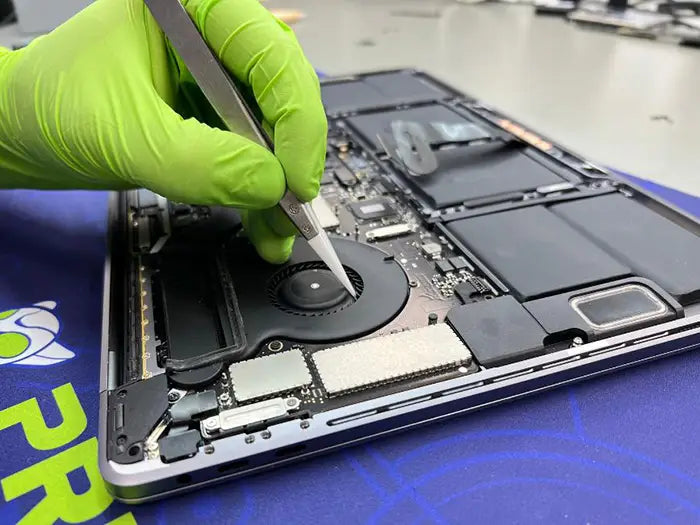
MacBook Wi-Fi Keeps Dropping: Find the Cause and Fix It for Good
When your MacBook Wi-Fi keeps dropping, reconnecting may restore access for a few minutes without explaining why the interruption occurred. That becomes especially frustrating during video calls, remote work, online classes, cloud uploads, or streaming sessions.
An unstable connection can originate at several different layers: the wireless connection between the MacBook and router, the router or mesh network, the internet provider, DHCP, DNS, a VPN or security filter, macOS, or MacBook hardware. The permanent fix is therefore not one universal reset. It is identifying which layer is failing, correcting that cause, and confirming that the connection remains stable under the conditions that normally trigger the problem.
Quick Answer: Watch whether the MacBook disconnects from Wi-Fi or stays connected while internet access stops. Test another device on the original network, then connect the MacBook to a second known-good network. If the failure follows the MacBook, investigate its software or hardware. If it remains limited to one network, investigate the router, mesh system, modem, or internet provider.
If Wi-Fi never works rather than disconnecting after a successful connection, begin with the broader MacBook Wi-Fi not working guide.
Table of Contents
What Is Actually Dropping?
Before changing any settings, determine what stops working during the interruption. A Wi-Fi disconnection, an internet outage, and a DNS problem can look similar from the application you are using, but they require different fixes.
The MacBook Disconnects From the Wi-Fi Network
A true Wi-Fi disconnection means the MacBook loses its wireless connection to the router or access point. The Wi-Fi menu may show that the network has disconnected, nearby networks may reappear, or the MacBook may reconnect automatically after several seconds.
This pattern directs attention toward signal quality, interference, mesh roaming, router compatibility, saved network configuration, macOS networking, or wireless hardware. DNS changes will not repair this type of disconnection because DNS does not maintain the radio connection between the MacBook and router.
Wi-Fi Remains Connected, but Internet Access Stops
If the Wi-Fi menu still shows the MacBook connected, the wireless link may be healthy. The interruption may instead involve:
- The router's connection to the modem or internet provider
- An invalid or conflicting IP address
- A DHCP lease problem
- DNS failing to resolve website names
- A VPN, proxy, content filter, or security extension
- One application losing its connection
Test more than one application during the failure. If a video call stops but websites and messages continue working, the problem may belong to that application or service rather than the entire Wi-Fi connection.
If the MacBook never joins the network or continually rejects the password, use the MacBook won't connect to Wi-Fi guide. If the connection stays active but performance is consistently poor, follow the MacBook Wi-Fi is slow guide.
Is It the Router or the MacBook?
The most useful diagnostic rule is to follow the failure across devices and networks. Complete this comparison before deleting files, resetting hardware settings, or making several router changes.
Check Another Device on the Original Network
Keep a phone, tablet, or another computer connected to the same router. When the MacBook drops, immediately check whether the second device also loses access.
If several devices fail at the same time, the router, mesh access point, modem, or internet provider becomes more likely. A Mac-specific reset will not repair an interruption affecting the entire network.
If every other device remains connected, the failure may be specific to the MacBook. However, one-device failure does not automatically mean hardware damage. The router may be treating that Mac differently because of DHCP, band steering, device registration, or a damaged saved-network profile.
Test the MacBook on a Second Network
Connect the MacBook to another known-good network or a temporary phone hotspot. Use the MacBook long enough to recreate the normal failure conditions.
If Wi-Fi usually drops during a 30-minute video call, test for a comparable period. If it happens after waking from sleep, put the Mac to sleep and repeat that sequence. If large uploads expose the problem, test with an appropriate non-sensitive file.
A MacBook that remains stable on the hotspot but drops repeatedly at home points toward the home router or wireless environment. If the same failure follows the MacBook across independent networks, focus on macOS, network software, or hardware.
A successful hotspot test is useful evidence, but it does not prove that every wireless component is healthy. Different networks use different bands, security modes, distances, and signal conditions.
Compare the Router Location With the Normal Workspace
Test beside the router and then in the location where the problem normally occurs. Keep the network and activity as consistent as possible.
If the MacBook remains stable beside the router but disconnects in the office, bedroom, or another workspace, the likely causes include range, interference, building materials, or mesh coverage. Walls, floors, metal structures, appliances, and nearby networks can all influence signal quality.
Compare another device in the same location. If both devices struggle there, the network environment deserves attention. If only the MacBook drops beside a known-good router, continue with Mac-side testing.
Compare Battery and Charger Behavior Carefully
You may test the same activity once on battery and once while the charger is connected. Keep the network, location, applications, and test duration similar.
If the Wi-Fi drops only on battery, record that pattern and review the MacBook's current energy settings, Low Power Mode, and installed networking software. Do not assume macOS universally disables Wi-Fi to preserve power, and do not look for a supposed universal "disable Wi-Fi power management" switch.
| Test Result | More Likely Cause | Best Next Action |
|---|---|---|
| Several devices drop simultaneously | Router, access point, modem, or provider | Check network equipment and service status |
| Only the MacBook drops on one network | Router compatibility, DHCP, saved profile, mesh, or interference | Rejoin, renew DHCP, and compare access points |
| The MacBook drops on several networks | macOS, VPN/filter software, or hardware | Isolate Mac-side causes |
| Stable beside router, unstable in workspace | Range, interference, or mesh coverage | Review placement, bands, and access points |
| Wi-Fi stays connected but internet stops | WAN, DHCP, DNS, VPN, proxy, or filter | Identify which traffic layer failed |
| Nearby networks repeatedly disappear | Mac-side software or hardware | Restart, collect evidence, and evaluate further |
After each change, repeat the activity and wait through the period that normally causes the dropout. A connection that works for thirty seconds has not yet been verified as stable.
Fixes When the Problem Stays With One Network
If the MacBook works normally on another trusted network, concentrate on the original router and its relationship with the Mac. Start with reversible changes and test after each one.
Forget and Rejoin the Network
Before forgetting the network, confirm that you know the correct password and any workplace, school, or managed-network requirements.
Open System Settings, select Wi-Fi, locate the relevant network, and use its available controls to forget it. Menu labels can vary slightly between macOS versions. Rejoin the network and enter the password carefully.
This creates a fresh relationship between the MacBook and router. It can correct outdated saved security information or configuration left behind after a router, password, or access-point change.
If the connection becomes stable, the stored network profile was probably involved. If it continues dropping only on that router, move to DHCP and access-point testing.
Renew the DHCP Lease
DHCP, or Dynamic Host Configuration Protocol, provides the MacBook with its local IP address, router address, and other network information.
A conflicting or unusable lease can leave the Wi-Fi icon connected while internet access stops. In current macOS versions, the renewal control is generally available through the Wi-Fi network's TCP/IP details in System Settings.
Choose Renew DHCP Lease and test again. If the connection becomes stable, the previous address information was likely involved. If renewal only helps temporarily, the permanent problem may be in the router's DHCP range, reserved addresses, or lease behavior.
Repeatedly renewing the lease is not a permanent fix if the router continues creating the same conflict.
Test Another Band or Access Point
The 2.4 GHz, 5 GHz, and 6 GHz bands behave differently:
- 2.4 GHz often provides broader practical coverage but may face more interference.
- 5 GHz generally provides more capacity but may weaken more quickly through walls.
- 6 GHz provides additional spectrum but requires compatible MacBook and router hardware.
Treat switching bands as a diagnostic test rather than a universal recommendation. If another band remains stable, investigate congestion, range, band steering, or compatibility on the original band.
On a mesh network, compare the primary router and available mesh nodes. A MacBook that disconnects while moving between rooms may be encountering an unstable handoff between access points.
Check Mesh Roaming and Access-Point Placement
Mesh systems try to move devices between access points as the signal changes. That transition is normally seamless, but aggressive steering or inconsistent configuration can interrupt a sustained call or upload.
Notice whether the drop occurs in the same room, hallway, or position. If it repeatedly happens while the MacBook moves between two access points, the mesh transition deserves investigation.
Do not change several mesh settings simultaneously. Record each adjustment and test the same movement or activity afterward.
Update Router Firmware and Check Service Stability
Restart the network equipment according to the manufacturer or internet provider's instructions. If the modem and router are separate, allow the modem to restore its provider connection before expecting the router to provide stable internet access.
Check the router manufacturer's application or administration interface for current firmware. Do not interrupt an update after it starts, and avoid a factory reset unless the configuration and provider requirements have been saved.
Apple's recommended router and access-point settings cover security, bands, channels, DHCP, firmware, and other reliability-related settings. If every device disconnects together, check the internet provider before changing more Mac settings.
Fixes When the Problem Follows the MacBook
If the same failure appears on multiple known-good networks while other devices remain stable, move to Mac-side testing.
Apple's Mac Wi-Fi troubleshooting guidance prioritizes restarting, updating macOS, reviewing VPN or security software, checking the router, using built-in diagnostics, and testing another network.
Restart and Update macOS
Restart the MacBook rather than only closing and reopening the lid. A restart reloads network processes and can clear temporary states that survive sleep.
Install the latest macOS update compatible with the MacBook. Use a stable connection and back up important information before a major update.
If the connection began dropping soon after an update, record the macOS version and build. Test another network and review VPN, filter, and network-extension compatibility before concluding that the update directly caused the failure. Use the dedicated guide for MacBook Wi-Fi problems after an update when that timing defines the issue.
Test Optional VPNs, Proxies, and Security Filters
A VPN, proxy, firewall, content filter, or endpoint-security product can interrupt internet traffic while the MacBook remains connected to Wi-Fi.
Closing the visible application may not stop its background network extension. Use the software's supported pause or test process, record what was changed, and restore protection afterward.
Do not disable employer-required security software, school profiles, monitoring, or managed filters without authorization. If the connection fails when the tool activates and recovers when it is safely paused, involve the administrator or software provider.
Run Wireless Diagnostics
Hold Option while selecting Wi-Fi in the menu bar, choose Open Wireless Diagnostics, and follow the prompts.
Apple explains that Wireless Diagnostics analyzes the connection and creates a diagnostic report without changing Network settings. Record the time of the dropout, detected recommendations, signal conditions, and report location.
Wireless Diagnostics is an evidence-gathering tool, not a one-click permanent fix. A clean report does not eliminate an intermittent software or hardware problem that was inactive during the test.
Consider Advanced Network Configuration Only After Safer Tests
Do not begin by deleting network preference files or resetting NVRAM. File paths and behavior vary by macOS release, and low-level reset instructions depend on the MacBook's architecture.
Traditional Intel procedures should not be applied automatically to an Apple-silicon MacBook. Old articles may also tell readers to remove preference files that current macOS versions manage differently.
If safer testing fails, back up important data and document DNS, VPN, proxy, and Network settings before rebuilding configuration. Make sure any procedure is current, model-appropriate, and reversible.
When Is DNS Actually Relevant?
DNS is relevant when Wi-Fi remains connected and the MacBook has usable network access, but website names fail to load or take unusually long to resolve.
For example, the Mac may still reach the router and maintain its Wi-Fi connection while Safari cannot translate a website name into its network address. That is different from the Wi-Fi icon disconnecting.
Changing DNS will not repair:
- Weak wireless reception
- Mesh roaming interruptions
- Nearby networks disappearing
- A damaged antenna connection
- A true loss of the MacBook-to-router wireless link
Confirm the failed layer and record the existing DNS configuration before testing an approved alternative.
Record This During the Next Wi-Fi Drop
Intermittent problems are easier to diagnose when the conditions are recorded. During the next interruption, note:
- Whether the Wi-Fi icon disconnected
- Whether other devices failed
- The network being used
- The location of the MacBook
- The time and interval between drops
- The application or activity in use
- Whether the Mac was on battery or connected to power
- Whether a VPN or security filter was active
- Whether the problem followed sleep or movement
This evidence can reveal a pattern that random resets would hide.
When Repeated Drops Suggest a Hardware Problem
Hardware becomes more likely when the failure follows the MacBook across multiple known-good networks after reasonable software testing.
Additional warning signs include:
- Reception remains unusually weak beside a known-good router compared with another device.
- Nearby networks repeatedly disappear from the Wi-Fi menu.
- The problem began after liquid exposure, impact, display work, or internal repair.
- Normal display or chassis movement consistently changes the connection.
- Software fixes provide only temporary recovery.
These patterns do not identify a specific component. Depending on the exact model, diagnosis may involve the antenna path, antenna connectors, wireless hardware, or a logic-board-level fault.
Do not assume every MacBook contains a separately replaceable "Wi-Fi card." Wireless architecture varies by model, and the failed layer must be identified before a repair is recommended.
If liquid exposure may have occurred, power down the MacBook and arrange inspection. Continuing to restart or charge liquid-affected electronics can allow damage to progress.
MacBook Wi-Fi Diagnosis and Repair in Miami
Intermittent Wi-Fi problems should be reproduced before any parts are replaced. A useful diagnosis compares the MacBook across known-good networks, reviews macOS and network software, examines diagnostic information, and checks model-specific hardware only when the evidence supports it.
Before an appointment, record:
- Exact MacBook model
- Installed macOS version
- Networks and locations tested
- How frequently the connection drops
- Router or mesh model
- VPN and security tools installed
- Wireless Diagnostics results
- Recent liquid, impact, display-repair, or internal-repair history
Prime Tech Support's Mac repair services in Miami provide a service path when repeated drops follow the MacBook or cannot be isolated safely. Diagnosis may still conclude that the router, VPN, software, or network configuration—not Mac hardware—caused the interruptions.
MacBook Wi-Fi still dropping during work or video calls? Prime Tech Support diagnoses intermittent software, network-configuration, and hardware problems in Miami. Book a MacBook Wi-Fi diagnostic in Miami to identify the cause before replacing parts. Same-day options may be available for qualifying appointments; confirm current availability when booking.
Share this

Related Mac Repair Articles


FAQ MacBook Wi-Fi Keeps Dropping? Causes & Permanent Fixes
Why Does My MacBook Wi-Fi Disconnect Every Few Minutes?
How Can I Tell Whether the Router or MacBook Is Responsible?
Why Does My MacBook Show Wi-Fi but No Internet?
Can Changing From 2.4 GHz to 5 GHz Stop the Drops?
Should I Delete Network Preference Files or Reset NVRAM?
When Should I Take My MacBook in for Diagnosis?
MacBook Not Working? Get Expert Diagnosis and Repair Options
If your MacBook is experiencing issues, getting a proper diagnosis is the first step. Many problems that seem like major failures can often be resolved with targeted component-level repairs.
At Prime Tech Support, we specialize in advanced MacBook diagnostics and repairs, including issues that other shops may not be able to resolve.
In Miami? Get Local Mac Repair Service
Our team is ready to help you . We offer same-day repairs
Not in Miami? Use Our Mac Mail-In Repair Service
We offer secure nationwide mail-in repairs with fast turnaround times and professional diagnostics.
Explore More MacBook Repair Guides
View all-

If your MacBook connects to Wi-Fi but drops during calls, uploads, or remote work, the correct fix depends on whether...
MacBook Wi-Fi Keeps Dropping: Find the Cause and Fix It for Good
If your MacBook connects to Wi-Fi but drops during calls, uploads, or remote work, the correct fix depends on whether...
-

Running out of storage on your MacBook? Learn when an internal SSD upgrade makes sense, when an external SSD is...
MacBook SSD vs External Drive: Which Is Right for You in 2026?
Running out of storage on your MacBook? Learn when an internal SSD upgrade makes sense, when an external SSD is...
-

A MacBook SSD upgrade is possible on certain older MacBook Pro and MacBook Air models, but newer models use storage...
MacBook SSD Upgrade: Can Your Model Be Upgraded—and Is It Wort...
A MacBook SSD upgrade is possible on certain older MacBook Pro and MacBook Air models, but newer models use storage...