Slow MacBook: When to Maintain, Repair, or Replace It
A MacBook that used to open apps instantly may become noticeably slower after several years of daily use. Applications take longer to launch, Spotlight searches hesitate, browser tabs reload more often, and demanding tasks may begin quickly before slowing down halfway through.
That does not automatically mean the MacBook is obsolete—or that it needs to be replaced.
Regular maintenance can restore performance when the slowdown is caused by restricted cooling, limited free storage, unnecessary startup items, background services, or software that is using more resources than it should.
However, maintenance cannot repair failed storage, a damaged fan, an unstable power system, or hardware that no longer has enough processing power or memory for the work you need to do.
The important question is not simply whether the MacBook is old. It is whether the problem calls for maintenance, a specific hardware repair, or replacement.
This guide focuses on MacBooks that have become gradually slower over months or years. A MacBook that became dramatically slower overnight, repeatedly shuts down, cannot charge reliably, shows physical damage, or freezes before startup should be diagnosed before routine maintenance is attempted.
Table of Contents
Should You Maintain, Repair, or Replace a Slow MacBook?
Maintenance can make a slow MacBook faster when heat, storage pressure, excessive login items, or unnecessary background activity is reducing performance. It will not fix a failed component or give an older MacBook more processing power, memory, or software compatibility than its hardware supports.
The pattern of the slowdown is usually the best place to begin.
| What You Notice | Most Likely Category | First Check | Recommended Direction |
|---|---|---|---|
| The Mac is slow immediately after login | Login items, cloud sync, or background services | Login Items and Activity Monitor | Maintenance may help |
| It starts fast but slows during long, demanding tasks | Heat, cooling limitations, or workload saturation | Activity Monitor, fan behavior, and power mode | Inspect cooling and workload before deciding |
| Apps hesitate when opening or saving files | Low free storage or a storage problem | Storage settings and Disk Utility | Maintenance or storage diagnosis |
| Only one application is slow | App compatibility, plug-ins, or workload demand | App updates and resource use | Software maintenance may help |
| The slowdown appeared suddenly with shutdowns or charging problems | Power or hardware instability | Battery condition, charger, and Apple Diagnostics | Professional diagnosis before maintenance |
| The Mac is consistently slow with normal system readings | Hardware may no longer meet the workload | Model, memory, and workload assessment | Consider whether replacement is justified |
This guidance applies to MacBook Air and MacBook Pro models, but the cooling system, memory design, diagnostic process, and available repair options vary by model. Intel-based MacBooks and Apple-silicon MacBooks should not be treated as though they have identical hardware or troubleshooting procedures.
The goal is to identify the limiting condition before paying for maintenance, authorizing a repair, or purchasing a replacement MacBook.
Why MacBooks Get Slower Over Time
A MacBook rarely becomes slower for only one reason. Gradual performance loss is usually the combined result of changing software, background activity, storage pressure, heat, and a workload that may be more demanding than it was when the computer was purchased.
Heat Can Reduce Sustained Performance
Every modern MacBook manages its temperature by adjusting how much power the processor can use. This is a normal protective function. It helps prevent the internal components from operating outside their intended thermal range.
The practical result is that a MacBook may feel fast during light tasks but slow down during sustained work such as exporting video, compiling software, processing large photo libraries, or running several demanding applications at once.
On fan-equipped MacBook Pro models, accumulated dust can restrict airflow through the vents, fan blades, and heat-dissipation system. Restricted airflow does not automatically mean the computer is damaged, but it can cause the cooling system to work harder and may reduce how long the processor can maintain higher performance.
Other thermal factors can produce similar symptoms. These include a damaged fan, an inaccurate sensor, heavy ambient heat, a demanding workload, or a cooling design that has reached its normal performance limit.
MacBook Air models with passive cooling do not use an internal fan. They are designed to reduce sustained performance when necessary without producing fan noise. A fanless MacBook Air slowing during a long workload is therefore not automatically evidence of dust buildup or hardware failure.
High activity from a process called kernel_task may also appear when macOS is managing temperature. kernel_task is not malware, and forcing it to quit is not an appropriate fix. Apple explains that kernel_task helps manage CPU temperature by limiting the processor resources available to other processes when thermal conditions require it.
The useful question is not whether kernel_task appears. It is when it appears and what the MacBook is doing at that moment.
A MacBook that slows only during an intensive export may be reaching a normal workload limit. A fan-equipped MacBook that becomes hot and slow during light work may need a closer inspection of its cooling system, background activity, or hardware.
For a deeper explanation of how heat affects sustained performance, see our MacBook thermal throttling guide.
Background Processes Accumulate Over Years of Use
Many applications install login items, menu-bar tools, update agents, browser extensions, or background services. These processes may continue to load when the Mac starts, even if the main application is rarely used.
One background process may have little effect. Several cloud-sync clients, update services, communication tools, security utilities, and browser helpers running together can consume processor time and memory before the user opens any work applications.
This type of slowdown often appears immediately after login. The MacBook may remain busy for several minutes while cloud libraries synchronize, applications check for updates, browsers restore sessions, and background services load.
Unlike hardware limitations, unnecessary background activity is often reversible. A careful software review can identify which services are required, which can be started manually, and which belong to applications that are no longer used.
The goal is not to disable everything. Removing unfamiliar services indiscriminately can interrupt backups, file synchronization, security tools, or professional workflows. A useful tune-up removes unnecessary resource use without breaking the software the owner still depends on.
Storage Pressure Makes Normal System Work More Difficult
macOS needs free space on the startup disk for more than personal files. The system also uses storage for updates, temporary files, application caches, indexing data, and swap.
Swap is storage space used when active applications require more memory than is immediately available. High memory demand determines how much swap the system needs. Limited free storage can make that process, along with file operations and system updates, less efficient.
This is why a MacBook with very little available storage may show:
- Longer application launch times.
- Delays when opening or saving large files.
- More hesitation while switching between applications.
- Difficulty completing macOS updates.
- Increased beachballing during memory-intensive work.
There is no single percentage of free storage that is correct for every MacBook. A person editing large video files needs more working room than someone who mainly uses email and browser-based applications.
The more useful pattern is whether the startup disk repeatedly returns to a nearly full condition. If it does, the issue may not be poor housekeeping. The installed storage capacity may no longer match the user's actual workload.
Storage-specific diagnosis deserves a separate discussion rather than turning this article into a file-cleanup tutorial.
New Software Can Outgrow Older Hardware
Maintenance can recover performance lost to a correctable condition. It cannot give the MacBook hardware it never had.
Operating systems and professional applications generally become more capable over time, but they may also place greater demands on processing power, graphics performance, memory, and storage. A MacBook that was fast for basic work several years ago may struggle with current video tools, development environments, large image libraries, or browser workloads containing dozens of active tabs.
Nothing may be physically wrong with the computer. The workload may simply have changed.
This distinction is important because a clean, properly functioning MacBook can still be too limited for the work being requested of it. Maintenance may improve consistency and remove avoidable delays, but it cannot transform an entry-level processor into a higher-performance model or add unified memory to a design where memory is integrated into the system.
Power Settings and Charging Conditions Can Change Performance
Low Power Mode is designed to reduce energy use. Depending on the MacBook model and current workload, it may make demanding work feel slower because the system is intentionally prioritizing battery life.
Battery age alone does not mean every MacBook will run slowly. An aging battery usually becomes noticeable through reduced runtime, unusual charging behavior, or a service recommendation in Battery settings.
Apple's battery-condition guidance explains that "Service Recommended" can indicate reduced charge capacity or abnormal battery behavior. That condition should be evaluated alongside the actual symptoms rather than treated as automatic proof that the battery is causing poor performance.
The charger also matters. An adapter or cable that cannot provide the power expected by the model may lead to slow charging, battery drain during intensive work, or inconsistent power availability. It should not be assumed to be the cause of performance loss without testing.
Unexpected shutdowns, charging that repeatedly starts and stops, battery swelling, or a MacBook that loses power under load are not routine tune-up symptoms. They require a hardware and power-system assessment.
Is the Slowness Coming From Hardware or Software?
The timing of the slowdown often provides more useful information than the word "slow" alone.
A MacBook that hesitates immediately after login has a different diagnostic pattern from one that performs normally for twenty minutes and then slows during a demanding task.
Signs the Problem Is More Likely Software-Related
Software-related slowdown often appears in a predictable context.
The MacBook may be slow only after login while background applications load. One application may consume much more processor time or memory than expected. The slowdown may begin after installing an update, browser extension, or new application. It may also be temporary while macOS indexes files after an update or major data migration.
Common software-related clues include:
- High processor use from one identifiable application.
- Yellow or red memory pressure during ordinary work.
- Many login items loading at the same time.
- Several cloud-sync or backup services running together.
- A browser using large amounts of memory across many tabs.
- Slow performance that disappears in a different user account or Safe Mode.
These patterns do not prove that every affected application should be removed. They show where the investigation should begin.
Signs the Problem Is More Likely Thermal or Hardware-Related
Thermal or hardware problems are more likely when the symptoms are not tied to one application or startup process.
A fan-equipped MacBook may become progressively slower during sustained work while the fan remains unusually loud. A damaged fan may produce grinding, rattling, or uneven mechanical noise instead of a normal flow of air.
Unexpected shutdowns, intermittent charging, display artifacts, repeated diagnostic codes, or storage errors are also reasons to move beyond routine maintenance.
A thermal pattern is usually related to sustained use: the Mac begins normally but loses performance as the workload continues. A component failure can be less predictable and may occur during light work, startup, or idle time.
Gradual Slowness Versus a Sudden Performance Drop
Gradual slowdown over months or years is consistent with accumulated login items, reduced free storage, changing workloads, outdated applications, or thermal limitations.
A sudden performance drop has a wider range of possible causes. It may follow:
- A macOS or application update.
- Spotlight or photo-library indexing.
- A runaway process.
- A damaged application or extension.
- Storage errors.
- A power problem.
- A developing hardware fault.
Because sudden slowdown has many possible causes, it should be diagnosed rather than automatically classified as hardware failure or routine maintenance.
Intel and Apple-Silicon MacBooks Do Not Behave the Same Way
Intel MacBooks and Apple-silicon MacBooks manage memory, power, and troubleshooting differently.
Apple-silicon models use unified memory shared by the processor and graphics system. That memory is integrated into the design and cannot generally be upgraded after purchase.
Many Intel-era troubleshooting instructions also do not apply to Apple-silicon models. For example, an SMC reset is an Intel-specific procedure and should not be presented as a universal performance fix.
MacBook Air and MacBook Pro cooling systems also vary by generation. Some models use one or more fans. Others use passive cooling. The appropriate inspection and service process therefore depends on the exact model, not merely the MacBook name.
You can identify the processor type and model information through About This Mac under the Apple menu.
A 10-Minute Check Before You Replace Your MacBook
Before paying for maintenance or replacing the computer, use the MacBook's built-in tools to identify the pattern.
Apple's official guidance for a slow-running Mac recommends checking available storage, application memory requirements, software compatibility, unused applications, and disk problems.
The following checks do not replace a professional diagnostic, but they can show whether the problem is likely to be related to one application, memory demand, storage, startup activity, or hardware.
1. Check CPU Use in Activity Monitor
Open Activity Monitor from Applications → Utilities and select the CPU tab.
Sort by the % CPU column. Look for a process that remains unusually active even when the MacBook is not performing a demanding task.
A high number during a video export, game, software build, or photo-processing task may be normal. A background utility using a large share of the processor during light work may deserve further investigation.
Do not force-quit unfamiliar system processes simply because they appear near the top. Record the process name, when the slowdown occurs, and what applications are open.
2. Review Memory Pressure
Select the Memory tab in Activity Monitor and look at the Memory Pressure graph.
Green generally indicates that the system is managing the current workload comfortably. Yellow indicates increasing pressure. Red suggests that the workload is regularly demanding more memory than the system can provide efficiently.
Also look at swap usage. A small amount of swap is not automatically a problem. Persistent high swap combined with yellow or red memory pressure and noticeable hesitation is more meaningful.
Closing unused applications may improve the situation. If ordinary work repeatedly produces high memory pressure, the installed memory may no longer be sufficient for the workload.
3. Observe kernel_task During Sustained Work
If kernel_task appears near the top of the CPU list, do not try to remove or disable it.
Record what the MacBook is doing when the process becomes active. Does it happen only during a long export or intensive workload? Does it occur during basic browsing? Does the performance return after the workload ends?
This timing helps distinguish normal thermal management from a possible cooling, sensor, or background-process problem.
4. Review Startup-Disk Storage
Open System Settings → General → Storage.
Look for large media libraries, old device backups, downloads, unused applications, and project files that may no longer need to remain on the startup disk.
Do not delete unfamiliar system files or empty folders simply because their names are unclear. A safe storage review focuses on known personal files, unused applications, and data that can be backed up or moved intentionally.
If the storage returns to a nearly full condition soon after cleanup, the installed capacity may not be suitable for the current workload.
5. Review Login Items and Background Services
Open System Settings → General → Login Items & Extensions.
Review the applications that open automatically and the services allowed to run in the background. Disable only items you recognize and do not need at startup.
Cloud-storage tools, backup applications, audio drivers, communication software, and security utilities may need background access to function correctly. The objective is to reduce unnecessary startup load, not to remove every service.
6. Check Power Mode, Battery Condition, and Charger
Open System Settings → Battery and check whether Low Power Mode is active.
Review the battery condition and note any service recommendation. Confirm that the adapter and cable are appropriate for the MacBook model.
Test whether the slowdown changes when the MacBook is connected to reliable power. If charging remains inconsistent, the Mac shuts down unexpectedly, or the battery behaves abnormally, stop treating the issue as a normal software tune-up.
7. Run Apple Diagnostics When Hardware Is Suspected
Apple Diagnostics can help identify certain hardware problems. Apple provides separate Apple Diagnostics instructions for Apple-silicon and Intel-based Macs.
A diagnostic reference code can help narrow the investigation. A clean result does not rule out every intermittent hardware fault, software conflict, or storage problem, so it should be treated as one part of the diagnosis.
Technician note: Record when the slowdown begins, which applications are active, whether it changes on battery power, and whether the same task produces the same result every time. A repeatable symptom is much easier to diagnose than a general description such as "it feels slow."
How Regular Maintenance Can Restore Lost Performance
Professional maintenance should not be the same checklist for every MacBook.
A useful maintenance visit begins by identifying the actual limiting condition. The service should then address that condition and repeat the original workload to confirm whether performance, stability, or consistency changed.
Internal Cleaning Restores Airflow on Applicable Models
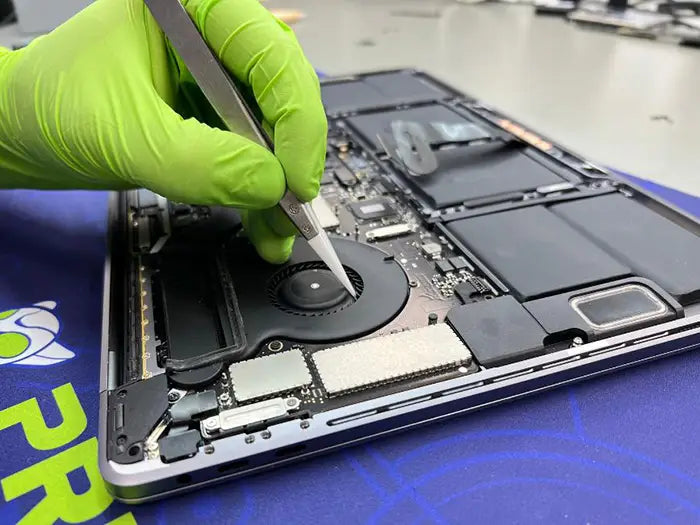
On fan-equipped MacBook models, internal cleaning can remove contamination from fan blades, vents, and other parts of the cooling path.
The value of cleaning depends on the model and the amount of contamination found. A MacBook with clear airflow and normal fan operation may not gain meaningful performance from cleaning alone. A model with heavily restricted airflow may sustain demanding work more consistently after the obstruction is removed.
Internal cleaning is not simply a cosmetic service. It requires opening the case, disconnecting power safely, and inspecting components without damaging cables, connectors, or the battery.
The exact procedure belongs in the dedicated guide to internal MacBook cleaning.
A Software Tune-Up Removes Unnecessary Resource Use
A legitimate software tune-up should be evidence-based.
It may include reviewing:
- Login items and background extensions.
- Browser extensions.
- Abandoned application helpers.
- Resource-heavy applications.
- Storage pressure.
- Application compatibility.
- Update status.
- Repeated error or crash behavior.
The purpose is not to install another "cleaner" that remains active in the background. It is to identify what is consuming resources and remove or reconfigure only what is unnecessary.
A detailed MacBook software tune-up should explain those steps without duplicating the diagnostic and repair-versus-replacement focus of this article.
Thermal-Interface Service Is Model- and Condition-Dependent
Thermal-interface material helps transfer heat between a processor and its cooling assembly. In some older, previously serviced, or thermally abnormal MacBooks, the material or its installation may no longer provide effective heat transfer.
That does not mean every MacBook needs thermal-paste replacement, and it should not be presented as an automatic yearly service.
A technician should consider:
- The exact model and cooling design.
- The service history.
- Measured thermal behavior.
- Fan operation.
- Evidence found during physical inspection.
- Whether the symptoms remain after other causes are addressed.
Thermal-interface work should be recommended only when the evidence supports it.
Storage Maintenance Restores Working Room
Storage maintenance is more than deleting random files.
A proper review identifies which data is consuming space, whether the storage problem keeps returning, and whether the drive is behaving normally.
The service may involve moving large media libraries, removing known duplicate or obsolete data, uninstalling unused applications, and clearing safe application-generated files.
The purpose is to give macOS enough working room for normal file operations, updates, caches, and swap. It cannot increase the physical storage capacity of a non-upgradeable design.
Testing Confirms Whether the Service Worked
A maintenance visit should not end with "it feels faster."
The same workload should be compared before and after service. Useful observations include:
- How long the task takes.
- Whether performance declines during sustained work.
- Memory-pressure behavior.
- Swap use.
- Fan behavior on applicable models.
- Application errors.
- Shutdowns or instability.
The purpose is not to promise a universal percentage improvement. It is to confirm whether the diagnosed limitation was corrected.
What Maintenance Can and Cannot Fix
| Maintenance May Improve | Maintenance Will Not Accomplish |
|---|---|
| Excessive login items and background resource use | Add unified memory to an integrated design |
| Restricted airflow in a fan-equipped model | Make unsupported hardware compatible with every new macOS feature |
| Storage pressure caused by removable or movable data | Repair a failed storage device through file cleanup |
| Performance consistency when cooling is the limitation | Turn an entry-level processor into a higher-performance model |
| Startup delays caused by unnecessary services | Repair a damaged fan, sensor, battery, or logic board |
| Stability after an incompatible application or extension is corrected | Guarantee a specific speed or temperature improvement |
This distinction protects the customer from paying for the wrong service. Maintenance should restore efficiency that has been lost. It should not be sold as an upgrade or as a substitute for hardware repair.
Before and After Maintenance: What Improvement Is Realistic?
The result depends on what was limiting performance.
If the slowdown is caused by unnecessary startup items, the MacBook may become responsive sooner after login. If restricted airflow is causing a fan-equipped MacBook to reduce performance during sustained work, cleaning may improve consistency. If low free storage is interfering with normal system operations, reclaiming working room may reduce hesitation during file and memory-intensive tasks.
Maintenance cannot guarantee that an older MacBook will feel new. It cannot add processor performance, memory capacity, or software support.
Symptoms That Often Improve
When the diagnosed cause is corrected, users may notice:
- A shorter period of heavy background activity after login.
- Fewer interruptions from unnecessary processes.
- More consistent performance during sustained work.
- Reduced beachballing when storage pressure was the cause.
- More predictable fan behavior on applicable models.
- Better stability after incompatible software is removed or updated.
These outcomes should remain conditional. They should be supported by verified technician observations rather than presented as guaranteed results.
How to Measure the Result Properly
Use the same MacBook, power condition, applications, and workload before and after service.
A useful service record should document:
| Measurement | Why It Matters |
|---|---|
| Exact MacBook model and processor | Establishes the hardware baseline |
| macOS version | Confirms the software environment |
| Workload tested | Makes the comparison repeatable |
| Time until slowdown appears | Shows whether sustained performance changed |
| Memory pressure and swap | Identifies resource limitations |
| Fan or thermal behavior | Shows how the cooling system responds |
| Errors, crashes, or shutdowns | Separates speed from stability |
| Technician conclusion | Explains what changed and what remains limited |
Do not publish invented benchmark results. Add a verified, anonymized Prime Tech Support case here when the before-and-after test conditions can be documented accurately.
When Maintenance Is Not Enough
A slow MacBook should not receive a generic cleaning when the real problem is a failed component or inadequate hardware.
Storage, Fan, Sensor, Battery, or Logic-Board Failure
A damaged fan, unreliable storage device, failing sensor, unstable battery, or board-level fault requires a targeted repair.
Software cleanup cannot correct physical storage errors. Dust removal cannot repair worn fan bearings. Changing login items cannot stabilize a power circuit.
Warning signs that deserve diagnosis include:
- Repeated shutdowns.
- Charging instability.
- Grinding or rattling fan noise.
- Storage errors.
- Recurring diagnostic reference codes.
- Display artifacts.
- Failure to start reliably.
- Slowness accompanied by crashes or file corruption.
RAM and Storage Upgrades Depend on the Exact Model
Many modern MacBooks integrate memory and storage into the main system design. They cannot be upgraded in the same way as a traditional laptop with removable memory modules or a replaceable drive.
Some older MacBook models offer more flexibility, but upgradeability must be confirmed for the exact model and year.
Do not assume that "more RAM" or "a larger SSD" is available as a repair option. A technician should verify the hardware configuration before recommending an upgrade.
The Hardware May No Longer Fit the Workload
Sometimes the MacBook is functioning correctly but no longer provides enough performance for the required work.
This can happen when a user moves from basic browsing to video editing, software development, complex audio production, large design files, or applications that require newer macOS features.
Maintenance may still reduce avoidable background load, but it will not close a large gap between the machine's capability and the workload.
Maintain, Repair, or Replace Your MacBook?
| Diagnostic Finding | Best Next Step | Why |
|---|---|---|
| Unnecessary background services or storage pressure | Maintain | The cause is correctable without replacing hardware |
| Restricted airflow on a serviceable fan-equipped model | Maintain | Cleaning may restore cooling efficiency and sustained consistency |
| Damaged fan, battery, sensor, or charging system | Repair | A specific component is causing the problem |
| Storage or logic-board fault | Repair if economically reasonable | Cleaning and software work cannot correct component failure |
| Hardware works normally but no longer supports the required workload | Replace or change the workload | Maintenance cannot add missing processing power, memory, or compatibility |
| Mixed or inconsistent symptoms | Diagnose before deciding | The wrong service may waste money or leave the real problem unresolved |
The decision rule is straightforward:
Maintain the MacBook when the limiting condition is correctable and the hardware still meets your needs.
Repair it when a specific failed component can be restored economically.
Replace it when the hardware itself can no longer support the required workload or when the repair cost is not reasonable for its remaining useful life.
When software, storage, power, and thermal clues point in different directions, a structured diagnostic should come before any service recommendation.
How Often Should a MacBook Receive Maintenance?
There is no universal maintenance interval for every MacBook.
A fan-equipped MacBook used daily for long video exports in a dusty environment may need inspection sooner than a fanless MacBook Air used occasionally in a clean office.
The appropriate interval depends on:
- Cooling design.
- Workload.
- Dust exposure.
- Pets or smoking in the environment.
- Previous repair history.
- Recurring symptoms.
- Storage and software habits.
Calendar-based maintenance should not replace symptom-based inspection.
Safe Maintenance the Owner Can Perform
Owners can safely perform basic exterior cleaning using Apple-compatible methods, keep important files backed up, review storage, install supported system updates, and periodically inspect login items.
Restarting can also help isolate a persistent process or complete an update, but it should not be treated as a cure for an unresolved recurring problem.
Work That Requires Proper Tools and Inspection
Opening a MacBook introduces risks that are not present during exterior cleaning. Internal cables, batteries, connectors, and cooling components can be damaged by improper tools or handling.
Internal cleaning, fan service, thermal-interface work, and board-level diagnosis should therefore be performed only with appropriate tools, model knowledge, and safety procedures.
The model-specific boundaries and risks belong in the dedicated MacBook fan-cleaning guide.
Keeping a MacBook Fast After Service
Maintenance is more valuable when the original cause does not immediately return.
Once a month, or whenever performance begins to change, review storage, memory pressure, and newly added login items. Pay attention to whether one application is consistently responsible for high processor or memory use.
Keep a simple record of recurring symptoms. Note the date, application, power condition, and task being performed. This information can reveal patterns that are easy to miss when each slowdown is considered separately.
A useful record might say:
"Video export begins normally but slows after twelve minutes while connected to power. Fan becomes loud. Memory pressure remains green."
That is much more diagnostically useful than:
"The Mac is slow."
Back up important data before major system updates, storage work, or internal service. A performance problem does not always indicate immediate data loss, but maintaining a current backup reduces the consequences if storage or hardware instability is discovered.
MacBook Maintenance and Diagnostics in Miami
Prime Tech Support is an independent Mac repair provider in Miami, Florida, serving MacBook Air and MacBook Pro owners with hardware, software, storage, power, and thermal diagnostics.
A professional evaluation should identify:
- Whether the slowdown is software-related, thermal, storage-related, power-related, or hardware-related.
- Which observations support that conclusion.
- Whether maintenance is likely to help.
- Whether a component requires repair.
- Whether the MacBook still fits the owner's workload.
- How the result will be tested after service.
The customer should receive a cause-based recommendation rather than a generic statement that the MacBook has been "cleaned" or "optimized."
For a broader overview of available Mac repair services in Miami, review our Mac repair services before choosing a service.
What to Bring or Back Up Before Service
Back up important files before bringing the MacBook in for internal work, storage diagnosis, or repair.
Bring the charger you normally use if the slowdown or instability changes when the MacBook is connected to power. Also bring any notes about the workload, applications, shutdowns, fan behavior, or error messages.
These details reduce guesswork and help the technician reproduce the condition.
Book a MacBook Performance Diagnostic
MacBook getting slower over time? Prime Tech Support can test the hardware, software, storage, power, and thermal behavior before recommending maintenance, repair, or replacement.
Find Out Whether Your MacBook Needs Maintenance, Repair, or Replacement
Book a MacBook performance diagnostic in Miami to identify the cause before paying for a generic tune-up or replacing a computer that may still meet your needs.
Compartir este

Artículos relacionados sobre reparación de Mac

Entradas populares

FAQ Slow MacBook: When to Maintain, Repair, or Replace It
¿Tu MacBook no funciona? Obtén un diagnóstico experto y opciones de reparación
Si tu MacBook está experimentando problemas, obtener un diagnóstico adecuado es el primer paso. Muchos problemas que parecen fallas importantes a menudo pueden resolverse con reparaciones a nivel de componente específicas.
En Prime Tech Support, nos especializamos en diagnósticos y reparaciones avanzados de MacBook, incluidos problemas que otras tiendas pueden no ser capaces de resolver.
¿En Miami? Obtén servicio de reparación de Mac local
Nuestro equipo está listo para ayudarte. Ofrecemos reparaciones el mismo día
¿No estás en Miami? Usa Nuestro Servicio de Reparación de Mac por Correo
Ofrecemos reparaciones seguras por correo a nivel nacional con tiempos de respuesta rápidos y diagnósticos profesionales.
Explora más guías de reparación de MacBook
Ver todo-

A slow MacBook doesn't always need replacing. Learn how to distinguish software problems, cooling restrictions, storage limitations, and hardware failures—and...
Slow MacBook: When to Maintain, Repair, or Replace It
A slow MacBook doesn't always need replacing. Learn how to distinguish software problems, cooling restrictions, storage limitations, and hardware failures—and...
-

If your MacBook connects to Wi-Fi but drops during calls, uploads, or remote work, the correct fix depends on whether...
MacBook Wi-Fi Keeps Dropping: Find the Cause and Fix It for Good
If your MacBook connects to Wi-Fi but drops during calls, uploads, or remote work, the correct fix depends on whether...
-

Running out of storage on your MacBook? Learn when an internal SSD upgrade makes sense, when an external SSD is...
MacBook SSD vs External Drive: Which Is Right for You in 2026?
Running out of storage on your MacBook? Learn when an internal SSD upgrade makes sense, when an external SSD is...