MacBook SSD vs External Drive: Which Is Right for You in 2026?
MacBook SSD vs External Drive: Which Is Right for You in 2026?
Running out of MacBook storage does not always mean you need to buy a larger drive. The right solution depends on three questions: Can the internal storage in your exact MacBook model be upgraded? Do you need the additional storage everywhere you use the laptop? And will you use that space for active work, backups, archives, or occasional file access?
For some older MacBooks with replaceable storage, an internal SSD upgrade offers the most convenient result because the additional capacity is always available without a cable or occupied port. For newer MacBooks with onboard storage that cannot be replaced through a conventional drive swap, an external SSD is usually the most practical way to expand active storage.
An external HDD can provide affordable capacity for backups and archives, while iCloud Drive may reduce local storage pressure for users who mostly work with documents and have reliable internet access. If the MacBook is showing read/write errors, corrupted files, missing volumes, or startup problems, however, adding more storage may not address the real issue.
Choose an internal SSD upgrade when your exact MacBook model supports it and you need fast, cable-free access to applications and files wherever you work. Choose an external SSD when the internal storage cannot be conventionally upgraded or when you need flexible, portable capacity at a lower cost. Use an external HDD mainly for backups and archives. If the Mac shows storage errors or missing volumes, diagnose it before buying another drive.
Table of Contents
MacBook SSD vs External Drive: The Quick Decision
The MacBook SSD vs external drive decision becomes easier when you first identify what problem you are trying to solve.
If the MacBook simply has too many files, cleanup or cloud-assisted storage may be enough. If you need more capacity for active photo, audio, video, or project files, an external SSD may be the most practical option. If your MacBook supports a conventional internal storage replacement and you regularly work away from a desk, an internal upgrade may provide a better long-term experience.
Table 1: MacBook Storage Decision in 30 Seconds
| Your situation | Best starting option | Main advantage | Main limitation |
|---|---|---|---|
| Upgradeable MacBook used while traveling | Internal SSD upgrade | Storage is always available without cables | Only possible on eligible models |
| Newer MacBook with non-removable storage | External SSD | Fast and flexible capacity expansion | Requires a cable and available port |
| Large Time Machine backup or archive | External HDD | Lower cost per terabyte | Slower and more sensitive to impact |
| Documents and light files with reliable internet | iCloud-assisted storage | Reduces the amount stored locally | Depends on internet access and synchronization |
| MacBook filled with temporary or unnecessary files | Cleanup first | May solve the problem without new hardware | Does not increase total physical capacity |
| Read/write errors, corruption, missing volumes, or boot problems | Diagnosis first | Addresses a possible storage failure | Requires technical assessment |
Before purchasing hardware, determine whether the storage is genuinely insufficient. Old downloads, application caches, device backups, duplicate media, and abandoned project files can consume significant space. Review what to do when your MacBook storage is full before paying for additional capacity.
If macOS is showing an exact startup-disk-full warning, address that condition promptly. An extremely full startup disk can interfere with updates, application caches, temporary files, and normal system operation.
First Check Whether Your MacBook’s Internal Storage Can Be Upgraded
This is the most important step in the decision. An internal SSD upgrade is only relevant when the exact MacBook model has storage that can be replaced through a supported or technically appropriate service procedure.
Why the Exact MacBook Model Matters
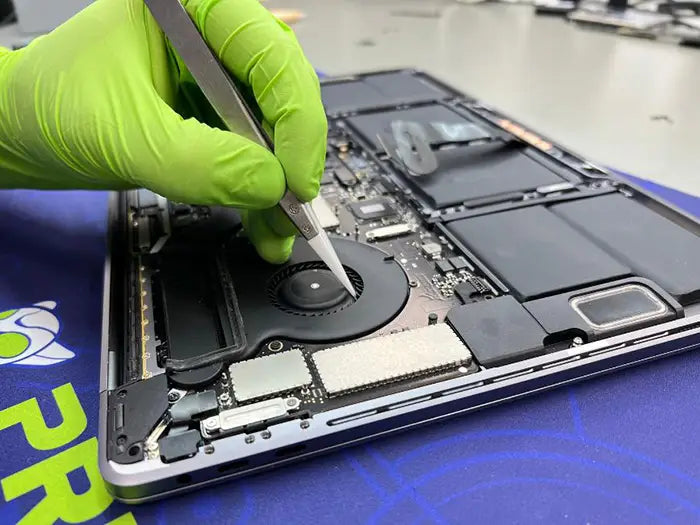
“MacBook Pro” or “MacBook Air” is not specific enough to determine upgradeability. Apple has used different storage designs across MacBook generations, including replaceable 2.5-inch SATA drives, Apple-specific removable flash-storage modules, and onboard NAND storage integrated into the logic-board design.
Two MacBooks that look similar from the outside may have completely different internal architectures. The model year helps narrow the possibilities, but it should not be the only identifier used. The complete model name, model identifier, processor or Apple chip, screen size, and hardware configuration provide a more reliable basis for checking upgrade options.
The model identifier can normally be found under Apple menu → About This Mac → More Info → System Report. An identifier such as MacBookPro18,3 is more precise than a general label such as “2021 MacBook Pro.”
Replaceable Drives, Apple-Specific Modules, and Onboard Storage
Some older MacBooks use storage that can be removed and replaced. Depending on the model, this may be a conventional SATA drive or an Apple-specific blade-style flash module. Compatibility still matters because the physical connector, firmware expectations, available space, adapter requirements, and supported macOS versions can differ.
Many newer MacBooks, including Apple silicon models, use NAND storage that is integrated into the logic-board design. This storage is separate from the Mac’s unified memory, which refers to the memory pool shared by the processor components. Onboard NAND is not upgraded by installing a standard replacement SSD.
Specialized board-level work and a normal SSD upgrade are also not the same service. Board-level procedures may be relevant in specific repair or recovery situations, but they should not be presented as a routine capacity upgrade for a modern MacBook.
Never purchase an internal SSD, Apple-specific module, or adapter based only on the MacBook’s appearance or model year. Verify the exact model and storage architecture first.
For model-specific eligibility, compatibility, and upgrade limitations, check whether your MacBook SSD can be upgraded before purchasing parts or arranging internal work.
When an Internal SSD Upgrade Makes More Sense
An internal SSD upgrade can provide the best overall experience when the MacBook supports it and the user benefits from having all storage physically integrated into the laptop.
You Use Your MacBook Away From a Desk Frequently
An external drive is easy to manage at a fixed desk. It becomes less convenient when the MacBook moves between classrooms, offices, studios, coffee shops, airports, and client locations.
Every external setup requires the drive, a compatible cable, and sometimes an adapter or hub. The external drive must also remain connected whenever an application, project, library, or file stored on it is needed.
An internal upgrade removes that dependency. There is no separate drive to pack, no cable to forget, no port occupied, and no risk of losing access because the external device was left elsewhere.
This makes internal storage especially valuable for students, traveling professionals, field photographers, mobile technicians, and anyone who frequently works without a permanent desk setup.
Applications and Active Files Must Always Be Available
Applications can often run from external storage, but that does not mean an external installation is equally convenient for every workflow.
A developer may depend on local environments, project repositories, virtual machines, and application support files. A music producer may use large sample libraries and plugins with fixed file paths. A photographer may need immediate access to catalogs, previews, and active image libraries.
When disconnecting a drive would interrupt the workflow, integrated storage offers a simpler and more consistent environment. Applications, libraries, caches, and project files remain available every time the MacBook starts.
Consistency Matters More Than the Lowest Cost per Terabyte
Internal storage usually costs more per terabyte than an external SSD. The premium is not only paying for storage speed. It is also paying for integration.
An external setup may require a reliable cable, protective case, hub, dock, or adapter. It also requires the user to manage mounting, safe ejection, transport, and backup of the external device.
For a MacBook that is eligible for an upgrade and used for daily mobile work, the convenience may justify the additional cost.
Internal Upgrade Limitations
The first limitation is model eligibility. If the storage is onboard, a conventional capacity upgrade is not available.
An internal upgrade may also require professional installation, data migration, downtime, and a verified backup. Compatibility must be confirmed before parts are purchased. Warranty or AppleCare implications should be checked with Apple before arranging third-party internal modifications.
An internal SSD upgrade also does not solve every performance problem. A MacBook affected by overheating, insufficient memory, software conflicts, battery-related throttling, or another hardware fault may remain slow after receiving more storage.
Choose an internal SSD upgrade when the exact model supports it, the additional capacity needs to travel with the MacBook, and the benefit of integrated storage justifies the cost and installation work.
Internal SSD vs External SSD vs External HDD
| Factor | Internal SSD | External SSD | External HDD |
|---|---|---|---|
| Availability | Always present inside the MacBook | Available while connected | Available while connected |
| Model requirement | MacBook must support replacement | Compatible port and cable required | Compatible port and cable required |
| Best use | Mobile work, applications, active files | Active files, media libraries, portable expansion | Backups and archives |
| Responsiveness | Usually excellent | Usually strong with a suitable connection | Noticeably slower for small files |
| Port required | No | Yes | Yes |
| Movement resistance | Protected inside the MacBook | No moving internal parts | Mechanical parts require more care |
| Cost per terabyte | Usually highest | Moderate | Usually lowest |
| Main limitation | Upgradeability and installation | Cable and port dependence | Speed, size, noise, and impact sensitivity |
Internal SSD vs External Storage Speed in Real Workflows
Storage performance cannot be reduced to one number. A drive that performs well when copying a single large file may behave differently when opening applications, loading thousands of small files, writing a long video export, or streaming an audio library.
The most useful comparison is not simply internal SSD versus external SSD. It is whether a complete storage setup can meet the requirements of the intended workload.
macOS, Applications, and Small-File Responsiveness
Starting macOS, opening applications, generating previews, loading plugins, and navigating large folders depend heavily on random access. Random access measures how quickly the storage can retrieve many small pieces of data from different locations.
Internal MacBook storage is designed as part of the complete system and generally provides strong random-access performance. A quality external SSD can also feel responsive for many applications, but the result depends on the SSD, controller, protocol, cable, and connection path.
An HDD must physically move its read/write heads across a spinning platter. This produces much longer access times, which is why an HDD can feel slow even when its large-file transfer speed appears acceptable.
Photo Libraries
Photo libraries often contain original images, previews, thumbnails, metadata, databases, and editing instructions. The drive must handle both large image files and many smaller support files.
A portable SSD is normally suitable for a Photos or Lightroom library when the application supports external libraries and the drive is correctly formatted. The user should confirm the application’s current migration instructions before moving the only production library.
The catalog or library should also have a separate backup. Moving it from the internal SSD to an external SSD changes its location; it does not automatically create another recoverable copy.
Audio Production
Audio projects can include recorded tracks, plugins, sample libraries, cache files, and thousands of small audio assets.
A fast external SSD can work well for sample libraries and project storage, but path consistency matters. If a library is unavailable when the drive is disconnected, the application may report missing files or fail to load parts of the project.
Before migrating a large production library, test a copy of the project from the proposed external drive. Confirm that the software finds its samples, plugins, and supporting content after the MacBook has restarted.
Video Editing
Video editing depends more heavily on sustained throughput, especially when working with high-resolution, high-bitrate, multicamera, RAW, or ProRes media.
A standard portable SSD can support many common video workflows. More demanding projects may benefit from a high-performance USB4 or Thunderbolt NVMe setup.
The relevant number is not only the manufacturer’s maximum advertised speed. Long exports and large transfers can slow after a drive’s high-speed cache fills. Enclosure heat may also cause an NVMe SSD to reduce its performance. Independent tests of sustained read and write speeds are more useful than short benchmark peaks.
Backups and Archives
Backup performance has different priorities. Reliability, capacity, and consistent scheduling matter more than opening files instantly.
An HDD can be appropriate for a desk-based Time Machine backup because the backup can run in the background. Apple currently identifies APFS and APFS Encrypted as preferred formats for Time Machine backup disks.
An SSD can also be used for backups, but the higher cost may not provide a meaningful benefit unless fast restores, silent operation, lower power use, or portability is important.
Apple provides current guidance on storage devices and formats supported by Time Machine.
The Final Speed Is Set by the Complete Connection
External storage performance is created by a chain:
MacBook port → cable → hub or dock → enclosure or drive controller → storage device
The slowest or least compatible part of that chain limits the result.
USB-C describes the connector shape. It does not identify one guaranteed data speed. A USB-C port may support different generations of USB, USB4, Thunderbolt, charging, video output, or a combination of those features.
Thunderbolt 4 provides up to 40 Gbps of bidirectional interface bandwidth. Thunderbolt 5 increases the minimum bidirectional bandwidth to 80 Gbps and can allocate additional bandwidth for specific display-heavy conditions. Actual storage throughput is lower than the interface maximum because of protocol overhead, device limits, controller design, thermal behavior, and workload.
Intel’s Thunderbolt technology overview explains the current interface capabilities.
A drive’s advertised “up to” speed describes a best-case peak under specific conditions. It does not guarantee the same performance through every cable, hub, dock, enclosure, MacBook port, or sustained workload.
Before moving active production files, test the exact configuration you plan to use. A drive that performs well when connected directly may behave differently through a dock shared with displays, networking, and other devices.
Best External Drive for MacBook in 2026: Choose by Use Case
There is no single best external drive for every MacBook owner. The best option is the one that matches the MacBook’s ports, the type of files being stored, the required performance, and how often the drive must travel.
Product names and prices change frequently. The drive class and selection criteria are more useful than a list that may become outdated within months.
Best Type for Everyday Portable Storage
For documents, photos, school projects, design files, completed video projects, and general storage expansion, a compact bus-powered portable SSD is usually the strongest starting point.
Choose enough capacity for the current files, expected growth, and free working space. Buying a drive that is almost full immediately recreates the same storage problem.
The included cable should connect directly to the MacBook whenever possible. Depending on a separate adapter adds another component that can be lost, damaged, or become a performance bottleneck.
Best Type for Creative Professionals
A photographer, editor, producer, or developer should choose based on the actual workload rather than the highest number on the packaging.
A standard external SSD may be sufficient for photo libraries, compressed video, audio projects, and development files. Higher-bandwidth Thunderbolt or USB4 NVMe storage may be appropriate for high-bitrate video, large RAW media sets, virtual machines, or workloads involving sustained transfers.
For professional use, evaluate sustained performance, heat management, controller compatibility, warranty coverage, included cable, and behavior through the actual dock or hub.
Best Type for Time Machine and Large Backups
A high-capacity external HDD is often the most economical choice for desk-based backups. It provides more storage per dollar and does not need application-level responsiveness.
The backup drive should have enough capacity to retain multiple versions rather than only one snapshot of the current files. It should also remain separate from active project storage.
Using one physical device for both the only working copy and the only backup weakens the protection. A failure, theft, accidental erase, or physical impact could affect both roles at once.
Best Type for Rugged Travel
A travel drive should prioritize physical reliability, compact size, cable quality, and simple bus-powered operation.
An SSD is normally better suited to frequent movement than an HDD because it has no spinning platter or moving read/write head. A rugged enclosure may add drop and water resistance, but the rating should be verified rather than assumed from appearance.
A short, well-fitting cable can also matter more than a small difference in benchmark speed. Loose connections are one of the most disruptive risks when the drive is used in a vehicle, aircraft, temporary workspace, or outdoor location.
What to Check Before Buying
Confirm the exact MacBook model and port capabilities first. Then verify the drive’s connection protocol, included cable, power requirements, sustained performance, thermal behavior, file-system requirements, encryption options, warranty, and compatibility with the applications that will use it.
For a portable everyday drive, simplicity and reliability usually matter more than maximum theoretical bandwidth. For a professional production drive, sustained performance and tested compatibility deserve more weight.
Best External Drive for MacBook in 2026: Choose by Use Case
There is no single best external drive for every MacBook owner. The best option is the one that matches the MacBook’s ports, the type of files being stored, the required performance, and how often the drive must travel.
Product names and prices change frequently. The drive class and selection criteria are more useful than a list that may become outdated within months.
Best Type for Everyday Portable Storage
For documents, photos, school projects, design files, completed video projects, and general storage expansion, a compact bus-powered portable SSD is usually the strongest starting point.
Choose enough capacity for the current files, expected growth, and free working space. Buying a drive that is almost full immediately recreates the same storage problem.
The included cable should connect directly to the MacBook whenever possible. Depending on a separate adapter adds another component that can be lost, damaged, or become a performance bottleneck.
Best Type for Creative Professionals
A photographer, editor, producer, or developer should choose based on the actual workload rather than the highest number on the packaging.
A standard external SSD may be sufficient for photo libraries, compressed video, audio projects, and development files. Higher-bandwidth Thunderbolt or USB4 NVMe storage may be appropriate for high-bitrate video, large RAW media sets, virtual machines, or workloads involving sustained transfers.
For professional use, evaluate sustained performance, heat management, controller compatibility, warranty coverage, included cable, and behavior through the actual dock or hub.
Best Type for Time Machine and Large Backups
A high-capacity external HDD is often the most economical choice for desk-based backups. It provides more storage per dollar and does not need application-level responsiveness.
The backup drive should have enough capacity to retain multiple versions rather than only one snapshot of the current files. It should also remain separate from active project storage.
Using one physical device for both the only working copy and the only backup weakens the protection. A failure, theft, accidental erase, or physical impact could affect both roles at once.
Best Type for Rugged Travel
A travel drive should prioritize physical reliability, compact size, cable quality, and simple bus-powered operation.
An SSD is normally better suited to frequent movement than an HDD because it has no spinning platter or moving read/write head. A rugged enclosure may add drop and water resistance, but the rating should be verified rather than assumed from appearance.
A short, well-fitting cable can also matter more than a small difference in benchmark speed. Loose connections are one of the most disruptive risks when the drive is used in a vehicle, aircraft, temporary workspace, or outdoor location.
What to Check Before Buying
Confirm the exact MacBook model and port capabilities first. Then verify the drive’s connection protocol, included cable, power requirements, sustained performance, thermal behavior, file-system requirements, encryption options, warranty, and compatibility with the applications that will use it.
For a portable everyday drive, simplicity and reliability usually matter more than maximum theoretical bandwidth. For a professional production drive, sustained performance and tested compatibility deserve more weight.
Best External Drive for MacBook in 2026: Choose by Use Case
There is no single best external drive for every MacBook owner. The best option is the one that matches the MacBook’s ports, the type of files being stored, the required performance, and how often the drive must travel.
Product names and prices change frequently. The drive class and selection criteria are more useful than a list that may become outdated within months.
Best Type for Everyday Portable Storage
For documents, photos, school projects, design files, completed video projects, and general storage expansion, a compact bus-powered portable SSD is usually the strongest starting point.
Choose enough capacity for the current files, expected growth, and free working space. Buying a drive that is almost full immediately recreates the same storage problem.
The included cable should connect directly to the MacBook whenever possible. Depending on a separate adapter adds another component that can be lost, damaged, or become a performance bottleneck.
Best Type for Creative Professionals
A photographer, editor, producer, or developer should choose based on the actual workload rather than the highest number on the packaging.
A standard external SSD may be sufficient for photo libraries, compressed video, audio projects, and development files. Higher-bandwidth Thunderbolt or USB4 NVMe storage may be appropriate for high-bitrate video, large RAW media sets, virtual machines, or workloads involving sustained transfers.
For professional use, evaluate sustained performance, heat management, controller compatibility, warranty coverage, included cable, and behavior through the actual dock or hub.
Best Type for Time Machine and Large Backups
A high-capacity external HDD is often the most economical choice for desk-based backups. It provides more storage per dollar and does not need application-level responsiveness.
The backup drive should have enough capacity to retain multiple versions rather than only one snapshot of the current files. It should also remain separate from active project storage.
Using one physical device for both the only working copy and the only backup weakens the protection. A failure, theft, accidental erase, or physical impact could affect both roles at once.
Best Type for Rugged Travel
A travel drive should prioritize physical reliability, compact size, cable quality, and simple bus-powered operation.
An SSD is normally better suited to frequent movement than an HDD because it has no spinning platter or moving read/write head. A rugged enclosure may add drop and water resistance, but the rating should be verified rather than assumed from appearance.
A short, well-fitting cable can also matter more than a small difference in benchmark speed. Loose connections are one of the most disruptive risks when the drive is used in a vehicle, aircraft, temporary workspace, or outdoor location.
What to Check Before Buying
Confirm the exact MacBook model and port capabilities first. Then verify the drive’s connection protocol, included cable, power requirements, sustained performance, thermal behavior, file-system requirements, encryption options, warranty, and compatibility with the applications that will use it.
For a portable everyday drive, simplicity and reliability usually matter more than maximum theoretical bandwidth. For a professional production drive, sustained performance and tested compatibility deserve more weight.
Format, Capacity, and Backup Rules Before Moving Files
Choosing the correct hardware is only part of the storage decision. File-system format, capacity planning, and backup discipline determine whether the new setup remains reliable.
APFS vs ExFAT
For an SSD used only with modern Macs, APFS is generally the appropriate format. APFS is the current Apple file system, is designed for flash storage, and supports encrypted volumes through Disk Utility.
ExFAT is useful when the same drive must be read and written natively by both macOS and Windows. It provides broad cross-platform compatibility but does not offer the same Mac-focused features as APFS. Disk Utility does not provide a native encrypted ExFAT volume option.
Most users should avoid case-sensitive APFS unless a specific development or application requirement calls for it. Some applications and workflows may treat uppercase and lowercase filenames differently on a case-sensitive volume.
Apple documents the available options in its Disk Utility file-system format guide.
Formatting or erasing a drive removes the files stored on the selected volume. Verify that any existing data has been copied elsewhere and can be opened before changing the format.
How Much Capacity to Buy
The correct capacity is not simply the size of the files you have today.
Account for current data, expected growth, temporary working files, application caches, previews, exports, and the amount of free space required by the workflow. Video, photography, audio, and design projects often create supporting files that are much larger than the original source material.
A user with 700 GB of current data should not automatically choose a 1 TB drive. That leaves little room for growth, working files, or filesystem overhead. The next capacity tier may provide a longer useful life and reduce the chance of repeating the same problem within months.
Backup storage requires a different calculation. A backup disk should normally be larger than the data being protected so it can retain older versions and accommodate future growth.
Moving Files Is Not the Same as Backing Them Up
Moving a file from the internal MacBook storage to an external drive frees internal space. It does not create a backup when the external copy becomes the only remaining copy.
If that drive is lost, damaged, stolen, accidentally erased, or stops working, the file may be lost with it.
Important files should exist in at least two independent locations. For irreplaceable data, a stronger arrangement includes the working copy, a local backup, and another independently stored copy.
The second copy should not depend on the same physical drive, enclosure, cable, or location as the first.
Safely Ejecting and Protecting Active Projects
Use the macOS eject command before disconnecting an external drive. Removing the drive during a write operation can interrupt a transfer or damage the file-system structure.
A cable that appears connected can still loosen during ordinary movement. Avoid placing the drive where it hangs from the MacBook port or where the cable is under tension.
Before trusting an external drive with an important project, verify that it mounts correctly after restart, remains available after sleep and wake, and performs consistently through the intended cable or dock.
Can You Run Apps or macOS From an External SSD?
An external SSD can do more than hold documents and media. It can also store applications, application libraries, and—in supported configurations—a separate macOS installation.
The practical question is not only whether this is technically possible. It is whether the connection-dependent setup is reliable enough for the way the MacBook is used.
Running Applications From External Storage
Many Mac applications can be installed on or moved to an external SSD. Their support files, preferences, plugins, licenses, caches, and user data may still remain in internal Library folders.
Some application updaters expect the program to be in the Applications folder on the internal startup disk. Other software may use fixed paths or security permissions that complicate an external installation.
External installation is usually more suitable for large applications used occasionally than for software that must be available during every work session.
Before moving an essential application, check the developer’s current documentation and test the complete update and restart process.
Running Photo, Video, Audio, and Other Libraries Externally
Application libraries are often better candidates for external storage than the applications themselves.
Photo libraries, Final Cut Pro libraries, Lightroom catalogs and originals, Logic sample libraries, and other large collections can often be stored externally. The correct procedure depends on the application and version.
Do not move the only copy first. Create a verified backup, copy the library to the external SSD, open it from the new location, confirm that the expected files are present, and test the workflow before deleting the original copy.
The drive should remain mounted whenever the application expects to use the library.
Using an External SSD as a macOS Startup Disk
Apple supports installing macOS on a compatible USB or Thunderbolt storage device and selecting it as the startup disk.
The drive must use a supported format, remain connected during startup and updates, and be attached to an appropriate port. A Mac with the Apple T2 Security Chip may require external-boot permission to be enabled through Startup Security Utility.
Apple silicon Macs also have model-specific startup and security behavior that should be followed through Apple’s current instructions.
The complete process is documented in Apple’s guide to using an external storage device as a Mac startup disk.
When External Booting Makes Sense
An external macOS installation can be useful for testing, troubleshooting, maintaining a separate environment, or running a specific supported configuration.
It is usually less convenient as a permanent response to insufficient internal capacity. The drive must remain connected, it occupies a port, and the complete Mac experience becomes dependent on the external connection.
For general storage expansion, keeping macOS and essential applications internally while placing large libraries and project files on an external SSD is normally the simpler arrangement.
Use an external macOS installation when there is a specific reason for a separate startup environment. Do not assume it will be the most convenient everyday solution to a full internal drive.
Which MacBook Storage Option Fits Your Use Case?
The right storage choice depends on more than capacity. Your exact MacBook model, how often you travel, the applications you use, your performance requirements, and whether the drive will hold active files or backups all affect the recommendation.
Use the table below as a starting point, then confirm your MacBook’s upgradeability, ports, software requirements, and backup plan before purchasing storage.
MacBook Storage Recommendations by Use Case
| User or workload | Recommended storage option | Why it fits | Recommended setup | Main caution |
|---|---|---|---|---|
| Student or frequent traveler | Portable external SSD, or an internal SSD upgrade on an eligible older MacBook | A portable SSD provides compact storage for coursework, media, and project files. An internal upgrade removes the need to carry a drive and cable. | Keep macOS, essential applications, and frequently used documents internally. Store large projects and completed coursework on the external SSD. Choose a drive that connects directly without a large dock. | The external drive must travel with the MacBook. For an internal upgrade, confirm that the model supports replacement and that the cost is reasonable compared with replacing the computer. |
| Photographer | Portable SSD for most libraries; faster USB4 or Thunderbolt storage for very large RAW workflows | SSD storage provides the responsiveness needed for image previews, catalogs, imports, and exports without the complexity of an HDD. | Use APFS for a Mac-only workflow when appropriate. Verify that the photo application supports external libraries, and keep the catalog and original images backed up separately. | Advertised peak speed does not guarantee sustained performance. Large RAW libraries also require enough free space for previews, caches, and exports. |
| Video editor | Portable SSD for common projects; Thunderbolt or USB4 NVMe storage for demanding workflows | Video editing can require sustained throughput, especially with high-bitrate, multicamera, RAW, or high-resolution footage. | Match the drive to the codec, resolution, bitrate, number of streams, proxy workflow, and export behavior. Test playback, rendering, cache generation, and a long export using the exact drive, cable, port, and dock. | A drive that performs well in a short benchmark may slow during long exports because of cache limits or heat. Test the full configuration before using it for client work. |
| Music producer | Internal SSD upgrade when supported; otherwise a fast external SSD | Integrated storage keeps applications, plugins, project files, and sample libraries consistently available. A fast external SSD is the practical alternative on non-upgradeable MacBooks. | Keep essential applications and plugins internally when possible. Store large sample libraries and projects externally, then test library paths, plugin behavior, sleep and wake reliability, and startup without the drive connected. | Missing or changed file paths can prevent samples and project assets from loading. Keep a separate backup of projects, recordings, and libraries. |
| Desk-based home or office user | External SSD for active files plus a separate HDD for Time Machine or archives | A fixed workspace makes it easier to separate active storage from backup storage without worrying about travel or cable management. | Use the SSD for active projects and large working files. Use a separate high-capacity HDD for scheduled backups or long-term archives. | Do not rely on one physical drive for both the only working copy and the only backup. A single device failure could affect both roles. |
| Budget-focused backup or archive user | High-capacity external HDD | An HDD normally provides the lowest cost per terabyte for backups, completed projects, and files that do not need immediate access. | Keep the drive on a stable surface, schedule regular backups, eject it properly, and monitor whether backup jobs complete successfully. | HDDs are slower and more sensitive to movement while operating. A low-cost drive should never contain the only copy of irreplaceable data. |
| Owner of a modern MacBook with onboard storage | Portable external SSD | When the internal NAND storage cannot be replaced conventionally, an external SSD is usually the most direct way to expand active storage. | Keep macOS, essential applications, and frequently used small files internally. Store large media libraries, project files, and completed work externally. Choose an interface that matches the MacBook’s actual port capability. | The setup depends on a cable and available port. The external drive also needs its own backup because moving files to it does not automatically create another copy. |
| Owner seeing errors, corruption, missing volumes, or startup trouble | Diagnosis before buying storage | These symptoms may indicate an internal storage, filesystem, or logic-board problem rather than insufficient capacity. | Stop large file transfers, protect any accessible data, and have the MacBook assessed before treating the problem as normal storage expansion. | An external SSD can provide another location for files, but it cannot repair unstable internal storage. Continued use may increase the risk of additional file loss or corruption. |
How to Apply the Recommendation
The table identifies the most appropriate starting point, but the final choice should still be based on the exact MacBook configuration.
First, confirm whether the internal storage can be replaced. If it cannot, compare external options according to the workload rather than buying solely on capacity or advertised speed. Everyday document and photo storage may work well on a standard portable SSD, while demanding video, audio, or virtual-machine workflows may justify a faster USB4 or Thunderbolt configuration.
Portability should also influence the decision. An external SSD may offer excellent performance at a lower cost, but it introduces a cable, occupies a port, and must remain connected whenever its files or libraries are needed. Users who travel constantly may place more value on an internal upgrade when their MacBook supports one.
Finally, separate active storage from backup storage. A drive holding the only copy of a project is active storage, not a backup. Important files should exist on another independent device or storage service.
When Storage Expansion Is Not the Right Next Step
Low capacity and storage failure are different problems.
A MacBook that is simply full may remain stable while displaying storage warnings. A MacBook with a possible storage fault may show read/write errors, corrupted files, disappearing volumes, failed startup attempts, unexpected freezes during file operations, or an internal drive that does not appear correctly in Disk Utility.
Adding an external SSD can create more space, but it does not repair a failing internal storage system. Review the MacBook SSD repair guide when the symptoms suggest failure rather than normal capacity pressure.
If macOS is specifically reporting that the startup disk is full, follow the steps to fix the MacBook startup disk full warning before installing updates, moving large libraries, or purchasing additional hardware.
MacBook Storage Solutions in Miami
What a Storage Assessment Should Confirm
A useful MacBook storage assessment should begin with the exact model rather than a general recommendation.
The assessment should identify the model and storage architecture, determine whether a conventional internal upgrade is possible, check the current storage condition, identify the available port types, and understand what the user is storing.
The recommendation should then distinguish among cleanup, internal upgrade, external SSD, external HDD, cloud-assisted storage, repair, and eventual MacBook replacement.
For external storage, the assessment should also account for workload performance, portability, backup requirements, file-system format, cable compatibility, migration, and the amount of future growth expected.
Prime Tech Support’s Mac repair services in Miami include MacBook diagnostics, storage-condition assessment, model identification, upgradeability evaluation, and practical recommendations based on how the computer is used.
Final Recommendation
Choose an internal SSD upgrade when the MacBook supports it and the benefit of integrated, cable-free storage is important to the workflow.
Choose an external SSD when the internal storage cannot be upgraded, when flexible capacity is more valuable, or when the cost of an internal upgrade does not make sense.
Choose an HDD for high-capacity backups and archives rather than performance-sensitive active work.
Use iCloud-assisted storage when the files are suitable for synchronization and reliable internet access is available.
Most importantly, do not treat storage errors as a capacity problem. When the MacBook shows corruption, missing volumes, read/write failures, or startup trouble, diagnose the internal storage before purchasing another drive.
Not sure which storage solution is right for your MacBook? Our Miami team can identify your exact model, evaluate its current storage condition, and explain whether cleanup, an internal upgrade, an external drive, repair, or replacement is the most appropriate option.
Book a MacBook Storage AssessmentCompartir este

Artículos relacionados sobre reparación de Mac

Entradas populares

FAQ MacBook SSD vs External Drive: Which Is Better in 2026?
Is an Internal SSD or External SSD Better for a MacBook?
Can the SSD in Every MacBook Be Upgraded?
Should I Get an External Drive or Upgrade My MacBook SSD?
Can I Install Mac Applications on an External SSD?
Is an External SSD Fast Enough for Video Editing on a MacBook Pro?
¿Tu MacBook no funciona? Obtén un diagnóstico experto y opciones de reparación
Si tu MacBook está experimentando problemas, obtener un diagnóstico adecuado es el primer paso. Muchos problemas que parecen fallas importantes a menudo pueden resolverse con reparaciones a nivel de componente específicas.
En Prime Tech Support, nos especializamos en diagnósticos y reparaciones avanzados de MacBook, incluidos problemas que otras tiendas pueden no ser capaces de resolver.
¿En Miami? Obtén servicio de reparación de Mac local
Nuestro equipo está listo para ayudarte. Ofrecemos reparaciones el mismo día
¿No estás en Miami? Usa Nuestro Servicio de Reparación de Mac por Correo
Ofrecemos reparaciones seguras por correo a nivel nacional con tiempos de respuesta rápidos y diagnósticos profesionales.
Explora más guías de reparación de MacBook
Ver todo-

Running out of storage on your MacBook? Learn when an internal SSD upgrade makes sense, when an external SSD is...
MacBook SSD vs External Drive: Which Is Right for You in 2026?
Running out of storage on your MacBook? Learn when an internal SSD upgrade makes sense, when an external SSD is...
-

A MacBook SSD upgrade is possible on certain older MacBook Pro and MacBook Air models, but newer models use storage...
MacBook SSD Upgrade: Can Your Model Be Upgraded—and Is It Wort...
A MacBook SSD upgrade is possible on certain older MacBook Pro and MacBook Air models, but newer models use storage...
-

MacBook storage problems can involve much more than a failed SSD. Learn how removable and soldered MacBook storage works, common...
MacBook SSD Repair and Upgrade: Complete Guide to Storage Prob...
MacBook storage problems can involve much more than a failed SSD. Learn how removable and soldered MacBook storage works, common...