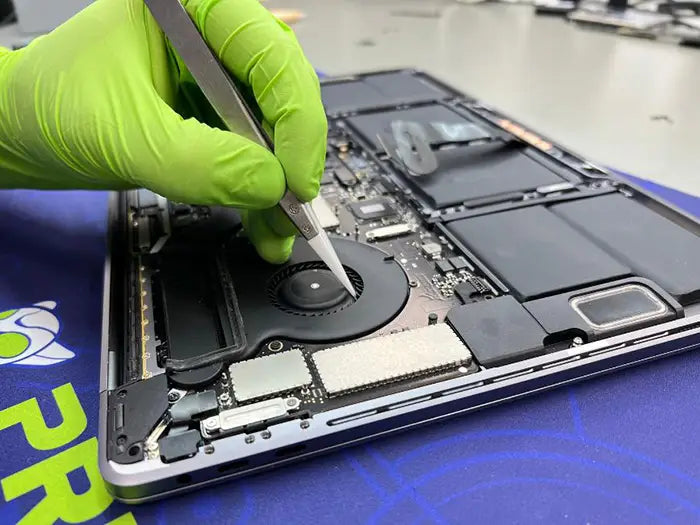
MacBook SSD Repair and Upgrade: Complete Guide to Storage Problems, Diagnosis and Cost
Your MacBook used to start quickly and open applications without hesitation. Now it freezes, takes much longer to load files, repeatedly displays a “Startup Disk Almost Full” warning, or starts with a flashing folder instead of your desktop. Disk Utility may no longer show the internal storage, or the drive may appear during one restart and disappear during the next.
A common assumption is that the SSD is dying. Sometimes that is correct, but MacBook SSD repair is rarely as simple as replacing one standard drive.
The problem may involve insufficient free space, a damaged APFS file system, a removable Apple storage module, soldered NAND, storage-related firmware, power delivery, or the logic board. These faults can produce similar symptoms, but they require different tests and repair options.
If your internal storage is disappearing, failing to mount, or behaving unpredictably and your important files are not backed up, do not erase the disk, reformat it, or reinstall macOS yet. Those actions may be appropriate after diagnosis, but they can create unnecessary risk when the storage system is unstable.
This guide explains how MacBook storage works, why removable and soldered designs require different repairs, which symptoms deserve attention, what you can safely check, how technicians diagnose storage problems, which models may support upgrades, and what determines MacBook SSD repair cost.
Table of Contents
Can a MacBook SSD Be Repaired?
A MacBook SSD problem may be repairable, but the correct solution depends on the exact model and confirmed fault.
APFS or macOS problems may respond to software repair. A failed removable drive or proprietary Apple storage module may be replaceable on compatible Intel models. Apple silicon MacBooks and many later Intel MacBooks use NAND soldered to the logic board, so a storage-related failure may require board-level diagnosis instead of a conventional SSD replacement.
The visible symptom cannot determine the repair by itself. A flashing folder, missing internal drive, corrupted file, or slow startup can originate at several different layers of the storage system.
If your MacBook has charging, battery, keyboard, display, liquid-damage, power, or other hardware symptoms in addition to the storage problem, review Prime Tech Support’s broader Mac repair services in Miami.
Quick MacBook Storage Problem Finder
| Symptom | What it may indicate | Safe first step | When to stop troubleshooting |
|---|---|---|---|
| Slow performance or freezing | Low free space, file-system errors, software load, memory pressure, heat, or unstable storage | Check available space and back up important files | Performance remains poor despite adequate space and a clean restart |
| “Startup Disk Almost Full” keeps returning | Capacity shortage, snapshots, application data, large files, or synchronization behavior | Review storage categories and remove known personal files safely | Free space disappears again without an obvious cause |
| Internal storage is missing in Disk Utility | APFS mounting failure, firmware issue, removable-module problem, power fault, or logic-board damage | Restart and enable “Show All Devices” in Disk Utility | The physical device remains missing in macOS Recovery |
| Flashing folder appears at startup | The Mac cannot locate a valid startup volume | Start in macOS Recovery and check whether the storage appears | The internal device or startup volume remains unavailable |
| Files corrupt or applications stop opening | File-system damage, software corruption, or unstable storage | Back up accessible files and record when the problem occurs | Corruption returns or begins affecting new files |
| Storage appears and disappears | Intermittent power, communication, module, connector, or board fault | Note when it happens and whether it occurs under load | The behavior repeats during startup or file transfers |
How MacBook SSD Storage Works
To understand why one MacBook may need a drive replacement while another requires logic-board diagnosis, it helps to separate the storage system into its main layers.
NAND Flash, Storage Control, and APFS
NAND flash is the physical memory that stores the data.
A storage-control subsystem manages reading, writing, error correction, communication, wear management, and encryption-related operations. Its physical design and location vary between MacBook generations.
APFS, or Apple File System, is the software layer that organizes the stored data into containers, volumes, folders, and files that macOS can access.
A fault can occur at any of these layers.
APFS may become corrupted while the physical storage remains healthy. A removable module may fail or lose communication. Firmware or power-delivery problems may prevent functional NAND from appearing. Soldered storage or surrounding logic-board components may develop an electrical fault.
That is why “the SSD is missing” is a symptom, not a complete diagnosis.
Soldered Versus Removable MacBook Storage
The difference between removable and soldered storage is one of the most important factors in MacBook SSD repair.
Older Removable SATA Drives
Some older MacBooks use a standard 2.5-inch SATA drive bay. These systems are usually the most straightforward to service because the complete hard drive or SSD can be physically removed and replaced.
Compatibility still matters. The replacement must match the MacBook’s storage interface, physical space, and supported macOS configuration.
A proper replacement service should include installation, formatting, macOS setup or restoration, and stability testing. Installing the part without verifying startup, sleep, wake, and file operations does not confirm that the repair is complete.
Proprietary Removable Apple Flash Modules
Later Intel MacBooks moved from 2.5-inch drives to compact Apple-specific flash-storage modules.
These modules may be removable, but they are not universally interchangeable. Connector design, pinout, firmware, sleep behavior, boot support, macOS compatibility, and adapter quality can all affect whether a replacement works correctly.
A module from another MacBook generation may look similar but still be incompatible. Some models can use third-party storage through a compatible adapter, but the drive, adapter, firmware, and exact MacBook model must be evaluated together.
“Removable” does not mean “any M.2 SSD will work.”
Soldered NAND in Modern MacBooks
Apple silicon MacBooks use NAND packages soldered directly to the logic board. Many later Intel MacBooks also use soldered storage.
In these systems, there is no complete SSD that can be removed and replaced like a conventional laptop drive. A storage-related problem may involve the NAND packages, storage-control subsystem, firmware, communication paths, power-delivery circuits, or other logic-board components.
The repair question therefore changes from:
Which replacement drive should be installed?
to:
Which part of the storage system or logic board has failed, and can it be repaired reliably?
This distinction prevents misleading promises about simple SSD replacement on modern MacBooks.
SATA, PCIe, NVMe, and M.2 in MacBooks
These terms describe different parts of storage technology and should not be used interchangeably.
SATA and PCIe describe communication interfaces. NVMe is a storage protocol commonly used over PCIe. M.2 describes a physical form factor and connector family.
A drive can use the M.2 shape without being compatible with a particular MacBook. Physical fit does not guarantee compatible pinout, firmware, power behavior, startup support, sleep behavior, or macOS support.
Apple also used proprietary storage implementations across several Intel MacBook generations. Parts should therefore be selected by exact model identifier and storage architecture, not by appearance alone.
Intel, T2, and Apple Silicon Storage Differences
Earlier Intel MacBooks may use removable SATA drives or proprietary Apple flash modules. Later Intel systems, particularly those equipped with Apple’s T2 Security Chip, use tighter integration between storage, encryption, firmware, and the logic board.
On Apple silicon MacBooks, the user-data NAND remains on the logic board as separate soldered packages. The NAND is not physically contained inside the Apple silicon processor package.
However, storage control, encryption, firmware, and key management are closely integrated with the wider Apple silicon security architecture. The Secure Enclave helps protect encryption keys, but it does not contain the MacBook’s user-data NAND. Apple’s Platform Security documentation explains the Secure Enclave and its relationship with protected information stored elsewhere in the system.
This architecture matters because access to encrypted files can depend on the original board’s security hardware and configuration. A damaged or improperly serviced logic board may therefore complicate file access even when some NAND components remain physically intact.
For T2-equipped and Apple silicon MacBooks, assume the storage is not a simple drive swap until the exact model and failure point have been confirmed.
Common MacBook SSD and Storage Problems
Storage problems do not always begin with complete startup failure. Many start with ordinary performance or capacity symptoms that become more serious over time.
MacBook Running Very Slowly
A slow MacBook does not automatically have a failing SSD.
Low free space can affect performance because macOS needs available storage for temporary files, updates, application caches, and virtual memory. File-system errors may also create delays when macOS reads damaged directories or repeatedly attempts to access unavailable information.
Non-storage problems can create similar behavior. High memory pressure, excessive background processes, thermal throttling, software conflicts, or another hardware issue may make the MacBook feel slow even when the storage is functioning normally.
Begin by checking available storage and restarting the Mac. If performance remains poor despite adequate space and a controlled software environment, storage and hardware diagnosis becomes more appropriate.
“Startup Disk Almost Full”
A “Startup Disk Almost Full” warning normally indicates a capacity problem, not physical SSD failure.
When free space becomes severely limited, applications may become unresponsive, updates may fail, and macOS may struggle to manage temporary files and virtual memory.
Avoid deleting unknown files from system folders. Application support files, local snapshots, caches, and system data can be difficult to interpret, and removing the wrong files can create additional problems.
If free space disappears again after a legitimate cleanup, identify what is creating or retaining the data. Possible causes include large application libraries, synchronized cloud files, local snapshots, backups, downloads, and temporary media.
Recurring storage pressure may justify an upgrade or external-storage plan, but the warning alone does not prove that the NAND is failing.
Internal SSD Not Recognized or Disappearing
When internal storage does not appear in Disk Utility, the cause may exist at the file-system, firmware, storage-device, power, communication, or logic-board level.
An APFS container may fail to mount after an interrupted update or unsafe shutdown. A removable module may have a connection, adapter, or compatibility problem. A soldered-storage system may have a fault affecting power delivery or communication.
A flashing folder with a question mark means that the Mac cannot locate a valid startup volume. It does not identify which component has failed.
If the storage appears during one restart and disappears during another, do not erase it in an attempt to force macOS to recognize it. Intermittent behavior is useful diagnostic evidence.
Read/Write Errors and File Corruption
File corruption may follow an interrupted update, unexpected shutdown, software crash, damaged APFS structure, or unstable storage operation.
A one-time file-system error may be repairable. The more concerning pattern is recurrence.
If newly created files continue to corrupt, applications repeatedly stop opening, or Disk Utility reports the same errors again after an apparent repair, the fault may extend below the file-system layer.
Repeated errors are a reason to stop adding data to the drive and move toward diagnosis.
Storage Failure and Risk to Important Files
A storage symptom does not automatically mean that files are already lost. It does mean that unnecessary writes and destructive troubleshooting should be avoided when the storage is unstable.
If important files are accessible, update the backup before performing repair operations. If the device is disappearing, failing to mount, or shutting down during file operations, avoid repeated reinstalls, erases, or write-heavy tests.
This article remains focused on hardware repair and storage diagnosis. The immediate goal is to protect the existing state of the MacBook until the failure layer is understood.
Storage Failure and Risk to Important Files
A storage symptom does not automatically mean that files are already lost. It does mean that unnecessary writes and destructive troubleshooting should be avoided when the storage is unstable.
If important files are accessible, update the backup before performing repair operations. If the device is disappearing, failing to mount, or shutting down during file operations, avoid repeated reinstalls, erases, or write-heavy tests.
This article remains focused on hardware repair and storage diagnosis. The immediate goal is to protect the existing state of the MacBook until the failure layer is understood.
What to Check Before Assuming the SSD Has Failed
The safest early checks are the ones that provide useful information without disassembling the MacBook or forcing destructive changes.
Confirm the Exact MacBook Model
Open Apple menu → About This Mac to identify the MacBook family and processor or chip.
For greater precision, open System Information through “More Info” or “System Report.” Record the model identifier, macOS version, total storage capacity, and available space.
The model identifier is more useful than the marketing name because it distinguishes MacBooks that look similar but use different storage architectures.
Check Available Storage
The Storage section in System Settings or About This Mac shows how macOS categorizes used and available space.
This check can confirm that the startup disk is nearly full. It cannot determine the physical condition of the NAND, storage-control subsystem, or logic board.
Storage categories may also take time to calculate and may be incomplete when the file system is damaged.
Run Disk Utility First Aid
Open Disk Utility and choose View → Show All Devices.
Run First Aid on the last volume first. Continue upward through the remaining volumes, then the APFS container, and run First Aid on the physical storage device last.
Apple’s Disk Utility repair instructions explain this sequence. Apple states that Disk Utility can find and repair supported errors involving formatting and directory structure.
First Aid cannot physically repair damaged NAND, failed storage-control hardware, power-delivery faults, communication problems, or logic-board circuitry.
If First Aid cannot complete, reports an error that it cannot repair, or the same errors return later, preserve the result and seek further diagnosis.
Check S.M.A.R.T. Status When Available
Some supported storage devices report a S.M.A.R.T. status through Disk Utility. This status provides a general indication of the disk’s reported working condition.
A fatal hardware warning is significant and should not be ignored. However, a normal status does not rule out every APFS, firmware, intermittent communication, controller, or logic-board fault.
Apple notes that many disks support S.M.A.R.T. monitoring and that a reported fatal hardware error cannot be repaired by software utilities.
Treat S.M.A.R.T. as one piece of evidence, not a complete diagnosis.
Run Apple Diagnostics
Apple Diagnostics is a built-in hardware-screening tool that runs separately from a normal macOS session.
It may identify a potential hardware component and return a reference code. A clean result does not prove that every part of the storage system is healthy because intermittent faults, file-system errors, and some board-level conditions may not appear during the test.
Apple provides separate startup instructions for Intel and Apple silicon models in its official Apple Diagnostics guidance.
Record any reference code and interpret it together with Disk Utility results, Recovery Mode behavior, repair history, and the symptoms observed during normal use.
When to Stop Testing
Stop self-troubleshooting when important files are not backed up, the storage appears intermittently, the Mac shuts down during disk activity, Disk Utility cannot see the physical device, or the MacBook has a history of liquid exposure or impact.
Also stop when additional testing appears to make the system less stable.
Do not repeatedly reinstall macOS, erase the disk, run aggressive third-party repair tools, or perform write-heavy stress tests on unstable storage. Diagnosis should identify the failure layer before destructive steps are considered.
How Technicians Diagnose MacBook SSD Problems
A useful diagnostic should identify the source of the problem rather than assigning a repair based only on the visible symptom.
Model and Repair-History Verification
The first step is confirming the exact MacBook model, processor generation, board architecture, storage design, macOS version, and firmware state.
Repair history also matters. Previous storage upgrades, third-party adapters, liquid exposure, impact damage, interrupted updates, earlier board work, and repeated shutdowns can change the likely causes.
The timeline provides additional evidence. A MacBook that fails immediately after liquid exposure requires a different diagnostic approach from one that becomes gradually slower over several months.
File-System and Software Testing
Software-level diagnosis may examine APFS containers and volumes, startup behavior, Recovery Mode visibility, storage pressure, mount failures, operating-system logs, and whether the symptoms remain in a controlled software environment.
This stage can identify cases in which the physical storage is not the underlying problem. Capacity pressure, corrupted APFS structures, incomplete updates, and software conflicts can imitate hardware failure.
Hardware and Logic-Board Testing
When software testing does not explain the symptoms, diagnosis may move to the hardware level.
The technician may evaluate power delivery, storage communication, removable-module connections, adapter behavior, corrosion, physical damage, abnormal heat, and whether the fault is localized or affects the wider board.
A localized fault may support a component-level repair evaluation. Extensive corrosion, several affected circuits, or unstable storage behavior may make logic-board replacement or replacement of the MacBook more practical.
Prime Tech Support’s MacBook logic-board repair guide explains how board-level diagnosis differs from replacing the complete logic board.
How Diagnosis Changes the Recommendation
When the hardware appears stable and the problem is limited to APFS or macOS, software repair and verification may be sufficient.
When a removable drive or Apple flash module is confirmed to have failed, the next step may be compatible storage replacement followed by formatting, macOS installation, and testing.
When soldered storage or its supporting circuitry is involved, the recommendation may shift to board-level repair evaluation. The technician must consider whether the repair is likely to remain reliable, not merely whether a temporary result is possible.
When damage is extensive or the board remains unstable, full logic-board replacement or replacement of the MacBook may provide better long-term value.
MacBook SSD Repair and Replacement Options
File-System or macOS Repair
Software repair is appropriate only when the storage hardware appears stable.
The work may involve repairing supported APFS structures, resolving startup-volume problems, reinstalling macOS, or restoring the system from a verified backup.
A reinstall should not be treated as the first solution when the internal storage is missing or unstable.
After software repair, the MacBook should be restarted, checked for recurring errors, and verified under normal use. If corruption returns, the diagnosis should move beyond the file-system layer.
Replacing a Removable SSD or Storage Module
Replacement is possible only on MacBooks with confirmed removable storage.
A compatible replacement must match the model, connector generation, firmware requirements, power behavior, and supported operating system.
Third-party adapters may expand storage options on some models, but they can introduce additional compatibility variables. The drive and adapter should be validated together for the exact MacBook.
A complete replacement should include installation, formatting, macOS setup or migration, startup testing, sleep and wake testing, and storage-stability verification.
Board-Level Repair for Soldered Storage
Soldered-storage repair is not a conventional SSD replacement.
Diagnosis may involve the NAND packages, storage-control subsystem, communication paths, firmware behavior, power circuits, or surrounding logic-board components.
Not every fault is repairable. Even when component-level work is technically possible, the repair should be evaluated for long-term reliability.
Apple silicon MacBooks should not be advertised as supporting a routine internal SSD upgrade. Any advanced board modification must be evaluated separately for the exact model and should not be presented as equivalent to a manufacturer-supported storage replacement.
External Storage as a Capacity Alternative
External storage can be practical when the internal storage is healthy but too small.
It may be suitable for media libraries, archives, large projects, backups, or less frequently used files. The drive should match the user’s speed, portability, reliability, and connection requirements.
External storage does not repair an unstable startup disk. If the internal storage is disappearing, corrupting files, or failing to boot consistently, adding an external drive does not resolve the underlying fault.
Which MacBook Models Support SSD Upgrades?
There is no accurate universal cutoff year for MacBook SSD upgrades.
Older MacBooks with 2.5-inch SATA storage are usually the most straightforward candidates. Storage may often be replaced or expanded after the model, drive dimensions, macOS support, and general condition are confirmed.
Some Intel MacBooks use proprietary removable Apple flash modules. These machines may support replacement or additional capacity, but compatibility depends on the exact model and storage generation.
T2-equipped Intel MacBooks and Apple silicon MacBooks generally use storage that is much more closely integrated with the logic board. These systems should not be treated as standard SSD-upgrade candidates.
Before approving an upgrade, compare the cost with the MacBook’s battery condition, display, keyboard, software support, performance, and expected remaining life.
A storage upgrade offers the most value when capacity is the main limitation, the machine still meets the owner’s needs, and a verified upgrade path exists.
MacBook SSD Repair and Replacement Cost
MacBook SSD repair cost depends on the exact model and confirmed diagnosis rather than the visible symptom alone.
| Service category | Main factors affecting cost |
|---|---|
| Diagnostic evaluation | Model, intermittent behavior, prior repair, liquid or impact history, and testing required to reproduce the fault |
| File-system or macOS service | Severity of corruption, backup condition, reinstall scope, migration requirements, and verification |
| Removable storage replacement | Compatible drive or module, capacity, adapter requirements, installation, macOS setup, and testing |
| Board-level storage repair | Fault location, corrosion, board condition, component availability, labor complexity, and reliability testing |
| Logic-board replacement | Exact memory and storage configuration, part availability, replacement-board condition, labor, and warranty |
| Replacing the MacBook | Age, software support, battery and display condition, replacement warranty, and workflow requirements |
A useful quote should identify the exact model and confirmed fault. It should explain whether the recommendation is software repair, removable-storage replacement, board-level repair, or logic-board replacement.
It should also state what parts, labor, macOS work, migration, testing, and warranty are included. Any known risk to existing files should be explained before work is approved.
Apple Store Versus Independent MacBook SSD Repair
Apple or an Apple Authorized Service Provider may be the best first option when the MacBook is covered by AppleCare, warranty, or another applicable service program.
For an out-of-warranty MacBook, an independent repair provider may offer component-level options that differ from Apple’s assembly-replacement approach.
Neither route is automatically better in every situation. Compare the confirmed diagnosis, proposed repair method, warranty, risk to files, total cost, and expected reliability.
A provider should be able to explain why a complete board replacement is necessary or why a component-level repair is technically reasonable.
Is MacBook SSD Repair Worth It?
MacBook SSD repair is usually worth considering when the MacBook still supports the owner’s software and workflow, the rest of the hardware is in good condition, and the fault is localized.
An older MacBook with removable storage may remain a strong repair candidate when the display, keyboard, battery, and logic board are healthy.
A newer MacBook with soldered storage requires a different calculation. A localized and reliably repairable board fault may still justify repair. Extensive board damage, recurring instability, or several other expensive problems may make replacement more practical.
A storage upgrade makes sense when capacity is the main limitation and the exact model has a verified upgrade path. It provides less value when the MacBook is approaching the end of its useful software life or already needs major work elsewhere.
Use this decision rule:
Compare the total repair investment with the replacement MacBook’s cost, warranty, performance, software support, and expected useful life.
Do not evaluate the storage repair separately from the condition of the rest of the computer.
Share this

Related Mac Repair Articles


FAQ MacBook SSD Repair & Upgrade Guide | Prime Tech Support
Can a MacBook SSD Be Repaired?
Can a MacBook SSD Be Replaced?
Can MacBook Storage Be Upgraded?
Does an Apple Silicon MacBook Have a Removable SSD?
Why Is My MacBook SSD Not Recognized?
Does “Startup Disk Almost Full” Mean the SSD Is Failing?
Can Disk Utility First Aid Repair a MacBook SSD?
Is MacBook SSD Repair Worth It?
Does a Normal S.M.A.R.T. Status Mean the MacBook SSD Is Healthy?
How Much Does MacBook SSD Repair Cost?
Should I Erase a MacBook Drive That Is Not Recognized?
MacBook Not Working? Get Expert Diagnosis and Repair Options
If your MacBook is experiencing issues, getting a proper diagnosis is the first step. Many problems that seem like major failures can often be resolved with targeted component-level repairs.
At Prime Tech Support, we specialize in advanced MacBook diagnostics and repairs, including issues that other shops may not be able to resolve.
In Miami? Get Local Mac Repair Service
Our team is ready to help you . We offer same-day repairs
Not in Miami? Use Our Mac Mail-In Repair Service
We offer secure nationwide mail-in repairs with fast turnaround times and professional diagnostics.
Explore More MacBook Repair Guides
View all-

MacBook storage problems can involve much more than a failed SSD. Learn how removable and soldered MacBook storage works, common...
MacBook SSD Repair and Upgrade: Complete Guide to Storage Prob...
MacBook storage problems can involve much more than a failed SSD. Learn how removable and soldered MacBook storage works, common...
-

Is your MacBook running hot but the fan is completely silent? Learn how to determine whether your MacBook has a...
MacBook Fan Not Working Diagnostics and Repair
Is your MacBook running hot but the fan is completely silent? Learn how to determine whether your MacBook has a...
-

If your MacBook charges through USB-C but does not recognize external drives, hubs, docks, or accessories, the problem may be...
MacBook USB-C Data Transfer Not Working: Causes and Fixes
If your MacBook charges through USB-C but does not recognize external drives, hubs, docks, or accessories, the problem may be...