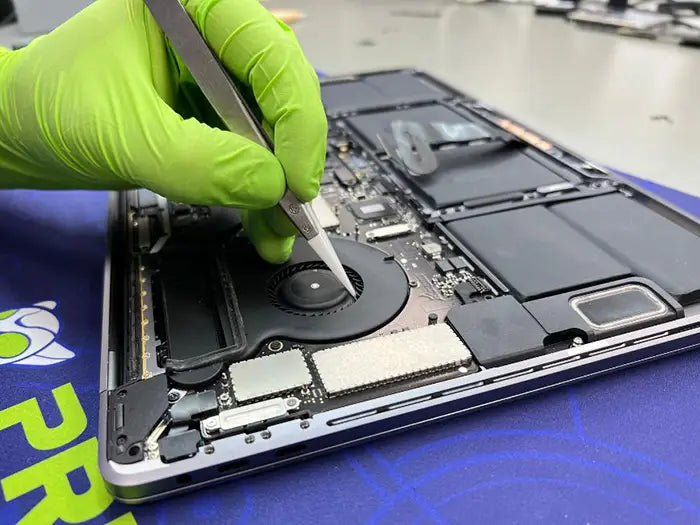
MacBook Won't Turn On? Causes, Quick Checks and Repair Options
You press the power button on your MacBook, but nothing happens. No Apple logo, no keyboard backlight, and no obvious signs of life. Whether your MacBook Pro suddenly stopped working or your MacBook Air won't turn on after being left charging overnight, determining what went wrong isn't always straightforward.
A MacBook that won't turn on doesn't necessarily have a failed logic board. The problem could be as simple as a defective charging cable or a completely drained battery. However, charging circuit failures, liquid damage, and internal component faults can also prevent a MacBook from starting.
One important distinction is whether your MacBook has completely lost power or is actually running with a black screen. These situations can look nearly identical but require different diagnostic approaches. If your computer shows signs of activity without displaying an image, our guide to MacBook black screen problems explains that scenario in greater detail.
At Prime Tech Support in Miami, we diagnose MacBook power and startup failures by examining the charging system, battery, internal power circuits, and logic board. Identifying the actual cause helps determine whether the computer needs a straightforward repair or more advanced component-level diagnostics.
In this guide, we'll explain how to check a MacBook that won't turn on, which symptoms can indicate different hardware failures, what you can safely try at home, and when professional MacBook repair is necessary.
Table of Contents
Is Your MacBook Really Off, or Is the Screen Just Black?
Before assuming your MacBook has a power failure, it's important to determine whether the computer is completely unresponsive or is actually turning on without displaying an image.
A MacBook with a black screen can appear completely dead, even when its internal components are receiving power. Display backlight failures, damaged screen cables, and certain startup problems can prevent an image from appearing while the computer continues operating.
Signs Your MacBook May Still Be Turning On
Look for these signs of activity:
- Keyboard backlight: The keyboard lights up, even though the display remains black.
- Caps Lock indicator: The Caps Lock light responds when you press the key, suggesting that the computer may be running.
- Fan activity: On MacBook models equipped with fans, you may hear them spinning during startup.
- Trackpad response: On models with a Force Touch trackpad, a normal clicking sensation may indicate that the trackpad is receiving power.
- External display output: A compatible external monitor may show an image even when the MacBook's built-in display does not.
These indicators vary by MacBook model. For example, the MacBook Air with Apple silicon has no internal cooling fan, so the absence of fan noise does not indicate a power failure. Similarly, a MacBook may be running without immediately activating its keyboard backlight.
If your MacBook shows signs of activity but the screen remains dark, the problem may involve the display, backlight circuitry, or startup process rather than a complete loss of power.
For a more detailed explanation of these symptoms, see our guide to MacBook black screen problems and possible fixes.
Signs Your MacBook May Have a Power Failure
A MacBook with a genuine no-power condition typically shows no obvious response when you attempt to start it. You may notice:
- No Apple logo or startup image.
- No keyboard backlight or other visible activity.
- No response from the Caps Lock indicator.
- No apparent startup activity after connecting a compatible charger.
- No display output on a compatible external monitor.
However, these symptoms alone cannot confirm a failed logic board. A deeply discharged battery, defective charger, damaged charging port, or internal power-management fault can produce similar behavior.
Professional diagnostics may be necessary to determine whether the MacBook is receiving power and which component is preventing it from starting.
The next step is to perform a few safe troubleshooting checks before considering internal hardware repairs.
Safe Troubleshooting Steps When Your MacBook Won't Turn On
If your MacBook shows no signs of power, there are several troubleshooting steps you can safely perform before seeking professional repair. These checks help eliminate common external problems without opening the computer or disturbing its internal components.
Apple provides official guidance for computers that fail to start. The following steps are based on those recommendations, with additional precautions for protecting your MacBook and its data.
1. Check the Charger, Cable, and Power Outlet
Start by confirming that your MacBook is receiving power from a reliable source.
- Connect the charger directly to a working wall outlet rather than a power strip or extension cable.
- Inspect the charging cable and adapter for visible damage, fraying, discoloration, or bent connectors.
- If available, test with another compatible charger and cable that provide sufficient power for your MacBook model.
- For MacBooks with multiple USB-C charging ports, try another supported charging port.
- If your MacBook uses MagSafe, check whether the connector is properly seated. The charging indicator can provide useful information, although its behavior varies by model and charging conditions.
A charger that works with a phone or another small device is not necessarily capable of powering a MacBook. USB-C charging depends on compatible power delivery and sufficient wattage.
If the MacBook only charges when the connector is positioned at a certain angle, the problem may involve a damaged port or cable. Our MacBook USB-C and charging port repair guide explains these hardware issues in greater detail.
2. Allow the MacBook Time to Charge
A MacBook with a deeply discharged battery may not respond immediately when connected to power.
Connect a compatible charger and leave the computer charging for approximately 15 to 30 minutes before attempting to turn it on again. This is a practical troubleshooting interval, not a guarantee that the battery will recover.
If the MacBook starts after charging, monitor whether it continues operating normally. Repeated unexpected shutdowns, unusually short battery life, or an inability to operate without the charger may indicate a deteriorating battery.
However, if the battery appears swollen, the trackpad is lifting, or the enclosure is separating, stop using and charging the computer. A swollen lithium-ion battery requires professional attention.
3. Disconnect External Accessories
External devices can occasionally interfere with startup or create electrical problems.
Disconnect all unnecessary accessories, including:
- USB-C hubs and docking stations.
- External SSDs and hard drives.
- External monitors and display adapters.
- USB peripherals and other connected devices.
Leave only the compatible power adapter connected, then attempt to start the MacBook again.
If the computer starts normally after removing the accessories, reconnect them individually after startup to help identify whether a particular device or connection is contributing to the problem.
4. Hold the Power Button for 10 Seconds
A MacBook may occasionally become unresponsive because of a temporary power-management or startup issue.
With the MacBook connected to a compatible charger, press and hold the power button for approximately 10 seconds. On MacBooks with Touch ID, the Touch ID button also functions as the power button.
Release the button, wait briefly, and press it normally to attempt another startup.
This procedure can help when the computer is stuck in an unresponsive state. However, it will not repair a damaged charging circuit, failed battery, or defective logic board.
5. Understand the Difference Between Intel and Apple Silicon MacBooks
Not all MacBooks use the same power-management architecture, so troubleshooting procedures vary depending on the processor generation.
Intel-based MacBooks: Certain Intel models support resetting the System Management Controller (SMC), which manages functions such as power, battery charging, and thermal behavior. The correct reset procedure depends on whether the MacBook has an Apple T2 Security Chip or an older power-management design.
Apple silicon MacBooks: MacBooks equipped with M-series processors do not require a separate SMC reset procedure. Power-management functions are handled differently, and the Intel-specific keyboard combinations should not be applied to these models.
For model-specific instructions, refer to Apple's official guide for a Mac that doesn't turn on.
Important: If your MacBook stopped working after liquid exposure, do not continue charging it or repeatedly attempting to power it on. Electrical activity can worsen corrosion-related damage or short circuits. Disconnect external power and arrange a professional inspection.
6. Recognize When the Problem Is Not a Complete Power Failure
If your MacBook displays an Apple logo, a flashing folder with a question mark, or a prohibitory symbol, the computer is receiving enough power to begin part of its startup process.
These symptoms may indicate problems with macOS, the startup disk, or the operating system installation rather than a complete no-power condition.
A MacBook that powers on but cannot load macOS requires a different diagnostic approach from one that shows no electrical response.
When to Stop Troubleshooting
If you've tested a compatible charger, allowed time for charging, disconnected accessories, and attempted a normal restart without success, repeating the same steps is unlikely to identify an internal hardware fault.
At this stage, the MacBook may require electrical testing to determine whether power is reaching the charging circuitry, battery system, and logic board.
A professional diagnosis can help identify the failed component without unnecessary parts replacement or risky attempts to repair the computer at home.
Common Causes of a MacBook That Won't Turn On
When a MacBook refuses to power on, the underlying problem can involve several different components. A failed charger, defective battery, damaged charging port, or logic board fault can produce nearly identical symptoms, making it difficult to identify the cause without proper testing.
Understanding the most common failure points can help you recognize warning signs and determine when professional diagnostics are necessary.
MacBook No-Power Problems: Symptoms and Possible Causes
| Possible Cause | Common Symptoms | Typical Repair Approach |
|---|---|---|
| Faulty charger or cable | No charging response; MacBook works with another compatible charger | Replace defective charger or cable |
| Damaged charging port | Intermittent charging, loose connection, or no response through a particular port | Port inspection, repair, or replacement where supported |
| Degraded or failed battery | Unexpected shutdowns, failure to hold a charge, or startup problems | Battery testing and possible replacement |
| Swollen battery | Raised trackpad, distorted enclosure, or difficulty closing the MacBook | Professional battery replacement and safety inspection |
| Liquid damage | Sudden failure after a spill, intermittent operation, or corrosion-related problems | Internal inspection and component-level repair when feasible |
| Logic board power failure | No startup response despite a verified working power source | Electrical diagnostics and board-level repair when feasible |
These symptoms are useful diagnostic clues, but they do not confirm a specific component failure. For example, a MacBook that operates only while connected to its charger may have a failing battery, but similar behavior can occur when the battery connection or charging circuitry is defective.
1. Faulty Charger, Cable, or Charging Port
Power delivery begins outside the MacBook. If the charger, cable, or charging connector cannot deliver the required power, the computer may appear completely unresponsive.
USB-C MacBooks rely on compatible power-delivery communication between the charger and the computer. A damaged connector, defective cable, or charging circuit problem can interrupt that process.
Common warning signs include intermittent charging, a connector that must be repositioned to work, or a MacBook that responds to one charging port but not another.
These symptoms require careful testing because the problem may be located in the external accessories, the physical charging connector, or the internal circuitry responsible for managing incoming power.
2. Completely Drained or Failed MacBook Battery
A deeply discharged battery may temporarily prevent a MacBook from responding until sufficient charge is restored. However, a battery that has deteriorated or developed an internal fault may no longer operate normally.
Battery-related warning signs can include:
- Unexpected shutdowns even when the battery previously indicated remaining charge.
- Significantly reduced battery runtime.
- Failure to operate without an external power adapter.
- Repeated startup problems after the MacBook has been disconnected from power.
Not every MacBook with a failed battery will behave the same way. Some models may operate using external power, while others may experience startup or power-management problems.
If your MacBook has shown gradual battery deterioration, our guide on MacBook battery diagnostics and replacement provides additional resources for understanding battery-related problems.
3. Swollen Battery or Internal Battery Damage
Battery swelling is a more serious condition than ordinary battery wear. As internal battery cells expand, they can place pressure on surrounding components, including the trackpad, keyboard, and lower enclosure.
A MacBook with a swollen battery may develop physical distortion before it experiences a complete power failure.
Warning signs include a trackpad that no longer clicks normally, an uneven bottom case, or visible separation between enclosure components.
If you notice these symptoms, stop using and charging the MacBook. Do not attempt to flatten the battery, press the enclosure back into position, or remove the battery without appropriate training and equipment.
Professional inspection is necessary to assess the battery and determine whether surrounding components have also been damaged.
4. Liquid Damage and Corrosion
Liquid exposure can cause a MacBook to stop working immediately or develop electrical problems days or weeks after the original incident.
When liquid reaches the logic board, connectors, or power-management components, it can create electrical shorts and promote corrosion. Even a small amount of liquid can affect critical circuitry.
In some cases, the MacBook initially continues working before suddenly refusing to turn on.
Possible warning signs include:
- A recent spill near the keyboard or trackpad.
- Intermittent charging or unexpected shutdowns following liquid exposure.
- Sticky keys or unusual keyboard behavior.
- A MacBook that stopped powering on after previously operating normally.
If liquid damage is suspected, avoid further charging or startup attempts. Professional inspection can determine whether corrosion or damaged components are affecting the power system.
5. Logic Board and Power Circuit Failure
When external charging equipment and battery-related causes have been evaluated, a logic board fault becomes an important possibility.
The MacBook logic board contains multiple circuits responsible for receiving, distributing, and regulating electrical power. A failure within these circuits can prevent the computer from completing its startup sequence.
Potential faults include damaged power-management components, shorted capacitors, failed voltage regulators, or other electrical defects.
Importantly, a MacBook with a logic board problem does not automatically require a complete motherboard replacement.
Depending on the model, damage, and availability of repairable components, professional board-level diagnostics may identify a specific fault that can be repaired without replacing the entire assembly.
Our MacBook logic board repair guide
Why Similar Symptoms Require Different Repairs
A MacBook that shows no response to its power button could have a relatively simple external charging problem or a more complex internal electrical failure.
Replacing the battery without testing the charging system, for example, may not resolve a fault caused by a damaged power-management circuit. Likewise, replacing the entire logic board before identifying the actual failure may result in unnecessary expense.
The appropriate repair depends on confirming which part of the power system is failing rather than relying on symptoms alone.
What Not to Do When Your MacBook Won't Turn On
When a MacBook suddenly stops responding, it's tempting to try multiple solutions until something works. However, certain troubleshooting attempts can make an existing hardware problem worse, complicate professional repairs, or put important files at risk.
If the basic power checks haven't worked, avoid the following mistakes.
1. Don't Keep Trying to Power On a Liquid-Damaged MacBook
If your MacBook stopped working after exposure to water, coffee, or another liquid, repeated startup attempts can cause additional electrical damage.
Liquid can create unintended electrical connections between components. When power is applied, these connections may damage sensitive circuits or accelerate corrosion.
Disconnect the charger, avoid pressing the power button, and arrange a professional inspection.
Do not use a hair dryer, place the MacBook in rice, or apply excessive heat. These methods do not reliably remove moisture from internal components and may create additional problems.
2. Don't Use Random Chargers or Damaged Cables
Not every USB-C charger or cable is suitable for a MacBook. Although many USB-C accessories look similar, their power-delivery capabilities and quality can differ significantly.
Using an incompatible or defective charger can introduce another variable into the troubleshooting process and may create electrical safety concerns.
Use a compatible, properly rated charger and an undamaged cable. If a connector becomes unusually hot, produces an unusual smell, or shows visible damage, disconnect it and stop using it.
3. Don't Open the MacBook Without Proper Tools or Experience
Modern MacBooks contain densely packed components, delicate connectors, and lithium-ion batteries that require careful handling.
Attempting to disconnect the battery, remove the logic board, or probe internal circuits without appropriate equipment can damage connectors, create electrical shorts, or puncture a battery.
On many MacBook models, the battery is secured with adhesive, making improper removal particularly hazardous.
Professional repair technicians use appropriate tools and model-specific procedures to inspect internal components safely.
4. Don't Replace Parts Without Confirming the Failure
A MacBook that won't turn on does not automatically need a new battery or logic board.
For example, replacing the battery won't resolve a defective charging circuit. Similarly, replacing a charging port may not help if the actual fault is located elsewhere on the logic board.
Replacing components based only on symptoms can increase repair costs without solving the original problem.
A proper diagnosis should identify the affected part of the power system before determining which components require repair or replacement.
5. Don't Erase or Reinstall macOS Without Understanding the Problem
If your MacBook shows no signs of power, reinstalling macOS will not repair a defective charging port, battery connection, or internal power circuit.
More importantly, erasing the startup disk or performing unnecessary recovery procedures can put important files at risk.
If your MacBook contains valuable documents, photos, or business files, avoid any procedure that erases or reformats its storage unless you have confirmed that your data is safely backed up.
A MacBook that won't turn on may still contain recoverable data, but the available recovery options depend on the model, storage architecture, encryption, and extent of hardware damage.
Our Mac data recovery guide for computers that won't turn on explains why professional diagnosis can be important when preserving files is the priority.
Repair tip: If your MacBook contains important files that aren't backed up, tell the repair technician before authorizing any repair, logic board replacement, or software recovery procedure. Preserving the original data should be part of the diagnostic plan whenever possible.
6. Don't Ignore Physical Battery Damage
If your MacBook's trackpad is lifting, the bottom enclosure is bulging, or the case no longer closes properly, a swollen battery may be responsible.
Continuing to charge or use a MacBook with a visibly swollen battery creates unnecessary safety risks.
Do not press the enclosure back into place, attempt to puncture the battery, or continue troubleshooting while the battery is physically distorted.
Stop using the computer and seek professional battery inspection and replacement.
Know When Professional Diagnosis Is the Safer Option
Once you've ruled out basic external power problems, additional trial-and-error troubleshooting may provide little useful information.
A professional diagnostic process can determine whether the failure involves the charging system, battery, power-management circuitry, or another internal component.
This approach helps avoid unnecessary parts replacement while reducing the risk of additional hardware damage or preventable data loss.
What Happens to Your Files When a MacBook Won't Turn On?
One of the biggest concerns when a MacBook suddenly stops working is whether important files are permanently lost. Photos, business documents, personal projects, and other information may be stored on a computer that no longer responds to its power button.
The good news is that a MacBook that won't turn on does not necessarily mean its data has been destroyed. In many cases, the storage remains intact even when another component prevents the computer from starting.
However, recovering those files depends on the MacBook model, the condition of its storage, and the type of hardware failure involved.
Why MacBook Storage Design Matters
Older MacBook models may use removable storage devices that can sometimes be accessed separately from the computer, depending on the model and storage condition.
Many newer MacBooks use storage components integrated into the logic board. Apple silicon Macs also use hardware-based encryption that ties access to the data to the computer's security architecture.
As a result, removing storage components from a modern MacBook does not provide a straightforward way to access the files.
When the original logic board has an electrical failure, restoring the board to a functional state may be necessary before the encrypted data can be accessed.
Why Repairing the Original Logic Board Can Be Important
If a MacBook contains important files that are not backed up, replacing the entire logic board may not be the best first step.
On models with integrated, encrypted storage, replacing the original board generally does not transfer the files stored on the damaged board to the replacement.
Professional board-level repair may offer an opportunity to restore enough functionality to access the original data without replacing the entire assembly.
For example, if the failure involves a repairable power-management component rather than the storage or security hardware itself, correcting that fault may allow the MacBook to start or make its data accessible through an appropriate recovery procedure.
However, successful recovery cannot be guaranteed. Severe logic board damage, storage failure, or damage affecting encryption-related components can make recovery significantly more difficult or impossible.
When Data Recovery Should Take Priority
If your MacBook contains irreplaceable files, tell the repair technician before any hardware replacement or software restoration begins.
This is especially important when:
- The MacBook has no recent Time Machine or cloud backup.
- The logic board may require replacement.
- The computer stopped working after liquid exposure.
- The MacBook contains business files or personal information that cannot easily be recreated.
- A previous repair attempt did not restore normal operation.
In these situations, the diagnostic strategy should consider data preservation before potentially destructive procedures are performed.
For a more detailed explanation of recovery methods, read our Mac Won't Turn On? Data Recovery Guide.
What About Time Machine and iCloud Backups?
Before assuming that all files are trapped inside the MacBook, check whether copies are available through an existing backup.
Time Machine backups may contain previous versions of documents, applications, and other information. Files synchronized through iCloud Drive may also be accessible from another device or through your Apple Account.
Keep in mind that iCloud synchronization is not the same as a complete backup. Files stored only locally may not be available through iCloud, and deleted or modified files can synchronize across connected devices.
Apple provides instructions for restoring files from a Time Machine backup.
Protect Your Data Before Authorizing Repairs
When discussing repair options, explain whether restoring the MacBook itself or recovering its files is your highest priority.
These goals often overlap, but they are not always identical. A logic board replacement may restore the computer's functionality without recovering files stored on the original board.
At Prime Tech Support, identifying the failure and understanding the importance of the customer's data are essential considerations when evaluating repair options.
If your MacBook won't turn on and contains important files, professional diagnostics can help determine whether restoring the original hardware is a viable path toward data access.
How Prime Tech Support Diagnoses a MacBook That Won't Turn On
When a MacBook remains unresponsive after basic troubleshooting, identifying the cause requires more than replacing parts or attempting repeated restarts.
At Prime Tech Support in Miami, professional MacBook diagnostics focus on determining where the power-delivery process is failing. Depending on the model and symptoms, this may involve testing the charging system, evaluating battery-related problems, inspecting the logic board, and measuring electrical activity within the computer.
The goal is to identify the actual fault before recommending a repair.
1. Charging System and Power Consumption Testing
The diagnostic process begins by evaluating how the MacBook receives power.
Technicians can test the power adapter, charging cable, and charging connector to determine whether the computer is receiving an appropriate electrical input.
On compatible USB-C MacBooks, a professional USB-C power meter can help measure voltage, current, and power consumption during charging and startup attempts.
These measurements may reveal whether the MacBook is negotiating power with the charger, drawing unusually little current, or showing electrical behavior that warrants further investigation.
However, a power meter reading alone cannot identify every internal failure. Results must be interpreted alongside the MacBook model, charging architecture, and additional diagnostic measurements.
2. Battery and Internal Connection Inspection
If the external charging system appears functional, the next step may involve evaluating the battery and its connection to the logic board.
A failed battery, damaged connector, or problem within the battery-management circuitry can interfere with normal startup.
During an internal inspection, technicians may look for physical battery damage, loose or damaged connectors, and other conditions that could explain the power failure.
Battery replacement is recommended only when the diagnostic findings support it. A MacBook that won't turn on does not automatically need a new battery.
3. Logic Board Inspection for Physical and Liquid Damage
When the charging system and battery do not explain the failure, the logic board may require closer examination.
Technicians inspect relevant areas for visible damage, corrosion, damaged connectors, and signs of previous repair attempts.
Liquid-related damage deserves particular attention because corrosion can affect electrical connections and components even when the original spill occurred weeks earlier.
Not every logic board failure produces visible damage. A component may appear normal while failing electrically, which is why visual inspection is only one part of the diagnostic process.
4. Board-Level Electrical Diagnostics
For more complex no-power conditions, professional diagnosis may require electrical measurements directly on the logic board.
Using appropriate diagnostic equipment and model-specific technical information, technicians can investigate power rails, resistance readings, and circuits responsible for distributing power to essential components.
These tests can help narrow down problems involving shorted components, missing supply voltages, or failures within the power-management system.
Depending on the fault, component-level repair may be possible without replacing the entire logic board.
For a deeper explanation of motherboard failures and repair options, see our MacBook logic board repair guide.
5. Diagnosis, Repair Options, and Customer Approval
Once the diagnostic findings are evaluated, the next step is to determine which repair options are technically feasible.
A straightforward problem may require replacing a defective charging component or battery. More complex failures may involve component-level logic board work.
Repair recommendations depend on the MacBook model, the extent of damage, parts availability, and whether the proposed repair is economically reasonable.
At Prime Tech Support, the diagnostic process is intended to identify the failure and explain the available repair options before proceeding with the recommended work.
If preserving files is especially important, that priority should be communicated before authorizing repairs that could affect the original storage or logic board.
MacBook not responding to the power button? Prime Tech Support provides professional MacBook diagnostics and repair services in Miami, including charging-system problems, battery failures, and logic board faults.
Contact our team to discuss your MacBook's symptoms and available diagnostic options.
How Prime Tech Support Diagnoses a MacBook That Won't Turn On
When a MacBook remains unresponsive after basic troubleshooting, identifying the cause requires more than replacing parts or attempting repeated restarts.
At Prime Tech Support in Miami, professional MacBook diagnostics focus on determining where the power-delivery process is failing. Depending on the model and symptoms, this may involve testing the charging system, evaluating battery-related problems, inspecting the logic board, and measuring electrical activity within the computer.
The goal is to identify the actual fault before recommending a repair.
1. Charging System and Power Consumption Testing
The diagnostic process begins by evaluating how the MacBook receives power.
Technicians can test the power adapter, charging cable, and charging connector to determine whether the computer is receiving an appropriate electrical input.
On compatible USB-C MacBooks, a professional USB-C power meter can help measure voltage, current, and power consumption during charging and startup attempts.
These measurements may reveal whether the MacBook is negotiating power with the charger, drawing unusually little current, or showing electrical behavior that warrants further investigation.
However, a power meter reading alone cannot identify every internal failure. Results must be interpreted alongside the MacBook model, charging architecture, and additional diagnostic measurements.
2. Battery and Internal Connection Inspection
If the external charging system appears functional, the next step may involve evaluating the battery and its connection to the logic board.
A failed battery, damaged connector, or problem within the battery-management circuitry can interfere with normal startup.
During an internal inspection, technicians may look for physical battery damage, loose or damaged connectors, and other conditions that could explain the power failure.
Battery replacement is recommended only when the diagnostic findings support it. A MacBook that won't turn on does not automatically need a new battery.
3. Logic Board Inspection for Physical and Liquid Damage
When the charging system and battery do not explain the failure, the logic board may require closer examination.
Technicians inspect relevant areas for visible damage, corrosion, damaged connectors, and signs of previous repair attempts.
Liquid-related damage deserves particular attention because corrosion can affect electrical connections and components even when the original spill occurred weeks earlier.
Not every logic board failure produces visible damage. A component may appear normal while failing electrically, which is why visual inspection is only one part of the diagnostic process.
4. Board-Level Electrical Diagnostics
For more complex no-power conditions, professional diagnosis may require electrical measurements directly on the logic board.
Using appropriate diagnostic equipment and model-specific technical information, technicians can investigate power rails, resistance readings, and circuits responsible for distributing power to essential components.
These tests can help narrow down problems involving shorted components, missing supply voltages, or failures within the power-management system.
Depending on the fault, component-level repair may be possible without replacing the entire logic board.
For a deeper explanation of motherboard failures and repair options, see our MacBook logic board repair guide.
5. Diagnosis, Repair Options, and Customer Approval
Once the diagnostic findings are evaluated, the next step is to determine which repair options are technically feasible.
A straightforward problem may require replacing a defective charging component or battery. More complex failures may involve component-level logic board work.
Repair recommendations depend on the MacBook model, the extent of damage, parts availability, and whether the proposed repair is economically reasonable.
At Prime Tech Support, the diagnostic process is intended to identify the failure and explain the available repair options before proceeding with the recommended work.
If preserving files is especially important, that priority should be communicated before authorizing repairs that could affect the original storage or logic board.
MacBook not responding to the power button? Prime Tech Support provides professional MacBook diagnostics and repair services in Miami, including charging-system problems, battery failures, and logic board faults.
Contact our team to discuss your MacBook's symptoms and available diagnostic options.
MacBook Repair vs. Replacement: When Is It Worth Fixing?
When a MacBook stops turning on, one of the first questions is whether repairing it makes financial sense or whether replacing the computer would be a better investment.
The answer depends on the MacBook model, its age, the cause of the failure, and the cost of restoring reliable operation. A computer that appears completely dead may have a relatively minor electrical problem, while another with similar symptoms may require extensive logic board repairs.
That's why a professional diagnosis is important before deciding to replace the computer.
When Repairing Your MacBook Makes Sense
Repair is often worth considering when the computer is otherwise in good condition and the failure can be corrected without replacing multiple expensive components.
Examples include:
- Charging problems: A defective charging connector or related component may be repairable without replacing the entire computer.
- Battery failure: Replacing a degraded or defective battery may restore normal operation when the rest of the hardware is functioning properly.
- Repairable logic board faults: Certain failed components or power circuits can potentially be repaired at the board level.
- Relatively recent MacBooks: A computer that still meets your performance requirements may remain useful for several more years after a successful repair.
- Important files stored locally: Repairing the original hardware may be particularly valuable when access to encrypted storage depends on restoring the existing logic board.
For example, a MacBook Pro that won't turn on because of a failed power-management component may not require a complete logic board replacement if the specific fault can be identified and repaired.
However, repairability depends on the model, the condition of the board, and the nature of the component failure.
When Replacing the MacBook May Be More Practical
Replacement may be worth considering when the cost of repair approaches the value of the computer or when multiple major components have deteriorated.
Factors that can influence this decision include:
- The MacBook is significantly older and no longer meets your performance needs.
- The estimated repair cost is high compared with the price of a suitable replacement.
- Severe liquid damage has affected multiple areas of the logic board.
- The computer has additional problems involving its display, battery, keyboard, or other expensive components.
- The model no longer supports the software required for your work.
- The damage is extensive enough that long-term reliability remains uncertain after repair.
Even when replacing the computer is the most economical option, recovering important files from the original MacBook may still require separate consideration.
Why Logic Board Repair and Replacement Are Different
A complete logic board replacement and a component-level repair are not the same procedure.
Logic board replacement involves installing another compatible board assembly. Component-level repair focuses on identifying and correcting a specific electrical fault on the original board.
When technically feasible, repairing the original board may reduce the need for a complete replacement and can be particularly important when preserving access to integrated, encrypted storage.
However, component-level repair is not appropriate for every failure. Extensive physical damage, unavailable components, or faults affecting critical integrated hardware may limit the available options.
Consider the MacBook's Overall Condition
A repair decision should account for more than the immediate power failure.
For example, a MacBook with a defective charging circuit but an otherwise healthy battery, display, and keyboard may be a stronger repair candidate than an older computer with several unrelated hardware problems.
Likewise, a MacBook that still handles your daily workload comfortably may be worth repairing even if it is no longer the newest model.
The objective is to restore dependable operation at a reasonable cost rather than replacing hardware unnecessarily.
Get a Diagnosis Before Making the Decision
A MacBook that won't turn on provides very little information about the actual repair cost until the failure has been identified.
At Prime Tech Support, professional diagnostics help determine whether the problem involves a replaceable component, a repairable electrical fault, or more extensive damage.
With a clearer understanding of the failure and available repair options, you can make an informed decision about whether to repair or replace your MacBook.
MacBook Won't Turn On Repair in Miami
If your MacBook still won't turn on after checking the charger, power connection, and basic startup procedures, professional diagnostics can help identify the underlying problem.
At Prime Tech Support in Miami, we diagnose and repair MacBook Pro and MacBook Air power failures, including charging problems, battery-related faults, liquid damage, and logic board issues.
Our approach focuses on identifying the failed component before recommending a repair. Depending on the condition of your MacBook, the solution may involve replacing a defective component or performing more advanced board-level work.
MacBook Pro and MacBook Air Power Repairs
Different MacBook generations use different charging systems, battery configurations, and power-management architectures. As a result, the same symptom may require different diagnostic procedures depending on the model.
Whether your MacBook stopped working suddenly, no longer responds to its charger, or developed problems after liquid exposure, identifying the actual cause is the first step toward determining the appropriate repair.
Mail-In MacBook Repair Options
If you're outside the Miami area, Prime Tech Support also offers nationwide mail-in MacBook repair services.
Our mail-in service allows customers throughout the United States to access professional MacBook diagnostics and repair. Contact our team or review the mail-in instructions before shipping your device.
Get Your MacBook Diagnosed
A MacBook that appears completely dead isn't necessarily beyond repair. Charging-system failures, battery problems, and certain logic board faults may be repairable once the underlying issue has been identified.
If your MacBook contains important files, let our team know before repairs begin so data preservation can be considered during the diagnostic process.
MacBook Won't Turn On? Let Prime Tech Support Help.
Our Miami repair team can help diagnose MacBook power failures and explain the available repair options.
Call 855-600-6999 to discuss your MacBook repair needs.
Final Thoughts: A MacBook That Won't Turn On Isn't Always Beyond Repair
A MacBook that won't turn on can be frustrating, especially when important files and daily work depend on it. However, a completely unresponsive computer does not automatically mean the logic board has failed or that replacing the MacBook is necessary.
The problem may involve a faulty charger, damaged charging port, failing battery, or an internal power circuit. While basic troubleshooting can help eliminate some common causes, professional diagnostics are often needed to identify more complex hardware failures.
Understanding the cause before replacing components can help avoid unnecessary repairs and protect important data. This is particularly important for newer MacBooks with integrated, encrypted storage, where preserving the original logic board may be essential for recovering files.
At Prime Tech Support, our goal is to identify the underlying problem, explain the available repair options, and help customers make informed decisions about their MacBook.
If your MacBook Pro or MacBook Air won't turn on, professional diagnosis can help determine whether the computer can be repaired and what steps make the most sense.
Share this

Related Mac Repair Articles


FAQ MacBook Won't Turn On? Causes, Checks & Repair
Can a dead battery stop a MacBook from turning on?
Can a dead battery stop a MacBook from turning on?
Why is my MacBook screen black but the computer seems to be running?
What should I do if my MacBook won't turn on after a liquid spill?
Can a MacBook that won't turn on be repaired?
MacBook Not Working? Get Expert Diagnosis and Repair Options
If your MacBook is experiencing issues, getting a proper diagnosis is the first step. Many problems that seem like major failures can often be resolved with targeted component-level repairs.
At Prime Tech Support, we specialize in advanced MacBook diagnostics and repairs, including issues that other shops may not be able to resolve.
In Miami? Get Local Mac Repair Service
Our team is ready to help you . We offer same-day repairs
Not in Miami? Use Our Mac Mail-In Repair Service
We offer secure nationwide mail-in repairs with fast turnaround times and professional diagnostics.
Explore More MacBook Repair Guides
View all-

MacBook won't turn on? Learn how to identify charging problems, battery failures, and logic board issues. Explore safe troubleshooting steps,...
MacBook Won't Turn On? Causes, Quick Checks and Repair Options
MacBook won't turn on? Learn how to identify charging problems, battery failures, and logic board issues. Explore safe troubleshooting steps,...
-

Not sure whether your MacBook battery needs replacing? Learn how to recognize battery wear, interpret macOS battery health warnings and...
When Should You Replace Your MacBook Battery? Signs, Cost Fact...
Not sure whether your MacBook battery needs replacing? Learn how to recognize battery wear, interpret macOS battery health warnings and...
-

MacBook Wi-Fi stopped working after a macOS update? Learn how to troubleshoot network settings, DHCP, DNS, VPN conflicts, and possible...
MacBook Wi-Fi Not Working After a macOS Update? Causes and Fixes
MacBook Wi-Fi stopped working after a macOS update? Learn how to troubleshoot network settings, DHCP, DNS, VPN conflicts, and possible...