

External Hard Drive Data Recovery Guide: Can Your Files Be Recovered?
External hard drives are one of the most popular ways to store photos, videos, business documents, backups, and other important files. They're portable, affordable, and available in capacities ranging from a few hundred gigabytes to several terabytes, making them a common choice for both home users and businesses.
Despite their convenience, external hard drives are still mechanical devices in many cases. They can fail unexpectedly because of physical damage, electronic problems, accidental drops, power issues, file system corruption, or simple wear over time. When that happens, it's natural to worry that years of important data may have been lost forever.
The good news is that a failed external hard drive does not always mean the data is gone. In many situations, professional recovery techniques can safely retrieve files even when the drive is no longer recognized by the computer or the enclosure has stopped working.
In this guide, we'll explain the most common causes of external hard drive failure, what you should do if your drive stops working, what mistakes to avoid, and when professional data recovery may be the safest option.
Need Help Recovering Files from an External Hard Drive?
If your external hard drive is no longer recognized, makes unusual noises, or contains important files you can't replace, avoid repeatedly reconnecting it or attempting DIY repairs. Contact Prime Tech Support for a professional evaluation before additional damage occurs.
Table of Contents
How External Hard Drives Fail
Although external hard drives are designed for portability, they're also more likely to experience physical damage than internal drives. They're frequently moved between computers, carried in backpacks, connected and disconnected multiple times, and sometimes accidentally dropped while operating. Over time, these factors can lead to failures that prevent the drive from functioning normally.
An external hard drive actually consists of two main components: the storage drive itself and the USB enclosure that allows it to communicate with your computer. Either one can fail independently. In some cases, replacing the enclosure restores access to the data. In others, the problem lies within the hard drive itself and requires a completely different recovery approach.
Understanding what caused the failure is one of the most important steps in determining whether your files can be recovered and what recovery method is safest.
Physical Damage
Mechanical hard drives contain spinning platters and delicate read/write heads that float only microscopic distances above the disk surface. If the drive is dropped, bumped, or moved while operating, the heads can contact the platters, causing what's commonly known as a head crash. This type of damage can make the drive unreadable and should never be handled by repeatedly powering it on.
USB Enclosure Failure
Sometimes the hard drive is perfectly healthy, but the USB enclosure, SATA-to-USB bridge board, or power circuitry fails. Symptoms often include the drive not powering on, disconnecting randomly, or not being recognized even though the internal drive is still functional.
Electronic Failure
Power surges, faulty USB ports, liquid damage, or aging electronic components can damage the drive's printed circuit board (PCB). In these situations, the drive may not spin up or may fail to communicate with the computer.
Logical Corruption
Not every failure involves damaged hardware. Improper removal, unexpected power loss, malware, or file system corruption can prevent the operating system from accessing the data even though the drive itself is still mechanically healthy.
Normal Wear
Like any mechanical device, hard drives have a finite lifespan. Bearings wear out, motors weaken, and read/write heads gradually accumulate thousands of hours of operation. While some drives last for many years, others may fail unexpectedly without much warning.
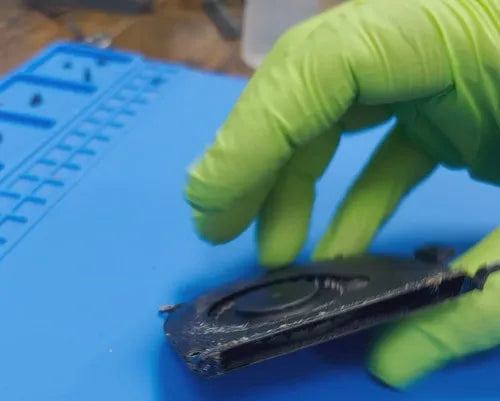
The video above shows a real external hard drive being inspected in our lab before recovery begins. Every case starts with identifying the actual cause of the failure rather than immediately attempting repairs. This diagnostic process helps determine whether the issue is related to the enclosure, electronics, file system, or the hard drive itself, allowing us to choose the safest recovery method.
If the drive contains irreplaceable files, avoiding guesswork is essential. Attempting random fixes without understanding the underlying problem can make professional recovery significantly more difficult later.
Common Signs Your External Hard Drive Is Failing
External hard drives rarely stop working without any warning. In many cases, the drive begins showing subtle signs of failure days or even weeks before it becomes completely inaccessible. Recognizing these symptoms early can improve the chances of recovering your files and may help prevent additional damage.
Your Computer Doesn't Detect the Drive
One of the most common problems is connecting the drive and seeing nothing happen. The drive may not appear in File Explorer, Finder, or Disk Management, resulting in an external hard drive not showing up. This can be caused by a failed USB enclosure, damaged electronics, file system corruption, or an internal hard drive failure.
The Drive Makes Clicking or Grinding Noises
Repeated hard drive clicking or beeping sounds often indicate a mechanical problem inside the drive. These noises may occur when the read/write heads cannot properly access the platters or when the spindle motor cannot reach operating speed.
If you hear unusual mechanical sounds, disconnect the drive immediately. Continuing to power it on may cause additional damage that reduces the likelihood of a successful recovery.
Files Open Slowly or Become Corrupted
If folders take much longer than usual to load, files fail to open, or you begin receiving read errors, the drive may be developing hard drive bad sectors or other hardware issues. These symptoms should never be ignored, especially if the drive contains important information.
The Drive Disconnects Randomly
An external drive that repeatedly connects and disconnects may have a damaged USB cable, a failing enclosure, insufficient power, or internal hardware problems. While replacing a cable is a reasonable first troubleshooting step, repeated disconnections should be investigated before continuing to use the drive.
The Drive Asks to Be Formatted
If Windows or macOS suddenly asks you to format the drive before accessing it, do not accept the prompt if the drive contains valuable data. This message often indicates file system corruption rather than an empty drive. Formatting the drive can complicate the recovery process by overwriting important file system information.
Frequent Error Messages
Messages such as "Drive not accessible," "The parameter is incorrect," "Disk needs to be repaired," or "You need to format the disk before you can use it" are all signs that something is wrong. While some issues are logical and relatively straightforward to resolve, others may point to developing hardware failures.
If your external hard drive begins showing any of these symptoms, stop using it for everyday storage until you understand the cause of the problem. Continuing to copy files to a failing drive can increase the amount of data that becomes unrecoverable.
When the drive contains important business documents, family photos, or irreplaceable files, a professional evaluation is often the safest next step. Our Computer Data Recovery Guide explains how storage devices are diagnosed before recovery begins and why identifying the cause of failure is critical.
What You Should Do Immediately If Your External Hard Drive Fails
How you respond during the first few minutes after an external hard drive stops working can have a significant impact on whether your files can be recovered. While it's tempting to keep reconnecting the drive or searching for quick fixes online, some common troubleshooting steps can actually make recovery more difficult.
If the drive contains important documents, family photos, business records, or other irreplaceable data, it's usually best to take a cautious approach until the cause of the failure has been identified.
Stop Using the Drive
If the drive is making unusual noises, disconnecting repeatedly, or producing read errors, stop copying files to it immediately. Continuing to use a failing drive increases wear on damaged components and may overwrite data that could otherwise be recovered.
Listen for Unusual Sounds
A healthy mechanical hard drive should spin smoothly with only a faint operating sound. Repeated clicking, grinding, scraping, or beeping noises often indicate internal mechanical damage. If you hear any of these sounds, power the drive off and avoid reconnecting it until it has been evaluated.
Check the Simple Things First
Not every failure is caused by the hard drive itself. Before assuming the worst, it's reasonable to check:
- A different USB cable.
- A different USB port.
- Another computer.
- If available, an external power adapter for desktop drives.
If the drive still isn't recognized after these basic checks, avoid more advanced troubleshooting until the problem has been diagnosed.
Don't Format the Drive
If Windows or macOS asks you to format the drive before using it, choose Cancel. That message often appears because the operating system cannot read the existing file system—not because the drive is empty. Formatting can overwrite important metadata and complicate recovery.
Don't Run Disk Repair Utilities
Utilities such as CHKDSK, First Aid, or other repair tools are designed to fix logical file system problems, but they assume the storage hardware is healthy. If the drive is experiencing physical failure, these utilities may repeatedly attempt to read damaged sectors, increasing stress on the drive and potentially making recovery more difficult.
Make Note of What Happened
Think about what occurred just before the drive stopped working. Was it dropped? Did the computer suddenly lose power? Did the problem begin after a firmware update or while copying files? Even small details can help identify the cause of the failure and guide the recovery process.
If the drive contains critical information and the cause of the failure isn't obvious, professional diagnostics are often the safest next step. Identifying whether the issue involves the USB enclosure, electronics, file system, or the hard drive itself helps determine the most appropriate recovery method while minimizing unnecessary risks.
If your external hard drive is no longer recognized or is making unusual noises, schedule a professional evaluation before attempting repairs that could reduce the chances of a successful recovery.
Can Data Be Recovered from a Failed External Hard Drive?
In many cases, yes. An external hard drive that no longer appears on your computer or refuses to open does not automatically mean the data has been lost. The possibility of recovery depends on what caused the failure, the condition of the drive, and whether any recovery attempts have already been made.
One of the first goals during a professional evaluation is determining whether the problem is related to the USB enclosure, the drive electronics, the file system, or the internal hard drive itself. Identifying the actual cause allows technicians to choose the safest recovery method without placing unnecessary stress on the storage device.
Recovery Is Often Possible When
- The USB enclosure or SATA-to-USB adapter has failed.
- The file system has become corrupted.
- The drive is no longer recognized because of logical errors.
- The partition has been accidentally deleted.
- The drive has developed a limited number of bad sectors.
- The drive's electronics have failed while the platters remain intact.
In these situations, professional recovery often begins by creating a sector-by-sector image of the drive. Working from a complete image helps preserve the original media and reduces the need to repeatedly access a failing hard drive during recovery.
Recovery Becomes More Challenging When
Some failures are considerably more complex and require specialized equipment or cleanroom procedures.
- Severe head crashes.
- Scratched or damaged platters.
- Repeated clicking or grinding caused by internal mechanical failure.
- Extensive bad sectors across the drive.
- Fire, liquid, or severe impact damage.
- Multiple unsuccessful recovery attempts.
Even in these situations, recovery may still be possible, but success depends on the extent of the damage and whether the drive has continued operating after the failure occurred.
Why Professional Diagnostics Matter
Two external hard drives may display the exact same symptoms while requiring completely different recovery procedures. For example, one drive that isn't detected may simply have a failed USB bridge board, while another with identical behavior could have significant internal mechanical damage.
For that reason, professional recovery begins with diagnosing the failure rather than immediately attempting repairs. Understanding the condition of the hardware helps determine whether recovery can be performed through logical reconstruction, electronic repair, or specialized hard drive recovery techniques.
If the failure involves the internal hard drive rather than the external enclosure, many of the same recovery principles used for desktop and laptop storage devices also apply. Our Computer Data Recovery Guide explains how professional diagnostics help identify storage failures before recovery work begins.
The sooner a failed external hard drive is evaluated, the greater the opportunity to preserve the existing data. If your drive contains important files, avoid continued use until the cause of the failure has been identified.
Professional External Hard Drive Recovery Process
Professional data recovery is much more than connecting a failed drive to another computer. Every recovery begins with a careful evaluation to determine the cause of the failure and the safest way to access the data. The exact process varies depending on whether the problem is mechanical, electronic, or logical, but the goal is always the same: recover the files while minimizing additional risk to the original drive.
Step 1: Initial Diagnostic
The first step is identifying why the drive failed. Technicians inspect the USB enclosure, verify whether the hard drive powers on correctly, evaluate the drive's electronics, and determine whether the problem involves the storage media or simply the external enclosure.
If the drive is recognized, its overall health is evaluated before any recovery work begins. This helps determine whether it is safe to access the drive directly or if additional precautions are necessary.
Step 2: Preserve the Original Drive
If the hard drive shows signs of instability, the priority becomes preserving its current condition. Rather than working directly on the original drive whenever possible, professional recovery procedures typically begin by creating a sector-by-sector image.
This approach allows recovery to continue from the copied data instead of repeatedly stressing a failing drive, reducing the possibility of further deterioration during the recovery process.
Step 3: Recover the File System
Once the drive has been safely preserved, technicians analyze the file system and partition structure to locate recoverable data. Depending on the failure, this may involve rebuilding damaged partitions, repairing corrupted file system structures, or locating deleted files that are still present on the storage media.
Step 4: Verify the Recovered Files
Before returning the recovered data, important files are verified whenever possible to confirm they open correctly. Documents, photos, videos, and other user data are checked to help ensure the recovery was successful.
Step 5: Copy the Recovered Data to a New Drive
Recovered files are typically delivered on a separate storage device rather than being written back to the original hard drive. This helps preserve the failed drive while providing a safe location for the recovered data.
Depending on the amount of data and the condition of the original drive, the recovery process may take anywhere from several hours to several days. Drives with physical damage, extensive bad sectors, or severe mechanical failures often require additional time because they must be handled carefully to maximize the amount of recoverable data.
While no recovery can ever be guaranteed, following a structured diagnostic process gives technicians the best opportunity to recover important files without causing unnecessary additional damage to the original storage device.
Need help with a failed external hard drive? Contact Prime Tech Support to schedule a professional diagnostic and discuss your recovery options before attempting DIY repairs.
Common Mistakes That Can Make Data Recovery More Difficult
When an external hard drive suddenly stops working, it's understandable to want an immediate solution. Unfortunately, many well-intentioned troubleshooting steps found online can actually reduce the chances of recovering important files. Knowing what not to do is often just as important as knowing the correct next step.
Continuing to Power the Drive On
If the drive is making clicking, grinding, or beeping sounds, repeatedly reconnecting it won't fix the problem. Each attempt forces the drive to initialize again, which can place additional stress on damaged internal components. If you hear unusual noises, disconnect the drive and avoid further testing until the cause has been identified.
Formatting the Drive
If Windows or macOS displays a message asking you to format the drive before using it, resist the temptation to click "Format." In many cases, the operating system simply cannot read the existing file system. Formatting may overwrite important metadata and make recovery more complicated.
Running Repair Utilities Without a Diagnosis
Utilities such as CHKDSK, Disk Utility First Aid, or third-party repair software are designed to correct logical file system problems—not physical hardware failures. If the drive has bad sectors or mechanical damage, these utilities may repeatedly attempt to access unreadable areas, increasing wear on an already failing drive.
Opening the Hard Drive Yourself
Opening a hard drive outside of a controlled cleanroom environment exposes the platters to dust, moisture, and microscopic contaminants. Even particles that are invisible to the naked eye can scratch the platter surface once the drive begins spinning again.
While it's generally safe to open an external USB enclosure to inspect or replace it, the sealed hard drive inside should never be opened unless specialized cleanroom equipment is available.
Ignoring Early Warning Signs
Many users continue using a drive after noticing slow performance, intermittent disconnections, or occasional read errors because the drive still appears to function. These symptoms often indicate an underlying problem that can worsen over time. Creating a backup at the first sign of trouble is far safer than waiting for a complete failure.
Using Unverified Recovery Software
Recovery software can be helpful for certain types of accidental deletion or file system corruption, but it isn't appropriate for every situation. If the drive is suffering from hardware failure, running multiple recovery programs may repeatedly scan unstable sectors and increase the likelihood of additional damage.
When you're unsure whether the problem is logical or physical, it's better to stop using the drive until the failure has been properly diagnosed. A professional evaluation can often determine the safest recovery path while helping avoid unnecessary risks.
If the drive contains irreplaceable files and basic troubleshooting hasn't restored access, seeking professional assistance early is usually the safest decision. Attempting increasingly aggressive recovery methods after each failed attempt rarely improves the outcome and may significantly reduce the chances of recovering your data.
How to Prevent Data Loss on an External Hard Drive
While no storage device lasts forever, a few simple habits can significantly reduce the risk of losing important files. External hard drives are designed to be portable, but that convenience also makes them more vulnerable to accidental damage than internal storage devices.
Whether you use your external drive for backups, business documents, family photos, or video projects, following good storage practices can extend the drive's lifespan and improve the safety of your data.
Always Safely Eject the Drive
Before disconnecting an external hard drive, use your operating system's "Safely Remove Hardware" or "Eject" option. Disconnecting the drive while files are still being written can corrupt the file system and increase the risk of data loss.
Protect the Drive from Physical Damage
Mechanical external hard drives are especially vulnerable to drops and impacts while operating. Keep the drive on a stable surface during use, avoid moving it while it's spinning, and store it in a protective case when transporting it.
Keep Multiple Backups
An external hard drive should never be the only place where valuable files are stored. Following the 3-2-1 backup strategy—three copies of your data, on two different types of media, with one copy stored off-site—provides much better protection than relying on a single device.
Monitor Drive Health
If your external hard drive begins making unusual noises, disconnects unexpectedly, or becomes noticeably slower, don't ignore those warning signs. Back up the data immediately and investigate the problem before continuing to use the drive.
Use Quality USB Cables and Power Supplies
Many connection problems are caused by damaged USB cables or unstable power. Replacing worn cables and using the correct power adapter for desktop external drives can help prevent unnecessary communication errors.
Replace Aging Drives Before They Fail
External hard drives have a limited lifespan. If you've been using the same drive for many years—especially as your primary backup device—consider replacing it before it begins showing signs of wear. Migrating your data to a new drive is far easier than attempting to recover it after a failure.
Preventative maintenance is always less expensive and less stressful than recovering data after an unexpected failure. Regular backups, careful handling, and paying attention to early warning signs can dramatically reduce the likelihood of losing important files.
For businesses that rely on external drives as part of their backup strategy, it's also worth reviewing your overall data protection plan periodically. As storage needs grow, solutions such as NAS systems or automated backup platforms may provide greater reliability while reducing the risks associated with a single external drive.
Professional External Hard Drive Data Recovery You Can Trust
When an external hard drive fails, every recovery attempt matters. Whether your drive is no longer recognized, has been accidentally dropped, is making clicking noises, or suddenly asks to be formatted, taking the right approach from the beginning can significantly improve the chances of recovering your files.
At Prime Tech Support, we provide professional data recovery services for external hard drives from leading manufacturers, including Western Digital, Seagate, Toshiba, LaCie, Samsung, SanDisk, and many others. Every case begins with a thorough diagnostic to identify the cause of the failure and determine the safest recovery method.
Our team works with a wide range of failures, including damaged USB enclosures, logical corruption, electronic faults, and complex mechanical hard drive failures. Throughout the process, our goal is to preserve your original storage device while recovering as much of your important data as possible.
If your external hard drive contains family photos, business records, creative projects, or other irreplaceable files, don't wait until the problem gets worse.
Schedule Your Professional Data Recovery EvaluationShare this
FAQ External Hard Drive Data Recovery Guide | Prime Tech Support
Data Loss? Get Expert Data Recovery Options
If your Mac, SSD, or external drive is not booting, not detected, or stuck on the Apple logo, your data may still be recoverable. Issues like failed macOS updates, liquid damage, or logic board failures can prevent access to your files without warning.
At Prime Tech Support, we specialize in advanced data recovery, including component-level diagnostics and recovery from complex hardware failures that standard software cannot resolve.
In Miami? Get Professional Data Recovery Service
Our team performs in-depth diagnostics and data recovery for MacBook Pro, MacBook Air, iMac, and external storage devices. We handle everything from accidental deletions to severe hardware failures with precision and care.
Not in Miami? Use Our Nationwide Mail-In Data Recovery Service
We offer secure nationwide mail-in data recovery for Macs, SSDs, and storage devices, including cases involving non-booting systems, liquid damage, and soldered storage. Our team works with customers across the United States, providing clear updates and safe handling throughout the process.
Data Recovery Services (Miami & Nationwide)
Recover lost or corrupted data from MacBook Pro, MacBook Air, iMac, and Mac Pro systems, including both Intel-based and Apple Silicon models (M1, M2, M3, M4 and newer). We handle complex data loss caused by liquid damage, failed macOS updates, logic board failures, and SSD or NVMe drive issues. Select your Mac model below to get started with professional data recovery.


What Our Customers Say About Our Data Recovery Services
 Alejandro C Miami, FL
