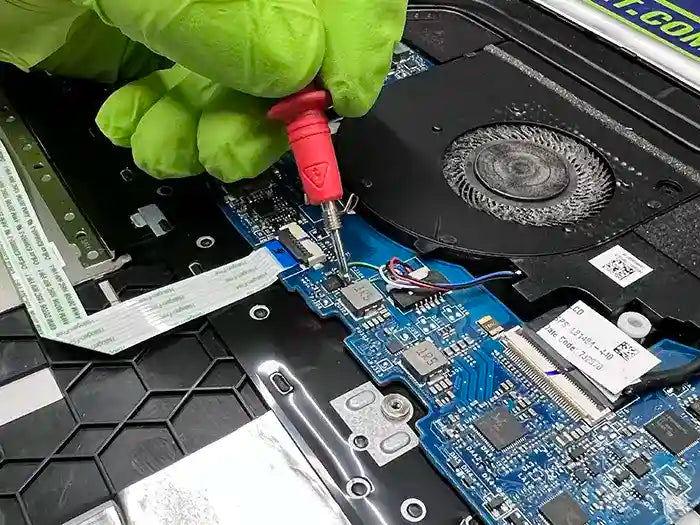
HDD vs SSD: Why Storage Speed Changes Computer Performance
Storage speed has a major impact on how fast and responsive a computer feels during everyday use. Many users assume slow performance is caused by an old processor or insufficient memory, but in real-world repair cases, storage is often the primary bottleneck.
Systems using older hard disk drives (HDDs) commonly experience slow startup times, delayed application loading, freezing during multitasking, and constant disk usage spikes. In contrast, solid-state drives (SSDs) dramatically improve responsiveness because they can access data much faster.
At Prime Tech Support, one of the most common upgrades we perform is replacing older HDDs with SSDs. In many cases, this single upgrade transforms the user experience without replacing the entire computer.
This guide explains the real differences between HDDs and SSDs, how storage speed affects performance, and when upgrading storage is actually worth it.
Quick Answer
SSDs are significantly faster than traditional HDDs because they access data electronically instead of using moving mechanical parts. This improves startup speed, application loading, multitasking responsiveness, and overall system stability.
See how storage bottlenecks affect slow computer performance
External resource: SSD vs HDD explained
Table of Contents
What Is the Difference Between HDD and SSD?
Hard disk drives (HDDs) and solid-state drives (SSDs) both store operating systems, applications, and personal files, but they work very differently internally. These differences directly affect system responsiveness and overall performance.
How HDDs Work
Traditional HDDs store data on spinning magnetic platters. A mechanical read/write arm physically moves across the disk to access information.
Because HDDs rely on moving mechanical components:
- Data access is slower
- Application loading takes longer
- Boot times increase significantly
- Performance drops during multitasking
This is one reason older computers often feel extremely slow even when the CPU and RAM are still functional.
How SSDs Work
SSDs use flash memory instead of moving parts. Data can be accessed electronically almost instantly, which dramatically improves responsiveness.
Compared to HDDs, SSDs provide:
- Faster startup times
- Faster application loading
- Improved multitasking
- Reduced freezing and lag
- Better overall system responsiveness
Why Storage Speed Changes User Experience
Storage affects almost every interaction with the computer. Opening applications, launching games, loading files, booting Windows, and multitasking all depend heavily on how quickly the storage device can read and write data.
Even systems with strong processors can feel slow if the storage drive becomes the bottleneck.
| Feature | HDD | SSD |
|---|---|---|
| Technology | Mechanical spinning disk | Flash memory |
| Boot Speed | Slower | Much faster |
| Application Loading | Delayed | Near-instant |
| Noise | Audible mechanical noise | Silent operation |
| Heat Output | Higher | Lower |
| Durability | More sensitive to movement | More resistant to shock |
Important
Many users replace entire computers because the system feels outdated, when the real bottleneck is simply an aging HDD limiting overall responsiveness.
Storage bottlenecks can also contribute to freezing and instability issues
Recommended video:
Why HDDs Make Computers Feel Slow
Traditional hard drives are one of the most common performance bottlenecks in older computers. Even if the processor and memory are still functional, an HDD can make the entire system feel outdated because of how slowly it accesses data.
Unlike SSDs, HDDs rely on mechanical movement to read and write information. This creates delays every time Windows loads files, applications open, or background tasks access storage.
Slow Boot Times
One of the clearest signs of an HDD bottleneck is long startup time. Systems using older hard drives may take several minutes to fully boot into Windows and become responsive.
During startup, Windows loads thousands of small system files. HDDs struggle with this because mechanical drives are much slower at handling random data access.
High Disk Usage Spikes
Older hard drives often reach 100% disk usage during normal tasks like opening browsers, launching applications, or running updates.
When this happens:
- The system becomes temporarily unresponsive
- Applications stop responding
- Mouse movement may lag
- Multitasking becomes difficult
Multitasking Performance Suffers
Modern operating systems constantly access storage in the background. Antivirus scans, browser caching, updates, indexing, and applications all compete for disk access.
HDDs struggle to keep up with these simultaneous requests, especially on systems with limited RAM.

Mechanical Wear Over Time
Because HDDs contain moving parts, they become more vulnerable to performance degradation as they age. Physical wear, fragmentation, and sector issues can further reduce speed and reliability.
In some cases, users mistake these symptoms for CPU or RAM problems when the storage drive is actually the primary bottleneck.
Tip
If your computer becomes extremely slow while opening programs or during startup, storage performance may be the main issue—not necessarily the processor.
Learn how storage bottlenecks affect overall computer responsiveness
External resource: How HDD technology works
How SSDs Improve Real-World Performance
Upgrading from an HDD to an SSD is one of the most noticeable performance improvements most users can make. Unlike processor upgrades, which may only improve specific workloads, SSDs improve almost every part of everyday computer use.
Because SSDs access data electronically instead of mechanically, the system responds much faster during startup, multitasking, and application loading.
Faster Windows Startup
One of the first differences users notice after upgrading to an SSD is dramatically reduced boot time. Systems that previously took several minutes to become usable may start in seconds.
This improvement happens because SSDs can access thousands of small system files much faster than traditional hard drives.
Applications Open Faster
Programs load significantly faster on SSD-based systems. This includes:
- Web browsers
- Office applications
- Creative software
- Games
Users often describe SSD upgrades as making the computer feel “new again” even without replacing the rest of the hardware.
Better Multitasking
SSDs handle simultaneous read and write requests much more efficiently than HDDs. This improves responsiveness while multitasking, especially when:
- Running many browser tabs
- Opening multiple applications
- Installing updates in the background
- Working with large files
Reduced Freezing and Lag
Storage bottlenecks can cause temporary freezing, delayed input response, and system stuttering. SSDs reduce these delays significantly because data access happens almost instantly.
This is especially important on modern versions of Windows where background processes constantly interact with storage.
| Task | Typical HDD Experience | Typical SSD Experience |
|---|---|---|
| Windows Startup | 1–3 minutes | 10–30 seconds |
| Opening Applications | Noticeable delay | Near-instant response |
| Multitasking | Frequent lag | Smoother responsiveness |
| File Transfers | Slower | Much faster |
See how SSD upgrades improve slow computer performance
External resource: How SSD upgrades improve performance
SATA SSD vs NVMe SSD: What’s the Difference?
Not all SSDs perform the same way. While both SATA SSDs and NVMe SSDs are significantly faster than traditional HDDs, NVMe technology offers much higher data transfer speeds and lower latency.
Understanding the difference helps users choose the right upgrade based on workload, budget, and system compatibility.
What Is a SATA SSD?
SATA SSDs use the same SATA interface originally designed for hard drives. Even though the connection is older, SATA SSDs still provide massive real-world improvements compared to HDDs.
For many users, a SATA SSD already delivers:
- Fast Windows startup
- Quick application loading
- Smoother multitasking
- Reduced lag and freezing
What Is an NVMe SSD?
NVMe SSDs connect directly through PCIe lanes instead of the older SATA interface. This allows dramatically higher read and write speeds compared to SATA SSDs.
NVMe drives are especially beneficial for:
- Large file transfers
- Video editing workflows
- Gaming asset loading
- Professional workloads
- Heavy multitasking
Real-World Performance Differences
In everyday use, both SATA SSDs and NVMe SSDs feel very responsive compared to HDDs. However, NVMe drives excel during larger workloads and high-throughput operations.
| Feature | SATA SSD | NVMe SSD |
|---|---|---|
| Connection Type | SATA | PCIe |
| Typical Speed | Up to ~550 MB/s | 2,000–7,000+ MB/s |
| Boot Performance | Fast | Very fast |
| Gaming Load Times | Improved | Faster asset loading |
| Best Use Case | General performance upgrades | High-performance workflows |
Even though NVMe drives are technically much faster, many users upgrading from HDDs will already experience dramatic improvement with a standard SATA SSD.
Important
The biggest performance jump usually comes from moving from HDD to SSD—not necessarily from SATA SSD to NVMe SSD.
Storage upgrades are one of the most effective ways to improve slow computer performance
External resource: Understanding NVMe SSD technology
Signs Your Hard Drive Is the Performance Bottleneck
Many users assume their processor or memory is causing poor performance when the real issue is the storage drive. Because the operating system constantly reads and writes data, a slow or aging drive can affect almost every part of the user experience.
Recognizing the warning signs of storage bottlenecks can help determine whether an SSD upgrade or storage diagnosis is needed.
Very Slow Startup Times
If Windows takes several minutes to fully load and become responsive, the storage drive may be struggling to process startup operations efficiently.
This is especially common on older systems still using mechanical HDDs.
Applications Take Too Long to Open
Programs that open slowly, freeze temporarily, or show loading delays may indicate storage access limitations rather than CPU problems.
Common examples include:
- Browsers taking several seconds to open
- Office applications loading slowly
- Games stalling during loading screens
- File Explorer becoming unresponsive
Disk Usage Frequently Reaches 100%
One of the clearest indicators of storage bottlenecks is persistent high disk activity in Task Manager.
When disk usage stays near 100% during basic tasks:
- The system may freeze temporarily
- Mouse input can lag
- Applications may stop responding
- Multitasking performance drops significantly

Unusual Clicking or Mechanical Noise
Mechanical hard drives may produce clicking, grinding, or repeated spinning sounds when they begin failing physically. These noises should never be ignored because they can indicate developing hardware failure.
Freezing During File Access
If the computer freezes while opening folders, transferring files, or launching applications, the drive may be struggling to read or write data consistently.
Storage bottlenecks can also contribute to system freezing and instability
System Feels Slower Over Time
As HDDs age and accumulate fragmentation or wear, overall responsiveness gradually decreases. Users often adapt to the slowdown over time without realizing how much performance has been lost.
Real Case From Our Lab: Old Laptop Transformed with an SSD Upgrade
A customer brought in an older laptop that had become extremely slow during normal use. Startup times exceeded several minutes, applications opened slowly, and the system frequently froze during multitasking.
The customer initially believed the laptop was simply outdated and was considering replacing it entirely. However, after diagnostics, the main bottleneck turned out to be the original mechanical hard drive.
Initial Symptoms
- Windows startup taking several minutes
- Constant lag during web browsing
- Applications freezing while opening
- Task Manager showing repeated 100% disk usage
Diagnosis Findings
Testing revealed that the HDD was struggling to keep up with modern Windows background processes and application workloads. While the CPU and memory were still functional, the storage system had become the primary performance limitation.
The system itself was not failing—it was simply being slowed down by outdated storage technology.
What Changed After the SSD Upgrade
- Boot time reduced from minutes to seconds
- Applications opened significantly faster
- System freezing and lag were eliminated
- Overall responsiveness improved dramatically
Instead of replacing the entire laptop, the customer was able to continue using the system comfortably after targeted storage improvements.
Key Takeaway
Many “slow” computers are still fully usable. In real-world cases, storage upgrades often provide the largest performance improvement without replacing the entire system.
Storage upgrades are one of the most effective solutions for slow computer performance
When an SSD Upgrade Is Actually Worth It
Not every performance issue requires replacing hardware, but upgrading from an HDD to an SSD is often one of the most cost-effective improvements available for older systems.
The key is determining whether storage speed is truly the primary bottleneck.
An SSD Upgrade Is Usually Worth It If:
- The computer still uses a mechanical HDD
- Startup times are extremely slow
- Applications freeze while opening
- Task Manager frequently shows 100% disk usage
- The system feels sluggish during basic multitasking
In many cases, upgrading storage dramatically improves everyday responsiveness without replacing the processor or motherboard.
When an SSD Upgrade May Not Fully Solve the Problem
While SSDs improve responsiveness significantly, other bottlenecks can still limit performance.
Additional problems may include:
- Insufficient RAM
- Overheating and thermal throttling
- Driver conflicts
- Background process overload
- Failing hardware components
This is why proper diagnostics are important before upgrading components blindly.
Older Systems Can Still Benefit
Many older laptops and desktops remain fully usable after moving from HDD storage to SSD storage. Even systems several years old can feel dramatically more responsive with faster storage technology.
For users who browse the web, work with documents, stream media, or perform general productivity tasks, an SSD upgrade often extends the usable life of the computer considerably.
| Situation | SSD Upgrade Impact |
|---|---|
| Old laptop with HDD | Major improvement |
| Slow Windows startup | Major improvement |
| Frequent disk usage spikes | Major improvement |
| Thermal throttling issues | Limited impact |
| Low RAM capacity | Partial improvement |
Performance problems are often caused by multiple bottlenecks working together
External resource: SSD vs HDD performance comparison
Professional Storage Diagnostics and Performance Upgrades
Storage-related performance problems are often misunderstood because their symptoms overlap with other issues such as overheating, driver instability, or insufficient memory. Proper diagnostics help determine whether the storage drive is truly the bottleneck or part of a larger system performance problem.
At Prime Tech Support, we test storage devices under real operating conditions to identify:
- Slow or failing HDDs
- SSD performance degradation
- Firmware-related instability
- Storage-related freezing issues
- High disk usage bottlenecks
- Compatibility and upgrade opportunities
We also evaluate whether the system would benefit more from:
- SSD upgrades
- NVMe upgrades
- Thermal maintenance
- RAM upgrades
- Driver and software optimization

Storage bottlenecks can also contribute to freezing and system instability
See how diagnostics identify the real causes of slow performance

PROFESSIONAL SUPPORT
Computer Repairs
Fast tech support for Computer Repairs. We exceed customer expectations and ensure satisfaction.

Computer Repairs Blog by Techs in Miami
View all-

Does your computer keep opening BIOS instead of loading Windows? Learn why BIOS startup problems happen, how to identify SSD...
Why Is My Computer Stuck on the BIOS Screen? Causes, Diagnosis...
Does your computer keep opening BIOS instead of loading Windows? Learn why BIOS startup problems happen, how to identify SSD...
-

Your computer turns on, the fans spin, and the lights come on—but the monitor stays black or says “No Signal.”...
Computer Turns On but No Display: Causes, Diagnosis, and Repair
Your computer turns on, the fans spin, and the lights come on—but the monitor stays black or says “No Signal.”...
-

A failing computer power supply can cause sudden shutdowns, random restarts, startup problems, or instability under heavy load. Learn the...
How to Tell If Your Computer Power Supply Is Failing: PSU Warn...
A failing computer power supply can cause sudden shutdowns, random restarts, startup problems, or instability under heavy load. Learn the...