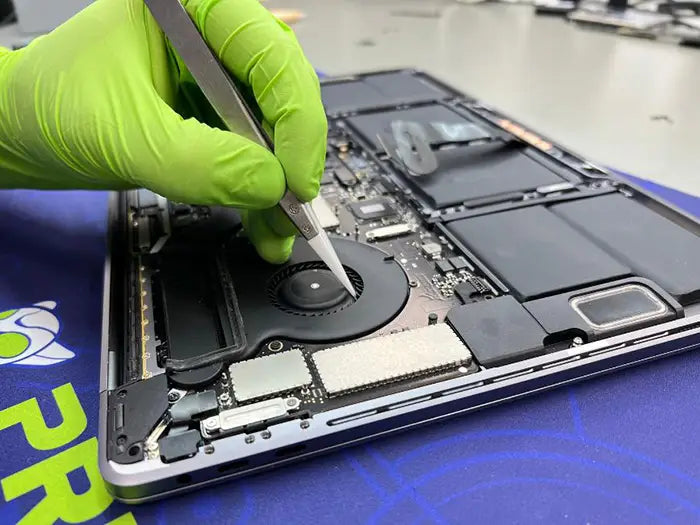
Why a Logic Board Issue Can Stop Your MacBook Trackpad From Clicking
If your MacBook trackpad stops clicking, the trackpad itself is not always the real problem. In many cases, users assume the failure is caused by a worn trackpad, a swollen battery, or even a keyboard-related input issue. Those are all valid causes, and they deserve careful testing. But when those possibilities have already been ruled out, the next place to look is the logic board.
The logic board controls how the trackpad communicates with the rest of the system. If there is damage in that communication path—such as corrosion, a damaged connector, a failed component, or a power rail issue—the trackpad may lose its click function even though the surface still moves the cursor or appears physically normal. This is one of the reasons MacBook trackpad problems are often misdiagnosed, especially when symptoms seem to point to a simple part replacement.
At Prime Tech Support, we regularly see MacBooks where the original trackpad was not the failed component at all. In some cases, the battery was blamed first. In others, the keyboard or top case was replaced unnecessarily. But once the machine was tested at board level and inspected under magnification, the real cause turned out to be damage on the logic board itself.
If you have already reviewed other common causes, such as general trackpad failure causes, keyboard-related trackpad issues, or battery pressure problems, this article helps you understand what happens when the problem goes deeper. Here we will explain how the logic board affects trackpad function, the failure patterns we see in real repairs, and why accurate diagnostics matter before replacing more parts.
Table of Contents
How the Logic Board Controls Trackpad Functionality
To understand why a logic board problem can stop a MacBook trackpad from clicking, it helps to understand what the trackpad actually needs in order to work correctly. The trackpad is not an isolated part. It depends on stable communication with the logic board, proper power delivery, and a healthy signal path between multiple components. If any part of that chain is interrupted, the click function can fail even when the trackpad itself is not physically broken.
On many MacBook models, especially Force Touch designs, the “click” feeling is not produced by a traditional mechanical switch the way many users expect. Instead, the sensation is created electronically. That means the trackpad needs power, communication, and feedback control from the board to simulate normal clicking behavior. When that process is interrupted, users may describe the trackpad as dead, stuck, shallow, inconsistent, or unable to click at all.
Important diagnostic point: A MacBook trackpad can fail to click even when the top surface still tracks movement normally. That is one of the biggest clues that the issue may involve signal or power delivery on the logic board rather than a physically damaged trackpad assembly alone.
Trackpad Communication Pathways
The trackpad connects to the MacBook through a flex cable and connector system that links it to the logic board. That pathway carries critical data and power between the input device and the board. If the cable is damaged, if the connector pins are bent, if liquid exposure has caused corrosion, or if the board has damage near that circuit, the trackpad may lose part of its functionality.
In real diagnostics, this is why we do not stop at “the trackpad moves the cursor, so the trackpad must be fine.” Cursor movement alone does not confirm that the full circuit is healthy. The logic board still has to process the input correctly and support the haptic or click-related functions that make the trackpad feel normal in use.
Key Logic Board Functions Involved
Several board-level functions can affect trackpad behavior. Power management is one of the most important. If the board is not delivering stable power to the trackpad circuit, click response can become intermittent or disappear completely. Connector integrity also matters. A damaged connector on the board can interrupt the communication path even if the cable and trackpad look acceptable at first glance.
On some models, board-level issues can also affect other nearby functions at the same time. For example, a machine may show trackpad click problems along with keyboard irregularities, charging instability, random shutdowns, or failures after liquid exposure. When multiple symptoms appear together, the logic board becomes a much more likely suspect than the trackpad alone.
This is why proper diagnosis has to follow the full path of the problem. The trackpad, its cable, the connector, and the board all have to be evaluated together. Replacing only the visible part without testing the electrical pathway can lead to repeated repair attempts, unnecessary expense, and a MacBook that still has the same problem when the new part is installed.
Common Logic Board Issues That Stop the Trackpad From Clicking
Once the trackpad itself, the battery, and other obvious causes have been checked, the next step is to look at the logic board. This is where trackpad problems become more technical. In many MacBook repairs, the real issue is not a worn input surface or a simple loose connection, but a board-level fault that interrupts power, communication, or feedback to the trackpad system.
These failures are often missed during basic troubleshooting because the symptoms can look deceptively simple from the outside. A trackpad that will not click may still move the cursor. A replacement trackpad may behave exactly the same as the original one. In those situations, the logic board becomes a much more likely cause.

Liquid Damage and Corrosion
Liquid exposure is one of the most common board-level causes of trackpad failure. Even when a MacBook still turns on and appears mostly functional, a small amount of corrosion near the trackpad connector or nearby circuits can disrupt the signal path. This damage may not be obvious without magnification, and in many cases, the corrosion continues to spread after the original spill.
We often see machines where the user reports that the trackpad stopped clicking days or weeks after a liquid incident. That delayed failure pattern is important. The board may continue working temporarily, but corrosion can slowly weaken pads, traces, and connector integrity until the click function becomes intermittent or disappears completely.
Damaged Trackpad Connector on the Logic Board
The trackpad depends on a clean, stable connection to the board. If the connector on the logic board is cracked, partially lifted, contaminated, or has bent or damaged pins, the trackpad may lose one part of its function while retaining another. This is why some MacBooks still register finger movement but do not click normally.
Connector damage can happen after liquid exposure, improper prior repair attempts, accidental tool slips, or repeated cable reseating. Under microscope inspection, these failures may appear as broken pins, lifted pads, or uneven contact points that prevent the board from communicating correctly with the trackpad assembly.
Power Rail Problems
Force Touch trackpads rely on proper electrical support from the board. If the relevant power rail is unstable, weak, or absent, the click mechanism may stop functioning even though the trackpad itself is not physically jammed. In board-level diagnostics, this is why voltage testing matters. A MacBook may appear to have a “bad trackpad” when the real problem is missing or unstable power being delivered to that circuit.
Power rail issues can be caused by failed components, corrosion, short circuits, or damage elsewhere on the board. In some cases, the trackpad problem is only one symptom of a larger power management issue affecting the system.
Shorted or Failed Components Near the Input Circuit
Small board components such as filters, capacitors, resistors, and control circuits can also affect trackpad behavior. If one of these components fails, the board may no longer process the trackpad correctly. This type of problem is especially difficult to identify without proper tools because the damaged part may be extremely small and invisible to the naked eye.
That is why trackpad issues tied to the logic board usually require a different repair approach than part-swapping. The machine has to be inspected carefully, the circuit path has to be tested, and the repair has to be based on measurements rather than guesswork.
Repair insight: If a replacement trackpad behaves exactly like the original one, that is a strong sign the failure may not be the trackpad at all. At that point, connector condition, board-level corrosion, and power delivery should move much higher on the diagnostic list.
In real repair work, this is where experience matters. Two MacBooks can show the same symptom—no click—but have completely different causes. One may need only a cable or connector correction. Another may require board cleaning, trace repair, or micro-soldering. Without that level of diagnosis, it is easy to replace the wrong part and still end up with the same problem.
Real Case – Trackpad Failure Caused by Logic Board Damage
One of the most important parts of diagnosing trackpad issues is understanding how often the problem is not the trackpad itself. In real repair scenarios, we regularly see machines where multiple parts have already been replaced before the actual cause is identified. This case is a good example of how a logic board issue can mimic a simple trackpad failure.
The device was a MacBook Pro (Intel-based, 2019 model) that came in with a clear complaint: the trackpad would not click. The cursor still moved normally, but the click response was completely gone. The customer had already attempted basic troubleshooting and was convinced the trackpad assembly had failed.
Image Block

Initial Testing and Part Replacement
As part of the diagnostic process, the trackpad was tested and then replaced with a known-good unit. The result was the same: no click response. At that point, the failure could no longer be attributed to the trackpad itself.
The battery was also inspected to rule out pressure-related issues that can affect clicking on some MacBook models. In this case, the battery was in good condition and showed no signs of swelling or deformation. The keyboard was also tested and did not present any input conflicts.
Board-Level Diagnosis
With the common causes eliminated, attention shifted to the logic board. Under magnification, the trackpad connector area showed clear signs of damage. There was corrosion affecting the connector pins and surrounding circuitry, likely the result of a previous liquid exposure that had gone unnoticed or had not been fully addressed.
This type of damage interrupts the communication between the trackpad and the system. Even though the trackpad hardware itself was fully functional, the board could not properly process the click signal. This is why both the original and replacement trackpads behaved identically.
Repair and Outcome
The repair required board-level work. The affected area was carefully cleaned, damaged pads were restored, and the connector integrity was corrected. In some cases, this type of repair may require micro-soldering depending on the severity of the damage.
After the repair, the trackpad click function was fully restored without replacing additional major components. The system returned to normal operation, confirming that the logic board—not the trackpad—was the root cause of the issue.
Real-world takeaway: When a replacement trackpad produces the same exact symptom as the original, the failure is often happening at the logic board level. This is why proper diagnostics should always come before repeated part replacements.
This type of case highlights a key pattern we see in many MacBook repairs. The symptom may look simple, but the underlying cause can require a much deeper level of inspection. Without board-level diagnosis, it is easy to misidentify the problem and replace components that are not actually faulty.
Signs the Logic Board Is the Real Problem
After testing the trackpad, battery, and keyboard, the next step is recognizing when the logic board becomes the most likely cause. This is where patterns matter. A single symptom can be misleading, but when multiple signs appear together, they often point toward a board-level issue rather than a simple part failure.
In real diagnostics, we do not rely on assumptions—we look for repeatable behavior. If the same symptom persists across different components, or if the issue behaves inconsistently, the logic board moves higher on the list of possible causes.
| Symptom | What It Suggests |
|---|---|
| Trackpad replaced but still not clicking | Signal or power issue on the logic board |
| Cursor moves but click does not work | Partial communication failure, often board-related |
| Intermittent or inconsistent clicking | Unstable power delivery or connector damage |
| Trackpad works after pressure or movement | Loose or damaged connector on the board |
| Multiple input issues (trackpad + keyboard) | Shared circuit or logic board failure |
| History of liquid exposure | Possible corrosion affecting board circuits |
| Previous repair attempts with no resolution | Underlying board-level problem not addressed |
One of the most important indicators is when a replacement trackpad behaves exactly like the original one. At that point, the probability of two separate trackpads failing in the same way is very low. This is a strong signal that the issue is happening beyond the trackpad itself.
Another key pattern is inconsistency. A failing logic board may produce symptoms that come and go, change with temperature, or appear after the device has been running for some time. These are not typical characteristics of a simple mechanical failure.
Diagnostic tip: If your MacBook has already had one or more parts replaced and the issue remains unchanged, it is time to stop replacing components and focus on board-level diagnosis. Continuing to swap parts without testing the circuit path often leads to unnecessary cost without solving the problem.
Recognizing these signs early can save both time and money. Instead of repeating the same repair steps, identifying a likely logic board issue allows the diagnostic process to move in the right direction from the start.
Why This Issue Is Often Misdiagnosed
Logic board-related trackpad failures are frequently misdiagnosed because the symptoms closely resemble much simpler problems. When a MacBook trackpad stops clicking, the most common assumption is that the trackpad itself has worn out. From there, many users move on to replacing the battery or even the entire top case assembly. While those steps can solve certain issues, they do not address board-level faults.
The challenge is that the visible symptoms do not clearly indicate where the failure is happening. A non-clicking trackpad looks the same whether the issue is mechanical, pressure-related, or electrical. Without testing the full signal path, it is easy to focus only on the most accessible components and overlook the logic board entirely.
Part Replacement Without Diagnosis
One of the most common patterns we see is repeated part replacement without proper testing. A trackpad is replaced first. When that does not fix the issue, the battery may be replaced next. In some cases, the entire top case is swapped. Each step increases cost, but the original problem remains because the logic board was never evaluated.
This approach often happens because part replacement feels like a straightforward solution. However, when the issue is electrical, replacing external components does not change the underlying condition of the circuit. The system continues to behave the same way, leading to frustration and unnecessary expense.
Symptoms That Overlap With Other Issues
Trackpad problems caused by the logic board can closely mimic other known issues. For example, a lack of click response may be mistaken for battery swelling in older designs, or for keyboard-related input conflicts in integrated systems. Because those causes are more common, they are often checked first.
While that order of testing is reasonable, the problem arises when the process stops too early. If those components are ruled out but the diagnosis does not continue to the board level, the actual cause remains hidden.
Hidden Damage on the Logic Board
Another reason for misdiagnosis is that logic board damage is not always visible. Corrosion from liquid exposure, weakened solder joints, and failed micro-components can exist without obvious external signs. In many cases, the board looks normal until it is inspected under magnification or tested with proper diagnostic tools.
This makes board-level issues harder to identify without experience. What appears to be a simple input problem may actually involve damaged traces, unstable power delivery, or a compromised connector that cannot be detected through visual inspection alone.
Why proper diagnosis matters: Replacing parts without confirming the cause can quickly become more expensive than a correct diagnosis from the start. Identifying whether the issue is mechanical or electrical determines the entire repair path and prevents unnecessary replacements.
In real-world repair work, accurate diagnosis is what separates a quick fix from a repeated problem. When the logic board is considered early—especially after basic causes have been ruled out—the repair process becomes more efficient and far more effective.
Can You Fix a Logic Board Trackpad Issue Yourself?
Once a trackpad problem is traced back to the logic board, the repair process becomes significantly more complex than a standard part replacement. While some basic checks can be performed safely, most logic board-related issues require specialized tools, experience, and a controlled repair environment. Attempting advanced repairs without the right setup can easily make the problem worse.
What You Can Safely Check
Before assuming a board-level failure, there are a few safe steps you can take to rule out simple connection issues. These checks do not require advanced tools and can help confirm whether the problem might still be related to a loose or improperly seated component.
- Power off the MacBook completely and disconnect it from any power source.
- Inspect the trackpad flex cable for visible damage or wear.
- Carefully reseat the trackpad connector if you are comfortable opening the device.
- Check for any obvious signs of liquid exposure near the trackpad area.
If the issue is caused by a loose connection, these steps may restore normal functionality. However, if the problem persists after these checks, it is unlikely to be resolved without deeper diagnostics.
Why Logic Board Repairs Require Professional Tools
Unlike replacing a trackpad or battery, logic board repairs involve working with very small components and sensitive circuits. Identifying the exact failure point often requires tools such as microscopes, multimeters, and specialized equipment used for board-level diagnostics.
In many cases, the repair itself may involve micro-soldering. This process is used to restore damaged pads, replace failed components, or repair broken connections on the board. Without proper training and equipment, attempting this type of repair can cause permanent damage to the logic board.
Risks of DIY Board-Level Repairs
Trying to fix a logic board issue without the necessary experience carries several risks. The board can be easily damaged by excessive heat, improper handling, or incorrect component replacement. Even a small mistake can turn a repairable issue into a full board replacement.
Another common risk is misdiagnosis. Without proper testing, it is difficult to confirm whether the issue is actually on the logic board or somewhere else in the system. This can lead to unnecessary repairs that do not solve the problem.
For these reasons, logic board repairs are generally not recommended as a DIY solution. Once the issue reaches this level, the most effective approach is to have the device properly diagnosed so the exact cause can be identified before any repair is attempted.
Repair Options and Cost Considerations
Once a logic board issue has been confirmed, the next step is deciding how to approach the repair. Unlike standard component replacements, board-level problems can be addressed in different ways depending on the severity of the damage, the MacBook model, and the condition of the device overall. Understanding these options helps avoid unnecessary expenses and ensures the repair makes sense for your situation.
Logic Board Repair vs Replacement
In many cases, a damaged logic board can be repaired rather than replaced. Board-level repair focuses on identifying and fixing the specific failed component or damaged circuit. This may involve cleaning corrosion, restoring connector integrity, or replacing small components through micro-soldering.
Replacement, on the other hand, involves installing a completely new or refurbished logic board. While this can solve the problem, it is usually more expensive because it replaces the entire board instead of addressing the exact point of failure.
| Option | Best For | Considerations |
|---|---|---|
| Board-Level Repair | Localized damage (connector, corrosion, small components) | More cost-effective, requires specialized repair skills |
| Logic Board Replacement | Severe or widespread damage | Higher cost, faster in some cases, replaces entire system board |
Differences Between Intel and Apple Silicon Models
The repair approach can vary depending on whether the MacBook uses an Intel processor or Apple Silicon. Intel-based models generally offer more flexibility for board-level repairs because individual components and circuits are more accessible and, in some cases, more repairable.
Apple Silicon models integrate more components directly into the logic board. This design improves performance and efficiency but also increases repair complexity. In some situations, board replacement becomes more common due to the level of integration.
Because of this, accurate diagnosis is even more important on newer models. Understanding the exact failure before choosing a repair path can prevent unnecessary costs and help determine whether repair or replacement is the better option.
If your MacBook uses Apple Silicon and the issue extends beyond input functionality, it may also be important to consider data access and recovery options. In those cases, reviewing Apple Silicon Mac data recovery methods can help you understand what is possible before making a repair decision.
Cost insight: Replacing parts without confirming the cause can quickly exceed the cost of a proper board-level repair. A targeted diagnosis helps ensure you only pay for the repair that actually solves the problem.
Choosing the right repair approach depends on more than just the symptom. It requires understanding the condition of the logic board, the type of MacBook, and the long-term value of the device. With the right diagnosis, many logic board-related trackpad issues can be resolved efficiently without unnecessary replacements.
Conclusion – When the Problem Goes Deeper Than Expected
A MacBook trackpad that will not click is not always a simple hardware issue. While the trackpad itself, the battery, and even the keyboard are common causes, this article shows what happens when the problem goes deeper. Logic board failures can interrupt the signal, power, or feedback required for proper trackpad function, creating symptoms that look identical to more basic issues.
This is why accurate diagnosis matters. Replacing parts without confirming the cause can lead to repeated repairs, higher costs, and the same unresolved problem. When the trackpad has already been tested or replaced and the issue remains, the logic board should no longer be overlooked.
At this stage, the repair process shifts from part replacement to circuit-level analysis. Identifying whether the issue is caused by corrosion, connector damage, or a failed component requires the right tools and experience. Once properly diagnosed, many of these problems can be repaired without replacing the entire board.
If you are dealing with a MacBook trackpad that still will not click after basic fixes, a professional diagnostic is the most effective next step. It ensures the problem is correctly identified and prevents unnecessary part replacements.
Stop guessing and fix the problem correctly.
If your MacBook trackpad is not clicking and previous fixes have not worked, our technicians can perform a full board-level diagnostic to identify the exact cause.
Understanding the full range of possible causes—from external components to internal circuitry—is what makes the difference between a temporary fix and a complete repair. When the problem goes deeper, the solution requires a deeper level of expertise.
Share this

Related Mac Repair Articles


Frequently Asked Questions Why a Logic Board Issue Can Stop Your MacBook Trackpad From Clicking
Can a logic board cause a MacBook trackpad to stop clicking?
Why does my MacBook trackpad still not click after replacement?
How do I know if the logic board is causing trackpad problems?
Can liquid damage affect the trackpad through the logic board?
Is it worth repairing a logic board for trackpad problems?
Can I fix a logic board trackpad issue myself?
MacBook Not Working? Get Expert Diagnosis and Repair Options
If your MacBook is experiencing issues, getting a proper diagnosis is the first step. Many problems that seem like major failures can often be resolved with targeted component-level repairs.
At Prime Tech Support, we specialize in advanced MacBook diagnostics and repairs, including issues that other shops may not be able to resolve.
In Miami? Get Local Mac Repair Service
Our team is ready to help you . We offer same-day repairs
Not in Miami? Use Our Mac Mail-In Repair Service
We offer secure nationwide mail-in repairs with fast turnaround times and professional diagnostics.
Explore More MacBook Repair Guides
View all-

MacBook storage problems can involve much more than a failed SSD. Learn how removable and soldered MacBook storage works, common...
MacBook SSD Repair and Upgrade: Complete Guide to Storage Prob...
MacBook storage problems can involve much more than a failed SSD. Learn how removable and soldered MacBook storage works, common...
-

Is your MacBook running hot but the fan is completely silent? Learn how to determine whether your MacBook has a...
MacBook Fan Not Working Diagnostics and Repair
Is your MacBook running hot but the fan is completely silent? Learn how to determine whether your MacBook has a...
-

If your MacBook charges through USB-C but does not recognize external drives, hubs, docks, or accessories, the problem may be...
MacBook USB-C Data Transfer Not Working: Causes and Fixes
If your MacBook charges through USB-C but does not recognize external drives, hubs, docks, or accessories, the problem may be...