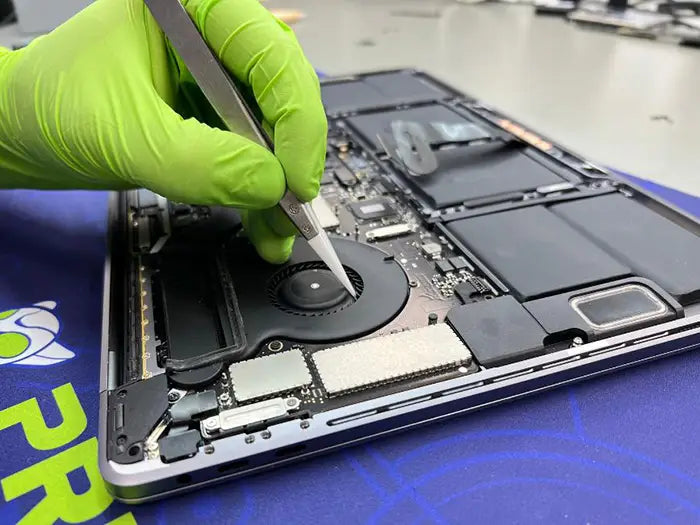
MacBook Battery Swelling: What It Means and What to Do
If your MacBook's trackpad suddenly feels raised, the bottom case no longer sits flat, or the computer rocks slightly on a desk, don't ignore it. These are some of the earliest warning signs of a swollen battery, and unlike poor battery life alone, battery swelling is a physical safety issue that requires prompt attention.
A swollen MacBook battery doesn't simply hold less charge. As the lithium-ion cells expand, they begin pushing against the tightly packed components inside the MacBook. That pressure can affect the trackpad, keyboard, bottom case, internal cables, and even the overall alignment of the chassis.
The good news is that most swollen batteries can be repaired safely when the problem is identified early. The key is avoiding the common mistakes that turn a straightforward battery replacement into a much larger repair.
If you suspect your MacBook battery is swelling, stop using the computer, disconnect it from power, and avoid pressing on the trackpad or trying to force the case back into shape. The sooner the battery is inspected, the greater the chance the repair will be limited to the battery itself.
In this guide, you'll learn how to recognize the warning signs of a swollen MacBook battery, understand why it happens, know what you should never do, and determine when it's time for professional battery replacement. We'll also explain why battery swelling often causes trackpad and keyboard problems, helping you distinguish between symptoms and the root cause.
Table of Contents
Quick Answer: What Should You Do If Your MacBook Battery Is Swollen?
If you believe your MacBook battery is swollen, stop using it, unplug the charger, avoid applying pressure to the case or trackpad, and arrange for a professional inspection as soon as possible.
A swollen battery is different from normal battery wear. It means the battery has physically expanded inside the MacBook, placing pressure on nearby components. Continuing to charge or use the computer may increase the risk of damaging the trackpad, keyboard, flex cables, bottom case, or other internal hardware.
Immediate Safety Checklist
- Stop charging the MacBook.
- Power it down if possible.
- Do not press on the raised trackpad or bulging case.
- Do not attempt to flatten the battery or open the MacBook yourself.
- Keep the MacBook on a flat, hard surface until it can be inspected.
- Arrange a professional battery diagnostic as soon as practical.
Taking these simple precautions can help prevent additional pressure-related damage while the MacBook awaits repair.
First Safe Steps Before Anything Else
Many people discover battery swelling because something else changes first. The trackpad becomes difficult to click, the keyboard feels uneven, the bottom cover appears slightly raised, or the MacBook no longer sits flat on a desk. Because these symptoms often develop gradually, it's common to continue using the computer without realizing that the battery is expanding internally.
Once you suspect battery swelling, resist the urge to "test it a little longer." Every additional charge cycle and every unnecessary press on the swollen area can place more stress on the battery and the surrounding components.
Stop Using and Charging the MacBook
The safest first step is simple: disconnect the charger and stop using the MacBook until it has been evaluated.
Even if the computer still works normally, charging continues the chemical process inside a battery that is already showing signs of internal failure. Heat generated during charging or heavy workloads may allow the swelling to progress further.
Instead of finishing one more project or leaving the MacBook plugged in overnight, set it aside in a cool, dry location on a flat, hard surface until it can be inspected.
Technician Tip: A MacBook that still turns on is not necessarily safe to continue using. Battery swelling is a physical condition, not simply a battery-life problem. The absence of warning messages does not mean the battery is healthy.
Do Not Press the Case or Try to Open the MacBook
If the bottom case appears bowed or the trackpad has become difficult to click, avoid pressing on those areas to see whether they "go back to normal."
Likewise, do not remove the bottom cover simply to check whether the battery looks swollen. Opening a MacBook containing an expanded lithium-ion battery requires careful handling to avoid accidental puncture or unnecessary pressure on the battery cells.
Attempting a quick inspection without the proper tools and procedures can easily create a much more serious problem than the original battery swelling.
Once the MacBook has been set aside safely, the next step is understanding exactly what battery swelling means and why it affects so many other components inside the computer.
What MacBook Battery Swelling Actually Means
After taking the immediate safety steps—stopping use and disconnecting the charger—the next question is usually straightforward: what is actually happening inside the MacBook?
A swollen MacBook battery means the internal lithium-ion battery has physically expanded. This is different from ordinary battery aging, reduced runtime, or a Service Recommended warning by itself. Swelling means the battery pack has changed shape inside the computer, and that physical expansion can place pressure on the trackpad, keyboard, bottom case, internal connectors, and nearby cables.
The Battery Has Physically Expanded
MacBook batteries are made from lithium-ion cells sealed inside thin, flexible battery pouches. Under normal conditions, those cells store and release energy through a controlled chemical process.
As a battery degrades internally, gas and other byproducts can build up inside the sealed cell layers. Because the pouch cannot release that pressure safely, it begins to expand outward.
This physical expansion is what people usually describe as:
- A swollen MacBook battery
- A puffed-up battery
- A bulging MacBook battery
- A battery pushing against the trackpad
- A battery causing the bottom case to bow outward
From the outside, the first visible signs may be subtle. The trackpad may sit slightly higher than before, the bottom case may no longer rest flat, or the lid may stop closing evenly.
Battery Swelling Is Different From Poor Battery Life
A MacBook can have poor battery life without any swelling. It can also display Service Recommended while the case remains perfectly flat.
Swelling is different because it is a physical change inside the MacBook. Once the battery has expanded, the issue is no longer only about runtime or charging—it also becomes a pressure and safety concern.
Why Swelling Can Affect the Rest of the MacBook
MacBooks are built with very little unused space inside. The battery, trackpad, keyboard, logic board, speakers, flex cables, and lower case are all fitted closely together.
Because there is almost no room for the battery to expand, swelling usually pushes against the components around it instead of remaining isolated.
On many MacBook models, the battery cells sit close enough to the trackpad that upward pressure can change how the trackpad feels or clicks. The same pressure can also affect:
- Trackpad movement and haptic response
- Keyboard alignment and key feel
- Bottom-case shape
- Screw alignment
- Flex cables and internal connectors
- Overall chassis alignment
This is why battery swelling should be treated as both a battery issue and a hardware-pressure issue.
Do Not Assume the Swelling Has Stabilized
A swollen battery should not be monitored casually to see whether it gets worse. Once the battery has physically expanded, you should assume it is no longer functioning normally.
Continued charging, heat, pressure, and normal use may allow the swelling to progress. A MacBook that looks only slightly raised today may develop more serious trackpad, keyboard, cable, or case problems if it continues to be used for several more days or weeks.
Early inspection gives the technician the best chance of keeping the repair limited to the battery instead of adding trackpad, keyboard, or case work later.
For a previous repair-lab example showing how this failure can progress, read our swollen battery safety case study.
Simple Definition
MacBook battery swelling is the physical expansion of an internal lithium-ion battery pack caused by internal cell degradation and gas buildup.
Because the battery is installed inside a tightly assembled computer, that expansion can press against the trackpad, keyboard, case, and nearby internal connectors. The MacBook should be powered off, unplugged, and inspected before further use.
Signs Your MacBook Battery May Be Swollen
Now that you know what MacBook battery swelling actually means, the next step is recognizing the warning signs. A swollen battery rarely begins with a dramatic bulge. More often, the first symptoms are subtle changes in how the MacBook feels or functions.
You might notice the trackpad becoming harder to click, the keyboard feeling uneven, the bottom case no longer sitting flat, or the lid not closing quite the way it used to. These symptoms matter because they often indicate the expanding battery is placing pressure on nearby components.
The earlier these signs are recognized, the more likely the repair will remain limited to the battery instead of affecting additional hardware.
The Trackpad Feels Raised, Stiff, or Stops Clicking
A raised or stiff trackpad is one of the most common early indicators of battery swelling.
On many MacBook models, the battery cells sit directly beneath the trackpad assembly. As the battery expands, it pushes upward, reducing the trackpad's normal movement. Depending on the model, you may notice:
- The trackpad requires more pressure to click.
- The click feels uneven across the surface.
- The trackpad no longer clicks at all.
- Force Touch feedback feels weak or inconsistent.
Many customers initially believe the trackpad itself has failed when the actual cause is pressure from the swollen battery underneath.
If your primary symptom is a trackpad that suddenly stopped clicking, our guide on MacBook trackpad problems caused by battery swelling explains this issue in greater detail.
Technician Tip: If your trackpad becomes difficult to click at the same time the bottom case appears raised, stop troubleshooting the trackpad and inspect the battery first. Continuing to press the trackpad only increases pressure on the swollen battery.
The Keyboard Feels Different or Certain Keys Stop Working
Battery swelling can also affect the keyboard because the expanding battery begins pushing against the top case from underneath.
Depending on the model and the amount of pressure, you may notice:
- Keys sitting slightly higher or lower than others.
- Mushy or inconsistent key feel.
- Certain keys requiring extra force.
- Keys that occasionally stop responding.
These symptoms do not automatically mean the keyboard itself has failed. If they appear together with a raised trackpad or bowed bottom case, battery pressure should be investigated before replacing keyboard components.
If your MacBook has individual keys that stopped responding without any visible signs of swelling, compare those symptoms with our guide on MacBook keys not working.
The Bottom Case Bulges or the MacBook Rocks on a Desk
One of the clearest physical signs of battery swelling is a bottom case that no longer sits flat.
Place the MacBook on a clean, hard surface. A healthy MacBook should rest evenly without rocking. If one corner lifts slightly, the computer wobbles, or the lower case appears bowed, the battery may have expanded enough to distort the chassis.
Some users describe this as a "puffed-up" or "bulging" MacBook battery because the bottom panel visibly bows outward.
This is no longer simply a battery-life issue—it indicates physical pressure inside the computer.
The Lid No Longer Closes Evenly
As swelling becomes more severe, it may begin affecting the alignment of the entire MacBook.
You might notice:
- The display no longer closes flush.
- A visible gap appears between the upper and lower case.
- The chassis looks slightly twisted.
- The lid requires extra pressure to close.
Do not force the MacBook shut. Additional pressure can increase stress on both the battery and surrounding components.
Heat, Unexpected Shutdowns, or "Service Recommended"
Not every swollen battery produces software warnings, but many do.
You may also experience:
- Reduced battery life.
- Unexpected shutdowns while unplugged.
- Excessive heat during light workloads.
- A Service Recommended battery condition in macOS.
These symptoms alone do not prove battery swelling. However, when they occur together with physical signs such as a raised trackpad, bowed case, or uneven lid alignment, they strongly suggest the battery should be inspected immediately.
If your MacBook shows battery problems without visible swelling, compare those symptoms with our guide on common MacBook battery issues.
Common Swollen Battery Symptoms
| Symptom | Possible Cause | Recommended Action |
|---|---|---|
| Raised or stiff trackpad | Battery pressing against the trackpad | Stop using the MacBook and schedule an inspection. |
| Keyboard feels uneven | Pressure on the top case | Avoid continued use until diagnosed. |
| Bottom case bows outward | Battery expansion | Stop charging immediately. |
| MacBook rocks on a desk | Case deformation caused by swelling | Keep the MacBook on a flat surface. |
| Lid no longer closes evenly | Internal pressure affecting the chassis | Do not force it closed. |
| Heat, shutdowns, or Service Recommended | Battery degradation with possible swelling | Arrange a professional battery diagnostic. |
The sooner battery swelling is identified, the greater the chance that replacing the battery will prevent additional damage to the trackpad, keyboard, case, or internal connectors.
Is a Swollen MacBook Battery Dangerous?
Yes—but it's important to understand why.
A swollen MacBook battery should be treated as a safety issue because the internal lithium-ion cells have physically expanded and are no longer operating as designed. That does not mean every swollen battery will immediately catch fire or fail catastrophically, but it does mean the battery has become less predictable and more vulnerable to damage from heat, pressure, impact, or continued charging.
The safest approach is simple: stop using the MacBook, disconnect it from power, and arrange for a professional inspection before the swelling causes additional damage.
Why a Swollen Battery Becomes a Safety Risk
Inside every MacBook battery are multiple lithium-ion cells sealed within flexible pouches. During normal operation these cells safely store and release energy through controlled chemical reactions.
As the battery ages or deteriorates internally, chemical byproducts can accumulate inside those sealed pouches. Because the gas cannot escape, pressure builds and the battery begins expanding.
Unlike normal battery wear, swelling means the battery has physically changed shape inside one of the most tightly packed computers Apple has ever designed.
That expansion places pressure on surrounding components including:
- The trackpad assembly
- The keyboard and top case
- The bottom case
- Flex cables and connectors
- The MacBook chassis itself
The concern isn't only reduced battery life—it is the growing mechanical pressure inside the computer.
Battery Swelling Is a Physical Failure
Many battery problems reduce runtime without changing the battery's shape. Swelling is different because the battery has physically expanded. Once that happens, the repair is no longer just about restoring battery life—it's about preventing additional damage to the MacBook and handling the battery safely.
Why Continuing to Charge the MacBook Can Make Things Worse
One of the most common mistakes we see is continuing to use a swollen MacBook as a desktop computer while it remains plugged into power.
Even if the battery percentage appears stable, charging keeps the electrochemical process active inside a battery that has already begun failing internally. Additional heat generated during charging or heavy workloads can allow the swelling to progress further.
That's why we recommend disconnecting the charger as soon as battery swelling is suspected rather than waiting until the battery stops working completely.
Technician Tip: A swollen battery doesn't become safer because the MacBook still powers on. If the case is visibly changing shape, treat the battery—not the battery percentage—as your primary concern.
Warning Signs That Mean You Should Stop Using the MacBook Immediately
If any of the following symptoms are present, discontinue normal use until the MacBook has been inspected:
- The bottom case is visibly bulging.
- The trackpad feels raised or no longer clicks normally.
- The MacBook rocks on a flat surface.
- The lid no longer closes evenly.
- You notice unusual heat during light workloads.
- The MacBook emits an unusual odor.
- The chassis begins separating along the edges.
None of these symptoms should be ignored simply because the MacBook still turns on.
Understanding the Real Risk
The most serious concern with a damaged lithium-ion battery is a condition known as thermal runaway, where an internal failure causes the battery to rapidly generate heat. Although this is not the outcome for every swollen battery, it is the reason manufacturers recommend treating battery swelling seriously instead of continuing normal use.
Fortunately, most swollen MacBook batteries are repaired long before reaching that point. Early diagnosis and safe battery replacement greatly reduce the likelihood of additional damage to both the computer and the battery itself.
For this reason, Apple recommends that built-in MacBook batteries be serviced by trained technicians rather than attempting repairs that could damage the battery during removal.
The Good News
Finding battery swelling early usually leads to a much simpler repair.
In many cases, replacing the swollen battery before it places prolonged pressure on the trackpad, keyboard, or case allows the MacBook to return to normal operation without additional hardware repairs.
The longer the swelling is ignored, however, the greater the chance that nearby components may also require inspection or replacement.
The next step is just as important as understanding the risk: knowing what not to do. Many well-intentioned attempts to keep using a swollen MacBook—or to inspect it yourself—can increase the likelihood of damaging the battery or other internal components.
What Not to Do With a Swollen MacBook Battery
Once you suspect your MacBook battery is swollen, avoiding the wrong actions is just as important as taking the right ones. A swollen lithium-ion battery is already under internal pressure, so continued charging, unnecessary handling, or attempts to inspect it yourself can increase the risk of damaging both the battery and the surrounding hardware.
Fortunately, avoiding these mistakes is simple. The goal is to reduce heat, pressure, and movement until the battery can be inspected safely.
Don't Keep Using It as a Desktop Computer
Many people assume that if the MacBook stays plugged into power and they use an external monitor, keyboard, and mouse, the swollen battery is no longer a concern.
Unfortunately, that isn't the case.
Even while connected to the charger, the battery remains part of the MacBook's power management system. Charging continues the electrochemical process inside a battery that has already begun to fail, and the additional heat generated during normal operation may allow the swelling to progress further.
If the battery has physically expanded, unplugging the MacBook and stopping normal use is the safest option until it can be inspected.
Technician Tip: We often hear customers say, "I'll just keep it plugged in until I have time to repair it." Unfortunately, that extra time is often when swelling causes additional pressure on the trackpad, keyboard, or bottom case.
Don't Press the Case or Trackpad Back Into Shape
If the bottom case appears bowed or the trackpad sits higher than normal, resist the temptation to press it down to "see if it still works."
External pressure does not reduce the swelling. Instead, it transfers additional force directly onto a battery that has already expanded internally.
Likewise, avoid stacking books, placing heavy objects on top of the MacBook, or forcing the lid closed. These actions increase stress on both the battery and nearby components.
Don't Open the MacBook Just to Check the Battery
Many online videos make opening a MacBook look straightforward, but a swollen battery should not be treated like a routine repair.
Removing the bottom cover places tools close to an expanded lithium-ion battery. A slipping screwdriver, pry tool, or accidental pressure on the battery pouch can damage the battery and make the repair more hazardous.
Unless you have the proper equipment and experience handling damaged lithium-ion batteries, avoid opening the MacBook simply to confirm what you already suspect.
Remember
If the trackpad is raised, the case is bowed, or the MacBook rocks on a flat surface, you've already gathered enough evidence to justify a professional inspection. Opening the computer yourself rarely changes the next step—and it may increase the risk of accidental damage.
Don't Travel With a Visibly Swollen Battery
If your MacBook has obvious battery swelling, avoid traveling with it until it has been inspected.
Damaged lithium-ion batteries are subject to airline safety regulations, and many carriers follow guidance from the Federal Aviation Administration (FAA) regarding damaged or defective batteries.
If travel cannot be postponed, check your airline's current policies before bringing the device with you.
Don't Ignore Trackpad or Keyboard Changes
Trackpad and keyboard symptoms are often the first visible signs that battery swelling has progressed beyond the battery itself.
If your MacBook suddenly develops:
- A trackpad that no longer clicks normally
- A raised or uneven trackpad surface
- Keys that feel different than before
- A keyboard that becomes inconsistent
- A bottom case that no longer sits flat
don't assume these are unrelated hardware failures.
Battery pressure frequently causes these symptoms, especially when several of them appear around the same time.
If your primary concern is the trackpad, our guide to MacBook trackpad problems caused by battery swelling explains why this happens. If you're experiencing keyboard issues without visible swelling, compare those symptoms with our article on MacBook keys that stopped working.
Quick Safety Checklist
| Avoid Doing This | Why | Safer Alternative |
|---|---|---|
| Keep using the MacBook while plugged in | Heat and charging can worsen battery swelling. | Unplug it and stop using it. |
| Press the case or trackpad flat | Additional pressure may damage the battery or nearby hardware. | Leave the MacBook untouched until inspection. |
| Open the MacBook yourself | Tools can accidentally puncture or stress the battery. | Allow a trained technician to inspect it safely. |
| Travel with a visibly swollen battery | Damaged lithium-ion batteries may create transportation and safety concerns. | Have the battery inspected before traveling. |
| Ignore trackpad or keyboard symptoms | Pressure-related damage may become more extensive over time. | Arrange a professional diagnostic promptly. |
Once you've avoided these common mistakes, the next question becomes: why does a swollen battery affect the trackpad and keyboard in the first place? Understanding that relationship helps explain why these symptoms often appear long before the battery itself becomes obvious.
Why Battery Swelling Can Affect the Trackpad and Keyboard
One of the most confusing aspects of a swollen MacBook battery is that the first symptom often has nothing to do with battery life. Instead, many users notice that the trackpad becomes difficult to click or that the keyboard suddenly feels different.
This happens because a MacBook is designed with very little unused space inside the chassis. The battery, trackpad, keyboard, speakers, logic board, and flex cables are all packed closely together. When the battery expands, it doesn't have room to grow outward freely, so it begins pushing against the surrounding components.
Understanding this relationship helps explain why what appears to be a trackpad or keyboard failure is often caused by the battery underneath.
How Battery Swelling Changes the Trackpad
On many MacBook models, the battery sits directly beneath the trackpad assembly. As the battery expands, it pushes upward against the underside of the trackpad, reducing its normal range of movement.
Depending on your MacBook model, you may experience:
- A trackpad that feels unusually stiff.
- A click that requires much more pressure.
- An uneven clicking surface.
- No physical click at all.
- Weak or inconsistent Force Touch feedback.
These symptoms frequently lead users to believe the trackpad itself has failed. In reality, the trackpad may simply be reacting to the pressure created by the expanding battery.
If your MacBook has a trackpad that no longer clicks but the case remains perfectly flat, other causes are possible. Our guide on MacBook Pro trackpad not clicking explains additional software and hardware problems that can produce similar symptoms.
Technician Tip: A stiff trackpad combined with a raised bottom case almost always deserves a battery inspection before replacing the trackpad itself. Solving the pressure source first often prevents unnecessary repairs.
Why the Keyboard Can Also Be Affected
The keyboard depends on a flat, properly supported top case. As battery swelling increases, pressure can gradually distort that surface.
This may cause:
- Keys that feel uneven.
- Mushy or inconsistent key travel.
- Keys that occasionally stop responding.
- Changes in keyboard alignment.
These symptoms do not always indicate a failed keyboard. When they appear alongside a raised trackpad or bowed bottom case, the expanding battery should be considered first.
Older Intel MacBooks may also experience unrelated keyboard issues caused by the butterfly keyboard mechanism. If your MacBook has no visible signs of swelling, our article on butterfly keyboard failure explains how those symptoms differ.
Will the Trackpad and Keyboard Return to Normal After Battery Replacement?
In many cases, yes.
If the expanding battery was simply applying pressure to the trackpad or top case, removing that pressure during battery replacement often restores normal operation.
However, the outcome depends on how long the swelling has been present.
If the MacBook continued operating for an extended period after the battery expanded, additional inspection may be needed to verify:
- Trackpad movement and click response.
- Force Touch operation.
- Keyboard input.
- Flex cable condition.
- Bottom-case alignment.
Fortunately, when swelling is addressed early, permanent damage to surrounding components is much less common.
Battery Replacement Doesn't End the Inspection
Replacing the swollen battery removes the source of pressure, but a professional repair should also verify that the trackpad, keyboard, charging system, and case all operate normally before the MacBook is returned to service.
If the trackpad still fails to click after battery replacement, additional diagnostics may be required to determine whether the remaining issue involves the trackpad mechanism, flex cable, connector, or another hardware component.
Once the pressure source has been removed, most MacBooks return to normal operation. The next step is understanding what the repair itself involves and why a swollen battery is replaced rather than repaired.
Can a Swollen MacBook Battery Be Fixed?
Yes. In most cases, a swollen MacBook battery can be safely replaced, allowing the computer to return to normal operation after a thorough post-repair inspection.
The important point is understanding what "fixed" actually means. A swollen battery is not repaired, recalibrated, or restored—it is replaced. Once a lithium-ion battery has physically expanded, the internal chemical changes cannot be reversed with software updates, battery calibration, or charging techniques.
The safest and most reliable repair is replacing the damaged battery and verifying that the surrounding components were not affected by the pressure created during the swelling.
Why a Swollen Battery Must Be Replaced
Unlike software-related battery problems, physical battery swelling cannot be corrected through troubleshooting.
Procedures such as:
- Resetting power management settings
- Calibrating the battery
- Updating macOS
- Fully discharging and recharging the battery
- Using third-party battery utilities
may improve battery reporting in certain situations, but they cannot reverse physical expansion inside the battery cells.
Once swelling has occurred, the battery has reached the point where replacement is the proper repair.
Technician Tip: Never attempt to puncture, compress, or "deflate" a swollen MacBook battery. These are not legitimate repair methods and can significantly increase the risk of damaging the battery.
What a Technician Checks Before Battery Replacement
Battery replacement involves much more than removing one battery and installing another.
Before beginning the repair, a technician should determine whether the swelling has affected any surrounding components.
A complete inspection typically includes:
| Inspection Area | Why It Matters |
|---|---|
| Battery expansion | Determines how severe the swelling has become. |
| Trackpad operation | Confirms whether battery pressure affected the clicking mechanism. |
| Keyboard response | Checks for pressure-related distortion of the top case. |
| Bottom-case alignment | Identifies warping or structural deformation. |
| Internal flex cables and connectors | Verifies that nearby components were not damaged by prolonged pressure. |
| Charging system | Confirms the MacBook charges correctly after repair. |
This inspection allows the technician to determine whether the repair will be limited to the battery or whether additional components require attention.
Post-Repair Testing Is Just as Important
Removing the swollen battery is only part of the repair.
After the replacement battery is installed, the MacBook should be thoroughly tested before it is returned to the customer. This ensures both the new battery and the surrounding hardware are functioning properly.
Professional post-repair testing typically includes:
- Battery recognition in macOS.
- Charging performance.
- Battery Health reporting.
- Trackpad click consistency.
- Keyboard functionality.
- Case alignment.
- Overall system stability.
A Successful Repair Includes More Than the Battery
A quality battery replacement should always include verification that the trackpad clicks normally, the keyboard responds correctly, the bottom case sits flush, and the MacBook charges and reports Battery Health properly.
Replacing the battery without confirming the condition of nearby components can leave pressure-related problems undiscovered.
When Additional Repairs May Be Needed
Most swollen batteries are replaced without requiring major additional repairs, especially when the swelling is discovered early.
However, if the MacBook continued operating for an extended period after the battery expanded, additional work may occasionally be necessary.
Depending on the severity of the swelling, a technician may also recommend inspecting:
- The trackpad assembly.
- The trackpad flex cable.
- The keyboard.
- The bottom case.
- Nearby connectors.
This doesn't mean these components are automatically damaged. It simply means they should be tested before the repair is considered complete.
If you own a MacBook Pro, our MacBook Pro battery replacement service explains what is included in a professional replacement.
For MacBook Air owners, our MacBook Air battery replacement service follows the same safety-first process while accounting for the differences in each model.
The Goal Is to Restore the Entire MacBook
A successful repair is not simply installing a new battery. It is returning the MacBook to safe, reliable operation by confirming that the battery, charging system, trackpad, keyboard, and chassis all function as intended after the pressure caused by the swollen battery has been removed.
Once the repair scope has been confirmed, the next question becomes whether replacing the battery is the better investment—or whether replacing the entire MacBook makes more financial sense.
MacBook Battery Replacement vs. Buying a New MacBook
Discovering a swollen battery doesn't automatically mean it's time to replace your entire MacBook. In many cases, a professional battery replacement is the more practical and cost-effective solution—especially if the rest of the computer is in good condition.
The right decision depends on the overall health of the MacBook, not just the condition of the battery. A diagnostic should determine whether the swelling is limited to the battery or whether it has affected the trackpad, keyboard, case, charging system, or other internal components.
For many MacBook owners, replacing the battery extends the life of a computer that is otherwise performing well.
When Battery Replacement Makes Sense
Battery replacement is usually the better investment when the MacBook remains reliable and the swelling has been addressed before causing significant secondary damage.
You are generally a good candidate for battery replacement if:
- The MacBook still performs well for your daily work.
- The logic board is functioning properly.
- The display is in good condition.
- The swelling has not caused major damage to the trackpad or keyboard.
- The repair cost is reasonable compared to the value of the computer.
Many Intel MacBooks and Apple Silicon MacBooks continue providing years of dependable service after a quality battery replacement.
Replacing the Battery Often Protects Your Investment
If your MacBook is otherwise in good condition, replacing a swollen battery is usually far less expensive than purchasing a new computer. Addressing the problem early also reduces the likelihood that prolonged battery pressure will damage other components and increase the overall repair cost.
When Additional Damage Changes the Decision
Battery swelling sometimes affects more than the battery itself.
If the expanding battery has been pressing against nearby components for an extended period, the repair may also involve:
- Trackpad repairs.
- Keyboard inspection or replacement.
- Bottom-case alignment.
- Flex cable replacement.
- Charging system diagnostics.
These additional repairs don't automatically mean the MacBook should be replaced. Instead, they help determine the complete repair scope so you can make an informed financial decision.
At Prime Tech Support, we always recommend diagnosing the entire MacBook before suggesting replacement. Many customers are surprised to learn that their repair remains much more economical than buying a new machine.
Older MacBooks: Should You Repair or Replace?
Older MacBooks deserve a little more consideration because battery swelling may not be the only issue affecting the computer.
For example, some 2015–2019 MacBook models may also experience butterfly keyboard failures that are unrelated to battery swelling. Likewise, an older MacBook with liquid damage, a failing logic board, or significant screen damage may require multiple repairs at the same time.
If your MacBook is otherwise healthy, battery replacement is often still the better choice. If several major components require repair simultaneously, replacing the computer may become the more practical long-term investment.
If your MacBook also has keyboard problems unrelated to battery pressure, our guide on Butterfly Keyboard Failure explains one of the most common issues affecting older Intel MacBooks.
Technician Tip: Don't decide whether to replace your MacBook based on the swollen battery alone. Wait until a complete diagnostic confirms whether the repair is limited to the battery or includes additional components.
Repair vs. Replace Comparison
| Battery Replacement Is Usually Best When... | Replacing the MacBook May Be Worth Considering When... |
|---|---|
| The MacBook still performs well. | The MacBook has multiple major hardware failures. |
| The logic board is healthy. | The logic board has severe or recurring damage. |
| The display and chassis are in good condition. | The screen, case, and battery all require major repairs. |
| The swelling was discovered early. | The battery has caused significant secondary damage. |
| The repair cost represents good value compared with replacement. | The total repair approaches the value of replacing the MacBook. |
Our Recommendation
Never make a repair-or-replace decision based solely on a swollen battery. A professional diagnostic provides the information needed to compare the repair cost with the overall condition and remaining value of your MacBook.
In many cases, replacing the battery early restores safe operation and significantly extends the useful life of the computer.
Now that you know when battery replacement makes sense, let's look at how Prime Tech Support safely diagnoses and repairs swollen MacBook batteries in our Miami repair lab.
MacBook Battery Replacement vs. Buying a New MacBook
Discovering a swollen battery doesn't automatically mean it's time to replace your entire MacBook. In many cases, a professional battery replacement is the more practical and cost-effective solution—especially if the rest of the computer is in good condition.
The right decision depends on the overall health of the MacBook, not just the condition of the battery. A diagnostic should determine whether the swelling is limited to the battery or whether it has affected the trackpad, keyboard, case, charging system, or other internal components.
For many MacBook owners, replacing the battery extends the life of a computer that is otherwise performing well.
When Battery Replacement Makes Sense
Battery replacement is usually the better investment when the MacBook remains reliable and the swelling has been addressed before causing significant secondary damage.
You are generally a good candidate for battery replacement if:
- The MacBook still performs well for your daily work.
- The logic board is functioning properly.
- The display is in good condition.
- The swelling has not caused major damage to the trackpad or keyboard.
- The repair cost is reasonable compared to the value of the computer.
Many Intel MacBooks and Apple Silicon MacBooks continue providing years of dependable service after a quality battery replacement.
Replacing the Battery Often Protects Your Investment
If your MacBook is otherwise in good condition, replacing a swollen battery is usually far less expensive than purchasing a new computer. Addressing the problem early also reduces the likelihood that prolonged battery pressure will damage other components and increase the overall repair cost.
When Additional Damage Changes the Decision
Battery swelling sometimes affects more than the battery itself.
If the expanding battery has been pressing against nearby components for an extended period, the repair may also involve:
- Trackpad repairs.
- Keyboard inspection or replacement.
- Bottom-case alignment.
- Flex cable replacement.
- Charging system diagnostics.
These additional repairs don't automatically mean the MacBook should be replaced. Instead, they help determine the complete repair scope so you can make an informed financial decision.
At Prime Tech Support, we always recommend diagnosing the entire MacBook before suggesting replacement. Many customers are surprised to learn that their repair remains much more economical than buying a new machine.
Older MacBooks: Should You Repair or Replace?
Older MacBooks deserve a little more consideration because battery swelling may not be the only issue affecting the computer.
For example, some 2015–2019 MacBook models may also experience butterfly keyboard failures that are unrelated to battery swelling. Likewise, an older MacBook with liquid damage, a failing logic board, or significant screen damage may require multiple repairs at the same time.
If your MacBook is otherwise healthy, battery replacement is often still the better choice. If several major components require repair simultaneously, replacing the computer may become the more practical long-term investment.
If your MacBook also has keyboard problems unrelated to battery pressure, our guide on Butterfly Keyboard Failure explains one of the most common issues affecting older Intel MacBooks.
Technician Tip: Don't decide whether to replace your MacBook based on the swollen battery alone. Wait until a complete diagnostic confirms whether the repair is limited to the battery or includes additional components.
Repair vs. Replace Comparison
| Battery Replacement Is Usually Best When... | Replacing the MacBook May Be Worth Considering When... |
|---|---|
| The MacBook still performs well. | The MacBook has multiple major hardware failures. |
| The logic board is healthy. | The logic board has severe or recurring damage. |
| The display and chassis are in good condition. | The screen, case, and battery all require major repairs. |
| The swelling was discovered early. | The battery has caused significant secondary damage. |
| The repair cost represents good value compared with replacement. | The total repair approaches the value of replacing the MacBook. |
Our Recommendation
Never make a repair-or-replace decision based solely on a swollen battery. A professional diagnostic provides the information needed to compare the repair cost with the overall condition and remaining value of your MacBook.
In many cases, replacing the battery early restores safe operation and significantly extends the useful life of the computer.
Now that you know when battery replacement makes sense, let's look at how Prime Tech Support safely diagnoses and repairs swollen MacBook batteries in our Miami repair lab.
How Prime Tech Support Handles Swollen MacBook Batteries in Miami
By the time a MacBook arrives at our repair lab with a swollen battery, our priority is straightforward: safely remove the pressure source, determine whether any surrounding components have been affected, and return the MacBook to reliable operating condition.
Unlike a routine battery replacement, a swollen battery repair requires a more comprehensive inspection because the expanding battery may have placed stress on the trackpad, keyboard, bottom case, charging system, or internal connectors.
That is why every swollen battery repair begins with a complete diagnostic—not simply replacing the battery and hoping everything else is fine.
A Careful Inspection Before Any Repair Begins
Before the MacBook is powered on or disassembled, our technicians perform a careful visual inspection to determine how far the swelling has progressed.
During this evaluation we check for:
- Battery expansion and case deformation.
- Raised or non-functioning trackpads.
- Keyboard pressure symptoms.
- Bottom-case alignment.
- Signs of stress around screws, seams, and internal mounting points.
- Evidence of previous repairs or liquid damage.
This inspection helps us determine whether the repair is likely to involve only the battery or whether additional components should also be evaluated before work begins.
Technician Tip: The earlier a swollen battery is inspected, the greater the chance the repair will be limited to the battery itself. Waiting until the trackpad, keyboard, or case has been under pressure for weeks often increases the repair scope.
Safe Battery Replacement and System Testing
Once the diagnostic confirms the repair plan, the swollen battery is removed using procedures designed for damaged lithium-ion batteries. After the replacement battery is installed, we don't stop there.
Every repaired MacBook should also be tested to confirm that the system recognizes the new battery correctly and that no pressure-related issues remain.
Post-repair testing includes:
- Battery Health verification in macOS.
- Charging performance.
- Power delivery and battery recognition.
- Trackpad click and Force Touch operation.
- Keyboard functionality.
- Bottom-case alignment.
- General system stability.
This final inspection helps ensure the MacBook is operating normally before it is returned to its owner.
Why Post-Repair Testing Matters
Replacing the battery removes the source of pressure, but it does not automatically confirm that every affected component is working correctly. Testing the trackpad, keyboard, charging system, and case alignment after the repair helps identify any remaining issues before the MacBook leaves the repair bench.
Final Safety Checklist Before You Bring It In
If your MacBook shows signs of battery swelling, a few simple precautions can help minimize additional damage before your appointment.
Before Bringing Your MacBook In
- Turn the MacBook off if possible.
- Disconnect the charger.
- Do not continue using it as a desktop computer.
- Do not press on the raised trackpad or bulging case.
- Do not attempt to open the MacBook yourself.
- Keep it on a flat, hard surface in a cool location.
- Avoid placing it in a tightly packed backpack or luggage.
If the MacBook can still be used safely without generating excessive heat or placing additional stress on the battery, creating a current backup of your important files is always recommended. However, if the battery is severely swollen, the case is separating, or the computer becomes unusually hot, prioritize the inspection rather than continuing to use it.
Helpful Information to Share During Your Appointment
Providing a little background helps speed up the diagnostic process.
Try to let the technician know:
- When you first noticed the swelling.
- Whether the trackpad or keyboard changed before the battery symptoms.
- If the MacBook continued charging after the swelling appeared.
- Whether the MacBook has been dropped or exposed to liquid.
- If macOS displayed any battery warnings.
These details help determine whether the repair is likely to involve only the battery or whether additional components should be inspected.
Schedule a Professional MacBook Battery Inspection
A swollen MacBook battery is not something that should be ignored. The sooner it is inspected, the better the chance of limiting the repair to the battery before pressure affects the trackpad, keyboard, charging system, or other internal components.
At Prime Tech Support, our technicians perform professional MacBook diagnostics, safe battery replacements, and post-repair testing to ensure your MacBook returns to you operating safely and reliably.
If you're in South Florida, visit our Mac repair center in Miami for expert battery replacement, board-level diagnostics, charging repairs, and complete MacBook service.
Outside the Miami area? Our secure nationwide mail-in repair service allows customers across the United States to receive the same professional diagnostics and repair quality without visiting our shop.
Whether you've just noticed a slightly raised trackpad or your MacBook already shows visible battery swelling, acting early is the safest and most cost-effective way to protect both your device and your data.
Share this

Related Mac Repair Articles


FAQ MacBook Battery Swelling: Signs, Safety & What to Do
Is a swollen MacBook battery dangerous?
Can I keep using my MacBook if the battery is swollen?
Why did my MacBook trackpad stop clicking after the battery swelled?
Can a swollen MacBook battery affect the keyboard?
Can I replace a swollen MacBook battery myself?
Will replacing a swollen battery fix my MacBook trackpad?
Should I repair or replace a MacBook with a swollen battery?
MacBook Not Working? Get Expert Diagnosis and Repair Options
If your MacBook is experiencing issues, getting a proper diagnosis is the first step. Many problems that seem like major failures can often be resolved with targeted component-level repairs.
At Prime Tech Support, we specialize in advanced MacBook diagnostics and repairs, including issues that other shops may not be able to resolve.
In Miami? Get Local Mac Repair Service
Our team is ready to help you . We offer same-day repairs
Not in Miami? Use Our Mac Mail-In Repair Service
We offer secure nationwide mail-in repairs with fast turnaround times and professional diagnostics.
Explore More MacBook Repair Guides
View all-

If your MacBook connects to Wi-Fi but drops during calls, uploads, or remote work, the correct fix depends on whether...
MacBook Wi-Fi Keeps Dropping: Find the Cause and Fix It for Good
If your MacBook connects to Wi-Fi but drops during calls, uploads, or remote work, the correct fix depends on whether...
-

Running out of storage on your MacBook? Learn when an internal SSD upgrade makes sense, when an external SSD is...
MacBook SSD vs External Drive: Which Is Right for You in 2026?
Running out of storage on your MacBook? Learn when an internal SSD upgrade makes sense, when an external SSD is...
-

A MacBook SSD upgrade is possible on certain older MacBook Pro and MacBook Air models, but newer models use storage...
MacBook SSD Upgrade: Can Your Model Be Upgraded—and Is It Wort...
A MacBook SSD upgrade is possible on certain older MacBook Pro and MacBook Air models, but newer models use storage...