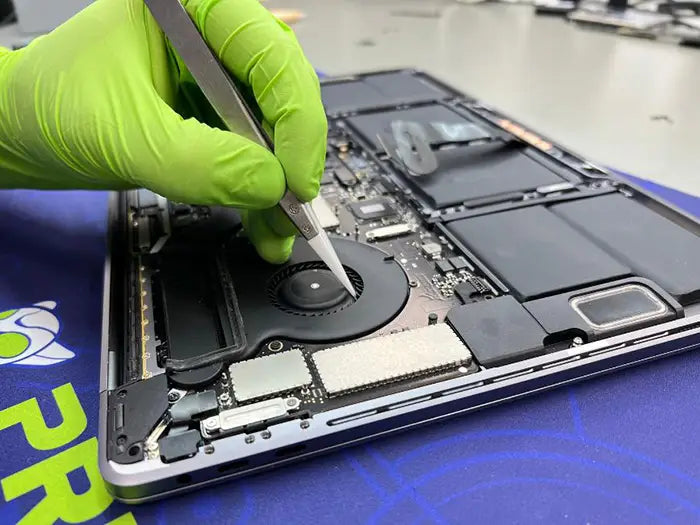
MacBook Screen Flickering at the Bottom? It Could Be Flexgate
If your MacBook screen flickers at the bottom, shows uneven lighting, or turns off at certain angles, the issue may not be the screen itself. One of the most common causes of this behavior is a known problem called Flexgate.
Flexgate affects the display cable that connects the screen to the logic board. Over time, this cable wears out due to repeated opening and closing of the MacBook lid, leading to inconsistent display behavior.
Because the symptoms can look like a failing screen, many users replace the display unnecessarily without fixing the real issue.
MacBook Screen Flickering at the Bottom – Could It Be Flexgate?
Flexgate typically starts with subtle symptoms and becomes worse over time. The most recognizable sign is flickering or uneven lighting near the bottom of the screen.
This effect is often described as a “stage light” pattern, where bright spots appear along the lower edge of the display.

At early stages, the screen may still function normally at certain angles. As the cable continues to wear, the flickering becomes more frequent until the display fails completely.
Table of Contents
What Is Flexgate and Why It Happens
Flexgate is a design-related issue that affects the display flex cable inside certain MacBook models. This cable is responsible for transmitting both the image signal and backlight power from the logic board to the screen.
Unlike traditional display cables used in older laptops, this cable is thin, flexible, and routed through the hinge. Every time the MacBook is opened or closed, the cable bends slightly.
Over time, this constant movement causes the cable to wear down. As the internal wires degrade, the signal becomes unstable, leading to flickering, uneven lighting, or a complete loss of display.
Why This Design Causes Problems
The issue is not caused by misuse. It happens under normal daily use due to the way the cable is positioned and its limited length.
- The cable is under constant tension when opening and closing the lid
- It bends at the same point repeatedly over time
- Wear accumulates gradually until signal failure begins
As the cable weakens, small visual issues begin to appear before progressing into more severe display failures.
How the Problem Progresses
Flexgate rarely causes a complete failure immediately. Instead, it develops in stages:
- Early stage: slight flickering or brightness inconsistencies
- Mid stage: visible “stage light” effect at the bottom of the screen
- Advanced stage: screen cuts out depending on lid angle
- Final stage: complete display failure
Why Flexgate Is Often Confused with Screen Failure
Because the symptoms affect how the image appears, many users assume the display panel itself is damaged. However, in Flexgate cases, the screen is often still functional.
The real issue is the unstable signal and backlight delivery caused by the failing cable.
Understanding how Flexgate develops helps avoid unnecessary repairs and ensures that the correct solution is applied from the beginning.
Affected MacBook Models
Flexgate is most commonly associated with specific MacBook Pro models released between 2016 and 2019. These models use a display cable design that is more prone to wear due to its length and routing through the hinge.
While not every device will experience this issue, these models have a significantly higher likelihood of developing display cable failure over time.
Commonly Affected Models
- MacBook Pro 13-inch (2016–2017)
- MacBook Pro 13-inch (2018–2019)
- MacBook Pro 15-inch (2016–2019)
These models are often identified by their USB-C / Thunderbolt-only design and thinner display assemblies.
What About Newer MacBooks?
Newer MacBook models, including Apple Silicon devices, have design improvements that reduce the likelihood of this specific issue. However, display cables can still wear out over time in any laptop with repeated use.
It is important to focus on symptoms rather than assuming the issue is limited to a specific model.
Why Model Identification Matters
Knowing your exact MacBook model helps determine whether Flexgate is a likely cause of your screen issue. It also influences the repair approach, since many affected models have the display cable integrated into the screen assembly.
In these cases, repairing the cable alone is not possible without specialized work, and the typical solution involves replacing the display assembly.
Even if your model is not listed here, similar symptoms should always be tested carefully before assuming a full screen failure.
How to Confirm If It’s Flexgate
Flexgate can often be identified by how the screen behaves during normal use. The most important clue is whether the problem changes when the lid angle changes.
If the display flickers, dims, or turns black only when the screen is moved, the issue is very likely related to the display flex cable.
Check the Lid Angle
Slowly open and close the MacBook while watching the screen. If the image cuts out or flickers at specific angles, that is a strong sign of cable wear.

Look for Stage Light Effect
The stage light effect usually appears as uneven bright spots or vertical beams along the bottom edge of the display. This happens when the backlight signal becomes inconsistent.
This symptom is one of the strongest visual indicators of Flexgate.
Test with an External Monitor
Connect the MacBook to an external display. If the external monitor works normally while the built-in screen flickers or goes black, the issue is likely related to the built-in display assembly or flex cable.
If the same problem appears on the external monitor, the issue may be related to the logic board or graphics hardware instead.
Check for Physical Damage
If the screen has cracks, black spots, or impact marks, the issue may be panel damage rather than Flexgate.
Flexgate usually appears without visible cracks because the failure happens inside the hinge area.
These checks can help narrow down the issue, but a full diagnosis is still recommended before replacing the display assembly.
Flexgate vs Cracked Screen vs Logic Board Problem
Many MacBook screen issues look similar, but the root cause can be completely different. Distinguishing between Flexgate, a cracked screen, and a logic board problem is essential before deciding on a repair.
Replacing the wrong component is one of the most common and costly mistakes.
Flexgate (Display Cable Failure)
Flexgate is related to the display cable wearing out over time. The screen itself is often still functional, but the signal becomes unstable.
- Flickering or dimming at the bottom of the screen
- Display changes depending on lid angle
- Stage light effect visible
- No visible cracks on the screen
Cracked or Damaged Screen
A physically damaged screen has visible signs that are usually easy to identify.
- Cracks or spiderweb patterns on the display
- Black spots or ink-like bleeding
- Permanent lines that do not change with movement
- Distorted or frozen image in specific areas

Logic Board or GPU Issue
Logic board problems affect how the image is processed before reaching the display.
- Same issue appears on external monitor
- Random artifacts, freezing, or no image at all
- No change when adjusting the lid angle
- May be accompanied by performance or boot issues
Key Differences at a Glance
- Flexgate → changes with lid angle
- Cracked screen → visible damage, constant issue
- Logic board → affects both internal and external displays
Correctly identifying which category your issue falls into ensures that the repair targets the real problem rather than the visible symptom.
Real Case From Our Lab – iMac Display Failure Without Impact
A recent case from our lab involved a modern iMac (M1) that presented a screen issue very similar to what many users associate with Flexgate or display-related failures.
The customer reported that the lower half of the screen suddenly stopped displaying properly. There was no impact, no drop, and no visible external damage. The issue appeared gradually, starting with lines and progressing into a partial display failure.
Initial Symptoms
- Lower half of the screen not visible
- Lines appearing before full failure
- No physical damage reported
- Display issue developed over time
At first glance, this could be mistaken for panel damage. However, the lack of impact and gradual progression suggested an internal failure rather than external damage.
Inspection and Disassembly
The repair process required removing the display assembly carefully using professional tools. Even though the screen was already failing, it was handled with precision to preserve the component as requested by the client.

During inspection, attention was focused on the display connections and internal cable pathways. These components are responsible for delivering both image signal and backlight power.
Key Finding
The issue was linked to internal display-related failure, not external damage. Cases like this reinforce an important principle: not all display problems are caused by visible cracks or impact.
In many modern Apple devices, the display system is highly integrated, meaning failures can occur internally without any external signs.
Repair Outcome
Due to the nature of the failure and the design of the device, the correct solution was a full display replacement. Once replaced, the system returned to normal operation.
This case highlights why proper diagnosis is critical. Symptoms like lines, partial display loss, or flickering should always be evaluated before assuming physical damage.
Can Flexgate Be Repaired or Does It Require Screen Replacement?
Once Flexgate is confirmed, the next question is whether the issue can be repaired or if the entire screen needs to be replaced. The answer depends on the MacBook model and how the display assembly is designed.
Why Screen Replacement Is Common
In many affected MacBook Pro models, the display cable is integrated into the screen assembly. This means the cable cannot be replaced separately without specialized board-level or micro-soldering work.
Because of this design, the standard repair approach is to replace the entire display assembly—even though the screen panel itself may still be functional.

When Targeted Repair Is Possible
In some cases, advanced technicians can repair or reinforce the flex cable without replacing the entire display. However, this requires specialized tools and experience, and it is not a standard repair option in most situations.
- Micro-soldering techniques may be used
- Not all models are suitable for this type of repair
- Results can vary depending on cable condition
Cost vs Value Consideration
Because the repair often involves replacing the entire display, cost becomes an important factor. Newer MacBooks are usually worth repairing due to their performance and value, while older models may not justify the expense.
A proper evaluation helps determine whether repair or replacement makes financial sense.
Choosing the correct repair path ensures that the issue is resolved effectively and prevents repeated failures.
Conclusion – Flexgate Is a Cable Issue, Not Always a Screen Problem
Flexgate is one of the most misunderstood MacBook screen issues. While it often looks like a failing display, the root cause is usually the worn display flex cable rather than the screen itself.
This distinction is critical. Replacing the screen without identifying the real problem can lead to unnecessary costs and repeated failures.
By recognizing key symptoms—such as flickering at the bottom of the screen, uneven lighting, or display failure at certain angles—you can better understand whether Flexgate is the likely cause.
Flexgate develops gradually, which means early detection can prevent complete display failure and help you make a more informed repair decision.
If you are experiencing these symptoms, the best approach is to confirm the issue before replacing any parts. This ensures that the repair addresses the actual cause—not just the visible symptom.
Share this

Related Mac Repair Articles


Frequently Asked Questions MacBook Screen Flickering at the Bottom? It Could Be Flexgate
Why does my MacBook screen flicker when opening or closing it?
Can Flexgate be repaired without replacing the screen?
How do I know if it’s Flexgate or a broken screen?
Which MacBooks are affected by Flexgate?
Will Flexgate get worse over time?
What is Flexgate on a MacBook?
MacBook Not Working? Get Expert Diagnosis and Repair Options
If your MacBook is experiencing issues, getting a proper diagnosis is the first step. Many problems that seem like major failures can often be resolved with targeted component-level repairs.
At Prime Tech Support, we specialize in advanced MacBook diagnostics and repairs, including issues that other shops may not be able to resolve.
In Miami? Get Local Mac Repair Service
Our team is ready to help you . We offer same-day repairs
Not in Miami? Use Our Mac Mail-In Repair Service
We offer secure nationwide mail-in repairs with fast turnaround times and professional diagnostics.
Explore More MacBook Repair Guides
View all-

MacBook storage problems can involve much more than a failed SSD. Learn how removable and soldered MacBook storage works, common...
MacBook SSD Repair and Upgrade: Complete Guide to Storage Prob...
MacBook storage problems can involve much more than a failed SSD. Learn how removable and soldered MacBook storage works, common...
-

Is your MacBook running hot but the fan is completely silent? Learn how to determine whether your MacBook has a...
MacBook Fan Not Working Diagnostics and Repair
Is your MacBook running hot but the fan is completely silent? Learn how to determine whether your MacBook has a...
-

If your MacBook charges through USB-C but does not recognize external drives, hubs, docks, or accessories, the problem may be...
MacBook USB-C Data Transfer Not Working: Causes and Fixes
If your MacBook charges through USB-C but does not recognize external drives, hubs, docks, or accessories, the problem may be...