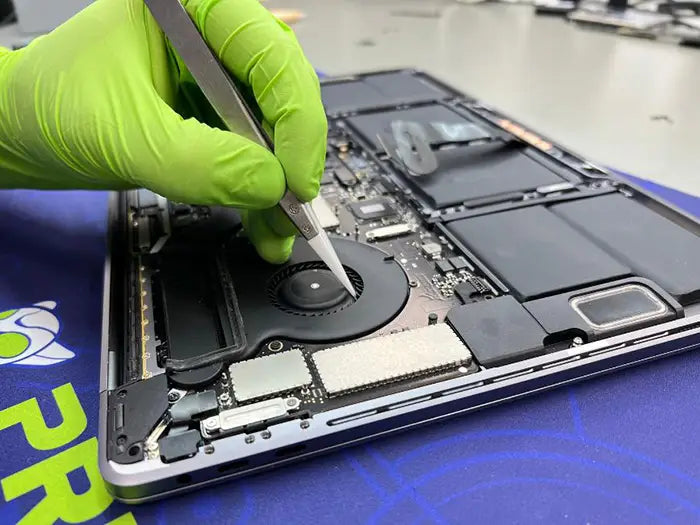
MacBook Corrosion After Liquid Damage: Signs, Repair Options & What to Do
Reviewed by the Prime Tech Support repair lab in Miami, where our technicians handle board-level MacBook diagnostics, liquid damage inspections, corrosion cleaning, and component-level repairs every week.
MacBook corrosion after liquid damage does not stop just because the laptop feels dry. That is what makes spills so deceptive. The outside of the MacBook may look normal, the keyboard may feel dry, and the machine may even turn on, but residue can still be sitting under chips, around connectors, and across power circuits inside the logic board.
That hidden residue is where the real risk begins.
This guide explains what MacBook corrosion actually means, why different residue colors matter, how corrosion spreads inside the machine, when cleaning may be enough, when board-level repair is needed, and when your data should become the first priority.
Table of Contents
Quick Answer: Can MacBook Corrosion Be Repaired?
In many cases, yes. MacBook corrosion after liquid damage can often be cleaned or repaired if it is caught before it damages critical traces, chips, connectors, or power circuits.
The outcome depends on several things:
- Type of liquid: Water, coffee, soda, juice, salt water, and alcohol leave different types of residue.
- How long the liquid sat inside: The longer residue stays on the board, the more time it has to affect metal contacts and circuits.
- Whether the MacBook was powered on: Electricity can push current through contaminated areas and make damage worse.
- Whether it was charged or tested again: Plugging it in after a spill can turn a repairable issue into a board-level failure.
- How far corrosion has spread: Surface residue is very different from damaged traces, failed chips, or multiple affected circuits.
There is no reliable way to judge the real damage from the outside. A technician needs to open the MacBook and inspect the logic board under magnification to determine whether the corrosion is surface-level or has already reached the circuitry underneath.
Not every corroded board is repairable, and no repair shop should promise that before inspection. But catching corrosion early usually gives you more options.
If your MacBook was exposed to liquid recently, leave it powered off and schedule a MacBook liquid damage diagnostic before charging or testing it again.
What to Do Right Now If Your MacBook Was Exposed to Liquid
If the spill just happened, or if you recently noticed corrosion inside the MacBook, follow these steps:
- Power the MacBook off completely if it is still on.
- Unplug the charger and disconnect all accessories.
- Do not test it, charge it, or try to force it back on.
- Do not use a hairdryer, heater, or direct heat source.
- If the files matter, treat data protection as part of the repair decision.
- Book a MacBook repair diagnostic before attempting any further troubleshooting.
The goal is simple: stop electricity from moving through a contaminated board. A MacBook that still works after a spill may feel reassuring, but it can still have residue sitting under components where you cannot see it.
What Does Corrosion Mean After MacBook Liquid Damage?
Corrosion is not just “dried liquid.” It is a chemical reaction between liquid residue and the metal components inside the MacBook.
A MacBook logic board contains connectors, solder joints, chips, copper traces, and power circuits that are not designed to be exposed to liquid. When water or another liquid reaches those areas, it can leave behind minerals, sugar, acid, salt, or other contaminants. Those contaminants can continue causing problems long after the liquid itself has evaporated.
That is why a MacBook can feel dry but still be unsafe.
Why Corrosion Forms After Water, Coffee, Soda, Juice, or Humidity Exposure
Plain water can cause oxidation over time, especially if it contains minerals. But most real-world spills are not plain water. Coffee, soda, juice, sports drinks, alcoholic drinks, and saltwater are usually more damaging because they leave behind residue that sticks to the board.
Sugary liquids can create a sticky film. Salty liquids can accelerate corrosion. Acidic drinks can attack exposed metal. Humid environments can keep contamination active for longer.
The risk becomes even higher when the board is powered on. Once liquid residue touches an energized board, it can create a path for electricity to travel somewhere it should not. That can lead to shorts, failed components, charging problems, no-power symptoms, or delayed failure days or weeks later.
Why Green, Blue, White, or Crusty Buildup Appears
The color and texture of residue can give a technician clues about what happened inside the MacBook. It does not tell the whole story, but it helps guide the inspection.
- Green or blue-green residue: Usually copper oxidation around connectors, pins, or exposed metal contacts. This is often a clear sign that liquid reached metal contacts on the board.
- White or chalky residue: Mineral or salt deposits left behind after liquid dried. This is common after water, sweat, humidity, or mineral-heavy liquid exposure.
- Sticky or tacky residue: Sugar-based contamination from soda, juice, sports drinks, or sweet coffee. This residue can keep attracting moisture and spreading contamination.
- Dark or black discoloration: Possible heat or electrical damage, sometimes from a short. This may indicate that the liquid caused more than surface contamination.
Green corrosion is one of the most common signs people notice when a MacBook has been opened after a spill. But visible corrosion is often only the beginning. The more important question is whether the corrosion stayed on the surface or spread underneath chips, connectors, and shields.
Why a MacBook Can Look Dry but Still Be Unsafe
This is one of the biggest misunderstandings about MacBook liquid damage.
Dry does not mean clean.
A MacBook can feel completely dry within a day, but drying only removes moisture. It does not remove minerals, sugar, acid, salt, or corrosion from the logic board. Residue can remain trapped under chips, inside connectors, underneath shields, and around tiny solder joints.
That residue can continue conducting electricity in ways it should not. This is why some MacBooks work normally after a spill, then suddenly develop charging issues, keyboard problems, trackpad failure, display flickering, random shutdowns, or no-power symptoms later.
The failure can feel random, but it usually is not. The corrosion was already there. It just had not reached a critical point yet.
How Corrosion Spreads Inside a MacBook
Once liquid gets past the keyboard, trackpad, speaker openings, vents, or chassis gaps, it does not stay in one neat spot. It follows gravity, pressure, capillary action, and the shape of the internal components.
That means a spill near the keyboard can end up affecting the logic board, battery connector, trackpad cable, USB-C port area, display connector, or power circuitry.
Connectors, Chips, Traces, and Power Rails
Inside a MacBook, many important circuits are packed into a very small space. The logic board includes:
- Connectors: Link parts like the keyboard, trackpad, battery, display, and ports. Corrosion can block signals or power flow.
- Chips: Control charging, power, display, keyboard, USB-C, storage, and other functions. A short or damaged chip can disable major systems.
- Copper traces: Carry power and data across the board. Even a small break can interrupt a circuit.
- Power rails: Deliver voltage to different parts of the board. Corrosion here can cause no-power, shutdowns, or charging failure.
Because these areas are small and tightly packed, a tiny amount of corrosion in the wrong place can cause a major symptom.
Why Corrosion Can Hide Under Components
Some of the most serious corrosion is not visible during a casual inspection.
Liquid can move underneath chips, shields, and connectors where you cannot see it from above. A board may look mostly clean on the surface while contamination is still sitting under a component. That is why a flashlight inspection is not enough and why a MacBook can “look fine” but still fail a real diagnostic.
Board-level inspection usually requires magnification, proper lighting, and experience knowing where liquid tends to travel on different MacBook models.
Why Continued Charging or Testing Can Make It Worse
If active residue is still on the board, turning the MacBook on or plugging in the charger can push electricity through areas that were never designed to carry current.
That can accelerate corrosion, trigger a short, damage a chip that was still functional, burn a trace, cause charging or no-power symptoms, or make data recovery more difficult.
This is one of the most avoidable ways a repairable spill becomes a more expensive repair.
Common Signs of MacBook Corrosion on the Logic Board
Corrosion does not always cause the MacBook to fail completely. Sometimes it causes one symptom at a time, depending on where the liquid settled.
- MacBook will not power on: Power management circuitry, battery connector, charging circuit, or logic board power rail may be affected.
- MacBook will not charge: Corrosion may be affecting the USB-C port area, charging controller, battery connector, or power circuit.
- Keyboard not working: The keyboard flex cable, connector, or nearby board traces may have corrosion or liquid contamination.
- Trackpad not clicking or responding: The trackpad connector, flex cable, or related board circuitry may be affected.
- Random shutdowns: Battery management circuitry, power rails, or an unstable board-level connection may be involved.
- Display flickering or no image: The display connector, display cable area, or graphics-related circuitry may have been exposed.
- Slow or inconsistent USB-C charging: The USB-C controller, port board, connector pins, or related circuitry may be affected.
- Battery drains quickly: The battery connector, power management chip, or a liquid-affected charging circuit may be involved.
If the main symptom is trackpad failure after a spill, our guide on a MacBook Pro trackpad not clicking is a useful next read.
If the symptom is display flickering, our MacBook screen flickering guide explains the display-side possibilities in more detail.
Why “It Still Turns On” Does Not Mean the MacBook Is Safe
A MacBook that still turns on after a spill is not automatically safe. It only means the damage has not reached a critical failure point yet.
This is the assumption that causes a lot of avoidable damage. Someone spills liquid, wipes the laptop, waits a few hours, turns it back on, and sees that it still works. That feels reassuring, but the inside of the machine may still have residue sitting on the board.
Some liquid-damaged MacBooks work for days or weeks before symptoms appear. Others run normally until they are plugged in, restarted, updated, moved, or exposed to more humidity. Then the failure shows up suddenly.
If your MacBook still works after liquid exposure, back up what you can immediately. Then have the machine inspected instead of waiting to see whether it gets worse.
What Not to Do If You See Corrosion Inside Your MacBook
The wrong move after a spill can make the situation worse. Here is what to avoid.
Do Not Keep Powering It On
Every time you power on a MacBook with active liquid residue inside, you risk sending current through a contaminated path. That can damage components that might otherwise have been saved.
Do Not Rely on Rice or Drying Alone
Rice, silica packets, and air-drying may help with surface moisture, but they do not remove residue from the logic board. They do not clean sugar, minerals, salt, corrosion, or contamination under chips.
Drying is not the same as decontaminating.
Do Not Scrub the Board Aggressively
Cleaning a logic board with a cloth, brush, or household alcohol can dislodge tiny surface-mount components, damage delicate traces, or push residue deeper under chips and connectors.
Board-level cleaning requires the right tools, inspection process, and repair judgment. It is not the same as wiping down the outside of the laptop.
Do Not Use Heat to Force-Dry the MacBook
A hairdryer, heater, or direct heat source can damage components, adhesives, battery materials, and plastic parts. It also does nothing to remove the residue that causes corrosion.
If liquid reached the inside of the MacBook, the issue is not just moisture. It is contamination.
How Technicians Diagnose MacBook Corrosion
A proper diagnostic is not just turning the MacBook on to see what happens. In fact, powering it on too early can be risky.
A careful corrosion diagnostic usually starts with inspection and isolation before any active testing.
1. Visual Inspection Under Magnification
The technician opens the MacBook and inspects the logic board, connectors, flex cables, ports, and liquid-prone areas under magnification. Early corrosion can be very small, especially around connector pins and solder joints.
2. Battery and Power Isolation
Before testing, the battery is disconnected when appropriate to reduce the risk of current reaching a damaged area. This helps protect the board during inspection.
3. Connector, Chip, Trace, and Power Rail Checks
The technician checks key connectors, looks for discoloration around chips, and tests continuity or voltage behavior where needed. The goal is to understand whether current is flowing where it should and whether any circuit has already failed.
4. Surface-Level vs. Circuit-Level Damage Assessment
This is the most important part of the diagnostic.
- Surface contamination only: Cleaning may be enough if traces and components are still intact.
- Corroded connector: Connector cleaning or replacement may be needed.
- Damaged trace: Microsoldering or trace repair may be required.
- Failed chip: Component-level repair may be needed.
- Corrosion across multiple critical areas: Board replacement may be more practical.
At Prime Tech Support, we document findings throughout our repair process so you understand what is happening before approving any repair.
A Real-World Example From the Bench
A MacBook Pro recently came in a few weeks after a coffee spill. It still powered on, and the owner had continued using it because everything seemed mostly normal. The only obvious symptom was that the trackpad had started clicking inconsistently.
Under magnification, we found green corrosion near the trackpad connector, with early contamination spreading toward a nearby trace. Because the issue was caught before the trace failed completely, the board was a better candidate for cleaning and targeted connector-level repair.
After ultrasonic cleaning, inspection, and connector-level work, the MacBook was able to avoid a full board replacement.
Not every case ends this way. Some boards are too far gone by the time they arrive. But this is a good example of why early inspection matters: the sooner corrosion is found, the more repair options usually remain.
What Is Ultrasonic Cleaning for MacBook Corrosion?
Ultrasonic cleaning is one tool technicians may use when a liquid-damaged board has contamination in hard-to-reach areas.
It uses a specialized cleaning solution and high-frequency vibration to help lift residue from small gaps around connectors, chips, solder joints, and traces. This can reach areas that are difficult or risky to clean by hand.
What Ultrasonic Cleaning Can Remove
Ultrasonic cleaning can help remove dried liquid residue, mineral deposits, sugar contamination, surface corrosion, contamination around connector pins, and residue in tight board-level spaces.
It can be especially useful when liquid has spread into areas that cannot be safely cleaned with manual brushing alone.
What Ultrasonic Cleaning Cannot Fix
Ultrasonic cleaning is not magic, and it is not the same as board repair.
- It cannot repair a trace that has corroded through.
- It cannot restore a chip that has shorted out.
- It cannot reverse burned circuitry.
- It cannot fix a physically damaged connector.
- It cannot guarantee that the MacBook will work afterward.
- It cannot make every liquid-damaged board worth repairing.
Cleaning removes contamination. It does not undo damage that has already happened at the circuit level.
Why Damaged Components May Still Need Microsoldering
If corrosion has damaged a connector, chip, trace, or power circuit, cleaning may only be the first step. The MacBook may still need microsoldering to replace a connector, repair a trace, or restore a damaged circuit.
That is why a diagnostic should come before a repair quote. Two MacBooks can have the same spill history but need completely different repair paths.
MacBook Corrosion Cleaning vs. Logic Board Repair vs. Replacement
The right repair path depends on how far the corrosion has spread.
- Light surface residue, no symptoms yet: Cleaning and full diagnostic testing. This is often the best-case scenario.
- One isolated symptom: Targeted component-level repair after diagnosis. This is common with keyboard, trackpad, charging, or port issues.
- Multiple symptoms: A full board-level evaluation is usually needed because corrosion may have affected more than one circuit.
- No power at all: Advanced logic board diagnostics may be required, including power rail testing, chip-level repair, or potentially board replacement.
- Corrosion across multiple critical areas: Replacement may be more reliable if too many circuits have been compromised and board-level repair is no longer practical.
If you are deciding between repairing and replacing the board, our logic board repair vs. replacement guide explains how that decision is made and what affects the cost.
Why Miami Humidity Can Make MacBook Corrosion Worse
Miami’s climate matters because humidity can keep moisture-related contamination active for longer.
If a MacBook already has liquid residue on the logic board, humid air can contribute to ongoing corrosion risk. That does not mean humidity alone destroys a MacBook overnight, but it can make a delayed spill situation more serious, especially if sugar, salt, or mineral residue is already present.
This is one reason we recommend earlier inspection after liquid exposure in South Florida. A MacBook that might seem stable in the first few days after a spill can become less predictable as residue continues sitting on the board in a humid environment.
This applies whether you are in Miami, Wynwood, Midtown, Brickell, Coral Gables, Miami Beach, or another nearby area we serve.
Thinking About Your Data First? Here’s What to Know Before Repair
For many people, the laptop is not the most important part of the problem. The files are.
Photos, business documents, school work, client files, music projects, and tax records can matter more than the MacBook itself. If that is your situation, tell the technician before any cleaning or board repair begins.
A data-first approach changes the conversation. Instead of asking only, “Can the MacBook be repaired?” the first question becomes, “What is the safest path to protect or recover the files?”
Why Data Recovery May Come Before Repair
Some repair steps carry a small risk when the board is already compromised. Cleaning, testing, and component-level work can be necessary, but if the data matters most, the technician should know that before choosing the repair path.
Our MacBook liquid damage data recovery guide explains this in more detail, and our article on whether liquid-damaged Macs can still be recovered covers cases where the MacBook has already stopped working.
Why Apple Silicon Macs Are More Complex
Apple Silicon MacBooks are different from older laptops with removable drives. On many modern MacBooks, storage is soldered directly to the logic board and tied closely to the machine’s security architecture.
That means recovering data is not as simple as removing a drive and connecting it to another computer. If the logic board is damaged, data recovery may depend on restoring enough board function to safely access the storage.
Our Apple Silicon Mac data recovery guide explains why newer MacBooks need a more careful approach. Apple also explains its security architecture in the official Apple Platform Security documentation.
When to Stop Troubleshooting and Protect Files
If your MacBook has corrosion and will not turn on, stop testing it yourself. Continuing to press the power button or connect the charger usually does not reveal anything useful, and it may reduce the chances of a cleaner recovery.
If the files matter, ask about data recovery before authorizing cleaning or board repair. Our Mac won’t turn on data recovery guide is a useful next step if the MacBook is already dead or unstable.
When to Book a MacBook Corrosion Repair Diagnostic
You should book a diagnostic if any of these apply:
- You see green, white, blue, sticky, or crusty residue inside the MacBook.
- Liquid spilled on the MacBook in the last few days or weeks.
- The MacBook still works but was exposed to liquid.
- The MacBook will not turn on.
- The MacBook charges inconsistently.
- The keyboard or trackpad started acting up after a spill.
- The battery drains quickly or the MacBook shuts down randomly.
- The display flickers or fails after liquid exposure.
- The files on the machine matter to you.
- You are unsure whether cleaning, repair, replacement, or data recovery should come first.
Corrosion tends to spread quietly. The longer residue sits on the board, especially in a humid environment like Miami, the harder it can become to fully clean or repair.
If your MacBook Air was exposed to liquid, our MacBook Air liquid damage repair page explains that specific service path.
For broader repair needs, our Mac repair services in Miami cover MacBook, iMac, Mac Pro, and Apple Silicon machines beyond just liquid damage.
MacBook Liquid Damage or Corrosion in Miami?
Corrosion spreads silently and can continue causing damage after the MacBook appears dry. If your MacBook was exposed to liquid — even weeks ago — our Miami team can inspect the logic board, document the corrosion, and determine whether cleaning, component-level repair, board replacement, or a data-first approach makes the most sense.
Prime Tech Support can inspect the logic board, document what we find, and walk you through cleaning, component-level repair, board replacement, or a data-first approach before any work begins.
Prime Tech Support is an independent repair company and is not affiliated with Apple.
Share this

Related Mac Repair Articles


FAQ MacBook Corrosion After Liquid Damage: What to Do
Can MacBook corrosion be repaired?
What does green corrosion on a MacBook logic board mean?
Does white residue inside a MacBook mean water damage?
Can I clean MacBook corrosion myself?
Does ultrasonic cleaning fix MacBook liquid damage?
How fast does corrosion spread after a MacBook spill?
MacBook Not Working? Get Expert Diagnosis and Repair Options
If your MacBook is experiencing issues, getting a proper diagnosis is the first step. Many problems that seem like major failures can often be resolved with targeted component-level repairs.
At Prime Tech Support, we specialize in advanced MacBook diagnostics and repairs, including issues that other shops may not be able to resolve.
In Miami? Get Local Mac Repair Service
Our team is ready to help you . We offer same-day repairs
Not in Miami? Use Our Mac Mail-In Repair Service
We offer secure nationwide mail-in repairs with fast turnaround times and professional diagnostics.
Explore More MacBook Repair Guides
View all-

If your MacBook charges through USB-C but does not recognize external drives, hubs, docks, or accessories, the problem may be...
MacBook USB-C Data Transfer Not Working: Causes and Fixes
If your MacBook charges through USB-C but does not recognize external drives, hubs, docks, or accessories, the problem may be...
-

Does your MacBook start fast but slow down during video editing, rendering, gaming, or other demanding tasks? Learn how MacBook...
MacBook Thermal Throttling: Why Your Mac Slows Down When It Ge...
Does your MacBook start fast but slow down during video editing, rendering, gaming, or other demanding tasks? Learn how MacBook...
-

How much does MacBook liquid damage repair cost in 2026? Compare typical costs for cleaning, corrosion, keyboard and trackpad issues,...
MacBook Liquid Damage Repair Cost: What to Expect in 2026
How much does MacBook liquid damage repair cost in 2026? Compare typical costs for cleaning, corrosion, keyboard and trackpad issues,...