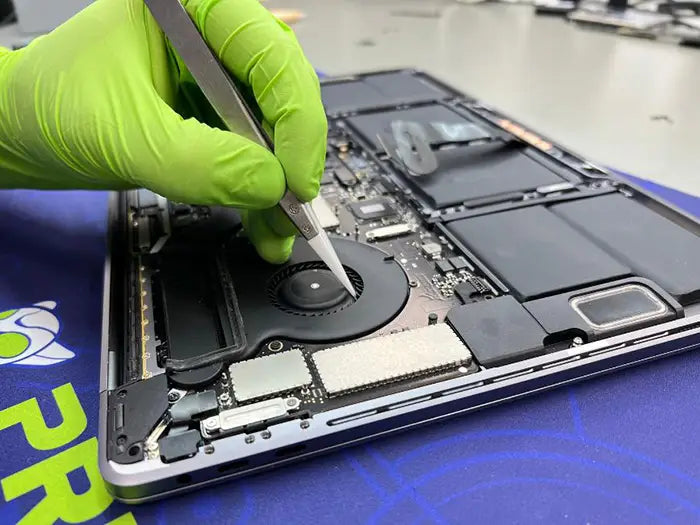
MacBook Keyboard Not Working: Causes, Diagnosis & Repair Guide
Your MacBook keyboard stopped responding. Maybe one key stopped working, a full row will not type, or the entire keyboard is unresponsive. Maybe the keys repeat, stick, or feel different than they did before.
It is easy to assume the keyboard needs to be replaced, but that is not always the right first step.
A MacBook keyboard not working can be caused by software settings, debris under the keys, liquid damage, a worn key mechanism, an internal cable issue, battery swelling, top case failure, or a logic board input fault. Because each cause requires a different repair path, replacing the keyboard before diagnosis can mean paying for the wrong fix.
This guide explains how to identify the symptom, try safe first checks, recognize hardware warning signs, and understand when professional MacBook keyboard repair or diagnosis makes sense.
A MacBook keyboard may stop working because of software settings, a macOS issue, debris under the keys, liquid damage, a damaged key mechanism, battery swelling, an internal keyboard connection problem, or a logic board fault.
Start with safe checks like restarting, testing an external keyboard, and checking input settings. Stop troubleshooting immediately if there are signs of liquid damage, swelling, no power, burning smell, visible corrosion, or keyboard and trackpad problems together.
In plain English: A MacBook keyboard not working is a symptom, not a diagnosis. The cause may be software, debris, liquid damage, battery pressure, a keyboard cable issue, top case failure, or a logic board input problem. Finding the actual cause before replacing parts is what leads to the right repair.
Start Here
- Restart the MacBook and test the keyboard in another app.
- Check keyboard layout, input source, and accessibility settings.
- Connect an external keyboard and see whether it works normally.
- Use Apple’s compressed-air method only if a key feels stuck and there is no spill history.
- Stop troubleshooting and book an inspection if there was liquid exposure, swelling, no power, burning smell, visible corrosion, or keyboard and trackpad symptoms together.
Table of Contents
Common Reasons a MacBook Keyboard Stops Working
A MacBook keyboard can stop working for several different reasons. Some are software-related and safe to check at home. Others point to hardware damage and should be inspected before you keep using the device.
Common causes include:
- Software settings, input source selection, or accessibility features changing how key presses register.
- A macOS glitch after an update, restart, or sleep/wake cycle.
- Debris under one or more keys blocking the key mechanism.
- Liquid damage leaving residue or corrosion in the keyboard circuit path.
- A worn or damaged key mechanism after extended use or physical impact.
- A keyboard flex cable or connector issue interrupting communication with the logic board.
- Battery swelling creating pressure against the keyboard, trackpad, or internal components.
- A logic board or input controller fault affecting the keyboard input path.
Stop and get professional inspection immediately if: the keyboard issue started after a liquid spill, the MacBook case is raised or warped, the trackpad and keyboard are both acting abnormally, you smell burning, the MacBook will not power on, or you see corrosion around the keys.
Do not keep using the MacBook in any of these situations. These symptoms can point to liquid damage, battery swelling, or electrical problems that need diagnosis before further use.
MacBook Keyboard Symptoms: What Is Actually Happening?
Different MacBook keyboard symptoms point to different causes. Before you try a fix or assume the keyboard needs replacement, identify the exact failure pattern.
| Symptom | Possible Cause | Safe First Check | When to Stop Troubleshooting |
|---|---|---|---|
| One key not working | Debris under key, damaged keycap, worn mechanism | Restart, inspect the key, use safe compressed-air cleaning only if there is no spill history | Liquid exposure, swollen/stiff key feel, visible corrosion |
| Several keys or a full row stopped working | Keyboard matrix issue, liquid path, cable fault, top case issue | Restart, test an external keyboard, check input settings | Liquid exposure, no power, keyboard plus trackpad symptoms |
| Whole keyboard unresponsive | Software setting, macOS issue, keyboard connection, hardware fault | Restart, check accessibility settings, test an external keyboard | External keyboard also fails, swelling signs, no power |
| Sticky, repeating, or double typing | Debris, liquid residue, worn mechanism, keyboard assembly issue | Restart, clean only if no liquid history | Spill history, trackpad issues, battery warning |
| Backlight works, keys do not type | Input/signal path issue, keyboard cable, board-level issue | Restart, test external keyboard, check input source | Case bulging, battery symptoms, trackpad symptoms |
| Keyboard and trackpad both acting weird | Battery swelling, input path fault, board issue | Restart only if there are no swelling or liquid signs | Case bulge, trackpad lift, battery warning, heat, sudden shutdowns |
Stop here if the issue looks unsafe: If the keyboard problem started after liquid exposure, appears with trackpad problems, or comes with case bulging, burning smell, corrosion, or no power, stop troubleshooting and book a MacBook diagnostic appointment before using the device again.
One Key Is Not Working
A single unresponsive key often points to a local problem, not a full keyboard failure. Debris, dust, or a small particle under the key can block the mechanism from registering a press. A cracked keycap clip, worn mechanism, or damaged switch area can also cause one key to fail.
Before assuming the MacBook keyboard needs replacement, check whether the key feels stuck, uneven, swollen, or physically different from the surrounding keys. If there is no spill history and the key only feels blocked by debris, Apple’s compressed-air cleaning method may be worth trying.
Several Keys or a Full Row Stopped Working
When several keys fail together, especially in a row or cluster, the issue is usually more than one bad keycap. A group failure can point to a keyboard matrix problem, liquid residue following a specific path, a cable or connector issue, or pressure from a swollen battery.
This symptom usually needs diagnosis rather than repeated cleaning or key removal attempts. If there was any liquid exposure, no power, or trackpad behavior at the same time, stop troubleshooting and have the MacBook inspected.
The Whole Keyboard Is Not Responding
A completely unresponsive built-in keyboard can still have a software cause. A macOS update, input setting, accessibility feature, or app-level issue can make the keyboard seem dead even when the hardware is still working.
The most useful safe check is an external keyboard. If an external USB or Bluetooth keyboard works normally, the built-in keyboard input path becomes more suspicious. If the external keyboard also fails, the issue may be software, system-level input handling, or a deeper board-level problem.
Keys Are Sticky, Repeating, or Double Typing
Sticky keys, repeating letters, and double typing often come from debris, residue, or wear in the key mechanism. A small amount of dried liquid can make a key drag, stick, or register more than once. Older keyboard mechanisms can also develop similar symptoms over time.
If the issue is isolated to one area and there is no liquid history, safe cleaning may help. If the issue started after a spill, avoid more testing. Liquid residue may be inside the mechanism or keyboard circuit and should be inspected by a technician.
Keyboard Backlight Works but Keys Do Not Type
A working keyboard backlight does not prove the keyboard input path is working. The backlight and the keypress signal use different parts of the keyboard system.
If the backlight turns on but the keys do not type, the issue may involve software, input settings, the keyboard cable, the keyboard assembly, or a board-level input fault. Do not assume the entire top case is dead from this symptom alone.
Keyboard and Trackpad Are Both Acting Weird
Keyboard and trackpad symptoms together are more serious than a single stuck key. These parts sit near the battery and internal input pathways, so shared symptoms can point to battery swelling, pressure inside the case, a cable issue, or a board-level fault.
If the trackpad feels stiff, lifted, hard to click, or unresponsive while the keyboard is also failing, stop using the MacBook. The same applies if the case is warped, raised, warm, or no longer sits flat. These are inspection-first symptoms, not DIY troubleshooting symptoms.
Safe First Checks Before Assuming Hardware Failure
Before assuming your MacBook needs a keyboard replacement, try the safe checks below. These steps do not require opening the MacBook, removing keys, or touching internal parts. They can help separate a software/settings issue from a likely hardware problem.
Do not continue with these checks if there are signs of liquid damage, battery swelling, no power, burning smell, visible corrosion, or keyboard and trackpad problems together. In those cases, stop and get the MacBook inspected.
Restart and Test in More Than One App
Some keyboard issues are caused by app-level glitches, focus problems, or temporary macOS input behavior. Restart the MacBook, then test the keyboard in at least two different places, such as Notes and a web browser.
If the keyboard works in one app but not another, the issue is more likely software-related than a physical keyboard failure.
Check Keyboard Layout, Input Sources, and Accessibility Settings
macOS settings can make a working keyboard behave like it is failing. Check the keyboard layout, input source, and accessibility settings before assuming the hardware is bad.
Start with System Settings → Keyboard and confirm the correct input source is selected. Then check System Settings → Accessibility → Keyboard for features like Slow Keys and Sticky Keys. These can change how key presses register and may make typing feel delayed, inconsistent, or incorrect.
Also check Mouse Keys under Accessibility settings. If it is enabled unexpectedly, some keyboard behavior may seem unusual even though the keyboard itself is not broken.
Test an External Keyboard
Testing with a USB or Bluetooth keyboard is one of the most useful non-invasive checks. Apple’s key press troubleshooting guidance recommends connecting another keyboard when a Mac does not respond to key presses.
The result helps narrow the issue:
| External Keyboard Result | What It Suggests | What It Does Not Prove | Next Step |
|---|---|---|---|
| External keyboard works normally | The built-in keyboard or its input path may be the issue | It does not confirm the keyboard itself needs replacement | Book a diagnostic to check the cable, connection, top case, and input path |
| External keyboard also fails | Possible software, input setting, macOS, or board-level issue | It does not rule out a software fix | Recheck settings, restart, and get diagnosis if the issue persists |
| External keyboard works only in some apps | Likely app-specific or input-source issue | It does not confirm built-in keyboard failure | Check input source, app behavior, and accessibility settings |
| External keyboard partially works | Possible software, driver, input, or board-level issue | It is not enough to isolate the cause | Restart, update carefully if safe, and book diagnosis if it continues |
Update macOS Carefully
If the keyboard issue started after a macOS update, check whether another update is available under System Settings → General → Software Update. A follow-up update can sometimes resolve input problems caused by software bugs.
Be careful if the built-in keyboard is not working at all. Connect an external keyboard first if needed.
Do not update macOS as a troubleshooting step if there are signs of liquid damage, swelling, no power, burning smell, or visible corrosion. Those symptoms point to a hardware or safety issue, not a normal software glitch.
Clean the Keyboard Safely if a Key Feels Stuck
If one key feels stuck, blocked, or slow to return, debris may be interfering with the key mechanism. Apple’s keyboard cleaning guidance explains a compressed-air method for MacBook keyboards: hold the MacBook at a 75-degree angle, spray compressed air left to right, keep the straw about a half-inch from the keys, and do not invert the can.
Use this method only when the problem appears to be debris and there is no spill history.
Do Not Continue Cleaning If: liquid touched the keyboard, the key feels swollen or unusually stiff, the case is bulging, or the trackpad is also acting abnormally. Those signs need inspection, not more cleaning.
When a MacBook Keyboard Problem Is Probably Hardware

If the safe checks above do not change anything, or if the issue started after a spill, drop, battery warning, or physical impact, the problem is more likely hardware-related. At that point, the goal is not to keep testing randomly — it is to identify which part of the input path is failing.
Liquid Damage or Spill Residue
Liquid damage is a common cause of MacBook keyboard failure, and symptoms do not always appear immediately. A MacBook can seem fine after a small spill, then develop keyboard problems days or weeks later as residue or corrosion affects the keyboard circuit path.
If any liquid touched the keyboard, stop using the MacBook. Do not try to dry it with heat, keep typing, or test it repeatedly. Even if the spill seemed minor, liquid residue can continue causing damage inside the device and should be inspected professionally.
Important: A MacBook that still works after a spill can still have internal corrosion developing beneath the keyboard. Delayed failures are common after liquid exposure.
Debris Under the Key Mechanism
Crumbs, dust, hair, or small particles can block the key mechanism and prevent a key from pressing or releasing normally. This usually affects one key or a small group of keys, not the entire keyboard.
If Apple’s compressed-air cleaning method does not fix the issue, or if the key feels physically damaged, uneven, or loose, the keycap or mechanism may need hands-on repair. Avoid prying the key aggressively because MacBook key mechanisms are easy to damage.
Keyboard Flex Cable or Connection Issue
The built-in keyboard communicates with the logic board through an internal cable and connector. If that connection is damaged, loose, or partially failing, the MacBook may show intermittent key failures, unresponsive sections, or a completely dead built-in keyboard.
This is not visible from the surface and should not be treated as a DIY fix. Accessing the keyboard cable requires internal disassembly, and incorrect handling can damage delicate components.
Top Case or Keyboard Assembly Failure
On many MacBook and MacBook Pro models, the keyboard is integrated into the top case assembly — the upper shell that includes the keyboard area, trackpad area, and surrounding chassis.
That means a keyboard failure may not be a simple standalone key repair. Depending on the model and year, the correct repair path may involve a key-level repair, keyboard assembly work, or top case replacement. A diagnostic confirms which path applies before parts are ordered.
Logic Board or Input Controller Issue
Sometimes the keyboard itself is not the failed part. The logic board or input controller can also prevent keystrokes from being processed correctly.
This becomes more likely if the keyboard was already replaced and the same issue remains, if the external keyboard also behaves strangely, or if multiple input devices fail without a clear mechanical cause. In those cases, replacing the keyboard again will not solve the problem.
Battery Swelling or Internal Pressure
A swollen MacBook battery can press against nearby components and change how the keyboard or trackpad behaves. Early signs can be subtle: keys that feel different, a trackpad that becomes harder to click, a case that no longer sits flat, or a slight lift near the bottom shell.
If your keyboard issue appears with trackpad stiffness, case bulging, a battery warning, heat from the base, or sudden shutdowns, stop using the MacBook. A swollen battery can affect nearby components, and the device should be inspected before further use.
Software vs Hardware Clues
| Sign | More Likely Software | More Likely Hardware | Next Step |
|---|---|---|---|
| All keys stopped working after a macOS update | Yes | Possible | Restart, check input settings, test in Safe Mode |
| Only specific keys fail consistently | Unlikely | Yes | Check for debris or liquid history; book diagnostic if it continues |
| Keys work in some apps but not others | Yes | No | Check input source, app behavior, and accessibility settings |
| External keyboard works, built-in keyboard does not | Possible | Yes | Built-in input path needs diagnosis |
| Keyboard and trackpad fail together | Possible | Yes | Stop and get professional inspection |
| Problem started after a liquid spill | No | Yes | Stop using the device and get liquid damage inspection |
| Problem is intermittent and inconsistent | Yes | Possible | Check settings first, then monitor for hardware patterns |
| Case is raised, warped, or bulging | No | Yes | Stop using the MacBook; battery swelling risk needs inspection |
Avoid Guessing: If your MacBook keyboard issue started after a spill, drop, battery warning, case bulge, or trackpad problem, a diagnostic can confirm whether the cause is the keyboard, battery pressure, internal cable, software, or logic board before you pay for the wrong repair.
MacBook Keyboard Diagnosis: How Technicians Narrow It Down
Understanding how a technician approaches keyboard diagnosis helps explain why "replace the keyboard" is rarely the first step.
Symptom History
The first thing a technician establishes is context. Was there a spill? A drop? A macOS update that preceded the issue? Is the keyboard failing suddenly or gradually? Is it one key or many? Did the problem start the same day as a battery warning or charging problem?
These details narrow the cause dramatically. A keyboard that failed immediately after a spill has a very different repair path than one that started double-typing on its own over several weeks.
External Keyboard and Safe Mode Testing
Connecting an external keyboard confirms whether the built-in keyboard's input path is the issue or whether the problem is system-wide.
Safe Mode, which loads macOS with minimal software and extensions, helps determine whether a third-party app or system extension is interfering with keyboard input. These tests are non-invasive and give the technician a clearer picture before anything is opened.
Visual Inspection
Before internal access, a technician looks for signs that are visible from the outside: corrosion near key edges, unusual stiffness in specific key areas, a case that does not sit flat, a trackpad that is elevated slightly on one side, or any residue around the keyboard perimeter.
These signs guide how deeply the inspection needs to go and what the technician prioritizes when they open the device.
Internal Inspection When Needed
When external checks do not resolve the diagnosis, a technician opens the MacBook in a controlled repair environment to inspect the keyboard flex cable, keyboard circuit, battery condition, internal residue from liquid damage, and any components that show physical stress or corrosion.
This is not a step a user should attempt. The components are fragile, and handling a potentially swollen battery incorrectly carries real safety risk.
Repair Path Confirmation
After diagnosis, the technician identifies whether the repair is a software configuration issue, a cleaning procedure, a keycap or key mechanism repair, a keyboard or top case assembly replacement, a battery replacement, a cable service, or board-level repair.
The correct repair path is not always what the keyboard symptoms first suggest.
Technician Insight: A MacBook keyboard symptom does not always mean the keyboard itself is the failed part. A proper diagnosis checks the symptom, the input path, the battery condition, the trackpad behavior, and the board-level signs before recommending any replacement.
One of the most common misdiagnoses in MacBook repair is replacing the keyboard when the actual cause is a swollen battery pressing on internal components. In that situation, battery replacement is the correct repair, and keyboard replacement would not solve the problem.
MacBook Keyboard Repair vs Replacement: Which One Makes Sense?
Not every MacBook keyboard issue needs a full keyboard replacement. The right repair depends on what the diagnosis finds: software behavior, debris, key mechanism damage, liquid residue, battery swelling, a cable issue, top case failure, or a logic board problem.
When Cleaning or Software Fixes May Be Enough
If the keyboard problem is caused by an input source setting, accessibility feature, app conflict, or post-update macOS issue, no hardware repair may be needed. Correcting the setting, restarting, updating carefully, or testing in another app may resolve the problem.
For a single key that feels stuck and has no liquid history, Apple’s compressed-air cleaning method may also help. These are the lowest-risk scenarios and should be ruled out before assuming the keyboard needs replacement.
When Individual Key Repair May Be Enough
If only one or two keycaps are damaged — for example, a broken clip, cracked keycap, or mechanism that no longer snaps back — a key-level repair may be possible.
This depends on the MacBook model and keyboard design. Some key mechanisms are more repairable than others, and forcing a keycap off can make the damage worse. Our MacBook Air key replacement guide explains when key-level repair may be an option for MacBook Air owners.
When Keyboard Replacement Is More Likely
Keyboard replacement becomes more likely when the issue goes beyond one damaged key. Multiple keys failing together, persistent double-typing, keyboard failure after liquid exposure, a keyboard that diagnostics do not detect, or a backlit keyboard where the lights work but the keys do not type can all point to a deeper keyboard assembly issue.
These symptoms usually require diagnosis before parts are ordered because the problem may involve the keyboard assembly, top case, cable path, battery pressure, or logic board.
When Replacing the Keyboard Will Not Fix It
Sometimes the keyboard can be replaced, but the repair still will not solve the problem because the keyboard was not the true cause.
A swollen battery can press against the keyboard or trackpad and keep causing symptoms until the battery is replaced. A logic board input fault can prevent keypresses from registering no matter which keyboard is installed. Liquid damage that reached the logic board may require board-level cleaning or repair. A cable or connector issue may need cable service, not a full keyboard replacement.
That is why diagnosis matters. MacBook repairs often involve model-specific parts, so confirming the cause before ordering helps avoid the wrong repair and the cost of redoing the job.
Repair Decision Matrix
| Situation | Likely Repair Path | DIY Safe? | Professional Diagnosis Needed? | Why |
|---|---|---|---|---|
| Single stuck key, no liquid history | Compressed-air cleaning | Yes, with caution | Only if cleaning fails | Often debris or a light mechanism issue |
| Damaged or broken keycap | Keycap or key mechanism repair | No — risk of damage | Yes | Key mechanisms vary by MacBook model |
| Multiple keys double-typing or unresponsive | Keyboard inspection or assembly repair | No | Yes | May involve liquid residue, worn mechanism, cable, or assembly failure |
| Full keyboard unresponsive, external keyboard works | Keyboard connection, cable, top case, or assembly diagnosis | No | Yes | Built-in input path needs internal diagnosis |
| Keyboard and trackpad both failing | Battery check, cable check, board inspection | No — safety risk | Immediately | May indicate battery swelling, board fault, or shared input path issue |
| Keyboard failed after a spill | Liquid damage inspection and cleaning | No — corrosion risk | Immediately | Residue can continue damaging internal circuits |
| Replacement keyboard has same issue | Battery, cable, or logic board diagnosis | No | Yes | The original repair may not have addressed the true cause |
| Case bulging, trackpad lifted, or battery warning | Battery inspection/replacement, not keyboard-first repair | No — safety risk | Immediately | Swollen battery requires professional handling |
Bottom Line: Not every keyboard issue needs a full MacBook keyboard replacement. PrimeTechSupport can inspect the symptoms, test external input, check for liquid damage or swelling, and confirm the correct repair path before parts are ordered.
MacBook Pro Keyboard Not Working: What to Know
Common MacBook Pro Keyboard Failure Patterns
MacBook Pro keyboard problems can show up in several ways: one key stops responding, multiple keys double type, the keyboard feels sticky, the backlight works but the keys do not type, or the built-in keyboard is not detected during diagnostics.
Older MacBook Pro models with butterfly-mechanism keyboards, especially 2016–2019 models, were more prone to debris-related key issues. Newer scissor-mechanism keyboards are more durable, but they can still fail from liquid damage, connector issues, physical wear, battery pressure, or board-level input problems.
If you are checking whether an older Apple keyboard-related service program applies, use Apple’s current service programs status page. Do not rely on older articles that may describe programs as active after they have changed or ended.
Why Diagnosis Comes Before Replacement
MacBook Pro keyboard repair should start by confirming the actual cause. Liquid damage, battery swelling, a loose keyboard connection, top case issues, and logic board faults can all create symptoms that look like a failed keyboard from the outside.
A diagnostic helps confirm whether the problem is the keyboard assembly, internal cable, battery condition, software, liquid residue, or board-level input path before a replacement is recommended.
When to Use the MacBook Pro Keyboard Replacement Page
If multiple keys are failing, the built-in keyboard is not detected during diagnostics, or the issue continues after safe first checks, the next step may be keyboard or top case service.
Our MacBook Pro keyboard replacement service page explains the repair option and how to get started.
MacBook Air Keyboard Not Working: What to Know
MacBook Air Keyboard Problems Are Not Always the Keyboard
Many MacBook Air owners assume the keyboard assembly is the problem as soon as keys stop responding, begin double typing, or feel physically different. In reality, MacBook Air keyboard symptoms can also be caused by software settings, liquid exposure, battery pressure, cable issues, or board-level faults.
The visible symptom only tells part of the story. The same dead key can be caused by debris, a damaged key mechanism, liquid residue, or a deeper keyboard circuit issue.
MacBook Air Key-Level Repairs vs Full Keyboard Repairs
Some MacBook Air keyboard issues involve only one or two keys. In those situations, a key-level repair may be possible depending on the model, keyboard design, and condition of the underlying mechanism.
However, not every damaged key can be repaired individually. If the switch layer, keyboard assembly, or top case is damaged, a larger repair may be required.
Our MacBook Air key replacement guide explains when individual key repair may be realistic and when it is not.
When a MacBook Air Needs Professional Diagnosis
Book a diagnostic if multiple keys stop working together, the issue began after a spill, the keyboard and trackpad are both affected, the case appears raised, or previous cleaning attempts did not resolve the problem.
These symptoms often point to a deeper issue than a damaged keycap and should be diagnosed before replacement parts are ordered.
MacBook Air Keyboard Repair Options
If diagnostics confirm the keyboard assembly is the failed component, repair or replacement may be the appropriate solution.
Our MacBook Air keyboard repairs page explains available repair options and how to begin the process.
MacBook Air Tip: One or two non-working keys do not automatically mean the entire keyboard needs replacement. A proper diagnosis helps determine whether the issue is limited to the key mechanism, the keyboard assembly, battery pressure, liquid damage, or another internal component.
What Not to Do When Your MacBook Keyboard Stops Working
When a MacBook keyboard stops working, many users unintentionally make the problem worse while trying to fix it. The wrong troubleshooting step can turn a minor issue into a more expensive repair.
If you are not sure whether the problem is software, debris, liquid damage, battery pressure, or a hardware fault, it is often safer to stop after the basic checks and get a proper diagnosis.
Avoid These Common Mistakes
- Do not pry off keycaps without confirming the key mechanism is the actual problem.
- Do not keep typing on a keyboard that was exposed to liquid.
- Do not use excessive force on stuck keys.
- Do not spray cleaners, alcohol, or liquids directly into the keyboard.
- Do not ignore battery swelling, case bulging, or a lifting trackpad.
- Do not assume a keyboard replacement will automatically solve the problem.
- Do not continue troubleshooting if you smell burning or see corrosion.
Do Not Remove Keys Just to "See What's Underneath"
MacBook key mechanisms are delicate. Depending on the model, removing a key incorrectly can break clips, damage the scissor mechanism, or create a repair that did not exist before.
If the keycap is not obviously damaged, start with diagnosis instead of removal. A key that appears stuck may actually be suffering from liquid residue, a worn switch, or a keyboard-layer issue that is not visible from the surface.
Do Not Keep Using a MacBook After Liquid Exposure
A keyboard that still works after a spill is not necessarily safe. Liquid can travel beyond the keyboard and affect the battery, trackpad, connectors, and logic board.
Many liquid-damaged MacBooks continue working temporarily before corrosion creates larger failures. Continued use can increase the amount of damage and reduce the likelihood of a successful repair.
Do Not Ignore Signs of Battery Swelling
If the trackpad feels harder to click, the bottom case is raised, the palm rest area feels uneven, or the MacBook no longer sits flat on a table, stop using it.
Battery swelling can affect the keyboard, trackpad, and internal components. Continuing to use a swollen battery can create safety risks and additional hardware damage.
Do Not Order Parts Before Confirming the Cause
One of the most expensive mistakes is ordering a keyboard assembly or top case before confirming that the keyboard is actually the failed component.
Logic board faults, battery pressure, cable issues, liquid damage, and software problems can all produce keyboard symptoms. Replacing the wrong part wastes time and money while leaving the original issue unresolved.
Best Practice: Start with safe checks, identify the symptom pattern, and stop if you see signs of liquid damage, battery swelling, trackpad issues, corrosion, or no power. Diagnosis should come before replacement.
When to Get Professional MacBook Keyboard Diagnosis
Some MacBook keyboard problems go beyond safe self-troubleshooting. Stop using the device and get professional diagnosis if the issue involves liquid, swelling, power problems, or multiple input symptoms.
Bring the MacBook in for inspection if:
- Liquid touched or entered the MacBook.
- The keyboard and trackpad are both acting abnormally.
- The case is raised, warped, or no longer sits flat.
- The trackpad is lifted, stiff, or harder to click.
- A battery warning appears or the Mac shuts down unexpectedly.
- Multiple keys failed suddenly with no clear cause.
- You smell burning or anything unusual from the Mac.
- You see corrosion, residue, or discoloration around the keys.
- The MacBook will not power on along with the keyboard failure.
These symptoms can point to more than a keyboard issue. They may involve battery swelling, liquid damage, an internal cable problem, or board-level failure.
Why a Diagnostic Can Save Money
Keyboard repair should start with diagnosis because the keyboard is not always the failed part. A MacBook Pro diagnostic can help identify the actual cause before parts are ordered.
For example, PrimeTechSupport has seen MacBook cases where the customer expected a keyboard replacement, but the real issue was a swollen battery pressing against the keyboard from inside. In that situation, replacing the keyboard would not have fixed the problem. The correct repair path was battery replacement.
Diagnosis is what prevents paying for the wrong repair twice.
Miami and Mail-In Repair Options
PrimeTechSupport offers MacBook keyboard repair support in Miami for in-person service. For customers outside the area, mail-in MacBook repair may be available. Confirm current availability and the intake process before sending a device.
Inspection First: If liquid damage, battery swelling, trackpad issues, corrosion, or power problems are present, diagnosis should happen before any keyboard replacement decision is made.
Need MacBook Keyboard Repair in Miami?
How PrimeTechSupport Helps
PrimeTechSupport helps MacBook Air and MacBook Pro owners diagnose keyboard problems such as unresponsive keys, sticky keys, double typing, backlight issues, keyboard connection problems, post-spill symptoms, and keyboard issues that may involve the battery or logic board.
The goal is to confirm the correct repair path first. That may mean software settings, cleaning, key mechanism repair, keyboard replacement, battery replacement, cable service, or board-level diagnosis.
What to Have Ready When You Come In
Bringing a few details can make diagnosis faster and more accurate:
- Your MacBook model and year, if known.
- Whether there was any liquid exposure.
- Whether an external keyboard works on the same Mac.
- Whether the trackpad is also affected.
- Whether the case is bulging, lifted, or no longer sits flat.
- Whether a battery warning appeared.
- Your charger, if there is also a power or charging issue.
Book a Diagnostic Before Replacing Parts
Need MacBook keyboard repair in Miami? PrimeTechSupport helps MacBook Air and MacBook Pro owners diagnose unresponsive keys, sticky keys, double typing, liquid damage, keyboard connection problems, and related battery or trackpad issues.
Book a MacBook diagnostic appointment or explore our Mac repair services to get the right repair path first.
Share this

Related Mac Repair Articles


FAQ MacBook Keyboard Not Working? Causes, Fixes & Repair
Why is my MacBook keyboard not working?
What should I do first if my MacBook keyboard is not responding?
Why are only some keys on my MacBook keyboard not working?
Can liquid damage make a MacBook keyboard fail later?
Can a swollen battery affect the MacBook keyboard?
Do I need a MacBook keyboard replacement?
Can I use an external keyboard if my MacBook keyboard fails?
MacBook Not Working? Get Expert Diagnosis and Repair Options
If your MacBook is experiencing issues, getting a proper diagnosis is the first step. Many problems that seem like major failures can often be resolved with targeted component-level repairs.
At Prime Tech Support, we specialize in advanced MacBook diagnostics and repairs, including issues that other shops may not be able to resolve.
In Miami? Get Local Mac Repair Service
Our team is ready to help you . We offer same-day repairs
Not in Miami? Use Our Mac Mail-In Repair Service
We offer secure nationwide mail-in repairs with fast turnaround times and professional diagnostics.
Explore More MacBook Repair Guides
View all-

MacBook storage problems can involve much more than a failed SSD. Learn how removable and soldered MacBook storage works, common...
MacBook SSD Repair and Upgrade: Complete Guide to Storage Prob...
MacBook storage problems can involve much more than a failed SSD. Learn how removable and soldered MacBook storage works, common...
-

Is your MacBook running hot but the fan is completely silent? Learn how to determine whether your MacBook has a...
MacBook Fan Not Working Diagnostics and Repair
Is your MacBook running hot but the fan is completely silent? Learn how to determine whether your MacBook has a...
-

If your MacBook charges through USB-C but does not recognize external drives, hubs, docks, or accessories, the problem may be...
MacBook USB-C Data Transfer Not Working: Causes and Fixes
If your MacBook charges through USB-C but does not recognize external drives, hubs, docks, or accessories, the problem may be...