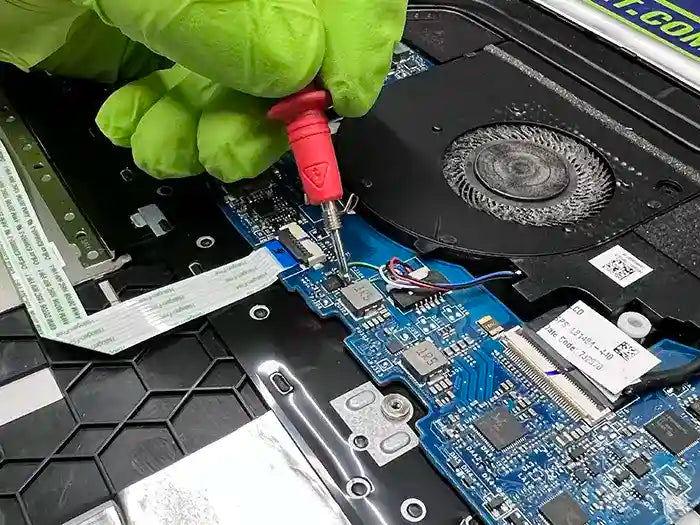
Computer Turns On but No Display: Causes, Diagnosis, and Repair
You press the power button, the computer lights up, the fans start spinning, and you may even hear the system running—but the monitor stays completely black or displays a “No Signal” message.
This is a common desktop computer problem, but it does not automatically mean the monitor is bad. A computer can appear to power on normally while failing to complete the startup process or send a video signal to the display.
The cause can range from something relatively simple, such as a loose display cable or improperly seated RAM, to more serious hardware problems involving the graphics card, power supply, motherboard, or CPU.
At Prime Tech Support, we diagnose no-display computers by separating display-related problems from hardware startup failures. Instead of replacing parts based on symptoms alone, the system is tested to determine whether it is successfully completing POST, whether critical components are receiving proper power, and where the startup process is failing.
In this guide, we’ll explain why a computer can turn on but show no display, the most common causes, what you can safely check yourself, and when the problem requires professional hardware diagnostics.
Table of Contents
What Does It Mean When a Computer Turns On but Has No Display?
When a computer turns on but nothing appears on the monitor, it usually means the system is receiving power but something is preventing it from producing a usable video signal.
You may see the case lights turn on, hear the fans spinning, and notice the keyboard or other USB devices receiving power. However, these signs do not necessarily mean the computer has successfully started.
Before a desktop computer can load Windows, it must complete a hardware initialization process known as the Power-On Self-Test (POST). During POST, the system checks and initializes critical components such as the processor, memory, graphics hardware, and motherboard.
If one of these components fails to initialize correctly, the computer may remain powered on while the screen stays black.
Powering On Is Not the Same as Booting Successfully
This distinction is important when diagnosing a no-display problem. A desktop can receive enough power to spin its fans and illuminate LEDs while still having a hardware failure that prevents it from completing POST.
Common possibilities include:
- A monitor, cable, or input-selection problem
- Loose, improperly seated, or failing RAM
- A graphics card that is not initializing or receiving proper power
- A power supply that cannot provide stable power to all required components
- A motherboard or CPU-related startup failure
The symptoms can look almost identical from the outside, which is why replacing a monitor, graphics card, or power supply based only on a black screen can lead to unnecessary parts replacement. If the computer successfully starts but later loses video, shuts down, or restarts unexpectedly, the problem may be closer to the issues covered in our guide on why a computer keeps crashing or restarting.
Start With the Monitor, Cables, and Connections
Before assuming the computer has an internal hardware failure, start by checking the components responsible for carrying the video signal from the computer to the screen. A bad cable, incorrect monitor input, or connection to the wrong video port can make a working computer appear to have a serious no-display problem.
Confirm the Monitor Is Receiving Power
Check that the monitor turns on normally and displays its own menu or status message. If the monitor itself will not power on, the problem may be with the monitor, its power adapter, or the electrical connection rather than the computer.
If the monitor displays “No Signal,” “HDMI No Signal,” or “DisplayPort No Signal,” it usually means the monitor is working but is not receiving a usable video signal from the computer.
Check the HDMI or DisplayPort Cable
Disconnect and reconnect the video cable at both ends. Inspect the connectors for visible damage and, when possible, test with another known-working HDMI or DisplayPort cable.
You can also test the monitor with another computer, laptop, or compatible device. This helps determine whether the problem follows the monitor and cable or remains with the desktop computer.
Make Sure the Monitor Is Using the Correct Input
Modern monitors often have multiple inputs, such as HDMI 1, HDMI 2, and DisplayPort. If the monitor is set to a different input from the one connected to the computer, it may report no signal even though both devices are functioning correctly.
Use the monitor's controls to manually select the input that matches the connected cable.
Check Where the Display Cable Is Connected
On desktop computers with a dedicated graphics card, the monitor should normally be connected directly to the graphics card's HDMI or DisplayPort output, not the video ports located on the motherboard.
This is especially important because motherboard display outputs generally depend on the processor having integrated graphics and the system being configured to use them. Connecting the monitor to a motherboard port does not guarantee that a video signal will be available.
If the monitor, cable, input selection, and video connection are all confirmed to be working but the screen remains black, the next step is to determine whether the computer is actually completing POST. At that point, internal components such as the RAM, graphics card, power supply, and motherboard become more likely causes.
Can RAM Cause a Computer to Turn On With No Display?
Yes. RAM problems are one of the common reasons a desktop computer can power on but fail to display an image. Because the system must detect and initialize memory during POST, a RAM problem can stop the startup process before the computer ever reaches Windows or produces a usable video signal.
This does not always mean the RAM module itself has failed. A no-display condition can also occur when a memory module is not fully seated, a DIMM slot has a problem, the memory configuration is unstable, or the motherboard cannot successfully initialize the installed memory.
Signs the Problem May Be Related to RAM
Depending on the motherboard and system configuration, a memory-related startup failure may produce symptoms such as:
- The computer powers on, but the monitor remains black.
- Fans and case lighting operate, but Windows never loads.
- The system repeatedly turns on and off while attempting to start.
- A motherboard DRAM diagnostic light remains illuminated.
- The computer produces a memory-related beep code.
- The problem appeared after installing, replacing, or moving RAM modules.
How RAM Is Tested During a No-Display Diagnosis
A basic diagnostic step is to power the computer down completely and verify that the memory modules are properly seated. When multiple modules are installed, testing them individually in the motherboard-recommended slot can help isolate a defective module, problematic slot, or configuration issue.
However, simply removing and reinstalling RAM does not prove that the memory is healthy. A computer that eventually boots may still have unstable or failing memory that requires additional testing.
If the computer can successfully boot and the concern is instead slow performance, high memory usage, or whether the system has enough RAM, see our guide on how much RAM your computer needs. A no-display problem is different because the immediate question is whether the memory is preventing the system from completing POST.
If known-good memory still produces the same no-display condition, diagnosis should move to other parts of the startup process rather than assuming that purchasing new RAM will solve the problem.
Graphics Card Problems That Can Cause No Display
If the monitor and cable are working and the computer is not experiencing an obvious RAM-related POST failure, the graphics card (GPU) becomes another important part of the diagnosis.
A desktop can appear to power on normally even when the graphics card is not initializing correctly. Fans may spin, case lighting may turn on, and other components may receive power while the monitor continues to report no signal.
A No-Display Problem Does Not Automatically Mean the GPU Is Dead
Before replacing an expensive graphics card, several related problems need to be ruled out. The GPU may be functional but unable to initialize because of a poor PCIe connection, missing auxiliary power, unstable power delivery, or another hardware problem preventing the system from completing POST.
Common GPU-related causes include:
- A graphics card that is not fully seated in the PCIe slot
- A loose or disconnected PCIe power connector
- A damaged HDMI or DisplayPort output
- A problem with the motherboard's PCIe slot
- Insufficient or unstable power being delivered to the graphics card
- An internal failure of the graphics card itself
Testing the Graphics Card
When appropriate, the graphics card can be removed and reseated after the computer has been completely powered down and disconnected from power. Its PCIe power connections should also be inspected and verified.
If the processor supports integrated graphics, another useful diagnostic step may be to remove or isolate the dedicated GPU and test the system using the motherboard's display output. A successful display in that configuration can help narrow the problem toward the dedicated graphics card, its power delivery, or the PCIe connection.
However, this test only works when the installed processor actually provides integrated graphics and the motherboard supports the appropriate video output. A black screen from the motherboard's HDMI or DisplayPort connector by itself does not prove that the motherboard is defective.
GPU Failure vs. a Power Problem
One of the more important diagnostic distinctions is determining whether the graphics card has failed or simply is not receiving stable power. A failing power supply can sometimes provide enough power for fans and lighting while failing when higher-demand components attempt to initialize.
That is why a no-display diagnosis should consider the graphics card and its power source together rather than replacing the GPU based on the black screen alone.
If the computer previously displayed symptoms such as crashes, unexpected restarts, or loss of video before developing a persistent black screen, those earlier symptoms can also provide useful diagnostic clues. Our guide to computer crashes and unexpected restarts explains how hardware instability can appear before a system stops operating normally.
Can a Power Supply Cause a Computer to Turn On but Not Display?
Yes. A failing or inadequate power supply (PSU) can cause a computer to turn on while producing no display. This can be confusing because fans, LEDs, and even some USB devices may still receive power, making the power supply appear to be working normally.
A desktop computer requires more than simply enough electricity to turn on its fans. The PSU must provide stable power to the motherboard, CPU, graphics card, storage devices, and other components throughout the startup process. If one of the required power rails or connections is unstable, the computer may fail to complete POST.
Why Fans Can Spin Even When the PSU Has a Problem
Fans and lighting are not reliable indicators of overall power supply health. These components may operate even when the PSU cannot provide stable voltage or sufficient power to critical hardware.
For example, a system may appear to start while the CPU or graphics card is not receiving the power required to initialize. The result can be a black screen, a motherboard diagnostic light, repeated startup attempts, or a system that powers off shortly after being turned on.
Power Connections That Matter During Startup
During a no-display diagnosis, several power connections should be considered, including:
- The 24-pin motherboard power connector
- The 4-pin or 8-pin CPU/EPS power connector
- PCIe or dedicated GPU power connectors
- Modular PSU-side connections, when applicable
A loose CPU power connection is particularly easy to overlook. The motherboard may still illuminate and case fans may spin even though the processor cannot initialize correctly.
How a Suspected PSU Problem Should Be Diagnosed
Visual inspection alone cannot confirm that a power supply is healthy. Proper diagnosis may involve checking connections, reviewing the system's power requirements, testing PSU output, and comparing system behavior with a compatible known-good power supply.
Replacing the PSU solely because the computer has a black screen can waste time and money if the actual failure is in the RAM, graphics card, motherboard, or another component.
If the symptoms point toward power delivery, our detailed guide on how to tell if a computer power supply is failing covers additional warning signs, diagnostic considerations, and common PSU failure symptoms.
If the power supply and its connections test correctly but the computer still cannot complete POST, the next stage of diagnosis is usually the motherboard, CPU, and the system's hardware initialization process.
Motherboard, CPU, and POST Failures
When the monitor, display cable, RAM, graphics card, and power delivery have been checked, a persistent no-display condition may point toward a problem with the motherboard, CPU, or the POST process itself.
These failures can be more difficult to diagnose because the computer may still show many normal signs of receiving power. Motherboard LEDs may illuminate, fans may spin, and connected devices may receive power even though the system never completes hardware initialization.
What Happens When a Computer Fails POST?
POST occurs immediately after the computer is powered on and before the operating system begins loading. The motherboard initializes and checks essential hardware, including the CPU, RAM, and graphics hardware.
If a critical component cannot initialize, startup may stop before any image appears on the monitor. Depending on the motherboard, the system may indicate the failure through diagnostic LEDs, beep codes, a POST code display, repeated restart attempts, or no obvious warning at all.
Does No Display Mean the Motherboard Is Bad?
No. A black screen by itself is not enough evidence to diagnose a failed motherboard. Many other problems can prevent POST while producing nearly identical symptoms.
Before condemning the motherboard, diagnosis should account for possibilities such as:
- RAM that cannot initialize correctly
- A graphics card or PCIe-related problem
- Missing or unstable CPU power
- A failing power supply
- Incorrectly connected internal hardware
- BIOS or firmware-related startup problems
- A CPU installation or hardware failure
Can the CPU Cause a Black Screen?
Yes, although CPU failure is generally not the first component that should be assumed defective. The processor must initialize successfully for the computer to complete POST, so a CPU-related problem can leave the system powered on with no video output.
Possible causes include a processor that is not receiving proper power, socket or pin damage, an installation problem, incompatible firmware after a hardware change, or an actual CPU failure.
If the problem began immediately after replacing the CPU, motherboard, RAM, or another major component, the recent hardware change becomes especially important during diagnosis. Compatibility, BIOS support, power connections, and component installation should all be verified before concluding that a new part is defective.
Why Motherboard Diagnosis Requires Elimination Testing
Unlike some failures that can be isolated quickly by swapping a cable or memory module, motherboard problems often require testing the system with a minimal hardware configuration and known-good compatible components.
The goal is to determine which part of the startup sequence is failing. If the motherboard consistently cannot initialize known-good RAM, graphics hardware, CPU power, and other required components, the evidence for a motherboard-level problem becomes much stronger.
This process is more reliable than replacing the motherboard simply because the computer powers on with a black screen.
What Beep Codes and Motherboard Diagnostic Lights Can Tell You
When a computer turns on but does not display an image, the motherboard may provide clues about where the startup process is failing. Depending on the system, these clues can appear as beep codes, diagnostic LEDs, or POST codes.
These indicators can make a no-display diagnosis much more efficient because they help identify which stage of hardware initialization is preventing the computer from completing POST.
Motherboard Diagnostic LEDs
Many modern motherboards include a small group of diagnostic LEDs labeled for major hardware categories. Common labels include:
- CPU – indicates a problem detected while initializing the processor
- DRAM – points toward memory detection or initialization
- VGA – relates to graphics hardware initialization
- BOOT – indicates a problem finding or starting from a bootable device
These lights may illuminate briefly during a normal startup as the motherboard checks each component. The more useful clue is an LED that remains illuminated when the computer fails to continue through POST.
What Do Beep Codes Mean?
Some computers use audible beep patterns to report hardware initialization problems. A particular sequence may indicate a memory, graphics, CPU, or other POST-related error.
However, beep-code meanings are not universal. They can vary depending on the motherboard manufacturer, BIOS or UEFI implementation, and system model. The correct code should therefore be compared with the documentation for the specific motherboard or computer rather than interpreted from a generic list.
POST Code Displays
Higher-end and enthusiast motherboards may include a small numeric or alphanumeric display that shows POST codes as the computer initializes its hardware.
If startup stops at a particular code, that code can help identify the stage where initialization failed. As with beep codes, its exact meaning should be verified against the documentation for the specific motherboard.
A Diagnostic Light Does Not Always Mean That Component Is Bad
This distinction is important. For example, a VGA diagnostic light does not automatically prove that the graphics card has failed. The GPU may not be receiving proper power, may not be seated correctly, or the system may be failing to initialize it because of another hardware problem.
Similarly, a DRAM light can result from a memory module, DIMM slot, memory configuration, CPU memory controller, motherboard, or compatibility issue.
Diagnostic indicators should therefore be treated as a starting point for testing, not as a final diagnosis. Combined with component isolation and known-good hardware testing, they can significantly narrow down the cause of a computer that powers on but produces no display.
What You Can Safely Troubleshoot at Home
If your computer turns on but the monitor remains black, there are several basic checks you can perform before bringing the system in for professional diagnosis. The goal is to eliminate simple connection and component-seating problems without unnecessarily disassembling the computer.
1. Verify the Monitor and Video Cable
Confirm that the monitor powers on, is set to the correct input, and is connected securely to the computer. If possible, test with another known-working HDMI or DisplayPort cable and another monitor or display.
If your desktop has a dedicated graphics card, make sure the display cable is connected to the graphics card rather than automatically assuming the motherboard's video ports will provide a signal.
2. Disconnect Unnecessary External Devices
Shut the computer down and disconnect nonessential USB devices, external drives, printers, hubs, and other peripherals. Leave only the basic equipment needed to test the system.
A problematic peripheral is not the most common cause of a no-display condition, but simplifying the configuration removes unnecessary variables from the diagnosis.
3. Check for Diagnostic Lights or Beep Codes
Turn the computer on and observe the motherboard if it is visible. Look for a CPU, DRAM, VGA, or BOOT diagnostic LED that remains illuminated. Listen for any repeating beep pattern as well.
Record the indicator before changing components. The motherboard or computer manufacturer's documentation may provide information about what that specific diagnostic code represents.
4. Reseat the RAM if You Are Comfortable Working Inside the Computer
With the computer completely shut down and disconnected from power, improperly seated RAM can be removed and carefully reinstalled. If multiple modules are present, individual testing may help determine whether one module or memory slot is associated with the failure.
Do not remove or install memory while the system is powered or connected to power.
5. Check Accessible Internal Power Connections
If you are comfortable working inside a desktop, visually inspect accessible motherboard, CPU, and graphics-card power connections for anything obviously loose or disconnected.
A connector should not be forced into place. Modular power supply cables also should not be mixed between different PSU models simply because the connectors appear to fit, as cable pinouts can differ and incorrect cables can damage hardware.
Know When to Stop Troubleshooting
If the computer still has no display after the basic checks above, repeatedly removing parts or purchasing replacement components without confirming the failure can make diagnosis more difficult and more expensive.
Professional diagnosis becomes especially worthwhile when the system has a persistent CPU, DRAM, or VGA diagnostic light; there is evidence of electrical or physical damage; the computer stopped displaying after an unexpected shutdown; or testing requires known-good replacement components that you do not have available.
If the computer was also shutting down or restarting before the display problem became permanent, see our guide on diagnosing computer crashes and unexpected restarts, since those earlier symptoms can help identify the underlying hardware problem.
How We Diagnose a Computer With No Display
When a desktop arrives at Prime Tech Support with power but no display, the goal is not to guess which component has failed. We work through the startup process systematically to determine where the computer is failing to complete POST and which component or connection is responsible.
This is especially important with no-display problems because several different failures can produce almost identical symptoms from the outside.
Step 1: Confirm the Display Path
We first rule out the external causes: monitor operation, video cable, input selection, and the video output being used. This prevents unnecessary internal testing when the actual problem is somewhere between the computer and the display.
Step 2: Observe the Computer's POST Behavior
Next, we check how the system behaves immediately after power-on. Diagnostic LEDs, beep codes, POST codes, fan behavior, restart loops, and other startup indicators can provide useful clues about which hardware is failing to initialize.
Step 3: Reduce the System to Essential Hardware
When necessary, nonessential components are disconnected so the computer can be tested in a minimal configuration. This helps isolate the motherboard, CPU, RAM, graphics hardware, and power delivery from unrelated devices that could interfere with startup.
Step 4: Test Suspected Components
Components are then tested based on the evidence collected during the initial diagnosis. This can include testing RAM individually, verifying graphics-card operation and power, checking PSU behavior, inspecting motherboard connections, and using compatible known-good components when appropriate.
If power delivery is suspected, we do not assume the PSU is healthy simply because the fans are spinning. Our guide on how to tell if a computer power supply is failing explains why partial power can still be associated with startup and stability problems.
Step 5: Confirm the Failure Before Recommending a Repair
The objective is to identify the failed component or underlying condition before recommending replacement parts. If a graphics card, power supply, RAM module, motherboard, or another component is suspected, the diagnosis should be supported by testing rather than by the black-screen symptom alone.
This approach helps avoid replacing expensive hardware that was never actually defective.
If your computer powers on but still shows no display after the basic troubleshooting steps, Prime Tech Support can perform a complete hardware diagnosis to determine whether the problem is related to RAM, the graphics card, power delivery, the motherboard, or another part of the startup process.
Is a No-Display Computer Worth Repairing?
In many cases, yes. A computer that powers on but produces no display does not automatically need to be replaced. Whether repair makes sense depends on what actually failed, the age and specifications of the computer, and the cost of the required parts and labor.
This is another reason accurate diagnosis matters. A system that appears to have a major motherboard or graphics-card failure may ultimately have a much simpler problem involving RAM, a power connection, the power supply, or another replaceable component.
When Repair Usually Makes Sense
Repair may be a practical option when:
- The computer still meets your performance needs.
- The failure is isolated to a replaceable component.
- The rest of the hardware is in good condition.
- The system contains higher-value components worth preserving.
- The repair cost is reasonable compared with replacing the entire computer.
When Replacement or an Upgrade May Make More Sense
Replacement may deserve consideration when the computer is already significantly outdated, multiple major components are failing, compatible replacement parts are difficult to obtain, or repairing the system would still leave it unable to meet your current needs.
A motherboard failure, for example, does not automatically make a computer uneconomical to repair. On a newer or higher-performance system, motherboard replacement may be worthwhile. On a much older platform, the same repair could involve investing in hardware with limited future upgrade options.
Diagnose First, Decide Second
The most useful question is not simply, “Is this computer worth fixing?” It is “What has actually failed, and what will it cost to restore the computer to reliable operation?”
Once the failed component has been identified, repair and replacement can be compared using the actual condition and value of the system rather than making the decision based on a black screen alone.

PROFESSIONAL SUPPORT
Computer Repairs
Fast tech support for Computer Repairs. We exceed customer expectations and ensure satisfaction.

Computer Repairs Blog by Techs in Miami
View all-

Your computer turns on, the fans spin, and the lights come on—but the monitor stays black or says “No Signal.”...
Computer Turns On but No Display: Causes, Diagnosis, and Repair
Your computer turns on, the fans spin, and the lights come on—but the monitor stays black or says “No Signal.”...
-

A failing computer power supply can cause sudden shutdowns, random restarts, startup problems, or instability under heavy load. Learn the...
How to Tell If Your Computer Power Supply Is Failing: PSU Warn...
A failing computer power supply can cause sudden shutdowns, random restarts, startup problems, or instability under heavy load. Learn the...
-

A failing motherboard can cause startup problems, random restarts, missing hardware, USB failures, and other confusing symptoms. Learn how motherboard...
How to Tell If Your Computer Motherboard Is Failing: Signs, Di...
A failing motherboard can cause startup problems, random restarts, missing hardware, USB failures, and other confusing symptoms. Learn how motherboard...