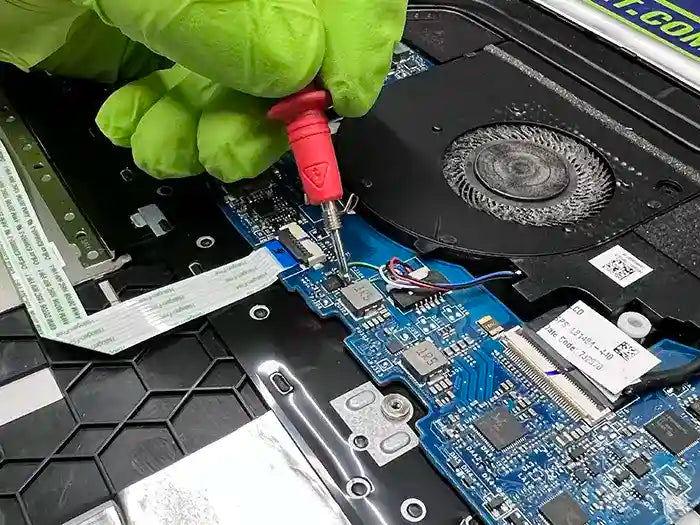
Why Does My Computer Keep Crashing or Restarting? How to Find the Real Cause
A computer that keeps crashing, restarting, or shutting down unexpectedly is more than just frustrating—it is a sign that something is interfering with normal system stability. The problem may happen while gaming, opening applications, browsing the web, or even when the computer appears to be sitting idle.
These symptoms are often grouped together, but they do not always point to the same cause. A sudden restart can indicate a power or hardware problem, while a blue screen may be linked to drivers, memory instability, or Windows errors. A computer that completely shuts off under load can point toward overheating or power delivery issues.
At Prime Tech Support, we diagnose unstable computers by looking at how and when the failure happens instead of immediately assuming that a component needs to be replaced. In many real-world repair cases, the underlying cause is a combination of driver conflicts, overheating, RAM errors, storage problems, corrupted system files, or unstable hardware.
This guide explains how different types of computer crashes behave, what commonly causes them, how technicians narrow down the source, and when continued crashing may indicate a more serious hardware problem.
Quick answer: If your computer keeps crashing or restarting, pay attention to exactly what happens before the failure. Blue screens, sudden restarts, complete shutdowns, black screens, and application crashes provide different diagnostic clues. Identifying the type of crash is the first step toward finding the correct fix.
Table of Contents
Table of Contents
- What Does a Computer “Crash” Actually Mean?
- The Most Common Reasons a Computer Keeps Crashing
- What the Type of Crash Can Tell You
- How Technicians Diagnose a Computer That Keeps Crashing
- What You Can Safely Check at Home
- When a Computer Crash Is Probably a Hardware Problem
- When Repair Makes More Sense Than Replacing the Computer
- Real Case From Our Repair Lab
- Computer Keeps Crashing? Get a Professional Diagnosis
- Frequently Asked Questions
What Does a Computer “Crash” Actually Mean?
A computer crash happens when Windows, an application, or the hardware itself encounters a problem severe enough that normal operation cannot continue. Depending on the cause, the computer may restart without warning, display a blue screen, shut down completely, lose video output, or close a program unexpectedly.
This is different from a computer that simply becomes slow or temporarily unresponsive. The way the system fails is an important diagnostic clue because different symptoms can point technicians toward very different causes.
Crash vs. Freeze
During a freeze, the computer normally remains powered on, but Windows or the applications stop responding. The screen may remain visible and, in some cases, the mouse can still move even though the system cannot complete normal tasks.
During a crash, something actively fails. Windows may restart, generate an error, display a blue screen, shut the computer down, or terminate the affected application.
If your computer stays powered on but becomes completely unresponsive, see our guide to diagnosing a computer that freezes randomly. Freezing and crashing can share underlying causes, but the symptoms provide different clues during diagnosis.
Crash vs. Unexpected Restart
Some computers restart so quickly that the user never sees an error message. Windows disappears, the screen goes black, and the system begins booting again.
An unexpected restart can be associated with a serious Windows error, unstable RAM, a driver failure, overheating, power delivery problems, or another hardware-level fault. The restart itself does not identify the failed component, which is why examining what happened immediately before it is so important.
Crash vs. Complete Shutdown
A complete shutdown is another important distinction. If the computer suddenly loses power instead of restarting, technicians investigate possibilities such as excessive temperatures, power supply instability, charging or power-delivery problems, motherboard faults, and other protective hardware shutdowns.
The timing matters as well. A computer that shuts off only during gaming or another demanding workload provides a very different diagnostic clue from a system that shuts down while sitting idle.
Application Crash vs. System Crash
If only one application closes while Windows continues operating normally, the problem may be limited to that program, its files, a driver it depends on, or the resources it is using.
If the entire operating system becomes unstable, restarts, or displays a system-level error, the investigation needs to go deeper. At that point, drivers, memory, storage, temperatures, Windows integrity, power delivery, and hardware stability may all need to be tested.
The key diagnostic question is not simply “Did the computer crash?” It is: What exactly happened when it crashed? That distinction helps determine what should be tested next and prevents replacing components based only on assumptions.
The Most Common Reasons a Computer Keeps Crashing
Repeated crashes rarely identify their own cause. Two computers can restart in exactly the same way while having completely different underlying problems. That is why an accurate diagnosis looks at the circumstances surrounding the crash—what the computer was doing, how long it had been running, whether temperatures were rising, and whether anything changed shortly before the problem began.
The following are some of the most common areas technicians investigate when a computer repeatedly crashes or restarts.
Overheating and Thermal Shutdowns
Modern processors and graphics hardware generate significant heat, particularly during gaming, video editing, rendering, and other demanding workloads. When the cooling system cannot remove that heat effectively, temperatures can rise until the computer reduces performance or, in more severe situations, becomes unstable or shuts down to protect the hardware.
Dust buildup, obstructed airflow, failing fans, degraded thermal paste, or a cooling system that is no longer operating correctly can all contribute to excessive temperatures.
The pattern is especially important. If a computer works normally when first powered on but crashes or shuts down after several minutes of heavy use, temperature should be investigated as part of the diagnosis.
RAM Errors and Memory Instability
RAM temporarily holds information that Windows and running applications need to access quickly. When memory becomes unstable, the data being processed can become corrupted, potentially resulting in application crashes, blue screens, freezes, or unexpected restarts.
Memory instability does not always mean that a RAM module has physically failed. Problems can also appear after a memory upgrade, when incompatible modules are mixed, when memory settings are unstable, or when another part of the memory subsystem is causing errors.
This is why replacing RAM based only on a crash is not a reliable diagnosis. Memory should be tested and the results interpreted alongside the other symptoms.
SSD or Hard Drive Problems
Windows continuously reads and writes data to the system drive. If an SSD or hard drive develops errors, becomes unreliable, or has difficulty accessing critical data, applications and Windows itself may become unstable.
Storage-related problems can be particularly misleading because they may initially look like software problems. A computer may take longer to start, applications may stop responding, files may become corrupted, or Windows may crash while attempting to access damaged or unavailable data.
When storage failure is suspected, protecting important data becomes a priority. Continuing to repeatedly restart or heavily use a degrading drive can create additional risk before the original problem has been identified.
Driver Conflicts and Corrupted Drivers
Drivers allow Windows to communicate with components such as the graphics card, chipset, storage controller, network adapter, and other hardware. When an important driver becomes corrupted, incompatible, or unstable, the affected hardware may stop communicating correctly with the operating system.
Driver-related crashes sometimes begin after a Windows update, hardware change, driver installation, or software update. Graphics drivers are a common example: a driver failure may cause an application to close, the display to go black temporarily, or the entire system to become unstable.
If the crashes started around a driver or hardware change, our guide to diagnosing and troubleshooting driver problems explains how driver-related symptoms can be separated from actual hardware failure.
Windows and System File Corruption
Windows depends on thousands of system files and services to operate correctly. If important files become corrupted or system components are damaged, instability can appear during startup, updates, application launches, or normal use.
System corruption may develop after an interrupted update, improper shutdown, storage errors, malware, or another underlying failure. This is an important distinction because repairing Windows without addressing the original hardware or storage problem may only provide a temporary fix.
Power Supply and Power Delivery Problems
Power problems often produce some of the most abrupt symptoms. Instead of displaying a clear Windows error, the computer may instantly restart or lose power.
On desktop systems, technicians may investigate the power supply, electrical connections, motherboard power delivery, and whether the installed hardware is demanding more power than the system can reliably provide. Laptops can have a different set of power-related variables, including the charger, battery, charging circuit, and motherboard.
A sudden loss of power does not automatically prove that the power supply or battery is defective. Overheating, motherboard faults, short circuits, and other hardware problems can create similar symptoms, so power-related failures need to be tested rather than assumed.
GPU and Graphics-Related Crashes
Graphics-related instability is more likely to appear when the GPU is placed under load. Games, 3D applications, video editing software, and GPU-accelerated workloads may expose problems that never appear during basic web browsing or office work.
Possible causes include graphics driver problems, excessive GPU temperatures, unstable power delivery, software conflicts, or an actual graphics hardware fault.
A black screen during a game, for example, does not automatically mean the graphics card has failed. The GPU is only one part of the chain that needs to be evaluated.
Malware and Problematic Background Software
Not every crash originates from hardware. Damaged applications, conflicting utilities, security software, unwanted programs, and malware can interfere with normal Windows operation.
Background software becomes more suspicious when crashes begin shortly after a new program is installed or when instability disappears in a clean or reduced software environment. However, software should not automatically be blamed when the same computer also shows signs of overheating, storage errors, memory errors, or unstable power.
The important takeaway is that the symptom alone does not identify the failed component. A restart can come from memory, power, drivers, Windows, temperatures, or other hardware. Good diagnostics look for patterns and supporting evidence before deciding what needs to be repaired or replaced.
What the Type of Crash Can Tell You
One of the most useful pieces of information when diagnosing an unstable computer is exactly how the system fails. A blue screen, sudden restart, black screen, complete shutdown, and application crash may all be described as “crashing,” but they can lead the diagnostic process in different directions.
The behavior immediately before and after the failure can help narrow down which components, drivers, or software should be investigated first.
Blue Screen of Death (BSOD)
A Windows blue screen appears when the operating system encounters a serious error that it cannot safely recover from. Windows stops normal operation, records information about the failure, and typically restarts the computer.
Blue screens can be associated with unstable or failing RAM, driver problems, storage errors, corrupted system files, overheating, or other hardware instability. The stop code displayed by Windows can provide a useful starting point, but it should not automatically be treated as proof that a specific component has failed.
For example, repeated blue screens involving memory-related errors can justify testing the RAM, but memory errors can sometimes originate elsewhere in the system. Technicians look for repeated patterns and confirm them through testing rather than replacing a component based on a single error message.
Computer Suddenly Restarts Without an Error
A computer that instantly restarts can be more difficult to diagnose because there may be no visible error message. One moment the system is running normally; the next, the screen goes black and the computer begins booting again.
Unexpected restarts can occur because of a Windows system failure, unstable memory, overheating, motherboard instability, or power delivery problems. If the restart consistently happens during demanding workloads, technicians pay particular attention to temperatures, power requirements, and system stability under load.
If it happens while the computer is idle, the investigation may shift toward drivers, Windows errors, background software, power-management behavior, or intermittent hardware faults.
Computer Completely Shuts Down
A sudden shutdown is different from a restart because the system loses power and remains off. This behavior often makes power and thermal conditions especially important to investigate.
For example, a desktop that shuts down only when the CPU or GPU is heavily loaded may be experiencing excessive temperatures or unstable power delivery. A laptop that unexpectedly powers off may require evaluation of the cooling system, battery, charger, charging circuit, or motherboard.
A shutdown under load is an important warning sign. Repeatedly forcing the computer through the same workload without knowing why it is shutting down can place additional stress on an already unstable system.
Black Screen but the Computer Stays On
A black screen does not always mean the entire computer has crashed. In some cases, Windows continues running while the display output fails.
This can happen because of a graphics driver problem, GPU instability, display connection issue, power problem, or another fault affecting the graphics subsystem. Listening to what the computer is doing can provide useful clues. If audio continues playing or the system still responds while the screen is black, the failure may be more isolated to graphics or display output than a complete system crash.
If the computer becomes completely unresponsive at the same time, however, the diagnostic scope becomes wider.
Applications Keep Closing or Crashing
When a specific program repeatedly closes but Windows remains stable, the application itself should be investigated before assuming the computer has a major hardware problem.
Damaged program files, incompatible updates, extensions, drivers, insufficient resources, or software conflicts can cause individual applications to crash.
The pattern changes when multiple unrelated applications begin crashing. If browsers, productivity software, games, and other programs all become unstable, technicians may investigate RAM stability, storage health, Windows corruption, drivers, and other system-wide causes.
Computer Crashes During Gaming or Heavy Workloads
Crashes that appear only when the computer is working hard provide another valuable clue. Gaming, rendering, video editing, stress testing, and other demanding tasks increase CPU and GPU activity, temperatures, memory usage, and power consumption at the same time.
If the system is stable during basic tasks but repeatedly fails under load, the diagnostic process should examine what changes when that load is applied. Temperatures may rise too far, the power supply may become unstable, RAM settings may fail under heavier demand, or a GPU problem may only appear when the graphics card is operating at higher utilization.
This does not mean that every crash during gaming is caused by the graphics card. The workload may simply be exposing an instability elsewhere in the computer.
Computer Crashes Shortly After Startup
If crashes occur during Windows startup or within the first few minutes after logging in, the pattern can point toward a different group of problems. Startup applications, damaged drivers, Windows services, corrupted system files, or storage errors may become active as the operating system loads.
Pay attention to whether the crash occurs before Windows loads, during the login process, or only after reaching the desktop. That timing can help separate operating-system problems from failures that occur independently of Windows.
Diagnostic Tip: Write down what the computer was doing immediately before each crash. Note whether you saw a blue screen, black screen, restart, or complete shutdown; whether the computer was idle or under load; and approximately how long it had been running. A repeated pattern is often much more useful for diagnosis than the fact that the computer “crashed.”
These patterns do not provide a diagnosis by themselves, but they help determine where testing should begin. A technician can combine the crash behavior with Windows error records, temperatures, memory testing, storage health, driver history, and hardware testing to identify whether the failure is coming from software, hardware, or a combination of both.
What You Can Safely Check at Home
Before bringing a crashing computer in for diagnosis, there are several safe checks you can perform that may reveal useful information. The goal is not to replace components or make major system changes. Instead, focus on identifying patterns and eliminating simple causes without making the original problem harder to diagnose.
Write Down Exactly What Happens
Start by recording what you see when the computer fails. A description such as “my computer keeps crashing” is much less useful than knowing that the system displays a blue screen, instantly restarts, loses video, or completely shuts off.
If a blue screen appears, take a photo of the stop code or error message before the computer restarts. Also note what you were doing immediately before the crash and approximately how long the computer had been running.
If the same behavior occurs repeatedly under similar conditions, that pattern can significantly reduce diagnostic time.
Check Whether One Program Triggers the Crash
Pay attention to whether the problem occurs throughout Windows or only when using one particular application.
If the same game, browser, editing program, or other application consistently crashes while everything else remains stable, the problem may be more isolated than a full system failure. Updating or reinstalling that application may be appropriate before assuming the computer itself is defective.
If several unrelated programs crash or the entire computer restarts regardless of what application is running, a broader system problem becomes more likely.
Think About What Changed Before the Problem Started
Many stability problems begin shortly after something changes. Consider whether the crashes started after:
- A Windows update
- A graphics or other driver update
- A new application was installed
- RAM, storage, or another component was upgraded
- The computer was moved or transported
- A repair or internal cleaning was performed
- BIOS or performance settings were changed
The timing does not prove that the most recent change caused the problem, but it gives the diagnostic process a useful place to start.
Check Windows Update and Device Manager
Windows Update can show whether updates recently installed or whether important updates are still pending. Device Manager can also reveal devices that Windows is currently reporting as having a problem.
However, avoid downloading drivers from random third-party driver websites or using programs that promise to automatically update every driver on the computer. Driver troubleshooting should focus on the specific hardware and symptoms involved.
If you suspect a driver problem, our driver troubleshooting guide explains how drivers interact with Windows and why driver problems can sometimes be mistaken for hardware failure.
Check for Obvious Airflow Problems
You do not need to disassemble the computer to notice basic cooling problems. Check whether external vents are blocked by dust or whether the computer is being used on a surface that restricts airflow.
Also listen for changes in fan behavior. Fans that suddenly become extremely loud, constantly run at high speed, make grinding noises, or appear not to run at all can provide useful clues when crashes happen as the computer gets hotter.
For laptops, use the computer on a hard, flat surface rather than a bed, blanket, couch, or other material that can obstruct ventilation.
Disconnect Unnecessary External Devices
USB devices, docking stations, external drives, adapters, and other peripherals can occasionally contribute to instability. If the crashes began after connecting a new device, disconnecting nonessential accessories can help determine whether the behavior changes.
Keep essential devices such as the display, keyboard, and mouse connected as needed, and change one variable at a time. Disconnecting everything and changing several settings simultaneously makes it harder to identify what actually affected the problem.
Back Up Important Files
If crashes are becoming more frequent, files are becoming corrupted, or the computer is showing signs of storage problems, back up important data while the system is still accessible.
A crashing computer may continue operating for weeks, or it may become unusable without much warning. If the underlying problem involves the system drive, repeatedly restarting and continuing normal use is not a substitute for protecting important files.
Know When to Stop Troubleshooting
Basic observation and software checks are reasonable, but repeated crashes should not lead to random part replacement, BIOS changes, aggressive stress testing, or repeated Windows reinstalls without understanding the failure.
Stop DIY troubleshooting if the computer smells unusually hot or burnt, repeatedly loses power, shows signs of electrical damage, produces unusual mechanical noises, or becomes increasingly unstable.
A professional diagnosis is also appropriate when the crashes continue after basic software checks or when important data is stored on the computer. At that point, determining the cause before making additional changes can prevent unnecessary repairs and reduce the risk of losing useful diagnostic evidence.
The most useful thing you can bring to a technician is a clear description of the failure: what happened, what you were doing, when it started, what changed beforehand, and whether you can reproduce it.
When a Computer Crash Is Probably a Hardware Problem
Not every computer crash is caused by defective hardware. Windows corruption, incompatible drivers, applications, and other software problems can create serious instability. However, certain patterns make a hardware problem more likely and justify deeper component-level testing.
The strongest indication is usually not one individual symptom. It is a combination of repeatable behavior and test results that continues even after reasonable software causes have been eliminated.
The Computer Crashes Under Heavy Load
If the computer operates normally during light tasks but repeatedly crashes during gaming, rendering, video editing, or another demanding workload, hardware conditions become particularly important to investigate.
Heavy workloads increase CPU and GPU temperatures, memory activity, and power consumption. A weakness that remains hidden while browsing the web may become obvious when several components are placed under sustained demand.
This pattern can lead technicians toward cooling, power delivery, GPU stability, RAM, or motherboard testing. It does not, by itself, prove which component is responsible.
Crashes Occur Outside Normal Windows Operation
If instability occurs before Windows has fully loaded, during startup diagnostics, or in another environment where the normal Windows installation is not responsible for the system's behavior, software becomes a less convincing explanation.
For example, a computer that restarts before reaching the Windows desktop may still have a software or driver-related problem, but repeated failures outside normal Windows operation increase the need to evaluate hardware.
Memory Testing Produces Repeatable Errors
Repeated memory errors are a significant diagnostic finding, particularly when the same failure can be reproduced during controlled testing.
However, even this does not always mean that the first RAM module tested should immediately be replaced. The memory module, memory slot, motherboard, CPU memory controller, and memory configuration can all influence stability.
This is why technicians may test modules individually or change configurations to determine whether the error follows a particular component.
The SSD or Hard Drive Shows Signs of Failure
Storage problems become more concerning when crashes occur alongside file corruption, disappearing files, unusual read/write behavior, boot problems, or diagnostic evidence that the drive is becoming unreliable.
A failing system drive can create symptoms that look like Windows corruption because Windows itself depends on files stored on that drive. Reinstalling the operating system without first evaluating the storage device can therefore miss the actual cause.
Storage technology also affects how problems present themselves. Traditional hard drives and solid-state drives fail differently and can produce different performance symptoms. Our HDD vs. SSD computer performance guide explains the practical differences between the two storage technologies and when an upgrade can improve system performance.
The Computer Suddenly Loses Power
Instant power loss deserves particular attention because Windows may have no opportunity to display an error or record useful information before the computer shuts off.
On a desktop, possible areas of investigation include the power supply, motherboard, power connections, CPU and GPU temperatures, and the electrical demands of the installed hardware.
On a laptop, diagnosis may also involve the AC adapter, battery, charging system, thermal protection, and motherboard power circuitry.
If the computer repeatedly loses power during the same type of workload, technicians can use that pattern to reproduce the failure under controlled conditions.
Physical Symptoms Appear Alongside the Crashes
Some hardware problems provide physical warning signs in addition to software symptoms. These can include unusual fan or mechanical noises, excessive heat, a burning smell, visible electrical damage, intermittent power, or a device that behaves differently when moved.
These symptoms should not be ignored. If there is a burning smell, visible damage, smoke, sparking, or another indication of an electrical problem, shut the computer down and disconnect it from power rather than continuing to test it.
The Same Problem Returns After Software Repairs
Repeatedly reinstalling Windows can temporarily hide certain symptoms without correcting the underlying failure. If the computer becomes unstable again after a clean software environment has been established, hardware deserves closer investigation.
This is particularly important when the same type of crash returns under similar conditions. A fresh Windows installation cannot repair defective RAM, unstable power delivery, a failing storage device, or a cooling problem.
Component Replacement Should Come After Diagnosis
One of the most expensive troubleshooting mistakes is replacing components based solely on symptoms. A black screen does not automatically mean the GPU is bad. A blue screen does not automatically mean the RAM has failed. A sudden shutdown does not automatically mean the power supply needs replacement.
Each of those conclusions should be supported by testing.
The goal of hardware diagnosis is not to find a component that could cause the symptom. It is to identify the component or condition that is actually causing it. That difference can prevent unnecessary upgrades, repeated repairs, and replacing perfectly functional hardware.
When Repair Makes More Sense Than Replacing the Computer
A computer that keeps crashing does not automatically need to be replaced. In many cases, the problem is limited to one repairable component, a cooling issue, a driver conflict, Windows corruption, or another condition that costs significantly less to correct than purchasing a new computer.
The decision becomes easier once the actual cause of the crashes is known. Without a diagnosis, it is difficult to compare the cost of repair with the value of the computer.
Repair Often Makes Sense When the Problem Is Isolated
If testing identifies a specific and replaceable component, repair can be straightforward. A failing storage drive, defective RAM module, cooling fan, or other serviceable component does not necessarily justify replacing the entire system.
The same applies to software-related instability. If the hardware is healthy and the crashes are caused by Windows corruption, drivers, or conflicting software, replacing the computer may solve the symptom simply because everything is new—but it may be an unnecessarily expensive solution.
Consider the Overall Condition of the Computer
The failed component is only part of the decision. The age and condition of the rest of the computer should also be considered.
A repair generally makes more sense when the computer still meets your performance needs, the major components are in good condition, and the cost of correcting the problem is reasonable compared with replacing the system.
Replacement becomes more reasonable when several major components are failing, the computer no longer supports the software you need, repair costs approach the value of a suitable replacement, or the system would still require substantial upgrades after the immediate problem is fixed.
Do Not Confuse Poor Performance With Hardware Failure
Sometimes a computer is brought in because it crashes occasionally and also feels extremely slow. Those two symptoms may have the same cause—or they may be separate problems.
Before replacing an older computer solely because it feels slow, it is worth determining whether the performance problem can be corrected through maintenance, software optimization, or a targeted upgrade. Our slow computer diagnosis guide covers the checks that should be made before assuming new hardware is necessary.
Diagnosis Should Come Before the Repair-or-Replace Decision
A five-year-old computer with one inexpensive failure may be worth repairing. A much newer computer with a serious motherboard problem may require a very different cost analysis. Age alone does not make the decision.
The more useful questions are:
- What is actually causing the crashes?
- What will it cost to repair correctly?
- Are the other major components still healthy?
- Does the computer still meet your current needs?
- Would a repair provide a reasonable amount of additional useful life?
Answering those questions before buying parts or replacing the computer can prevent spending money in the wrong place.
A diagnosis gives you something a crash symptom cannot: enough information to make an informed repair-or-replace decision.
What a Real Crash Diagnosis Looks Like in the Repair Lab
When a computer arrives with a complaint such as “it keeps crashing,” the symptom alone is not enough to determine what needs to be repaired. The first objective is to reproduce the failure and collect enough evidence to understand what is happening before replacing any hardware.
A typical diagnosis starts with the customer's description of the problem: whether the computer restarts, shuts down, displays a blue screen, loses video, or crashes only when a particular application is running. Recent changes—such as Windows updates, driver installations, hardware upgrades, or previous repairs—can also provide important clues.
Reproducing the Failure
If the computer can be made to crash under the same conditions reported by the customer, the diagnostic process becomes much more focused. Temperatures, memory usage, system behavior, Windows errors, and hardware conditions can be monitored while the failure occurs.
For example, if the system remains stable during normal desktop use but fails consistently under a demanding workload, testing can focus on what changes under load rather than treating every component as equally suspicious.
Testing the Suspected Cause
Once the evidence points toward a particular area, that theory still needs to be tested. A temperature-related shutdown should correspond with abnormal thermal behavior. Suspected memory instability should be supported by memory testing. Storage concerns should be evaluated through drive diagnostics and system behavior. Driver-related instability should correlate with the affected device, error history, or recent driver changes.
This confirmation step is important because replacing a component and seeing the computer turn on afterward does not necessarily prove that the original problem has been fixed.
Verifying Stability After the Repair
The repair is not complete simply because the computer boots successfully. The system should be tested again under conditions similar to those that previously caused the crash.
If the computer originally restarted during heavy workloads, for example, stability should be verified under an appropriate load after the repair. If crashes occurred during normal Windows use, the system should be observed for the behavior that previously triggered them.
The objective is not just to make the computer start again. It is to confirm that the original failure can no longer be reproduced.
This diagnose-first approach helps avoid unnecessary component replacement and provides much stronger evidence that the actual cause of the crashes has been corrected.
Computer Keeps Crashing? Get a Professional Diagnosis
If your computer continues to crash, restart, display blue screens, lose video, or shut down unexpectedly, the next step should be identifying the cause—not guessing which component to replace.
At Prime Tech Support, our technicians diagnose both hardware and software problems that can cause unstable computers. Depending on the symptoms, testing may include memory stability, storage health, temperatures, drivers, Windows errors, power behavior, and other hardware conditions.
The objective is to determine why the computer is crashing before recommending a repair. That can help avoid unnecessary part replacement and provide a clearer answer about whether the system should be repaired, upgraded, or replaced.
Stop Guessing Why Your Computer Keeps Crashing
Repeated crashes can come from RAM, storage, overheating, drivers, Windows corruption, power problems, or failing hardware. Let our technicians diagnose the system and identify the actual cause before you spend money replacing parts.
Prime Tech Support provides computer repair services for laptops, desktop computers, all-in-one systems, and gaming PCs. Our Miami repair lab handles computer diagnostics and repairs, with additional service options available depending on the type of problem and location.
If important files are stored on an unstable computer, mention that when requesting service. Protecting the data may need to become part of the diagnostic strategy, particularly when storage failure is suspected.
A computer that keeps crashing is giving you a symptom. Proper testing determines what that symptom actually means.
Computer Keeps Crashing? Get a Professional Diagnosis
If your computer continues to crash, restart, display blue screens, lose video, or shut down unexpectedly, the next step should be identifying the cause—not guessing which component to replace.
At Prime Tech Support, our technicians diagnose both hardware and software problems that can cause unstable computers. Depending on the symptoms, testing may include memory stability, storage health, temperatures, drivers, Windows errors, power behavior, and other hardware conditions.
The objective is to determine why the computer is crashing before recommending a repair. That can help avoid unnecessary part replacement and provide a clearer answer about whether the system should be repaired, upgraded, or replaced.
Stop Guessing Why Your Computer Keeps Crashing
Repeated crashes can come from RAM, storage, overheating, drivers, Windows corruption, power problems, or failing hardware. Let our technicians diagnose the system and identify the actual cause before you spend money replacing parts.
Prime Tech Support provides computer repair services for laptops, desktop computers, all-in-one systems, and gaming PCs. Our Miami repair lab handles computer diagnostics and repairs, with additional service options available depending on the type of problem and location.
If important files are stored on an unstable computer, mention that when requesting service. Protecting the data may need to become part of the diagnostic strategy, particularly when storage failure is suspected.
A computer that keeps crashing is giving you a symptom. Proper testing determines what that symptom actually means.
Computer Keeps Crashing? Get a Professional Diagnosis
If your computer continues to crash, restart, display blue screens, lose video, or shut down unexpectedly, the next step should be identifying the cause—not guessing which component to replace.
At Prime Tech Support, our technicians diagnose both hardware and software problems that can cause unstable computers. Depending on the symptoms, testing may include memory stability, storage health, temperatures, drivers, Windows errors, power behavior, and other hardware conditions.
The objective is to determine why the computer is crashing before recommending a repair. That can help avoid unnecessary part replacement and provide a clearer answer about whether the system should be repaired, upgraded, or replaced.
Stop Guessing Why Your Computer Keeps Crashing
Repeated crashes can come from RAM, storage, overheating, drivers, Windows corruption, power problems, or failing hardware. Let our technicians diagnose the system and identify the actual cause before you spend money replacing parts.
Prime Tech Support provides computer repair services for laptops, desktop computers, all-in-one systems, and gaming PCs. Our Miami repair lab handles computer diagnostics and repairs, with additional service options available depending on the type of problem and location.
If important files are stored on an unstable computer, mention that when requesting service. Protecting the data may need to become part of the diagnostic strategy, particularly when storage failure is suspected.
A computer that keeps crashing is giving you a symptom. Proper testing determines what that symptom actually means.
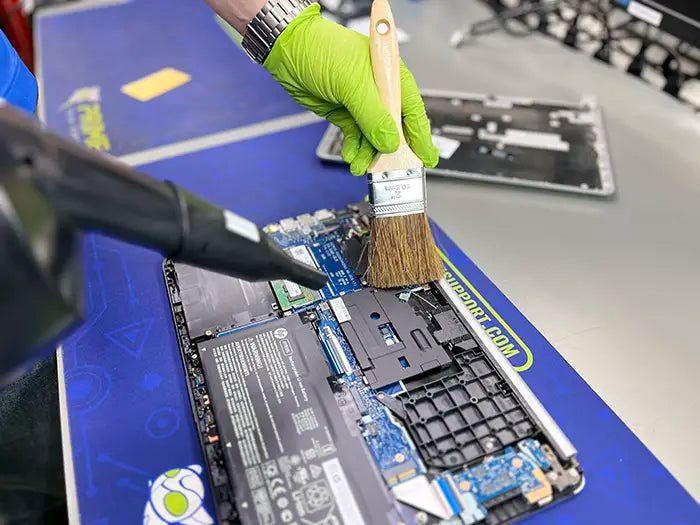
PROFESSIONAL SUPPORT
Computer Repairs
Fast tech support for Computer Repairs. We exceed customer expectations and ensure satisfaction.

Computer Repairs Blog by Techs in Miami
View all-

Computer won’t turn on, shows a black screen, or fails to boot into Windows? Learn how power, RAM, storage, motherboard,...
Why Won’t My Computer Turn On? How to Diagnose Power and Start...
Computer won’t turn on, shows a black screen, or fails to boot into Windows? Learn how power, RAM, storage, motherboard,...
-

If your computer keeps crashing, restarting, shutting down, or displaying blue screens, the cause may be hardware, software, overheating, memory,...
Why Does My Computer Keep Crashing or Restarting? How to Find ...
If your computer keeps crashing, restarting, shutting down, or displaying blue screens, the cause may be hardware, software, overheating, memory,...
-

RAM directly affects multitasking, responsiveness, gaming, and overall computer performance. Learn how much memory modern systems actually need.
How Much RAM Do You Actually Need? Understanding Memory and Re...
RAM directly affects multitasking, responsiveness, gaming, and overall computer performance. Learn how much memory modern systems actually need.