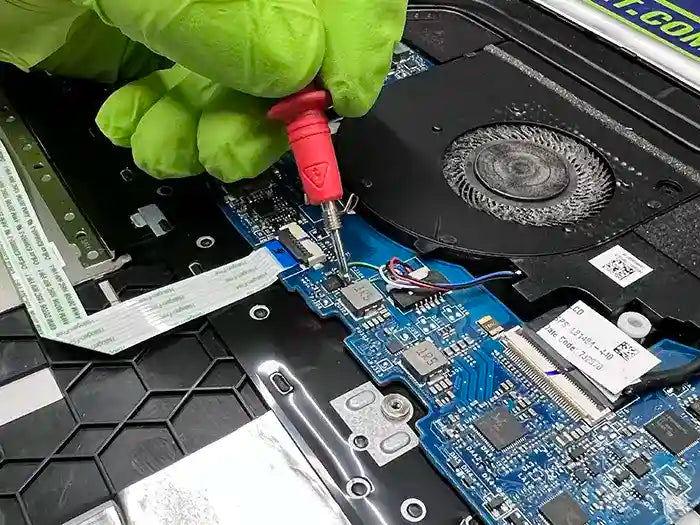
Why Won’t My Computer Turn On? How to Diagnose Power and Startup Problems
When a computer won’t turn on, the cause is not always a failed power supply or a dead computer. What happens immediately after you press the power button can provide important clues about where the problem actually begins.
A computer with no lights, fans, or other signs of power has a very different problem from a PC that powers on but shows a black screen. Likewise, a computer that reaches the manufacturer logo but cannot load Windows is experiencing a different type of failure altogether.
In professional computer diagnostics, identifying how far the computer gets through the startup process is one of the first steps toward isolating the fault. Power supplies, chargers, motherboards, RAM, graphics hardware, storage drives, Windows, and even connected peripherals can all prevent a computer from starting normally.
At Prime Tech Support, we diagnose desktop and laptop computers with startup problems ranging from completely dead systems to machines that power on normally but never reach Windows. In this guide, we’ll explain the most common causes, what different startup symptoms can tell you, which checks are reasonable to perform yourself, and when the problem may require professional diagnosis.
Table of Contents
Computer Won’t Turn On vs. Won’t Boot: Why the Difference Matters
People often use “won’t turn on” and “won’t boot” to describe the same problem, but from a repair standpoint, they can mean very different things. Knowing what the computer actually does after you press the power button can significantly narrow down the possible cause.
A computer that shows no signs of power at all may have a problem with the power source, charger, power supply, charging circuit, motherboard, or another component in the power path. By contrast, a computer that powers on but never reaches Windows is receiving power—the failure is occurring later in the startup process.
No Power at All
If pressing the power button produces no lights, fan movement, sounds, or display activity, diagnosis usually begins with the power path. On a desktop, that can include the outlet, power cable, power supply unit (PSU), motherboard, and power-button circuit. On a laptop, the AC adapter, charging port, battery, and motherboard power circuitry may need to be checked.
Computer Powers On but Shows No Display
If the fans spin or indicator lights appear but the monitor remains black, the computer has passed the first basic test: it is receiving at least some power. The next question is whether the system is successfully completing its initial hardware checks.
RAM that is not detected, graphics problems, motherboard faults, monitor or cable issues, and other hardware conditions can all produce a system that appears to turn on without displaying an image.
Computer Reaches the Logo or BIOS but Won’t Load Windows
If you can see the manufacturer logo, BIOS, or UEFI screen, the diagnostic direction changes again. At this stage, the problem may involve the boot drive, Windows boot files, operating-system corruption, or a storage device that is beginning to fail.
| What the Computer Does | Where Diagnosis Usually Starts |
|---|---|
| No lights, fans, or response | Power source, adapter/PSU, power circuit, motherboard |
| Lights or fans turn on, but there is no display | Monitor connection, RAM, GPU, POST, motherboard |
| Logo or BIOS appears, but the computer does not boot | Boot configuration, storage drive, operating system |
| Windows begins loading but fails | Windows, drivers, storage health, system files |
This distinction is important because replacing parts based only on the phrase “my computer won’t turn on” can lead to unnecessary repairs. A proper diagnosis follows the startup sequence and identifies the point where normal operation stops before determining which component or software layer is responsible.
Common Reasons Your Computer Won’t Turn On
Once you identify how far the computer gets during startup, the list of possible causes becomes much smaller. Some failures prevent power from reaching the system at all, while others allow the computer to start electrically but stop it from completing its hardware checks or loading the operating system.
Power Supply or AC Adapter Problems
For desktop computers, a failing power supply unit (PSU) can prevent the system from powering on or cause only a brief response when the power button is pressed. A PSU does not always fail completely; it may still provide enough power for LEDs or fans while failing to deliver stable power to the motherboard, CPU, or graphics card.
On laptops, similar symptoms can result from a damaged AC adapter, charging cable, DC jack, USB-C charging circuit, or other components responsible for delivering power to the motherboard.
Battery or Charging Circuit Failure
A laptop that will not turn on may have a depleted or failed battery, but the battery itself is not always the problem. If the laptop also fails to operate from a known-good compatible charger, the fault may be farther inside the charging or power circuit.
Charging LEDs can provide useful clues, but they do not prove that the motherboard is receiving all of the voltages required to start the system.
RAM Problems
Memory problems often create a confusing symptom: the computer appears to turn on, but nothing useful happens afterward. Fans may spin and lights may illuminate while the screen remains black because the system cannot successfully complete its power-on self-test (POST).
Loose, incompatible, or failing RAM can cause this behavior. Some systems provide beep codes or diagnostic LEDs when memory initialization fails, while others may simply remain on a black screen.
Graphics or Display Problems
A black screen does not necessarily mean the computer itself failed to start. The system may be running while the display signal is missing because of a monitor, cable, graphics card, display connector, or internal laptop display problem.
This is particularly important with desktop computers that have a dedicated graphics card. Connecting a monitor to the wrong video output can make a functioning PC appear to have a startup failure.
Motherboard or Internal Power Failure
The motherboard distributes power and allows the processor, memory, storage, graphics hardware, and other components to communicate during startup. A failure in its power circuitry or another critical area can therefore produce symptoms ranging from a completely dead computer to a system that powers on but cannot complete POST.
Motherboard problems should generally be confirmed through testing rather than assumed from symptoms alone. A bad PSU, RAM module, connected device, or even another shorted component can sometimes create behavior that resembles motherboard failure.
Storage Drive or Windows Boot Problems
If the computer reaches the BIOS, manufacturer logo, or a Windows recovery screen, the issue is usually no longer a basic power problem. The system has progressed far enough for diagnosis to shift toward the storage device and operating system.
A failing SSD or hard drive, damaged boot configuration, corrupted Windows files, or an interrupted update can prevent the operating system from loading even though the computer itself powers on normally.
If the computer was already showing signs such as freezing, unusually slow file access, or disk-related errors before it stopped booting, the storage device should be evaluated carefully. Our guide to how HDDs and SSDs affect computer performance explains how storage health and drive technology can influence system behavior.
What Your Computer’s Startup Symptoms Can Tell You
The behavior immediately after pressing the power button can provide valuable diagnostic clues. A technician does not look only at whether the computer starts; we also pay attention to lights, fan behavior, sounds, display activity, diagnostic codes, and the exact point where the startup sequence stops.
These symptoms do not identify a failed component with certainty, but they can help determine which part of the system should be tested first.
Nothing Happens When You Press the Power Button
If there are no lights, fans, sounds, or other signs of activity, the problem is likely occurring very early in the power sequence. For a desktop, diagnosis may begin with the electrical outlet, power cable, PSU switch, power supply, case power button, and motherboard connections.
For a laptop, the charger, charging port, battery, and motherboard power circuitry become more relevant. A completely unresponsive computer does not automatically mean the motherboard is dead; the power source and power path should be verified first.
The Fans Spin for a Second and Then Stop
A computer that briefly powers on and immediately shuts back off may be encountering a protection condition or failing during its initial hardware checks. Possible causes include unstable power delivery, a short circuit, motherboard problems, CPU power issues, or improperly installed hardware.
If this behavior began immediately after installing RAM, a graphics card, a power supply, or another internal component, the recent hardware change becomes an important diagnostic clue.
The Computer Turns On, but the Screen Stays Black
If lights and fans remain on but there is no image, first determine whether the computer itself is failing to start or whether the problem is limited to the display path.
A loose display cable, incorrect monitor input, graphics card issue, improperly seated RAM, or failed POST can all produce a black screen. On some systems, motherboard diagnostic LEDs or beep codes can help identify whether the startup process is stopping at the CPU, memory, graphics, or boot-device stage.
The Computer Beeps or Shows Diagnostic Lights
Beep codes and motherboard diagnostic LEDs are designed to provide information when the system cannot complete POST. Depending on the computer or motherboard manufacturer, different patterns may indicate problems involving RAM, the processor, graphics hardware, or another critical component.
The exact meaning of these codes varies by manufacturer and model, so they should be interpreted using the correct documentation rather than a generic beep-code list.
The Computer Repeatedly Turns On and Off
A system that enters a continuous power cycle may be struggling to initialize hardware or maintain stable power. RAM problems, BIOS settings, power delivery faults, motherboard issues, and other hardware conditions can produce this type of behavior.
This symptom is different from a computer that successfully loads Windows and then unexpectedly restarts during use. If the PC reaches Windows before the problem occurs, our guide on why a computer keeps crashing or restarting covers that type of instability in more detail.
The Computer Reaches the Logo but Goes No Further
If the manufacturer logo appears, the system has already made more progress than a computer with a basic no-power condition. At this stage, diagnosis may shift toward the boot drive, connected USB devices, BIOS or UEFI configuration, storage detection, and the operating system.
For example, a storage drive that is failing or no longer detected can leave the computer stuck during startup or produce messages indicating that no bootable device was found.
Windows Starts Loading and Then Fails
If the Windows logo or loading animation appears, the computer has generally progressed beyond the initial power and POST stages. Problems at this point are more likely to involve Windows system files, drivers, updates, the storage device, or another issue that occurs as the operating system loads.
The exact failure matters. A blue screen, automatic repair loop, frozen loading screen, and sudden restart are different symptoms and should not automatically be treated as the same problem.
For example, driver-related startup and stability problems require a different approach from a system that cannot complete POST. We cover those issues separately in our guide to updating and troubleshooting computer drivers.
How to Diagnose a Computer That Won’t Start
Diagnosing a computer that will not start is most effective when it is done in stages. Instead of immediately replacing the power supply, motherboard, RAM, or storage drive, the goal is to determine where the normal startup sequence stops and then test the components involved at that stage.
1. Confirm the Power Source
The first step is to eliminate simple external power problems. For a desktop, this means verifying the outlet, surge protector, power cable, and PSU power switch. For a laptop, the charger and charging connection should be inspected for damage or abnormal behavior.
A known-good compatible power source can be useful during diagnosis because a charger or power cable may look normal while failing under load.
2. Observe What Happens When Power Is Applied
Next, pay attention to the computer’s response. Do fans begin spinning? Do keyboard or motherboard lights appear? Does the system power off immediately? Are there beep codes or diagnostic LEDs? Does the display ever receive a signal?
These observations help establish whether the problem occurs during initial power delivery, POST, display initialization, storage detection, or operating-system startup.
3. Rule Out External Devices
A malfunctioning peripheral or connected device can occasionally interfere with startup. Unnecessary USB devices, external drives, docks, printers, and other accessories can be disconnected to determine whether the computer behaves differently with only essential hardware attached.
This is particularly useful when the problem appeared immediately after connecting a new device.
4. Determine Whether the Computer Completes POST
POST, or the power-on self-test, is one of the most important dividing points in startup diagnosis. During this stage, the system initializes critical hardware such as the processor, RAM, and graphics hardware before attempting to load the operating system.
A computer that cannot complete POST may show a black screen, diagnostic light, beep code, or repeated power cycle. At this point, testing focuses more heavily on core hardware rather than Windows.
5. Check Whether the Storage Drive Is Detected
If the computer reaches BIOS or UEFI, the next question is whether the SSD or hard drive containing the operating system is recognized. A missing boot drive can indicate a connection problem, drive failure, or another storage-related fault.
If the drive is detected but Windows still does not load, additional testing may be needed to separate an operating-system problem from a storage device that is becoming unreliable.
6. Test Components Instead of Guessing
When the basic checks do not reveal the cause, diagnosis becomes a process of controlled testing. Depending on the symptoms, this can include testing the power supply under load, checking RAM modules individually, verifying graphics output, evaluating storage health, inspecting motherboard power delivery, or testing with known-good compatible components.
This step matters because several different failures can produce nearly identical symptoms. A black screen, for example, can originate from RAM, graphics hardware, the motherboard, the monitor, or another part of the startup process.
Replacing components based only on symptoms can become expensive quickly. A proper diagnostic process narrows the failure down before recommending a repair or replacement.
What You Can Safely Check at Home
Before assuming that a major component has failed, there are several basic checks you can perform without specialized diagnostic equipment. The goal is not to disassemble the computer or test individual circuits, but to rule out simple problems that can make a working system appear completely dead.
Check the Outlet and Power Connection
Start with the power source. Test the outlet with another device, make sure the power cable is fully connected, and check whether a surge protector or power strip has been switched off or tripped.
On a desktop computer, verify that the switch on the back of the power supply is in the correct position. On a laptop, inspect the charger and cable for visible damage and make sure the connector fits securely.
Check the Monitor and Display Connection
If the computer has lights or spinning fans but the screen remains black, confirm that the monitor itself has power and is set to the correct input. Reseat the HDMI or DisplayPort cable at both ends and, when possible, test with another known-good cable or display.
Desktop computers with a dedicated graphics card require extra attention. The monitor generally needs to be connected to the graphics card rather than the motherboard video output, depending on the system configuration.
Disconnect Unnecessary USB Devices
Shut the computer down and disconnect nonessential external devices such as USB drives, external hard drives, printers, hubs, docks, and other accessories. Then try starting the computer with only the essential display, keyboard, and mouse connected.
If the computer starts normally afterward, reconnect the devices one at a time. This can help identify a peripheral or connection associated with the startup problem.
Pay Attention to Beeps and Diagnostic Lights
If the computer produces a repeating beep pattern or displays motherboard diagnostic LEDs, write down the pattern before attempting anything else. On branded desktops and laptops, you may also see power or charging LEDs flash in a specific sequence.
These codes can provide useful diagnostic information, but their meanings vary between manufacturers and models. Use the documentation for the specific computer or motherboard rather than assuming that a particular number of beeps means the same thing on every system.
Think About What Changed Before the Problem Started
The timing of the failure can be just as useful as the symptom itself. Consider whether the computer stopped starting after a Windows update, hardware upgrade, power outage, electrical surge, move to another location, new peripheral, or previous period of instability.
For example, if a computer was freezing randomly before it eventually stopped booting, that history can help guide testing toward components that may already have been showing signs of instability.
Know When to Stop Troubleshooting
If you smell burning, see physical damage, hear electrical clicking or arcing, notice a swollen laptop battery, or see signs of liquid exposure, disconnect power and stop troubleshooting. Continuing to repeatedly power the computer on can make certain failures worse.
You should also avoid opening a desktop power supply or attempting motherboard-level electrical testing without the appropriate equipment and experience. Power supplies contain components that can retain dangerous electrical charge even after the computer has been unplugged.
If the external checks do not identify the problem, the next step should be targeted component testing rather than repeatedly attempting to power the system on or replacing parts at random.
When a Startup Problem Points to Hardware Failure
Not every computer that refuses to start has a failed component. Loose connections, display problems, corrupted Windows files, and external devices can all interfere with startup. However, certain symptoms make a hardware-related failure more likely, especially when they appear repeatedly or become progressively worse.
The Computer Was Unstable Before It Stopped Starting
Hardware failures do not always happen instantly. A computer may begin freezing, restarting unexpectedly, producing errors, or becoming increasingly unreliable before it eventually stops booting.
This progression can occur with failing storage drives, unstable RAM, deteriorating power supplies, overheating components, and motherboard faults. The computer’s behavior in the days or weeks before the startup failure can therefore be an important part of the diagnosis.
Power Cuts Out Immediately After Startup
If the computer receives power but shuts off almost immediately, especially before reaching the manufacturer logo or BIOS, the problem is less likely to originate inside Windows. Power delivery, motherboard circuitry, CPU initialization, a shorted component, or another low-level hardware condition may need to be investigated.
The timing matters. A PC that shuts down within one or two seconds is diagnostically different from one that runs long enough to load Windows and then restarts under heavy use.
POST Fails Consistently
A computer that repeatedly powers on but cannot complete POST may have a problem with one of the components required during early startup. RAM, graphics hardware, the CPU, motherboard, or power delivery can all be involved.
Diagnostic LEDs, beep codes, or manufacturer-specific error patterns can help narrow the failure, but they should be treated as diagnostic clues rather than absolute proof that a particular component needs replacement.
The SSD or Hard Drive Disappears Intermittently
If the boot drive sometimes appears in BIOS or UEFI and sometimes does not, storage hardware becomes a significant concern. Intermittent detection can result from the drive itself, its connection, or the motherboard interface.
A failing storage device may also be preceded by slow file access, freezing, corrupted files, boot errors, or increasingly long startup times. If important files are stored on the computer, repeated boot attempts or unnecessary repair operations should be avoided until the condition of the drive is understood.
The Problem Started After a Power Event
A startup failure that begins immediately after a power outage, electrical surge, or abrupt loss of power deserves additional attention. Depending on the event and the system, the PSU, motherboard, storage device, or other components may have been affected.
The presence of lights or spinning fans does not rule out electrical damage. A system can receive partial power while still being unable to initialize correctly.
There Are Physical Warning Signs
Burning smells, visible scorching, damaged connectors, liquid residue, unusual electrical noises, or a swollen battery are all reasons to stop attempting to start the computer.
These symptoms require a different approach from ordinary software troubleshooting. Continuing to apply power can potentially damage additional components or complicate recovery of data stored on the system.
Ultimately, hardware failure should be confirmed through testing whenever possible. The symptom tells us where to investigate; it does not automatically tell us which part to replace.
How Professional Computer Diagnostics Isolates the Problem
When basic checks do not reveal why a computer will not start, professional diagnosis moves beyond symptoms and begins testing the system in a controlled way. The objective is to isolate the failure while avoiding unnecessary component replacement.
At Prime Tech Support, the diagnostic path depends on what the computer actually does. A completely dead desktop is approached differently from a laptop with charging lights but no response, or a PC that powers on and fails POST.
Power Delivery Is Tested First When Necessary
For a system showing no power or unstable power behavior, the electrical path is evaluated before assuming the motherboard has failed. Depending on the computer, this can involve verifying the AC adapter or PSU, checking connections, examining power delivery to the motherboard, and testing with known-good compatible components.
This is important because a failing power supply can sometimes produce enough output to illuminate LEDs or spin fans while still failing when the rest of the system attempts to initialize.
Hardware Isolated to Find the Failing Stage
When a computer receives power but cannot complete POST, testing shifts toward the hardware required for startup. RAM, graphics hardware, motherboard connections, and other essential components can be isolated and tested based on the symptoms and diagnostic codes produced by the system.
For example, testing memory modules individually can help distinguish a failed module from a motherboard memory-slot problem. Similarly, testing with known-good hardware can help determine whether a no-display condition originates from the graphics hardware or elsewhere in the system.
Storage Health and Boot Integrity Are Evaluated Separately
If the computer completes POST but cannot load Windows, the focus moves farther down the startup sequence. The SSD or hard drive can be checked for detection and health before attempting operating-system repairs.
This distinction matters when important data is involved. A Windows startup problem may be repairable at the software level, but a physically failing storage device requires a different approach. Performing repeated repairs or reinstallations without first considering drive health can create unnecessary risk when the underlying problem is hardware-related.
The Diagnosis Is Confirmed Before Parts Are Replaced
One of the biggest advantages of systematic testing is the ability to separate similar symptoms. A computer that powers on with no display could have a RAM problem, graphics failure, motherboard issue, display problem, or another fault. Simply replacing the most likely part is not the same as diagnosing the system.
A good repair decision should answer two questions: what actually failed, and does repairing it make sense for the computer? Once the cause has been isolated, the condition and value of the system, cost of the repair, and importance of the data can all be considered before moving forward.
When to Get Professional Computer Repair
Some startup problems can be resolved by correcting a loose cable, disconnecting a problematic peripheral, or fixing an operating-system issue. Others require component testing that is difficult to perform accurately without known-good parts, diagnostic equipment, or experience interpreting the symptoms.
Professional diagnosis becomes particularly useful when the computer shows power but cannot complete POST, repeatedly turns on and off, stops detecting its storage drive, or remains completely unresponsive after the basic external checks have been completed.
You Have Important Data on the Computer
If important documents, photos, business files, or other irreplaceable data are stored on the computer, the priority should not always be getting Windows to start as quickly as possible.
A failing SSD or hard drive can sometimes be responsible for the boot problem. Repeated startup attempts, resets, reinstallations, or other unnecessary write operations may complicate the situation. When storage failure is suspected, protecting the data should be considered before aggressive software repair.
The Computer Powers On but Never Reaches BIOS or Windows
A system that receives power but consistently fails before reaching BIOS or the operating system often requires hardware isolation. Without testing, it can be difficult to distinguish between RAM, graphics, motherboard, CPU, or power-delivery problems because several of these failures can produce very similar symptoms.
You Have Already Tried the Basic Checks
If you have verified the outlet and power connections, checked the monitor, disconnected unnecessary peripherals, and observed the system for diagnostic lights or beep codes without finding the cause, replacing parts at random is usually not the best next step.
Testing the system systematically can often identify the failure without purchasing components that were never defective.
There Are Signs of Electrical or Physical Damage
Stop attempting to power on the computer if there is a burning smell, visible electrical damage, liquid exposure, a swollen battery, or unusual electrical noises. These conditions should be inspected before additional power is applied.
For laptops in particular, a swollen battery should not be punctured, compressed, or handled unnecessarily.
Computer won’t turn on or boot? If the basic checks have not identified the cause, Prime Tech Support can diagnose the power, hardware, storage, and startup problem before you spend money replacing parts unnecessarily.
Final Thoughts
When a computer won’t turn on, the most important clue is often not simply that it “doesn’t work,” but how far it gets through the startup process.
A computer with no power requires a different diagnostic approach from one that powers on with a black screen. A system that reaches BIOS but cannot find its boot drive is different again, and a computer that begins loading Windows before failing has already passed several important hardware stages.
Pay attention to what happens when you press the power button: lights, fan behavior, beep codes, diagnostic LEDs, display activity, error messages, and the point where startup stops. Those details can significantly narrow the possible causes.
Most importantly, avoid assuming that the motherboard, power supply, RAM, or storage drive needs replacement based on one symptom alone. Several different failures can look almost identical until the system is properly tested.
Diagnosis should come before parts replacement. Finding the actual cause can prevent unnecessary repairs, protect important data, and help determine whether repairing the computer makes financial sense.
Computer Won’t Turn On? Let’s Find Out Why.
If your desktop or laptop has no power, turns on with a black screen, fails POST, or cannot boot into Windows, Prime Tech Support can diagnose the problem and identify what is actually preventing the system from starting.
We provide professional computer diagnostics and repair in Miami for power problems, hardware failures, startup issues, storage problems, and other computer faults.

PROFESSIONAL SUPPORT
Computer Repairs
Fast tech support for Computer Repairs. We exceed customer expectations and ensure satisfaction.

Computer Repairs Blog by Techs in Miami
View all-

Does your computer keep opening BIOS instead of loading Windows? Learn why BIOS startup problems happen, how to identify SSD...
Why Is My Computer Stuck on the BIOS Screen? Causes, Diagnosis...
Does your computer keep opening BIOS instead of loading Windows? Learn why BIOS startup problems happen, how to identify SSD...
-

Your computer turns on, the fans spin, and the lights come on—but the monitor stays black or says “No Signal.”...
Computer Turns On but No Display: Causes, Diagnosis, and Repair
Your computer turns on, the fans spin, and the lights come on—but the monitor stays black or says “No Signal.”...
-

A failing computer power supply can cause sudden shutdowns, random restarts, startup problems, or instability under heavy load. Learn the...
How to Tell If Your Computer Power Supply Is Failing: PSU Warn...
A failing computer power supply can cause sudden shutdowns, random restarts, startup problems, or instability under heavy load. Learn the...