

Can a Swollen Battery Cause Trackpad Failure on a MacBook Pro? Signs, Diagnosis, and Repair
A MacBook Pro trackpad that suddenly stops clicking does not always mean the trackpad itself has failed. One of the most common causes is a swollen battery pressing upward from beneath the trackpad assembly. Because modern MacBook trackpads rely on pressure sensing and haptic feedback rather than a traditional mechanical click, even slight internal pressure can disrupt how the click feels or stop it completely. The result is a trackpad that may still move the cursor but no longer clicks normally. Apple’s Force Touch trackpads detect pressure and provide haptic feedback, which is why battery pressure can change the trackpad’s behavior even when the glass surface still appears intact.
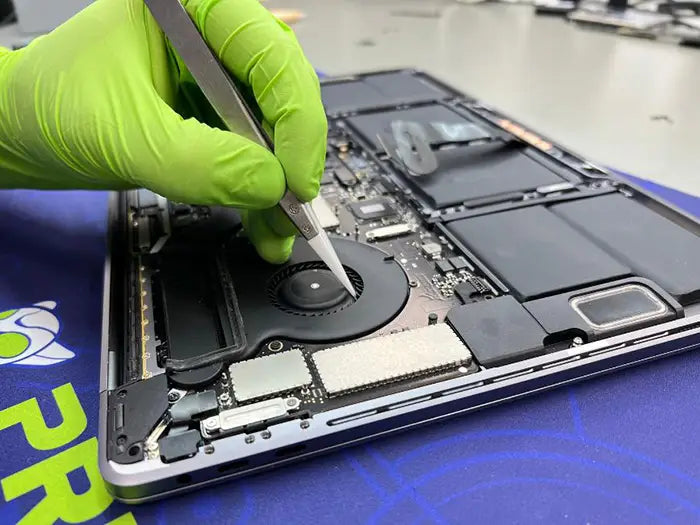
In a MacBook Pro, the battery is positioned directly beneath the trackpad assembly. This design is efficient for space and weight distribution, but it also means that any physical change in the battery—especially swelling—can immediately affect how the trackpad behaves.
When a lithium-ion battery begins to swell, it expands upward due to internal gas buildup. This expansion creates pressure against nearby components, and the trackpad is one of the first to be affected because it sits directly above the battery cells. Even a slight increase in thickness can interfere with the trackpad’s ability to register clicks properly.
Modern MacBook trackpads, particularly those using Force Touch technology, do not rely on a traditional mechanical click. Instead, they use pressure sensors and haptic feedback to simulate the feeling of a click. Because of this, the system depends on precise spacing and consistent pressure detection. When a swollen battery pushes against the underside of the trackpad, it disrupts that calibration.
Table of Contents
Yes, a Swollen Battery Can Stop a MacBook Trackpad From Clicking
In a MacBook Pro, the battery is positioned directly beneath the trackpad assembly. This design is efficient for space and weight distribution, but it also means that any physical change in the battery—especially swelling—can immediately affect how the trackpad behaves.
When a lithium-ion battery begins to swell, it expands upward due to internal gas buildup. This expansion creates pressure against nearby components, and the trackpad is one of the first to be affected because it sits directly above the battery cells. Even a slight increase in thickness can interfere with the trackpad’s ability to register clicks properly.
Modern MacBook trackpads, particularly those using Force Touch technology, do not rely on a traditional mechanical click. Instead, they use pressure sensors and haptic feedback to simulate the feeling of a click. Because of this, the system depends on precise spacing and consistent pressure detection. When a swollen battery pushes against the underside of the trackpad, it disrupts that calibration.
The result is a very specific pattern of failure:
- The cursor still moves normally
- Clicking becomes difficult or completely unresponsive
- The trackpad may feel stiff or “flat”
- In some cases, the click disappears entirely
This is why many users assume the trackpad itself has failed, when in reality, the issue is coming from underneath it. The trackpad hardware may still be fully functional, but it can no longer operate correctly because of the pressure being applied from the expanding battery.
In real diagnostic cases, this is one of the most common misdiagnosed problems. Replacing the trackpad alone will not fix the issue if the battery is the source of the pressure. Identifying this relationship early is critical, because it changes the repair path entirely—from a trackpad replacement to a battery replacement and internal inspection.
Why Battery Swelling Affects Trackpad Function
To understand why battery swelling affects the trackpad, you need to look at how modern MacBook trackpads actually work.
Unlike older laptops that relied on a physical hinge and switch, MacBook Pro models use Force Touch trackpads, which are built around pressure sensors and a haptic feedback system (often referred to as the Taptic Engine). There is no true “click” happening mechanically. Instead, the trackpad detects the amount of pressure applied by your finger and then simulates a click through vibration.
This design depends on extremely precise spacing and calibration between the trackpad surface, its sensors, and the components beneath it.
When the battery begins to swell, it introduces constant upward pressure from below the trackpad. This creates several problems at once:
- The pressure sensors can no longer detect input accurately
- The haptic feedback system becomes inconsistent or stops responding
- The trackpad surface loses its normal range of movement
- The system may not register a “click” threshold at all
This is why one of the most confusing symptoms appears: the cursor still moves, but the trackpad won’t click.
Cursor movement relies on position tracking, which can still function even under slight pressure. However, the “click” depends on detecting a specific force threshold and triggering haptic feedback. When the trackpad is already being pushed from underneath, it cannot properly measure that change in pressure—so the click either feels weak, delayed, or disappears completely.
In more advanced cases, the trackpad may feel completely rigid or “dead,” even though the internal electronics are still working. This often leads to incorrect repairs, where the trackpad is replaced unnecessarily without addressing the real issue—the swollen battery applying continuous internal stress.
Understanding this distinction is critical. The trackpad is not always failing; it is often being mechanically interfered with by battery expansion, which prevents it from functioning as designed.
Common Signs the Battery Is Causing the Trackpad Problem
Battery-related trackpad issues follow a very specific and repeatable pattern. In our repair lab, this is one of the most commonly misdiagnosed MacBook problems, because the symptoms appear to point to a failed trackpad when the real issue is happening underneath it.
Instead of looking at a single symptom in isolation, it’s important to evaluate how the problem presents as a whole.
Trackpad becomes hard to press
One of the earliest signs is a change in how the trackpad feels.
It may:
- Require more force than usual
- Feel stiff or “tight”
- Lose its normal responsiveness
This happens because the swollen battery is applying constant upward pressure, reducing the trackpad’s ability to move or register pressure correctly.
In our lab, this is often the first indicator before the click fails completely.
Click disappears completely
As the pressure increases, the trackpad may stop clicking entirely.
This does not necessarily mean the trackpad is defective. Instead, the system can no longer detect the pressure threshold required to trigger the click.
We frequently see devices where:
- The trackpad surface is intact
- The electronics are functional
- But the click is completely gone due to mechanical interference
Cursor may still move
Important Diagnostic Insight
A trackpad that still moves but won’t click is rarely a complete hardware failure. In many cases, this points to pressure interference from beneath the trackpad rather than a defective component.
This is one of the most important diagnostic clues.
If the cursor still moves normally but the trackpad won’t click, the issue is rarely a total trackpad failure.
This happens because:
- Movement is controlled by position tracking
- Clicking is controlled by pressure detection and haptic feedback
When battery pressure interferes with the system, clicking fails first, while movement continues to work.
In our lab, this symptom combination is one of the strongest indicators of battery-related interference.
Bottom case bulging
As swelling progresses, physical changes become visible.
You may notice:
- The bottom cover no longer sits flush
- A slight gap along the edges
- Uneven surfaces when placed on a flat table
This indicates that the battery expansion has reached a level where it is affecting the device structure—not just the trackpad.
Palm rest lifting
In more advanced cases, the top case around the trackpad may begin to lift. This is caused by internal pressure spreading across the chassis and pushing components upward. At this stage, the issue is no longer isolated—it is affecting multiple parts of the device.
Battery service warning may appear
macOS may display a battery warning indicating that the battery is no longer functioning properly.
According to Apple Inc., a “Service Recommended” status means the battery should be evaluated or replaced. While this warning does not always appear in early stages, when combined with trackpad symptoms, it strongly supports a battery-related diagnosis.
How to Read These Symptoms Together
Individually, these symptoms can be misleading.
But when they appear together—especially:
- Cursor movement works
- Click fails
- Trackpad feels stiff
—they form a clear diagnostic pattern.
In our repair lab, this combination is one of the most frequent indicators that the issue is battery pressure, not trackpad failure.
Not sure if these symptoms match your issue?
If your MacBook doesn’t match this exact pattern, the cause may be different.
See our full guide to MacBook Pro Trackpad Not Clicking: Causes & Repair to explore all possible causes and repair paths.
How to Confirm the Battery Is Causing the Trackpad Issue

Instead of comparing every possible cause, the goal here is to confirm whether the battery is responsible for the trackpad issue.
In many cases, this can be determined without replacing any parts—simply by recognizing a consistent pattern of symptoms and behavior.
In our repair lab, confirming battery-related pressure is often faster than testing the trackpad itself, because the symptom combination is highly specific.
Step 1: Check How the Trackpad Fails
Start by observing how the trackpad behaves:
- Does the cursor move normally?
- Does the click fail or feel inconsistent?
If movement works but clicking does not, this is one of the strongest indicators that the issue is pressure-related rather than electronic.
This is because movement and clicking rely on different systems. When battery pressure interferes with the trackpad, clicking fails first.
Step 2: Feel for Mechanical Resistance
Pay attention to how the trackpad feels when pressed.
A battery-related issue will often cause the trackpad to:
- Feel stiff or unusually firm
- Lose its normal “give”
- Respond inconsistently to pressure
In our lab, this mechanical resistance is one of the clearest signs of internal pressure affecting the trackpad assembly.
Step 3: Look for Physical Signs of Expansion
Next, inspect the device externally.
Signs that support a battery-related cause include:
- Bottom case not sitting flush
- Slight bulging or separation along the edges
- Palm rest or trackpad area lifting
These are strong indicators that the issue is not isolated to the trackpad, but coming from internal expansion.
Step 4: Consider When the Problem Started
Timing is a critical diagnostic clue.
Battery-related trackpad issues typically:
- Develop gradually over time
- Become worse as pressure increases
If the problem appeared suddenly after a repair, the cause may be different—often related to installation or cable damage.
In those cases, see our guide to MacBook Pro trackpad flex cable repair.
Step 5: Check for Battery Warnings
macOS may display a battery warning such as “Service Recommended.”
According to Apple Inc., this indicates the battery is no longer functioning normally.
While this warning alone does not confirm swelling, when combined with trackpad symptoms, it strongly supports a battery-related diagnosis.
When You Can Be Confident It’s the Battery
In our repair lab, when we see the following combination:
- Cursor movement works normally
- Clicking fails or feels inconsistent
- Trackpad feels stiff
- Issue worsens over time
Strong Indicator of Battery-Related Failure
If your cursor moves normally but the trackpad won’t click and feels stiff, this is one of the most reliable signs that internal battery pressure—not the trackpad—is causing the issue.
We can confidently identify the problem as battery-related pressure in most cases.
This is one of the most commonly misdiagnosed MacBook trackpad issues we encounter.
Trackpad Not Clicking After Battery Replacement (Common Repair Mistake)

Not all battery-related trackpad issues are caused by natural swelling.
In many cases we see in our repair lab, the problem starts after a battery replacement, especially when the installation was done incorrectly.
This is one of the most common real-world scenarios behind a trackpad that suddenly stops clicking—even when a brand-new battery has just been installed.
Why Battery Replacement Can Create Trackpad Problems
The internal layout of a MacBook Pro is extremely tight and highly dependent on precise component positioning.
The battery sits directly beneath the trackpad, meaning even small installation errors can introduce mechanical pressure or interference.
In our lab, we commonly see issues caused by:
- Batteries not seated completely flat
- Adhesive applied unevenly or excessively
- Slight misalignment during installation
- Missing or improperly secured mounting points
Any of these can create uneven upward pressure against the trackpad, producing the same symptoms as a swollen battery.
When Installation Causes the Same Symptoms as Swelling
One of the most confusing aspects of this issue is that improper installation mimics battery swelling almost perfectly.
Users often report:
- Trackpad feels stiff or harder to press
- Clicking becomes inconsistent or disappears
- Cursor movement still works
This leads many to believe the replacement battery is defective, when in reality, the issue is how it was installed—not the battery itself.
Hidden Issue: Trackpad Flex Cable Damage
Beyond pressure-related issues, battery replacement can also affect the trackpad flex cable and connector.
This can happen when:
- The cable is pulled or bent during removal
- The connector is not aligned properly during reinstallation
- Excess force is used when reconnecting components
In these cases, the symptoms may include:
- No click response at all
- Intermittent trackpad behavior
- Delayed or weak haptic feedback
If your issue started after a repair, it may not be pressure—it could be cable damage. Learn more in our guide to MacBook Pro trackpad flex cable repair.
Why Replacing the Trackpad Doesn’t Fix It
This is where many repairs go wrong.
If the root cause is:
- Uneven battery pressure
- Misalignment
- Cable or connector damage
Then replacing the trackpad alone will not resolve the issue.
In our lab, we frequently see devices where:
- The trackpad was replaced
- The problem remained unchanged
because the actual cause was never addressed.
When to Suspect a Battery Replacement Issue
You should strongly consider this cause if:
- The problem started immediately after a battery replacement
- The trackpad worked fine before the repair
- The symptoms match pressure-related failure
- There are no visible signs of battery swelling
This pattern is one of the most common indicators of installation-related issues.
The Correct Repair Approach
In these cases, the solution is not guesswork—it requires proper inspection.
A correct repair typically involves:
- Verifying battery alignment and seating
- Inspecting adhesive placement
- Checking trackpad flex cable and connectors
- Reassembling components with proper positioning
Is It Safe to Keep Using a MacBook With Battery Swelling?
The short answer is no—it is not safe to continue using a MacBook with a swollen battery.
While many users initially notice the issue because of trackpad problems, battery swelling is not just a functional defect—it is a hardware failure with potential safety risks.
What Battery Swelling Actually Means
A swollen battery is a sign that the internal chemical structure of the lithium-ion cells has begun to break down.
As this happens:
- Gas builds up inside the battery
- The battery expands beyond its original shape
- Internal pressure increases against surrounding components
In our repair lab, when we see a swollen battery, we treat it as a progressive failure, not a stable condition.
Why Continued Use Is Risky
Using a MacBook with a swollen battery can lead to several escalating issues:
-
Increased internal pressure
The battery continues to expand, placing stress on the trackpad, keyboard, and internal components -
Damage to surrounding hardware
Prolonged pressure can affect cables, connectors, and even the logic board -
Overheating and instability
A degraded battery may behave unpredictably, especially under load or while charging -
Risk of rupture or failure
If the battery is punctured or continues to degrade, it can release gases or, in rare cases, fail catastrophically
According to Apple Inc., batteries that show signs of failure or display a “Service Recommended” warning should be evaluated and replaced, as they are no longer functioning within normal parameters.
When You Should Stop Using the Device Immediately
You should power down the device and stop using it if you notice:
- Visible bulging of the bottom case
- The trackpad or keyboard lifting
- A strong or unusual smell
- The device overheating more than usual
- Rapid worsening of trackpad issues combined with physical deformation
At this stage, continuing to use or charge the device increases the risk of further damage.
Why This Is Often Ignored
Many users continue using their MacBook because:
- The device still turns on
- The issue seems limited to the trackpad
- There is no immediate failure
However, in real diagnostics, this is a mistake.
Battery swelling does not stabilize—it continues to worsen over time, increasing both hardware damage and risk.
What You Should Do Instead
If you suspect battery swelling:
- Power off the device
- Avoid charging it unnecessarily
- Do not attempt to press down or “flatten” the battery
- Seek a professional inspection as soon as possible
Battery swelling is not just the cause of your trackpad issue—it’s a warning sign that the device needs immediate attention. Addressing it early can prevent more serious damage and ensure a safer repair process.
Real Repair Case: Trackpad Failure After DIY Battery Replacement
In a real case in our repair lab, a customer brought in a MacBook Pro 13-inch (2019) after attempting a DIY battery replacement.
Immediately after the repair, two major issues appeared:
- The trackpad stopped responding completely
- The cooling fan began running at full speed
At first glance, this could easily be misinterpreted as a logic board issue or a defective replacement battery. However, a proper diagnostic process revealed a different cause.
Initial Observations
During disassembly, several signs pointed to improper installation:
- A small internal washer had been misplaced
- Components were not properly aligned
- The battery installed was an aftermarket unit
While none of these alone confirmed the root cause, they indicated that the issue likely originated during the repair process.
Why the Fan Running at Full Speed Matters
One of the most important clues in this case was the cooling fan behavior.
In many MacBook models, a fan running constantly at maximum speed is not caused by overheating alone. It often indicates a sensor or communication failure within the system.
In our lab, this symptom immediately shifts the diagnostic focus toward:
- Cable connections
- Sensor communication lines
- Connector integrity
Understanding the Trackpad System in This Model
This MacBook uses a Force Touch trackpad system, meaning:
- There is no traditional mechanical click
- Input is detected through pressure sensors
- Click feedback is generated by a haptic (electromagnetic) system
Because of this design, the trackpad depends heavily on proper electrical communication with the logic board.
If that communication is interrupted, the trackpad can stop functioning entirely—even if the hardware itself is intact.
The Root Cause Found Under Microscope
Using a precision inspection microscope, the technician examined the trackpad connection and identified the actual failure:
- The trackpad flex cable connector had damaged pins
- The damage was located on the cable-side connector
- Several pins were broken, preventing proper signal transmission
This type of damage is commonly caused during DIY repairs when:
- The cable is pulled at an angle
- The connector is misaligned during reinstallation
- Excess force is applied
Why the Symptoms Were Misleading
This case is a perfect example of how symptoms can point in the wrong direction:
Trackpad not working → assumed trackpad failure
Fan at full speed → assumed overheating
Issue after battery replacement → assumed defective battery
But the real issue was connector damage affecting communication, not the battery or trackpad itself.
The Correct Repair Solution
The repair did not involve replacing the trackpad or battery again.
Instead, the technician:
- Replaced the damaged trackpad flex cable
- Properly seated all connectors
- Reassembled the device with correct alignment
After repair:
- Trackpad functionality returned to normal
- Cooling fan behavior stabilized
What This Case Proves
In our repair lab, this is one of the most common post-repair scenarios we encounter.
It highlights a critical point:
Battery-related trackpad issues are not always caused by swelling alone.
They can also result from:
- Installation errors
- Connector damage
- Cable misalignment
This is why accurate diagnosis is essential before replacing any components.
So, Can a Swollen Battery Cause Trackpad Failure on a MacBook Pro?
Yes—and in many real-world cases, it’s the actual cause.
A MacBook trackpad that stops clicking is often assumed to be a failed component. However, as we’ve seen throughout this guide, the trackpad is frequently not the root of the problem, but the first part affected by something happening underneath it.
In our repair lab, battery-related pressure is one of the most common causes of a trackpad that:
- Stops clicking
- Feels stiff or unresponsive
- Still allows normal cursor movement
This happens because the battery sits directly beneath the trackpad. When it swells—or is installed incorrectly—it interferes with the trackpad’s ability to detect pressure and generate a proper click.
The Key Takeaway
If your MacBook trackpad:
- Moves the cursor normally
- Does not click or feels inconsistent
- Has gradually worsened over time
There is a strong possibility that the issue is battery-related, not a failed trackpad.
This is one of the most commonly misdiagnosed MacBook problems we see.
Why Proper Diagnosis Matters
Replacing the trackpad without addressing the battery will not fix the issue.
In many cases, this leads to:
- Unnecessary repair costs
- Repeated failures
- Frustration from unresolved symptoms
The correct approach is to identify the root cause first—whether it’s:
- Battery swelling
- Installation error
- Or internal component interference
If you're not sure what’s causing your issue, see our complete guide to MacBook Pro Trackpad Not Clicking: Causes & Repair for a full breakdown of all possible causes.
Final Insight from Our Lab
In real diagnostics, the trackpad is rarely the failure point in these scenarios.
It is simply the component that reveals the problem first.
Understanding what’s happening beneath it is what leads to a correct—and lasting—repair.
Get a Real Diagnosis Before Replacing Parts
A MacBook trackpad that stops clicking is one of the most commonly misdiagnosed issues we see in our repair lab.
In many cases, the trackpad itself is not the problem. The real cause is often:
- Battery swelling creating internal pressure
- Improper battery installation after a repair
- Hidden cable or connector damage
Replacing parts without confirming the root cause can lead to:
- Unnecessary repair costs
- Repeated failures
- More damage to internal components
- Why a Proper Diagnostic Matters
A professional diagnostic allows us to:
- Identify whether the issue is battery-related or not
- Detect internal pressure or alignment problems
- Inspect trackpad cables and connectors
- Prevent unnecessary trackpad replacement
In our lab, many devices come in after failed repairs where the wrong part was replaced first. A correct diagnosis avoids that completely.
Mail-In and Local Repair Options
Whether you're dealing with a swollen battery or a trackpad that won’t click, we offer:
- Full MacBook diagnostic services
- Battery replacement with proper installation
- Trackpad and flex cable repair
- Mail-in repair options available nationwide
Need Professional Support?
A MacBook trackpad that stops clicking is one of the most commonly misdiagnosed issues. Our technicians can identify the real cause and prevent unnecessary repairs.
Schedule ConsultationShare this
Explore more
Related Mac Repair Articles


Frequently Asked Questions About MacBook Pro Trackpad Issues Caused by Battery Swelling
Can a swollen battery cause a MacBook Pro trackpad to stop clicking?
How can you tell if the battery is causing the trackpad problem?
Will replacing the trackpad fix the clicking issue?
Can a swollen battery damage the trackpad permanently?
What usually causes a MacBook Pro battery to swell?
Why does a MacBook Pro trackpad stop clicking after a battery replacement?
Is it safe to keep using a MacBook Pro with a swollen battery?
How do professionals diagnose MacBook Pro trackpad problems caused by battery swelling?
Can this type of issue happen in other laptops too?
MacBook Not Working? Get Expert Diagnosis and Repair Options
If your MacBook is experiencing issues, getting a proper diagnosis is the first step. Many problems that seem like major failures can often be resolved with targeted component-level repairs.
At Prime Tech Support, we specialize in advanced MacBook diagnostics and repairs, including issues that other shops may not be able to resolve.
In Miami? Get Local Mac Repair Service
Our team is ready to help you . We offer same-day repairs
Not in Miami? Use Our Mac Mail-In Repair Service
We offer secure nationwide mail-in repairs with fast turnaround times and professional diagnostics.
Explore More MacBook Repair Guides
View all-

If one MacBook key stopped working—or several keys in the same area are failing—the cause may be debris, a damaged...
Certain MacBook Keys Not Working: Single-Key Failures Explained
If one MacBook key stopped working—or several keys in the same area are failing—the cause may be debris, a damaged...
-

Apple's butterfly keyboard repair program has ended, but many 2015–2019 MacBooks are still in use. Learn what causes butterfly keyboard...
Butterfly Keyboard Failure Explained: What Went Wrong and What...
Apple's butterfly keyboard repair program has ended, but many 2015–2019 MacBooks are still in use. Learn what causes butterfly keyboard...
-

A cracked MacBook screen can lead to LCD bleeding, vertical lines, flickering, or complete display failure over time. Learn when...
Cracked MacBook Screen Repair: When Replacement Is Necessary
A cracked MacBook screen can lead to LCD bleeding, vertical lines, flickering, or complete display failure over time. Learn when...


