

MacBook Pro Trackpad Not Clicking? Causes, Diagnosis, and Repair Options
A MacBook Pro trackpad that is not clicking is usually caused by battery swelling, a damaged flex cable, internal connector issues, or software conflicts. In many cases, the trackpad itself is not defective — the problem originates from another component inside the device.
A MacBook Pro trackpad that stops clicking can quickly disrupt your workflow, making even simple tasks difficult. While it may seem like a minor issue at first, a non-clicking trackpad is often a symptom of a deeper hardware or system problem.
Many users assume the trackpad itself is defective, but in reality, the cause can range from battery issues and internal cable damage to logic board problems or software glitches.
In this guide, we’ll break down the most common causes of a MacBook Pro trackpad not clicking, how to diagnose the issue properly, when DIY fixes are safe, and when professional repair is the best option.
Table of Contents
How the MacBook Pro Trackpad Works
Modern MacBook Pro trackpads, especially Force Touch models, don’t rely on a traditional mechanical click. Instead, they use:
- Pressure sensors
- Haptic feedback (Taptic Engine)
- Software-controlled click response
This means the “click” you feel is simulated. If anything interferes with pressure detection, power delivery, or communication with the system, the trackpad may stop clicking even though it still moves or tracks your finger.
Understanding this is key — because the problem is often not the trackpad itself.
MacBook Pro Trackpads: Intel vs Apple Silicon (M1, M2, M3, M4)
MacBook Pro trackpads have evolved over the years, but the core functionality remains the same. Older Intel-based models and newer Apple Silicon devices (M1, M2, M3, and M4) both rely on a Taptic Engine system that simulates the physical click through haptic feedback rather than a traditional mechanical button.
Newer Apple Silicon MacBooks are generally more compact and sensitive, making internal components like the trackpad and flex cable more delicate. However, the most common causes of a trackpad not clicking — such as battery swelling, flex cable damage, or connector issues — remain consistent across all generations.
While some software behaviors differ (such as SMC and NVRAM resets), the diagnostic and repair process is essentially the same. Proper testing is required to determine whether the issue is caused by pressure, signal interruption, or component failure, regardless of the model year.
What Causes a MacBook Pro Trackpad to Stop Clicking?
If your MacBook Pro trackpad is not working, the symptoms may include:
Battery Swelling (Most Common Cause)
One of the most common causes of a non-clicking trackpad is battery swelling.
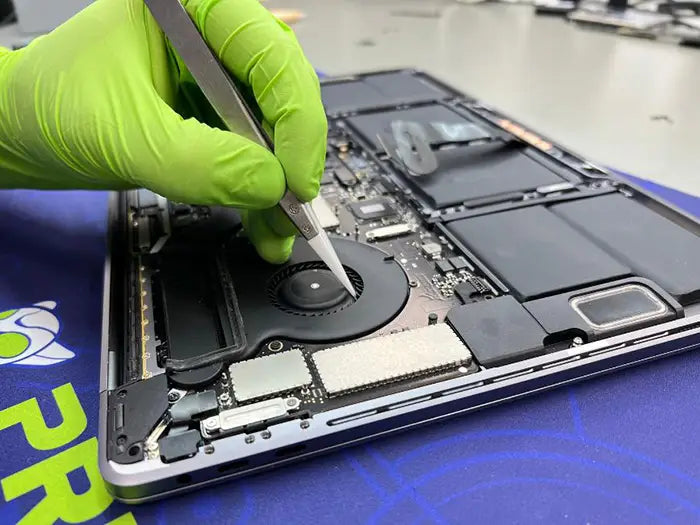
As lithium-ion batteries age, they can expand and push against internal components. In a MacBook Pro, the battery sits directly beneath the trackpad.
When the battery swells:
- It applies upward pressure on the trackpad
- Prevents proper clicking or pressure detection
- Can eventually damage the trackpad permanently
This issue is especially common in MacBooks that are several years old or have experienced heavy usage.
Poor or Incorrect Battery Replacement
Another frequent issue we see in the lab is trackpad failure caused by improper battery replacements.
When a battery is replaced incorrectly, several problems can occur:
- The battery may be misaligned, creating uneven pressure under the trackpad
- Low-quality or incompatible batteries may not fit correctly
- Screws may be overtightened or missing, causing structural stress
- Internal connectors may not be properly secured during reassembly
In many cases, customers come to us after another repair attempt where the battery was replaced, and shortly after, the trackpad stops clicking or behaves inconsistently.
Because of how tightly packed MacBook components are, even small installation errors can affect trackpad performance.
At Prime Tech Support, we often resolve these issues by reinstalling or replacing the battery correctly, avoiding unnecessary trackpad replacements.
Damaged or Disconnected Trackpad Flex Cable
The trackpad communicates with the logic board through a delicate flex cable.
If this cable is:
- Loose
- Torn
- Corroded (especially after liquid exposure)
The trackpad may:
- Stop clicking
- Work intermittently
- Stop responding completely
Flex cable issues are especially common after drops, liquid damage, or previous repairs.
Trackpad Hardware Failure
In some cases, the trackpad itself is defective.
This can happen due to:
- Wear and tear over time
- Liquid damage
- Physical impact
- Manufacturing defects
When the hardware fails, replacing the trackpad is usually required — but only after confirming that other components are not the cause.
Logic Board or Power Issues
Modern trackpads rely heavily on communication with the logic board.
If there is a problem with:
- Keyboard
- Power delivery
- Signal communication
- Internal components such as IC chips
The trackpad may stop clicking or responding properly.
These issues require advanced diagnostics and component-level repair.
Software or macOS Glitches
Not all trackpad problems are hardware-related.
Sometimes the issue can be caused by:
- macOS bugs
- Corrupted system settings
- Driver conflicts
Common signs of a software issue include:
- Trackpad moves but does not click
- Clicking works intermittently
- Trackpad works in Safe Mode but not in normal operation
The difference is important, because software issues may be resolved with resets or updates, while hardware issues often involve the battery, flex cable, connector, or trackpad assembly itself.
Many repair shops immediately recommend replacing the entire trackpad assembly. While that can be necessary in some cases, it is not always the correct diagnosis. Modern MacBook Pros rely on precision flex cables to connect the trackpad to the logic board. These connectors are delicate and can fail due to:
- Liquid exposure
- Battery swelling pressure
- Improper prior repair attempts
- Physical impact
- Connector fatigue over time
Without proper diagnostic testing, it is easy to misidentify the root cause.
Keyboard or input system issues affecting the trackpad
In some MacBook Pro models, especially Intel-based systems, the trackpad and keyboard are part of a shared input system. This means they rely on related signal pathways and internal connections to communicate with the logic board.
Because of this, a problem affecting the keyboard or top case assembly can also impact trackpad behavior.
In real repair cases, we see this happen when:
- Liquid damage affects multiple input components
- Internal connectors are partially damaged or unstable
- Previous repairs disturb cable routing or alignment
- Debris or foreign objects interfere with internal components
In these situations, the trackpad may appear to be the problem, but the root cause can involve the broader input system.
In newer Apple Silicon models, the trackpad is generally more isolated. However, shared issues can still occur in cases involving:
- Liquid exposure
- Battery swelling
- Connector or board-level damage
This is why trackpad issues should always be diagnosed as part of the full input system, not as an isolated component.
When both the keyboard and trackpad show irregular behavior, it is often a sign that the issue goes beyond a single component and requires proper internal diagnosis.
Common Symptoms of Trackpad Failure
Trackpad not clicking but moving
One of the most common symptoms is when the cursor still moves normally, but the click function does not respond. This often points to pressure-related problems, battery swelling, or internal communication issues rather than a complete trackpad failure.
Intermittent response
Some MacBook Pro trackpads respond inconsistently. They may click sometimes, fail at other times, or behave differently depending on pressure or system state. This can be caused by a damaged flex cable, an unstable connector, or a developing hardware issue.
Trackpad stuck or hard to press
If the trackpad feels physically stuck, hard to press, or raised unevenly, this is often a sign of pressure from underneath. Battery swelling is one of the most common causes of this symptom and should be inspected quickly to avoid further damage.
Real Case: MacBook Pro Trackpad Repair in Miami
Device condition and symptoms
We recently handled a MacBook Pro with a non-clicking trackpad. The customer initially believed the trackpad needed replacement.
The trackpad was not clicking properly, and the device showed symptoms that could easily have led someone to replace the trackpad without testing the rest of the system first.

Diagnostic findings: A Damaged Flex Cable Connector
After performing a full diagnostic, we discovered that the issue was not the trackpad itself, however, the flex cable connector displayed:
- Misaligned connector pins
- Compromised latch integrity
- Inconsistent contact pressure
The main problem was the flex, and this prevented proper signal transmission between the trackpad and the logic board.
In simple terms: The trackpad was working, but the signal pathway was broken. Replacing the trackpad assembly would have resolved the issue, but it would have been unnecessary and more expensive than just replacing the flex.
This case highlights a common scenario with MacBook Pro trackpad not clicking problems — the visible symptom is misleading, and the root cause often lies elsewhere in the system. Proper diagnostics help avoid unnecessary part replacements, reduce costs, and ensure the correct repair is performed the first time.
How We Diagnose Trackpad Issues (Advanced Process)
If your MacBook trackpad is not clicking, here are some steps you can take:
Check System Settings
Go to System Settings → Trackpad and adjust click pressure settings.
Restart and Test in Safe Mode
If the trackpad works in Safe Mode, the issue is likely software-related.
Inspect for Physical Changes
Look for signs such as:
- A raised or uneven trackpad
- Bulging in the keyboard area
These may indicate battery swelling.
Use an External Mouse
If everything else works normally with a mouse, the issue is isolated to the trackpad system.
Seek Professional Diagnosis
If the issue persists, a technician can safely inspect internal components and identify the exact cause.
At Prime Tech Support, advanced diagnostics help us determine whether the issue is related to battery pressure, a poor replacement, flex cable damage, connector failure, or board-level communication. This avoids unnecessary part replacement and helps us recommend the correct repair the first time.
Can You Fix a MacBook Pro Trackpad That Is Not Clicking Yourself?
Safe DIY Fixes
You can try:
- Restarting your Mac
- Updating macOS
- Resetting SMC and NVRAM
- Adjusting trackpad settings
These are safe and often resolve minor issues.
How to Reset SMC and NVRAM?
Apple Silicon Macs (M1/M2/M3/M4 chips) do not have traditional SMC or NVRAM components, making manual resets unnecessary. Instead, the system automatically resets NVRAM/SMC functionality during a restart. To achieve the same effect, simply shut down, wait 30 seconds, and turn the Mac back on.
For older models here are details on the apple knowledge base
What You Should NOT Attempt
Avoid:
- Opening the MacBook without proper tools
- Replacing the battery yourself
- Disconnecting internal components
- Applying pressure to force the trackpad to click
MacBooks are precision devices, and improper handling can cause further damage.
In our Miami Lab we have seen so many MacBooks damaged due to DIY attempts which makes the situation worse and costly.
Repair vs Replacement: What’s the Best Option?
The correct solution always depends on the root cause of the problem — not just the symptom.
- Battery swelling → battery replacement
- Bad battery installation → reinstallation or proper replacement
- Flex cable issue → targeted repair or replacement
- Trackpad failure → trackpad repair or replacement
- Logic board issue → board-level repair
A professional diagnostic ensures only the necessary repairs are performed.
In many cases, replacement is not the first or best answer. Proper diagnostics often reveal that the trackpad itself is still functional and that another component — such as the battery or flex cable — is causing the issue.
At Prime Tech Support, we focus on repairing the actual problem rather than replacing entire assemblies unnecessarily. This approach helps our customers save money, reduce downtime, and extend the life of their devices.
We regularly service MacBooks dating back to 2012 that are still performing reliably today. With the right maintenance, upgrades, and targeted repairs, many systems can continue to serve their purpose without the need for costly replacement.
Cost of MacBook Trackpad Repair (2026 Guide)
Repair costs vary depending on the root cause of the issue and the condition of the device.
As of 2026, pricing has been impacted by global supply chain changes, component availability, and tariffs affecting electronic parts. Because of this, costs can vary more than in previous years.
Here are general repair ranges:
- Battery replacement → moderate cost (typically $180–$300 depending on model)
- Flex cable repair → lower cost (often $150–$200)
- Trackpad replacement → moderate to high ($180–$350 depending on model)
- Logic board repair → varies significantly based on damage or replacement (we recommend the best option based on each situation)
These are general estimates and may vary based on the specific MacBook model and condition.
Accurate diagnostics are essential. In many cases, what appears to be a trackpad failure is actually caused by another component, and addressing the root issue can significantly reduce repair costs.
At Prime Tech Support, we keep our labor fair and focused on repair-first solutions. Our goal is to help customers fix their devices whenever possible, rather than pushing unnecessary replacements. In some cases, a logic board replacement may be considered depending on the severity of the damage. When that happens, we also assist with data transfer to ensure your files are safely moved to the repaired or replacement device.
This approach has allowed many of our customers to continue using their MacBooks for years beyond what most people expect.
How to Prevent MacBook Trackpad Issues
Trackpad problems are often preventable with proper care and maintenance. Because the trackpad is closely integrated with the battery and internal components, small issues can develop over time if the system is not properly maintained.
To reduce the risk of trackpad failure:
- Avoid overheating your MacBook by keeping vents clear and using it on hard, flat surfaces
- Use high-quality or original chargers to ensure stable power delivery
- Replace aging batteries before they begin to swell or degrade
- Keep the device clean to prevent dust, debris, and internal buildup
Preventive care can significantly extend the lifespan of your MacBook Pro and help you avoid unexpected failures.
At Prime Tech Support, we regularly see trackpad issues that could have been prevented with routine maintenance. We recommend having your MacBook professionally inspected at least once a year to check for early signs of battery swelling, internal wear, or hidden hardware issues.
If you have pets, work in dusty environments, or live in high-humidity areas like Miami, regular preventive cleaning and maintenance becomes even more important. These conditions can accelerate internal damage and increase the likelihood of trackpad and hardware failures.
Proactive maintenance is always more affordable than major repairs — and it helps keep your MacBook performing reliably over time.
When You Should Seek Professional Trackpad Repair
While some trackpad issues can be resolved with basic troubleshooting, many cases require professional diagnostics to identify the real cause.
You should seek professional repair if:
- The trackpad is physically stuck, hard to press, or not clicking at all
- You notice signs of battery swelling or lifting around the trackpad area
- The issue persists after software resets or system updates
- The MacBook has been exposed to liquid or humidity
- The trackpad works intermittently or behaves inconsistently
Early diagnosis is critical. What seems like a simple trackpad issue can often be caused by battery pressure, flex cable damage, or board-level problems. Identifying the root cause early helps prevent further damage and reduces overall repair costs.
If you’ve already tried software solutions and the issue continues, it’s time for a professional evaluation.
MacBook Pro Trackpad Repair in Miami & Nationwide
If your MacBook Pro trackpad has stopped clicking, the problem may not be what you think. At Prime Tech Support, we specialize in advanced diagnostics and component-level repairs that many standard repair shops are not equipped to handle.

Our services include:
- MacBook Pro trackpad repair
- Trackpad flex cable and connector repair
- Battery-related trackpad issue correction
- Component-level Apple repairs
- Logic board diagnostics and repair
- Advanced MacBook troubleshooting
We do not default to the most expensive solution — we focus on the most accurate diagnosis first.
Our Miami-based lab handles complex MacBook repairs daily, including cases involving liquid damage, failed previous repairs, and board-level issues. Many of these repairs can be completed the same day, depending on the diagnosis.
For customers outside of Miami, we offer a secure nationwide mail-in repair service. Many areas do not have access to specialized labs capable of performing component-level MacBook repairs, which often leads to unnecessary full replacements.
With our mail-in service, you can access the same level of expertise regardless of your location.
Serving Miami, Broward, and customers across the United States.
Book a professional MacBook diagnostic today or request a quick evaluation if you're not sure yet. Accurate diagnostics make the difference between replacing parts and truly repairing your device.
Is Your MacBook Trackpad not working?
Multiple issues, from a damaged flex cable to battery swelling or logic board problems can cause a non-responsive trackpad. What seems like a simple issue can sometimes require deeper diagnostics.
At Prime Tech Support, we specialize in advanced MacBook diagnostics and component-level repairs. Our technicians can quickly determine whether your trackpad issue can be repaired or requires replacement.
Schedule a professional diagnostic and let our team safely inspect your MacBook Pro, logic board, and system components to get your computer running again.
Schedule a MacBook Pro DiagnosticNot sure what's causing the issue?
Trackpad not working
Damaged or Disconnected trackpad flex cable
Battery swelling affecting trackpad function
Logic board or liquid damage
Tell us what’s happening and we’ll help you understand the issue before committing to a repair.
Get a Quick EvaluationShare this
Explore more
Related Mac Repair Articles


FAQ: MacBook Pro Trackpad Not Clicking & Not Working
Why is my MacBook Pro trackpad not clicking?
Does a non-responsive trackpad mean it needs replacement?
Can a damaged flex cable be repaired instead of replacing the trackpad?
How long does MacBook trackpad repair take?
Why is my MacBook trackpad not clicking but still moving?
Can a damaged flex cable be repaired instead of replacing the trackpad?
Do you offer MacBook Pro trackpad repair in Miami?
MacBook Not Working? Get Expert Diagnosis and Repair Options
If your MacBook is experiencing issues, getting a proper diagnosis is the first step. Many problems that seem like major failures can often be resolved with targeted component-level repairs.
At Prime Tech Support, we specialize in advanced MacBook diagnostics and repairs, including issues that other shops may not be able to resolve.
In Miami? Get Local Mac Repair Service
Our team is ready to help you . We offer same-day repairs
Not in Miami? Use Our Mac Mail-In Repair Service
We offer secure nationwide mail-in repairs with fast turnaround times and professional diagnostics.
Explore More MacBook Repair Guides
View all-

A MacBook Pro trackpad not clicking is often misdiagnosed. This guide explains the real causes—including keyboard-related issues—and how proper diagnostics...
MacBook Pro Trackpad Not Clicking? How Keyboard Issues Can Be ...
A MacBook Pro trackpad not clicking is often misdiagnosed. This guide explains the real causes—including keyboard-related issues—and how proper diagnostics...
-

A MacBook Pro trackpad that stops clicking is not always caused by a bad trackpad. In many cases, battery swelling...
Can a Swollen Battery Cause Trackpad Failure on a MacBook Pro?...
A MacBook Pro trackpad that stops clicking is not always caused by a bad trackpad. In many cases, battery swelling...
-

A damaged flex cable can cause your MacBook trackpad to stop clicking or responding. Learn the symptoms, causes, and repair...
MacBook Pro Trackpad Not Working Due to Flex Cable Issue: Symp...
A damaged flex cable can cause your MacBook trackpad to stop clicking or responding. Learn the symptoms, causes, and repair...


