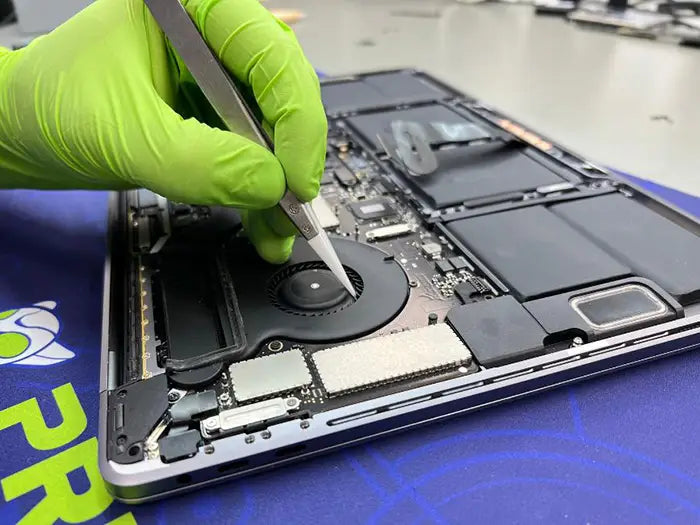
MacBook Screen Dim or No Backlight? Causes & Repair Options
A MacBook screen that suddenly becomes extremely dim or appears completely dark does not always mean the display itself has failed. In many cases, the image is still being generated underneath the screen, but the backlight system responsible for illuminating the display has stopped functioning properly.
This type of problem is commonly misunderstood because modern Retina displays rely on multiple systems working together simultaneously. The LCD panel creates the image itself, while a separate backlight system provides the illumination that allows the image to become visible.
When the backlight fails, the MacBook may still:
- Power on normally
- Play startup sounds
- Respond to keyboard input
- Connect to external monitors
- Show a faint image under strong light
To the user, however, the computer often appears completely unusable because the display looks nearly black.
We frequently see MacBooks that were incorrectly diagnosed with “dead screens” when the actual failure involved a blown backlight fuse, damaged display power rail, Flexgate-related cable wear, or corrosion inside the logic board.
Because modern MacBook display systems are highly integrated, proper diagnostics are critical before replacing expensive parts unnecessarily.
MacBook Screen Extremely Dim or Almost Black?
Professional diagnostics can determine whether the issue is related to the backlight system, Flexgate cable damage, display circuitry, or the screen assembly itself.
Schedule a MacBook Display DiagnosticIn this guide, we’ll explain how MacBook backlight systems work, what causes dim or dark displays, how technicians diagnose no-backlight failures, and what repair options may be available depending on the underlying issue.
Table of Contents
What Is a MacBook Backlight System?
Modern MacBook Retina displays depend on two separate systems working together:
- The LCD panel that generates the image
- The backlight system that illuminates the image
If the LCD panel continues generating video normally but the backlight stops functioning, the image may still exist invisibly underneath the dark screen.
This is why some MacBooks appear completely black while still technically producing a working display image internally.

LCD Panel vs Backlight: Understanding the Difference
The LCD layer inside the display controls the image itself, including colors, text, and graphics. However, LCD technology does not emit its own visible light strongly enough for normal viewing.
The backlight system shines light through the display layers, making the image visible to the user.
When the backlight fails:
- The MacBook may still boot normally
- The LCD may still generate an image
- The display appears nearly black
- A faint image may be visible under a flashlight
This distinction is extremely important because replacing the entire display is not always necessary if the panel itself remains functional.
Why Modern Retina Displays Are More Complex
Newer MacBook Retina systems use highly integrated display architectures that combine:
- High-voltage backlight circuitry
- Display communication lines
- Flex cables routed through the hinge area
- Logic board power management systems
- Precision brightness control circuitry
Because these systems operate together so closely, failures in one area can create symptoms that look identical to full display failure.
For example, some MacBooks affected by Flexgate display cable damage may first develop brightness inconsistencies or stage lighting effects before eventually progressing into severe dimness or complete backlight loss.
Why Proper Diagnostics Matter
A MacBook with no visible backlight may still have a fully functional LCD panel underneath. Identifying whether the failure exists in the screen, cable system, or logic board can dramatically affect repair costs and repair strategy.
Common Causes of No Backlight on a MacBook
Several different hardware failures can cause a MacBook display to become extremely dim or lose backlight illumination entirely. Although the symptoms may look similar externally, the actual repair approach depends heavily on identifying the specific failure point inside the display system.
In some cases, the LCD panel itself remains perfectly functional while only the backlight circuitry stops operating. In others, the problem may involve flex cable wear, corrosion, physical display damage, or logic board power failures.
Backlight Circuit Failure
One of the most common no-backlight failures involves the backlight power circuitry located on the logic board.
Modern MacBooks use high-voltage circuits to power the display backlight system. If these circuits become damaged, the screen may suddenly appear black even though the computer itself continues functioning normally.
Common causes include:
- Electrical shorts
- Liquid damage corrosion
- Blown backlight fuses
- Failed backlight driver ICs
- Improper repair attempts
In many cases, flashlight testing reveals that the LCD panel is still generating an image underneath the dark display.

Flexgate Cable Wear
Some MacBook models develop dim display or no-backlight symptoms because of worn display flex cables near the hinge assembly.
Over time, repeated opening and closing of the lid stresses these cables continuously. Eventually, the cable may begin failing intermittently before causing complete backlight loss.
Common warning signs include:
- Stage light effect at the bottom of the screen
- Brightness fluctuations
- Display flickering
- Image loss at certain lid angles
This issue became widely known as Flexgate and affects certain MacBook Pro generations more frequently than others.
We explain this problem further in our guide covering MacBook Flexgate screen flickering and cable failures .
Liquid Damage Corrosion
Even minor liquid exposure can create major display problems over time. Corrosion may slowly damage display connectors, backlight circuits, or communication lines long after the original spill occurred.
In some situations, the MacBook may continue functioning temporarily before later developing:
- Dim display behavior
- Intermittent brightness
- Sudden backlight loss
- Random display shutdowns
Corrosion often develops underneath shields and connectors, making it difficult to detect without disassembly and microscope inspection.
Burned Backlight Fuse
Some no-backlight failures occur because the backlight fuse itself has opened after an electrical short or accidental damage during previous repair work.
This can happen after:
- Improper battery disconnection
- Liquid exposure
- Connector damage
- Metal tool contact on live circuits
A failed fuse can interrupt backlight power completely while the MacBook continues booting normally in the background.
Backlight Failures Often Look Worse Than They Are
A MacBook with no visible backlight may still have a fully working display panel underneath. Proper diagnostics help determine whether the problem involves a repairable circuit issue instead of requiring full display replacement.
Physical Display Damage
In some cases, the display assembly itself has suffered internal damage that affects both the LCD image and backlight system.
This can happen after:
- Drops or impacts
- Pressure damage inside backpacks
- Lid twisting
- Cracked internal display layers
Physical panel failures may sometimes show visible lines or cracks, but internal layer damage can also occur without obvious external signs.
If your MacBook previously showed flickering, lines, or intermittent black screens before becoming dim, the issue may involve progressive display assembly failure rather than a sudden software problem.
You can also review our related guide covering MacBook screen lines, flickering, and black screen problems .
How to Diagnose a Backlight Failure
Diagnosing a MacBook backlight problem involves determining whether the display is still generating an image underneath the dark screen and identifying where the failure exists inside the display system.
Since several different hardware problems can produce nearly identical symptoms, technicians typically combine multiple tests together rather than relying on a single clue alone.
Flashlight Test
One of the most common diagnostic methods for identifying backlight failure is the flashlight test.
In a dark room, a strong flashlight is aimed closely against the MacBook display while the computer is powered on. If the LCD panel is still generating an image internally, a faint version of the desktop or login screen may become visible underneath the dark display.

This test strongly suggests:
- The LCD panel is still functioning
- The MacBook is booting normally
- The failure likely involves the backlight system
However, flashlight testing alone cannot determine whether the problem originates from:
- The display assembly
- The flex cable
- The backlight fuse
- The logic board circuitry
External Monitor Testing
Connecting the MacBook to an external display is another important diagnostic step.
If the external monitor functions normally while the internal display remains extremely dim or black, this usually confirms that:
- The graphics system is still operational
- The MacBook itself is still booting
- The problem is isolated to the internal display system

External monitor testing can help narrow the diagnosis toward:
- Backlight failures
- Display cable issues
- Display assembly faults
- Internal display communication failures
Lid Angle Behavior
Some MacBooks affected by Flexgate-related cable wear may behave differently depending on display angle.
During diagnostics, technicians slowly adjust the screen position while observing for:
- Backlight returning temporarily
- Brightness flickering
- Stage light effects
- Image instability during movement
If the display changes while opening or closing the lid, the issue often points toward cable fatigue inside the hinge area rather than a fully failed LCD panel.
Recovery Mode and Startup Testing
Recovery Mode testing can help rule out software-related startup problems that sometimes mimic display failures.
If the display functions normally inside Recovery Mode but turns dark during standard startup, possible causes may include:
- Corrupted macOS installation
- Startup software conflicts
- Graphics driver instability
- Failed system updates
If the display remains dim or black even in Recovery Mode, hardware-related failures become more likely.
Modern Display Diagnostics Require Multiple Tests
No single symptom confirms the exact failure point inside a MacBook display system. Accurate diagnosis often requires flashlight testing, external monitor verification, angle testing, and board-level inspection together.
| Symptom | Possible Cause | Typical Repair Direction |
|---|---|---|
| Faint image visible with flashlight | Backlight failure | Backlight circuit repair |
| External monitor works normally | Internal display system issue | Display or board diagnostics |
| Brightness changes with lid movement | Flex cable wear | Cable or display repair |
| No image internally or externally | Logic board failure | Board-level diagnostics |
| Screen dark after update | Software corruption | Recovery or macOS repair |
Real Repair Case From the Lab
One recent MacBook repair case involved a customer who believed the entire display assembly had failed after the screen suddenly became almost completely black.
The MacBook still powered on normally, the keyboard backlight worked, and startup sounds were present, but the display itself appeared unusable under normal lighting conditions.
The customer initially assumed the laptop required a full screen replacement because the image could no longer be seen clearly.
During intake diagnostics, however, flashlight testing immediately revealed a faint login screen underneath the dark display. This confirmed that the LCD panel itself was still generating an image internally.

Additional testing showed that the MacBook also functioned normally through an external monitor, further confirming that the graphics system and main operating system were still working correctly.
After disassembly and board-level inspection under a microscope, the real issue was traced to damage within the backlight power circuitry on the logic board.
In this particular case:
- The LCD panel remained functional
- The computer booted normally
- The graphics system was operational
- The failure existed only in the backlight power system
Because the problem was diagnosed correctly, the original display assembly was preserved and a full screen replacement was avoided.
Why No-Backlight Cases Are Frequently Misdiagnosed
To most users, a MacBook with a dark display simply looks like a “dead screen.” However, modern Retina systems involve multiple interconnected components that can fail independently.
Several different failures may create nearly identical symptoms:
- Backlight circuit damage
- Flex cable wear
- Blown backlight fuse
- Corroded display connectors
- Display panel failure
Without structured diagnostics, it becomes easy to replace the wrong component.
How Improper Repairs Sometimes Make the Problem Worse
We also regularly see MacBooks where previous repair attempts accidentally caused additional damage to the backlight system.
Common examples include:
- Battery disconnection mistakes
- Connector damage during DIY repair
- Metal tools shorting display lines
- Cheap aftermarket display installations
Because MacBook backlight circuits operate at high voltage, even a small mistake during disassembly can create major logic board damage.
Board-Level Repair Requires Precision
Modern MacBook display circuitry is extremely compact and highly integrated. Diagnosing and repairing no-backlight failures often requires microscope inspection, electrical testing, and board-level repair equipment.
If the MacBook also begins developing startup instability or power issues in addition to the dim display, protecting the data may become increasingly important before the hardware failure progresses further.
Our guide covering Mac data recovery from non-booting systems explains how display and logic board failures can sometimes evolve into broader startup problems over time.
Can You Fix a Backlight Issue Yourself?
Some MacBook backlight problems can be narrowed down safely at home using basic diagnostic checks, especially when trying to determine whether the issue involves the display itself or the backlight system underneath it.
However, modern MacBook display systems are extremely delicate internally, and improper DIY repair attempts frequently create additional damage that significantly increases repair complexity.
Understanding what is reasonably safe to test — and what should be left to professional diagnostics — can help prevent accidental logic board or display damage.
Safe Tests You Can Perform at Home
Before opening the MacBook or replacing parts, there are several basic tests users can safely perform.
Perform a Flashlight Test
In a dark room, shine a strong flashlight directly against the display while the MacBook is powered on.
If a faint desktop image, login screen, or cursor becomes visible underneath the dark display, this strongly suggests the LCD panel is still functioning and the issue may involve the backlight system instead.
Test an External Monitor
Connecting the MacBook to an external display can help confirm whether the graphics system and operating system are still functioning normally.
If the external monitor works correctly while the internal display remains dark, the problem is more likely isolated to:
- The display assembly
- The backlight system
- The flex cable system
- Internal display circuitry
Observe Lid Angle Behavior
If brightness changes while opening or closing the lid, the issue may involve Flexgate-related cable wear inside the hinge area.
Symptoms may include:
- Temporary brightness return
- Intermittent dimming
- Stage lighting effects
- Flickering during movement
What You Should Avoid Doing
Many no-backlight situations involve high-voltage circuitry and fragile display communication systems that can easily be damaged during improper disassembly.
Disconnecting Internal Components Incorrectly
MacBook backlight circuits are especially vulnerable during battery disconnection or display removal.
If connectors are disconnected while power remains active on the logic board, accidental shorts may damage:
- Backlight driver circuits
- Display communication lines
- Display connectors
- Power management circuitry
We frequently see simple backlight issues become much larger board-level repairs after improper DIY attempts.
Installing Cheap Aftermarket Screens
Low-quality aftermarket display assemblies may introduce:
- Brightness instability
- Premature cable failure
- Display flickering
- Color accuracy issues
- Intermittent backlight behavior
In some cases, the original screen was never defective to begin with, and replacing it only complicates future diagnostics.
Attempting Board-Level Repair Without Equipment
Backlight circuit repair often involves microscope-level soldering and electrical diagnostics on extremely compact components.
Modern MacBook boards contain delicate high-density circuitry that cannot safely be repaired without:
- Board schematics
- Microscope equipment
- Micro-soldering tools
- Electrical measurement equipment
Modern Backlight Repairs Are Highly Specialized
Many no-backlight failures involve precision board-level diagnostics rather than simple part replacement. Proper testing helps identify whether the problem exists in the display assembly, flex cable system, or logic board circuitry before unnecessary repairs are performed.
If the MacBook also begins developing startup issues, random shutdowns, or no-power symptoms alongside the dim display, it may be wise to prioritize protecting important data before continuing repair attempts.
Our guide covering MacBook data recovery for non-booting systems explains how hardware failures can progress beyond display-related symptoms over time.
Repair Options for MacBook No Backlight Problems
The correct repair solution for a MacBook with no backlight depends entirely on identifying where the failure exists inside the display system. Since multiple components work together to illuminate the screen, proper diagnostics are critical before replacing expensive parts unnecessarily.
Some no-backlight situations can be resolved with targeted board-level repair, while others may require display assembly replacement or cable-related repairs.
Backlight Circuit Repair
If flashlight testing confirms the LCD panel is still generating an image underneath the dark display, the problem often involves the backlight power circuitry on the logic board.
Common repair procedures may include:
- Backlight fuse replacement
- Backlight driver IC repair
- Voltage rail restoration
- Shorted line repair
- Corrosion cleanup after liquid damage
In many successful repairs, the original display assembly remains completely usable once the backlight circuitry is restored properly.
Flex Cable or Display Cable Repair
MacBooks affected by Flexgate-related failures may require repair involving the display cable system inside the hinge area.
Typical symptoms include:
- Brightness changing with lid movement
- Stage light effect at the bottom of the display
- Intermittent backlight loss
- Flickering before complete dimness
Depending on the model and severity of the damage, repairs may involve:
- Display cable replacement
- Connector repair
- Full display assembly replacement
Our guide on Flexgate screen flickering and cable failures explains how repeated lid movement can eventually damage display flex cables over time.
Full Display Replacement
In some situations, the display assembly itself has suffered physical internal damage that affects both the LCD panel and backlight system.
This may happen after:
- Drops or impacts
- Pressure damage
- Internal panel cracking
- Liquid exposure inside the display layers
If the LCD panel itself is damaged, replacing the display assembly may become the most reliable repair path.
However, confirming the display is truly defective before replacement remains extremely important because modern Retina assemblies are among the most expensive MacBook components.
Logic Board Repair
Some MacBook no-backlight failures originate deeper inside the logic board display power system.
These repairs may involve:
- Backlight voltage rail restoration
- Display communication repair
- Connector-level repair
- Corrosion cleanup
- Micro-soldering damaged components
Board-level repairs are especially common after:
- Liquid spills
- Electrical shorts
- Battery repair accidents
- Improper DIY disassembly attempts
Data Recovery Considerations
If the MacBook begins developing broader startup or power problems in addition to the no-backlight symptoms, protecting important data may become increasingly important before further hardware deterioration occurs.
Some systems initially develop display-related symptoms before later progressing into:
- No-boot conditions
- Power instability
- Storage communication failures
- Severe liquid-damage progression
In these situations, professional MacBook data recovery services may help preserve important files before additional repair work continues.
Need Help Diagnosing a Dim or Black MacBook Screen?
Whether the issue involves backlight circuitry, Flexgate cable wear, display damage, or logic board failure, proper diagnostics are critical before replacing expensive parts unnecessarily.
Schedule a MacBook Display Repair EvaluationConclusion
A MacBook with an extremely dim or nearly black screen is not always suffering from a dead display panel. In many cases, the LCD is still functioning underneath the dark screen while the backlight system fails to illuminate the image properly.
Because modern Retina display systems rely on tightly integrated backlight circuitry, flex cables, and logic board power systems, accurate diagnostics are essential before replacing parts.
No-backlight symptoms may originate from:
- Backlight circuit failure
- Flexgate cable wear
- Corroded display circuitry
- Blown backlight fuses
- Physical display damage
In many situations, early diagnosis can prevent unnecessary screen replacement costs and stop additional hardware damage from developing over time.
If your MacBook previously showed flickering, stage lighting, brightness instability, or intermittent black screens before becoming dim, those symptoms may provide important clues about the underlying failure.
You can also review our related guides covering:
Share this

Related Mac Repair Articles


Frequently Asked Questions MacBook Screen Dim or No Backlight? Repair Guide
Why is my MacBook screen so dim but still working?
Can a MacBook backlight be repaired?
How do I know if my MacBook backlight failed?
Does Flexgate cause dim screen problems?
Can liquid damage cause no backlight on a MacBook?
Why does my MacBook work on an external monitor but not the internal screen?
Is a dim MacBook screen always caused by a bad display?
MacBook Not Working? Get Expert Diagnosis and Repair Options
If your MacBook is experiencing issues, getting a proper diagnosis is the first step. Many problems that seem like major failures can often be resolved with targeted component-level repairs.
At Prime Tech Support, we specialize in advanced MacBook diagnostics and repairs, including issues that other shops may not be able to resolve.
In Miami? Get Local Mac Repair Service
Our team is ready to help you . We offer same-day repairs
Not in Miami? Use Our Mac Mail-In Repair Service
We offer secure nationwide mail-in repairs with fast turnaround times and professional diagnostics.
Explore More MacBook Repair Guides
View all-

A MacBook SSD upgrade is possible on certain older MacBook Pro and MacBook Air models, but newer models use storage...
MacBook SSD Upgrade: Can Your Model Be Upgraded—and Is It Wort...
A MacBook SSD upgrade is possible on certain older MacBook Pro and MacBook Air models, but newer models use storage...
-

MacBook storage problems can involve much more than a failed SSD. Learn how removable and soldered MacBook storage works, common...
MacBook SSD Repair and Upgrade: Complete Guide to Storage Prob...
MacBook storage problems can involve much more than a failed SSD. Learn how removable and soldered MacBook storage works, common...
-

Is your MacBook running hot but the fan is completely silent? Learn how to determine whether your MacBook has a...
MacBook Fan Not Working Diagnostics and Repair
Is your MacBook running hot but the fan is completely silent? Learn how to determine whether your MacBook has a...