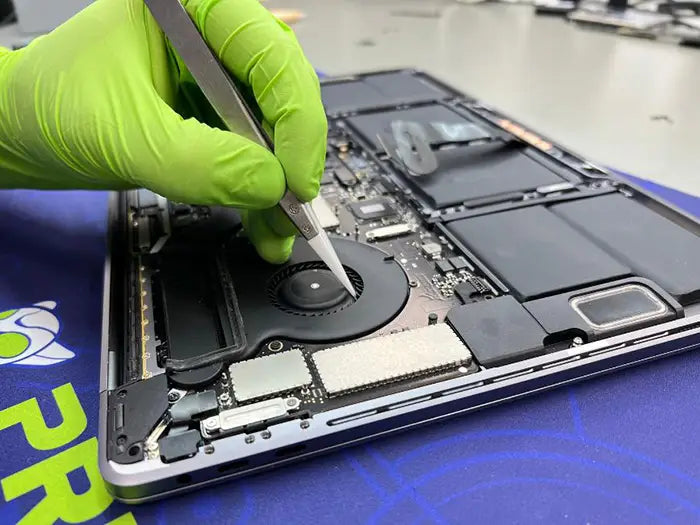
MacBook Trackpad Hardware Failure: When the Trackpad Itself Is the Problem
When a MacBook trackpad stops clicking, feels unresponsive, or only works in certain areas, many people assume the trackpad itself has failed. In reality, that is not always the case. Across this cluster, we have already covered battery swelling, flex cable problems, keyboard interference, software issues, and logic board faults. This supporting article focuses on the last possibility: true trackpad hardware failure.
A MacBook trackpad is not a simple button. On most modern MacBook models, the click is created by Force Touch hardware, sensors, and a haptic engine instead of a traditional mechanical movement. That means a trackpad can move the cursor but fail to click, click in some areas but not others, or stop responding entirely depending on which part of the hardware is affected.
From a technician’s perspective, the trackpad should not be the first part replaced without testing. It should be confirmed after checking the flex cable, battery condition, keyboard behavior, connector area, and logic board communication. In many repair cases, the trackpad looks like the problem, but the real failure is somewhere else in the trackpad circuit.
Before assuming the trackpad is defective, it is important to rule out more common causes such as battery swelling, flex cable damage, or software-related issues.
This guide explains when the MacBook trackpad itself can truly be defective, what symptoms point to trackpad hardware failure, how technicians confirm it, and why proper diagnosis matters before replacing parts.
Table of Contents
When Is the Trackpad Actually the Problem?
In many cases, what appears to be a trackpad failure is actually caused by a damaged flex cable or pressure from a swollen battery.
In professional diagnostics, the trackpad itself is considered the last possible failure point, not the first. This is because multiple components must work together for the trackpad to function properly, including the battery, flex cable, keyboard input pathway, and logic board communication. If any of those fail, the symptoms can look identical to a bad trackpad.
That said, there are specific situations where the trackpad hardware itself is truly defective. The key is understanding how those failures behave differently from other issues in the system.
Signs That Point to Actual Trackpad Hardware Failure
Based on real lab diagnostics, these are the most reliable indicators that the trackpad itself is the problem:
- No haptic feedback at all even though the system is powered and functioning normally
- Click works in some areas but not others, indicating sensor layer failure
- Erratic or inconsistent cursor movement that persists even after replacing the flex cable
- Trackpad completely unresponsive while keyboard and other inputs work normally
- Known-good trackpad test fails when installed in the same system
What Makes This Different From Other Issues
Many non-trackpad problems can produce similar symptoms, but they behave differently during testing:
- Flex cable issues usually cause intermittent failures or complete loss of communication
- Battery swelling creates physical resistance, preventing proper click feel
- Keyboard-related issues interfere with input signals rather than the trackpad surface
- Logic board problems often affect multiple components, not just the trackpad
True trackpad hardware failure is more isolated. The rest of the system behaves normally, but the trackpad itself shows consistent, repeatable faults.
Why Misdiagnosis Happens So Often
The trackpad is the most visible component in this system, so it is often blamed first. However, in many real repair cases, replacing the trackpad does not fix the issue because the underlying problem was never addressed.
Technicians avoid this by following a structured process: isolate the cable, test with a known-good trackpad, inspect the connector under magnification, and verify system-level communication before confirming the trackpad itself is defective.
Professional Insight: A defective trackpad is usually confirmed only after all supporting components have been tested. Replacing it without proper diagnosis can lead to unnecessary costs and repeated failures.
Common Types of Trackpad Hardware Failure
When the trackpad itself is truly defective, the failure usually falls into a few specific categories. Unlike cable or battery issues, these are internal hardware failures within the trackpad assembly, and they tend to produce consistent, repeatable symptoms.
Understanding these failure types helps explain why some trackpads partially work, while others completely stop responding.
Haptic Engine Failure (Force Touch System)

Modern MacBook trackpads do not physically click. Instead, they use a haptic engine to simulate the click sensation. When this component fails, the trackpad may still track movement, but clicking will feel completely dead.
- No physical click feedback at all
- Cursor movement still works normally
- System is responsive, but clicking does not register properly
This type of failure is often mistaken for a software issue, but if resets and settings changes do not restore feedback, it points to internal hardware failure.
Pressure Sensor Layer Damage
Force Touch trackpads rely on pressure sensors distributed across the surface. If part of this sensor layer is damaged, the trackpad may behave inconsistently.
- Click works only in certain areas
- Dead zones on the trackpad surface
- Inconsistent pressure response
This is one of the clearest indicators of actual trackpad hardware failure, as external components typically do not cause localized dead zones.
Internal Circuit Failure
The trackpad contains its own internal circuitry that communicates with the logic board. Damage to this circuitry can interrupt communication even if the cable and connector are intact.
- Trackpad not detected by the system
- Intermittent response despite a good flex cable
- No improvement after replacing external components
This type of failure often requires confirmation through substitution testing with a known-good trackpad.
Liquid or Corrosion Damage
Liquid exposure is one of the most common causes of true hardware failure. Even small amounts of moisture can damage the internal layers of the trackpad.
- Erratic or ghost input behavior
- Delayed or inconsistent clicks
- Visible corrosion under inspection
Unlike cable or connector corrosion, this damage is internal to the trackpad and cannot be repaired without replacement.
Physical Structural Damage
Although less common, the trackpad can suffer physical damage from impact or improper handling during repairs.
- Cracked internal layers
- Warped surface affecting pressure detection
- Failure after battery or top case replacement
These cases are often linked to previous repair attempts where pressure was applied incorrectly or components were misaligned during reassembly.
Key Takeaway: True trackpad hardware failure is usually consistent and localized. If the issue behaves the same way every time and does not change with cable, battery, or system checks, the trackpad itself becomes the primary suspect.
How Technicians Confirm Trackpad Hardware Failure
Confirming a defective trackpad requires a structured diagnostic process. Because multiple components affect trackpad behavior, technicians do not rely on symptoms alone. Instead, they isolate each variable until only the trackpad itself remains as the cause.
This process is what prevents unnecessary part replacement and ensures the correct repair is performed the first time.
Step 1: Eliminate External Causes

Before suspecting the trackpad, technicians verify that supporting components are not responsible for the issue.
- Check for battery swelling affecting physical click
- Test for keyboard interference affecting input signals
- Rule out software issues with resets and safe mode testing
If any of these factors are present, the trackpad may appear faulty even when it is not.
Step 2: Inspect the Flex Cable and Connector
The trackpad flex cable is one of the most common failure points. Even minor damage can interrupt communication. If the trackpad still does not respond correctly after verifying or replacing the cable, the issue may extend to the logic board, which controls communication and power delivery to the trackpad.
- Visual inspection for tears or wear
- Connector alignment and seating check
- Microscope inspection for bent or damaged pins
If the cable or connector is compromised, replacing the trackpad will not solve the problem.
Step 3: Known-Good Trackpad Test
This is the most important step in confirming hardware failure. A technician installs a known-good trackpad into the system to observe how it behaves.
- If the replacement trackpad works → original trackpad is defective
- If the issue persists → the problem lies elsewhere (cable, board, or system)
This test removes guesswork and provides a clear answer.
Step 4: System-Level Verification
Technicians also verify that the system is properly recognizing the trackpad.
- Check system information for trackpad detection
- Confirm proper power delivery to the trackpad
- Evaluate input response consistency
Failure at this stage can indicate deeper issues such as logic board faults rather than trackpad failure.
Step 5: Correlate Symptoms With Failure Type
Finally, the observed behavior is matched with known hardware failure patterns.
- Dead zones → sensor layer damage
- No click but movement → haptic engine failure
- No response at all → internal circuit or communication failure
Only after all these steps point to the same conclusion is the trackpad confirmed as defective.
Professional Insight: A proper diagnosis always isolates the system before replacing parts. In many cases, what appears to be a bad trackpad is actually caused by a cable, battery, or logic board issue.
Trackpad Replacement vs Full Top Case Replacement
Once the trackpad is confirmed to be defective, the next step is choosing the correct repair approach. Depending on the MacBook model and the type of failure, the trackpad can either be replaced individually or as part of a larger assembly known as the top case.
Understanding the difference is important because it directly affects cost, repair complexity, and long-term reliability.
Trackpad-Only Replacement
In many MacBook models, the trackpad is a separate component that can be replaced without removing the entire top case. This is the preferred approach when the failure is isolated to the trackpad itself.
- Lower cost compared to full assembly replacement
- Retains the original keyboard and palm rest
- Requires precise installation and alignment
However, this type of repair must be done carefully. Improper installation can lead to pressure inconsistencies, misalignment, or new input issues.
Full Top Case Replacement
In some cases, replacing the entire top case may be recommended. This assembly typically includes:
- Trackpad
- Keyboard
- Palm rest
- Battery (in certain models)
This approach is often used when multiple components are affected or when the design makes individual replacement less reliable.
- Higher cost due to bundled components
- More comprehensive solution for multiple failures
- Reduced risk of compatibility or installation issues
When Each Option Makes Sense
The decision depends on the condition of the surrounding components:
- Trackpad-only replacement: When diagnostics confirm isolated trackpad failure and other components are in good condition
- Top case replacement: When there is additional damage (keyboard issues, battery problems, structural wear)
From a technician’s perspective, replacing only what is necessary is always preferred—but only when it does not compromise reliability.
Professional Insight: Replacing the trackpad alone is often the right solution, but only after confirming that the cable, keyboard, battery, and logic board are all functioning correctly. Otherwise, the same issue can persist even after the repair.
Why DIY Trackpad Replacement Often Fails
At first glance, replacing a MacBook trackpad may seem like a straightforward repair. However, in real-world cases, DIY attempts often lead to additional damage or fail to resolve the original issue. This is largely due to how sensitive the trackpad system is and how many components must be handled correctly during the process.
Even when the trackpad is truly defective, improper installation can create new problems that were not present before.
High Risk of Flex Cable Damage
The trackpad flex cable is extremely thin and fragile. It is one of the most commonly damaged components during DIY repairs.
- Tearing the cable during removal or reinstallation
- Incorrect routing causing pressure or pinching
- Loose or misaligned connection to the logic board
If the cable is damaged, the trackpad may appear defective even after being replaced.
Incorrect Trackpad Alignment
Proper alignment is critical for Force Touch trackpads. The pressure sensors must sit evenly within the chassis to detect input correctly.
- Uneven click feel across the surface
- Dead zones caused by pressure imbalance
- False assumption of a defective replacement part
This is a common issue when screws are over-tightened or not evenly secured.
Connector and Pin Damage
Trackpad connectors are delicate and require careful handling. Without proper tools and visibility, it is easy to damage them.
- Bent or broken pins
- Improper seating of the connector
- Damage during repeated disconnections
Technicians often use magnification tools to inspect these areas because damage is not always visible to the naked eye.
Misdiagnosis of the Original Problem
One of the biggest issues with DIY repairs is replacing the wrong component. If the original problem was caused by the battery, keyboard, or logic board, replacing the trackpad will not fix anything.
- Unnecessary part replacement
- Wasted time and cost
- Increased risk of additional damage
This is why professional diagnostics are always performed before replacing parts.
Battery and Safety Risks
Accessing the trackpad often requires working near or removing the battery. This introduces additional risks, especially in models where the battery is glued to the chassis.
- Accidental battery puncture
- Swelling caused by improper handling
- Thermal or safety hazards
Improper battery handling is one of the most serious risks in DIY MacBook repairs.
Technician Tip: If a trackpad replacement does not fix the issue immediately, stop further disassembly. Continuing to troubleshoot without proper tools can turn a simple repair into a complex one involving the logic board or multiple components.
Conclusion – The Trackpad Is Rarely the First Problem, but Sometimes the Final Answer
MacBook trackpad issues can be misleading. A lack of click, inconsistent response, or complete failure often points users toward replacing the trackpad immediately. However, as this cluster has shown, the trackpad is usually not the root cause. Battery swelling, flex cable damage, keyboard interference, software issues, and logic board faults are far more common.
That said, true trackpad hardware failure does happen. When it does, it follows specific patterns: consistent behavior, localized issues such as dead zones, or complete loss of haptic feedback while the rest of the system functions normally.
The difference between guesswork and accurate repair comes down to proper diagnosis. By isolating each component and confirming behavior through testing—especially with a known-good trackpad—technicians can determine when the trackpad itself is truly defective.
Replacing the trackpad without this process often leads to unnecessary costs and repeated failures. But when the diagnosis is correct, a proper replacement restores full functionality without further complications.
Trackpad not clicking or behaving inconsistently? Get a professional diagnosis to identify the exact cause before replacing parts. Our technicians test every component—from cable to logic board—to ensure the right repair is done the first time.
Understanding how the trackpad fits into the larger system is what turns a frustrating issue into a clear, solvable problem. And in the few cases where the trackpad is truly the cause, confirming it properly makes all the difference.
Share this

Related Mac Repair Articles


Frequently Asked Questions MacBook Trackpad Hardware Failure
When is a MacBook trackpad considered defective?
Can a MacBook trackpad move the cursor but not click?
What causes dead zones on a MacBook trackpad?
Should I replace the trackpad before testing other parts?
Can a damaged flex cable look like a bad trackpad?
Is trackpad replacement difficult on a MacBook?
Do all MacBooks use the same trackpad technology?
Can liquid damage affect only the trackpad?
MacBook Not Working? Get Expert Diagnosis and Repair Options
If your MacBook is experiencing issues, getting a proper diagnosis is the first step. Many problems that seem like major failures can often be resolved with targeted component-level repairs.
At Prime Tech Support, we specialize in advanced MacBook diagnostics and repairs, including issues that other shops may not be able to resolve.
In Miami? Get Local Mac Repair Service
Our team is ready to help you . We offer same-day repairs
Not in Miami? Use Our Mac Mail-In Repair Service
We offer secure nationwide mail-in repairs with fast turnaround times and professional diagnostics.
Explore More MacBook Repair Guides
View all-

If your MacBook connects to Wi-Fi but drops during calls, uploads, or remote work, the correct fix depends on whether...
MacBook Wi-Fi Keeps Dropping: Find the Cause and Fix It for Good
If your MacBook connects to Wi-Fi but drops during calls, uploads, or remote work, the correct fix depends on whether...
-

Running out of storage on your MacBook? Learn when an internal SSD upgrade makes sense, when an external SSD is...
MacBook SSD vs External Drive: Which Is Right for You in 2026?
Running out of storage on your MacBook? Learn when an internal SSD upgrade makes sense, when an external SSD is...
-

A MacBook SSD upgrade is possible on certain older MacBook Pro and MacBook Air models, but newer models use storage...
MacBook SSD Upgrade: Can Your Model Be Upgraded—and Is It Wort...
A MacBook SSD upgrade is possible on certain older MacBook Pro and MacBook Air models, but newer models use storage...